
This article is for professors, instructors, and course designers.
Each step has associated text and screenshots. Be sure to read all text and view each screenshot for optimal results.
For assistance, contact integrations@myeducator.com or support@myeducator.com.
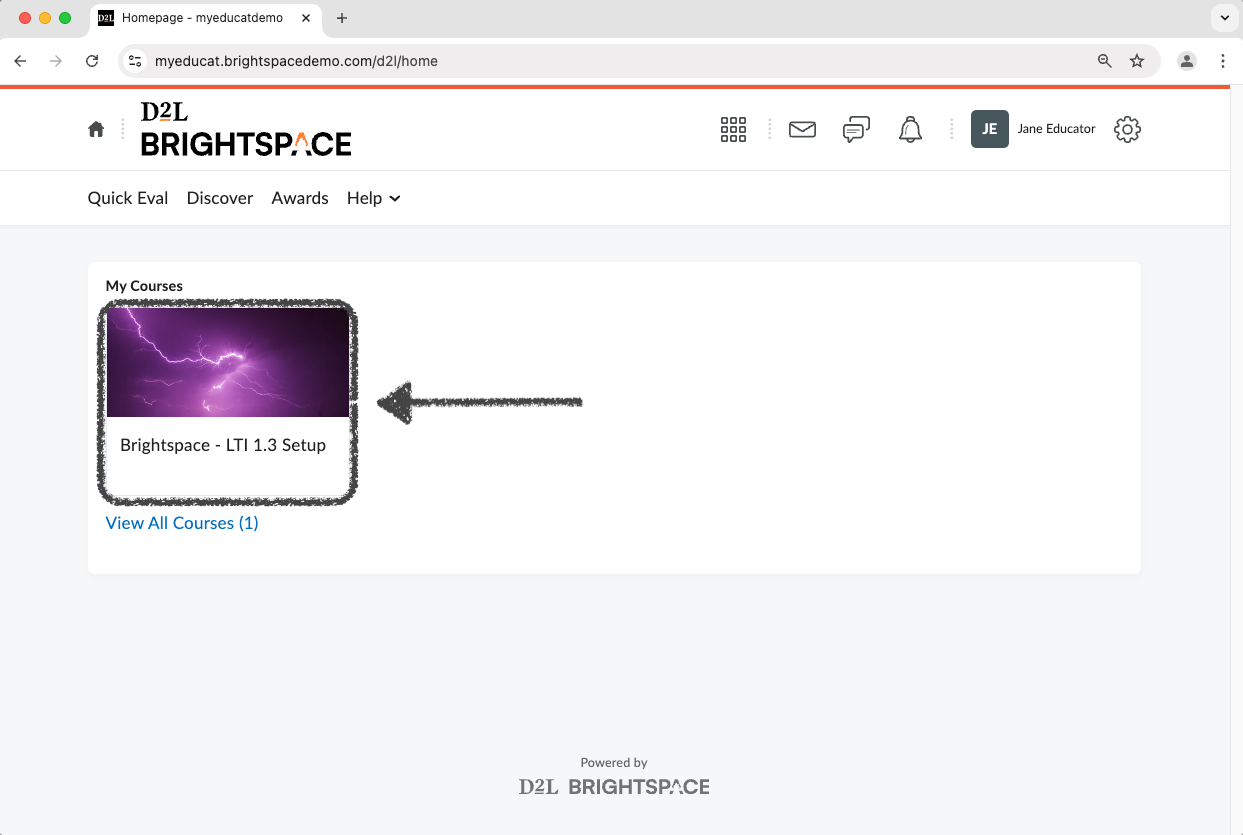
1) Log in to your Brightspace account. Navigate to your course.
2) Navigate to the section of your course that contains the MyEducator assessments.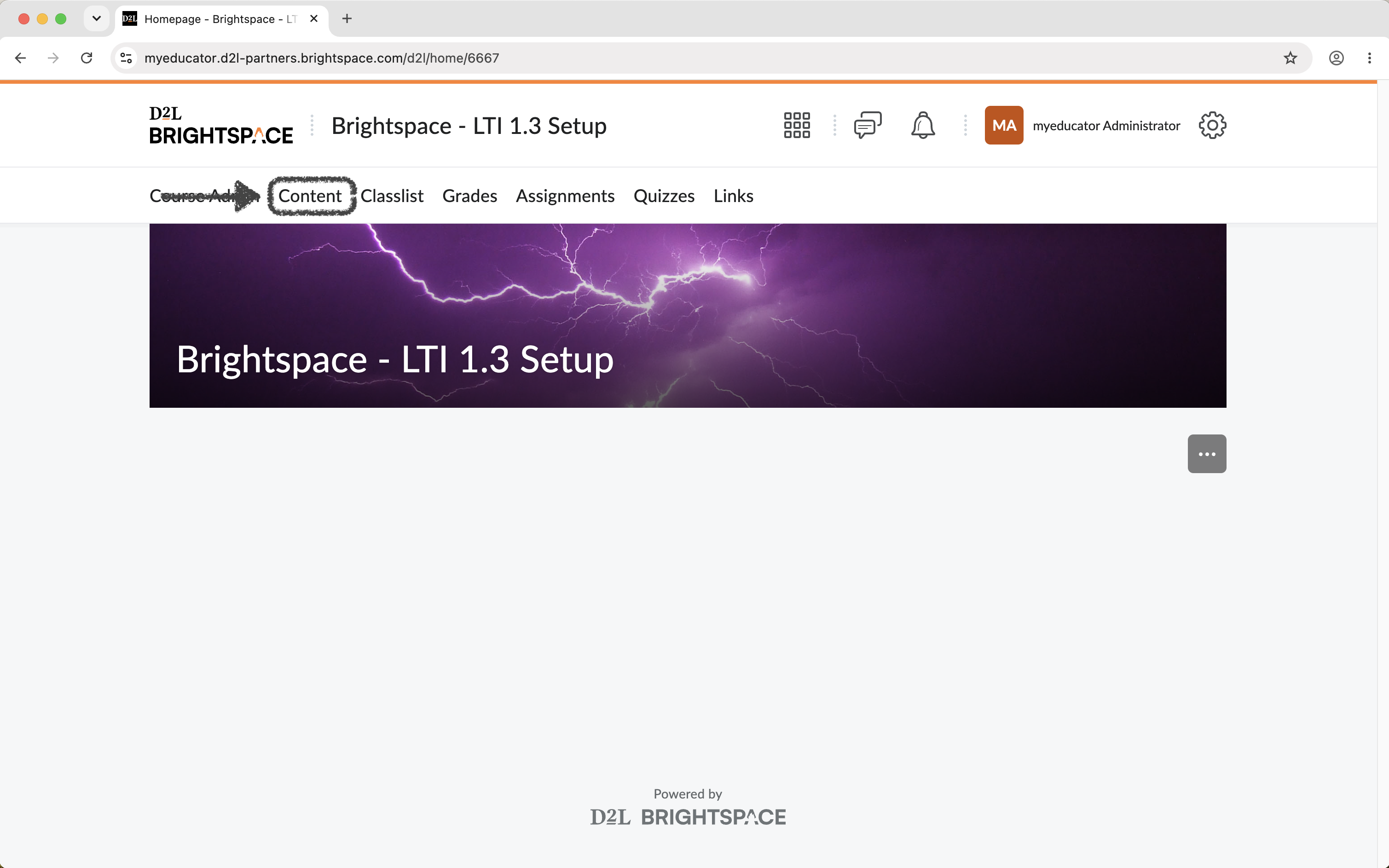
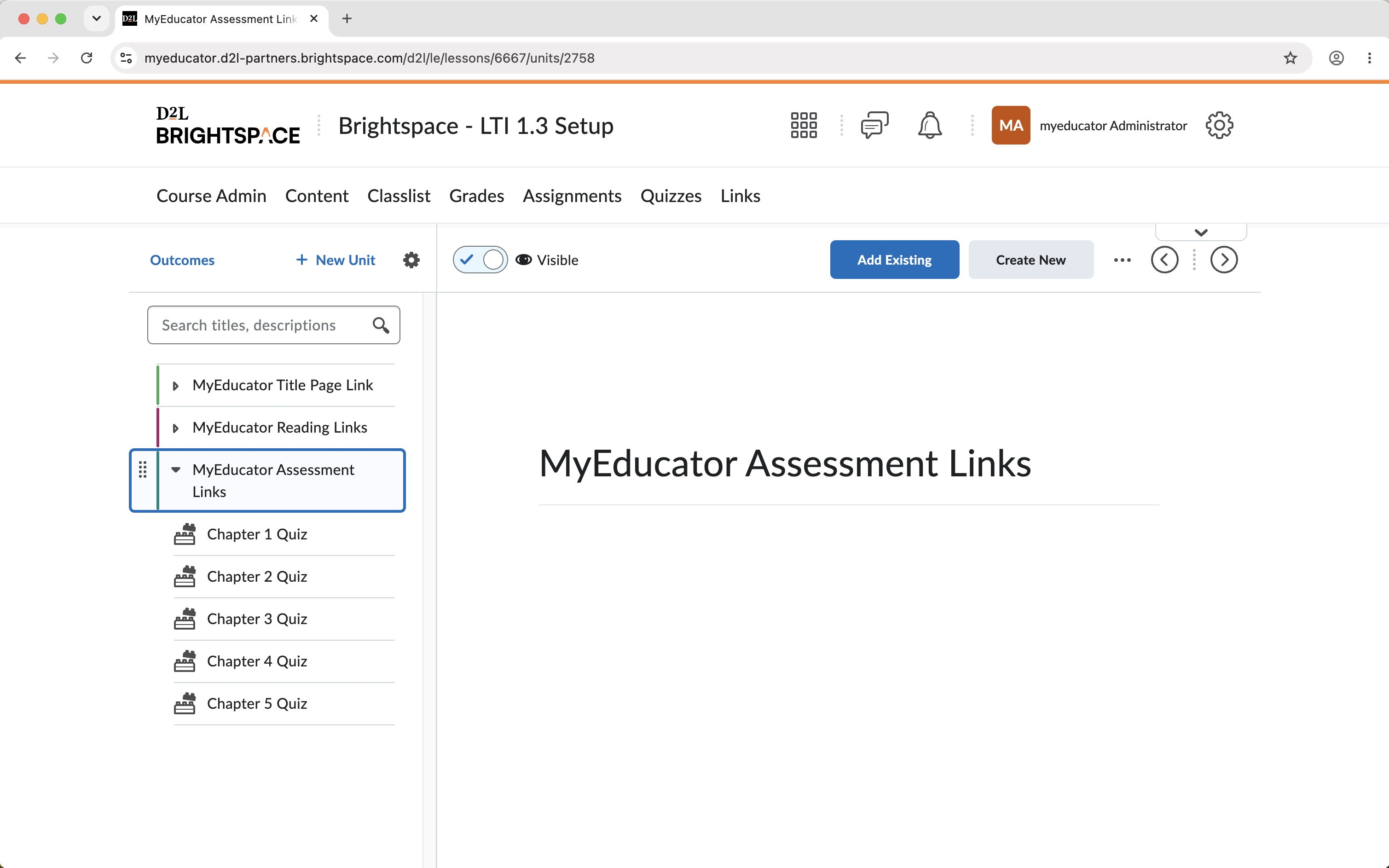
3) Click on one of the MyEducator assessments. Then click the three horizontal dots button. Select "Edit" from the dropdown menu. Or click the "Edit Activity" button.
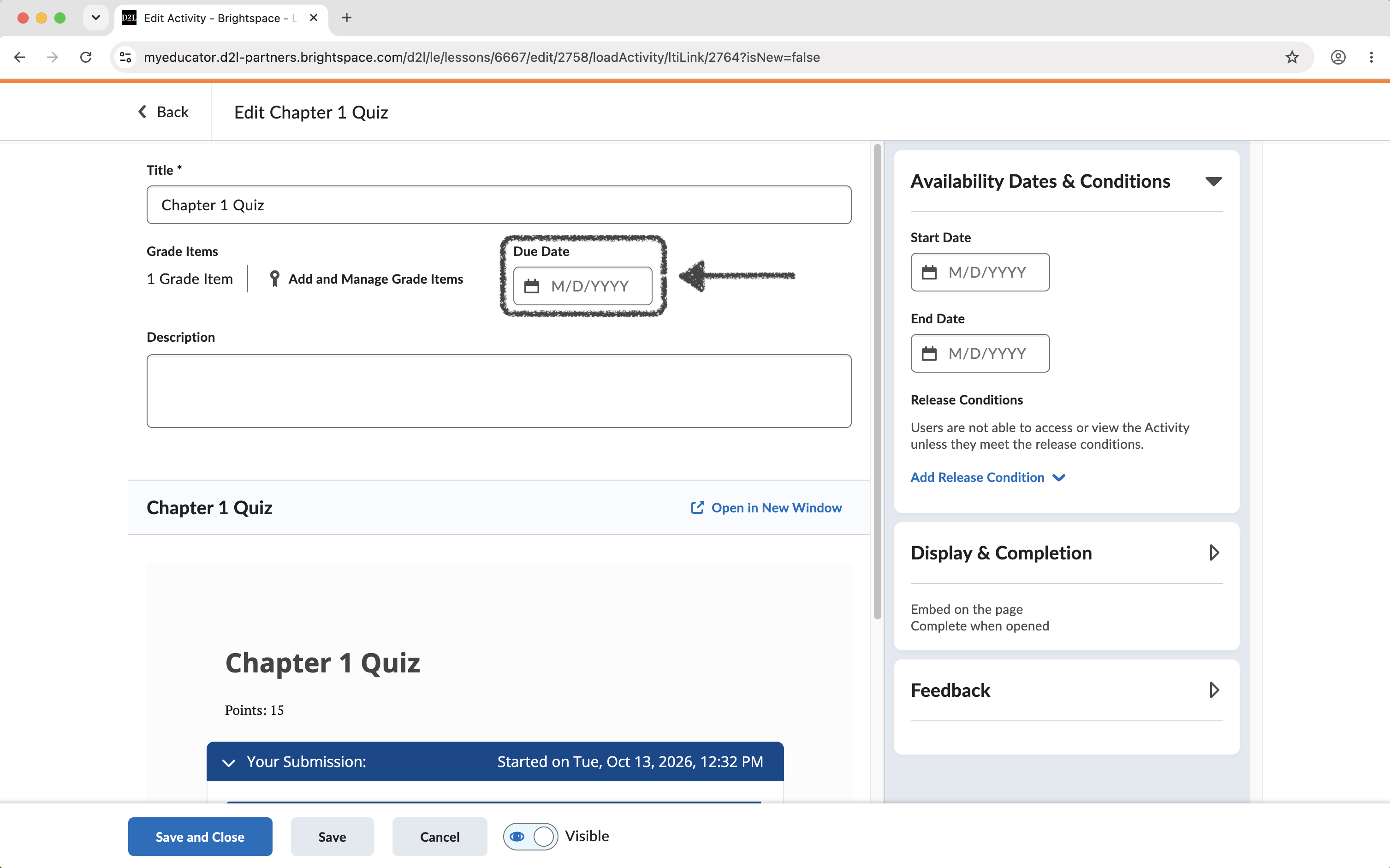
4) Set a Due Date. Click the "Save and Close" button.
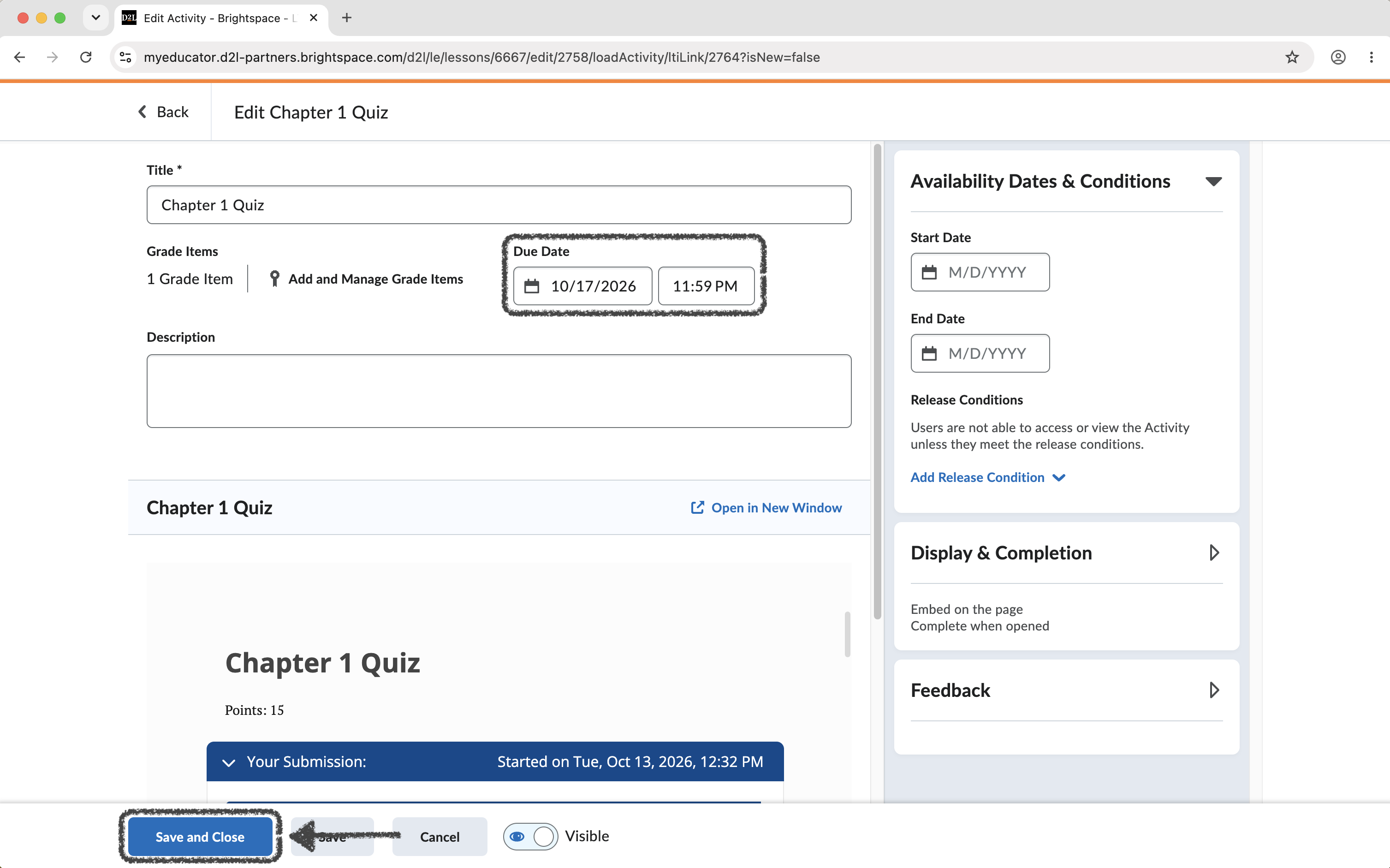
5) You will be taken back to this screen. Verify that the MyEducator assessment loads, as shown in the outlined section toward the bottom of the screenshot.
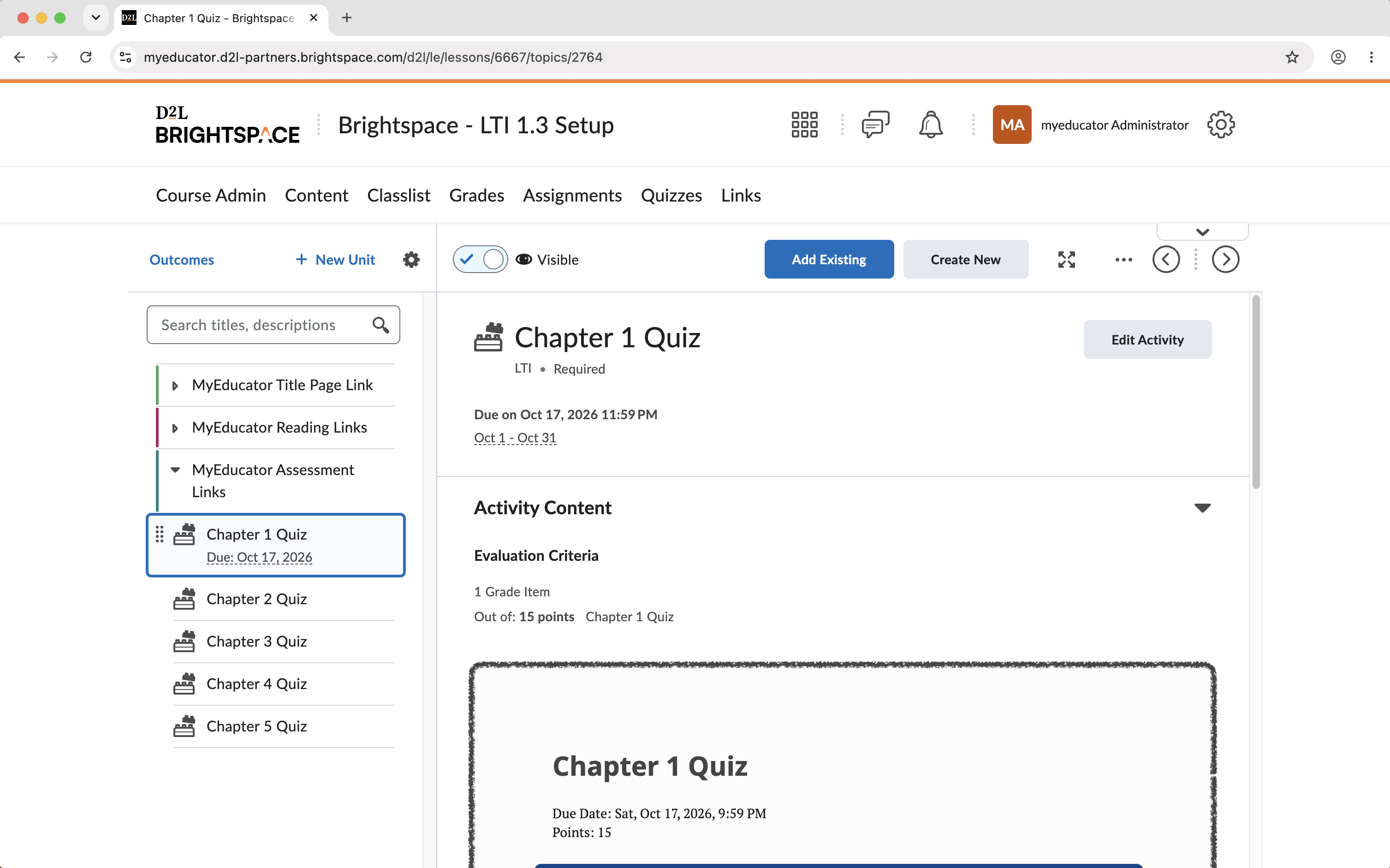
6) We now want to verify that the due date synced to the MyEducator system.
Click the Title Page link for your MyEducator resource.
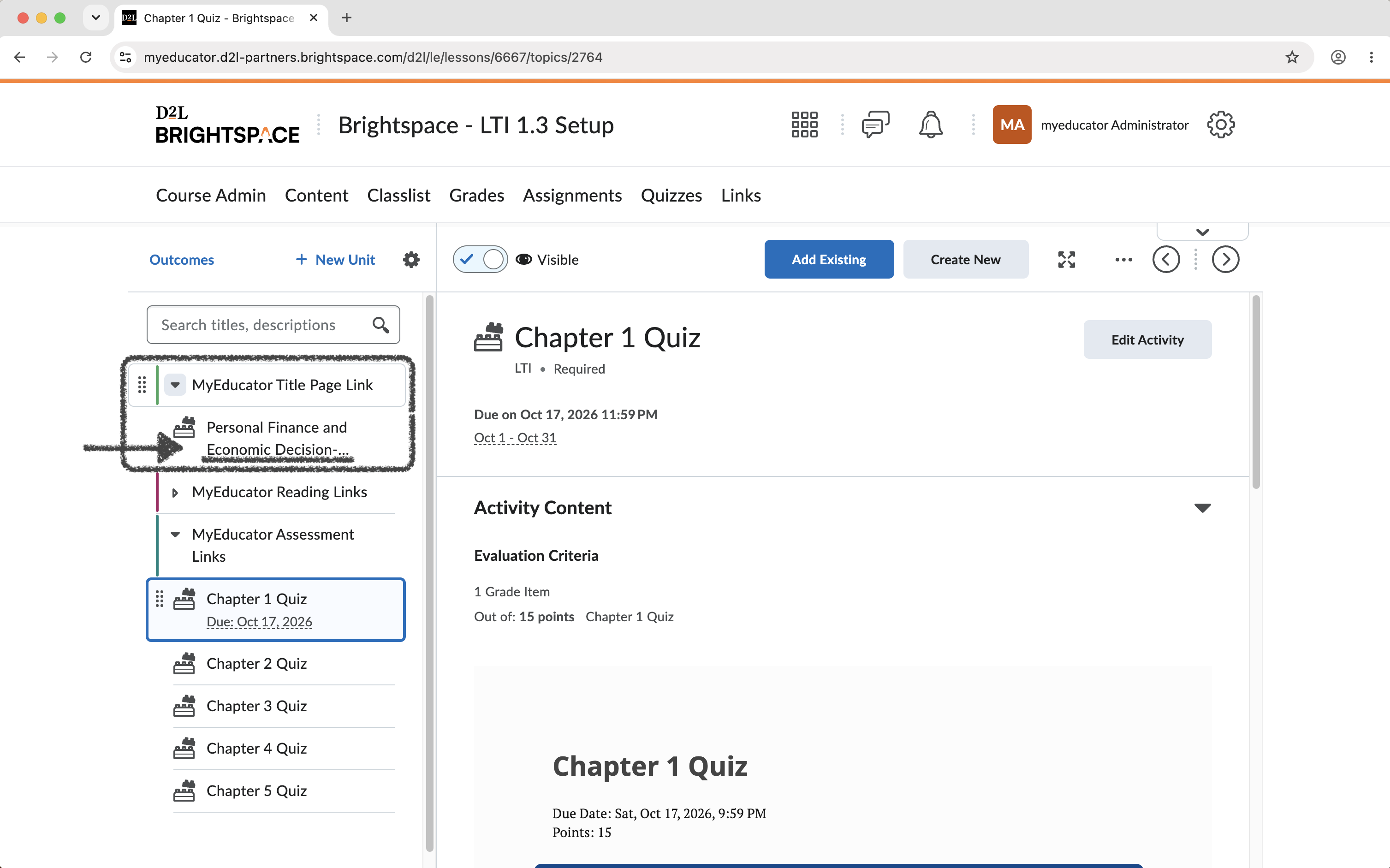
7) Click the MyEducator "Manage" dropdown menu. Select the "Assessments" option from that dropdown menu.
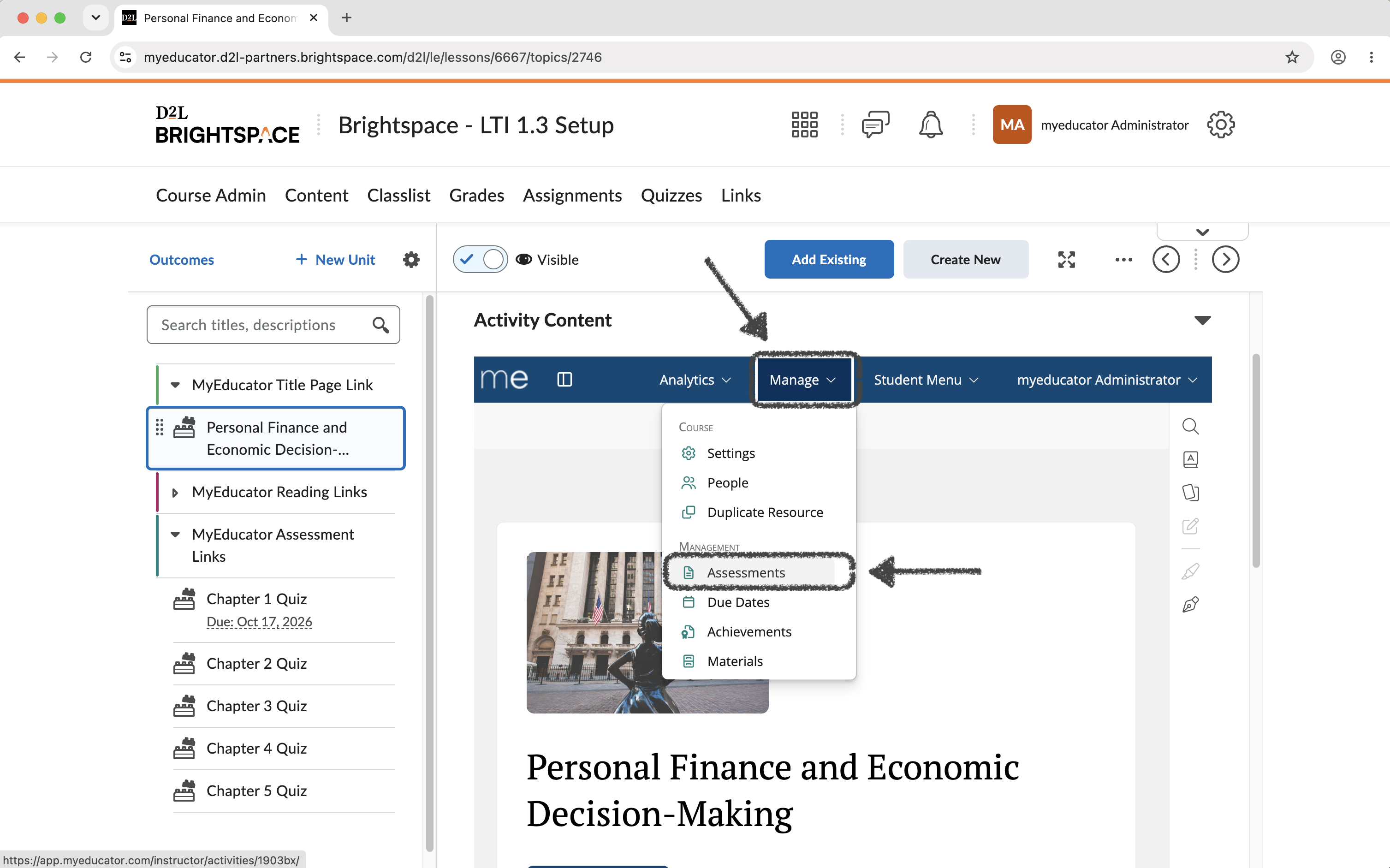
8) Locate the assessment for which you changed the due date in Brightspace in the MyEducator screen. You might need to scroll down to find it.
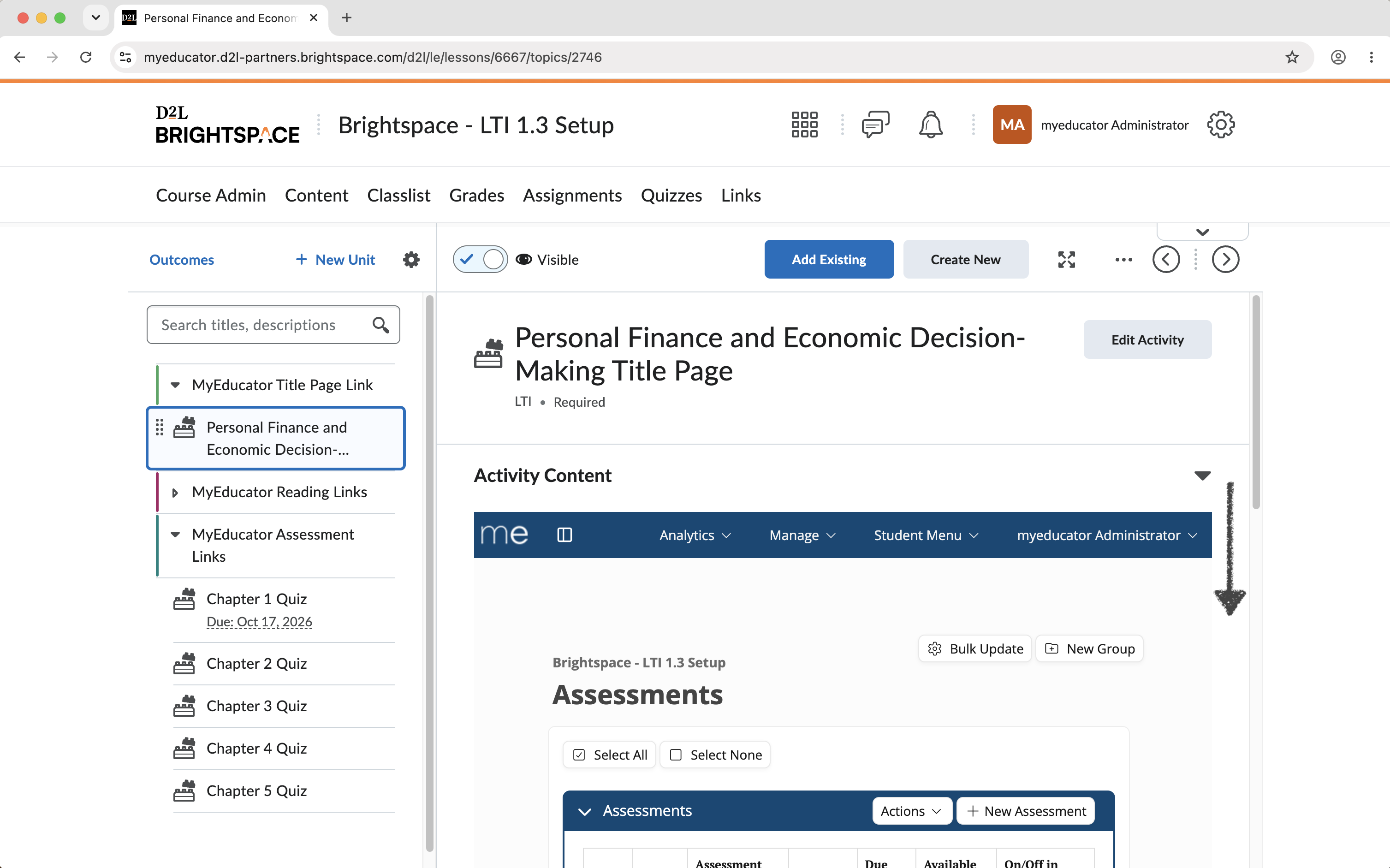
Note: There are two scroll bars on this page: the outer Brightspace scroll bar and the inner MyEducator scroll bar (this note is not applicable if the MyEducator Title Page opened in a new tab).
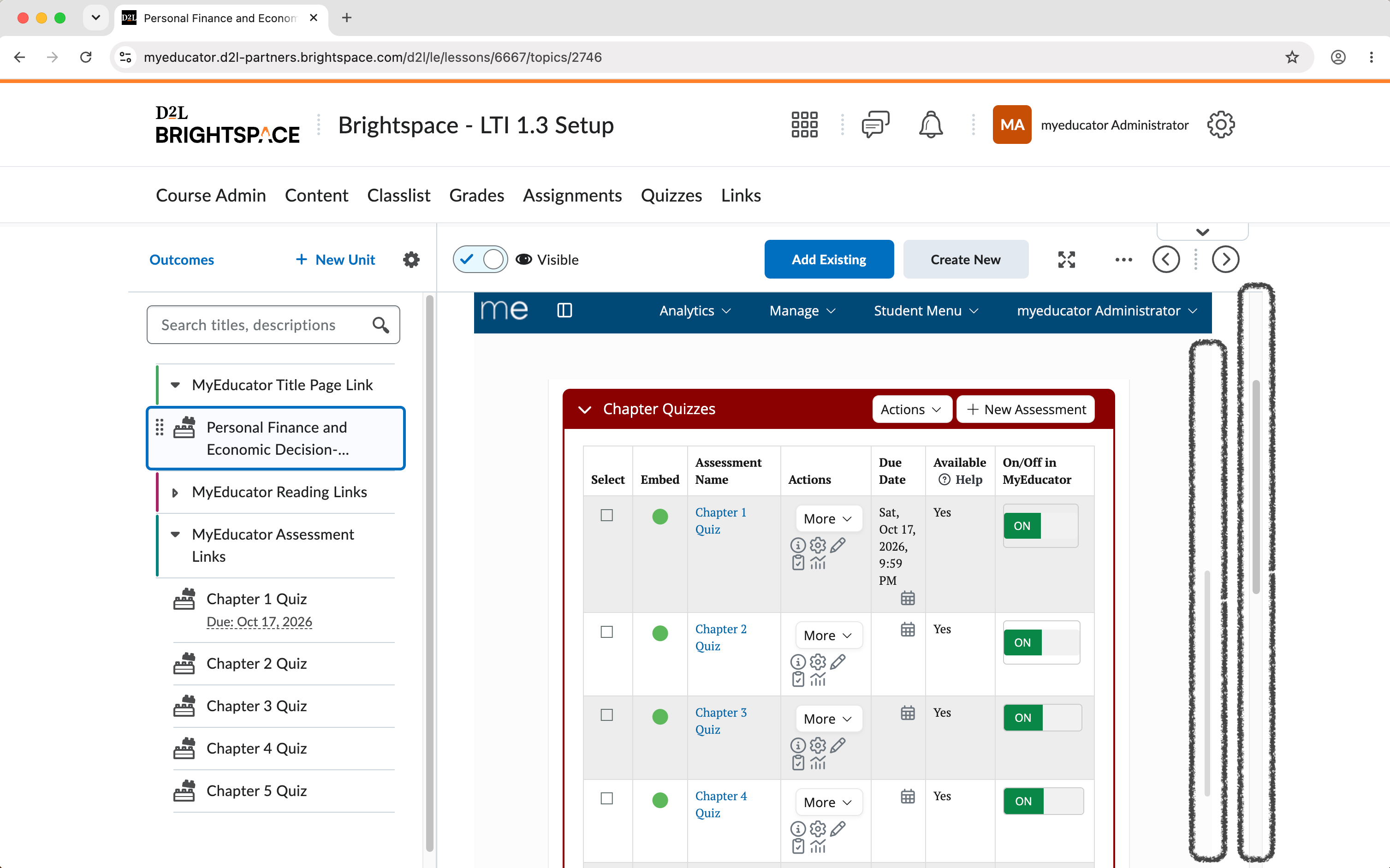
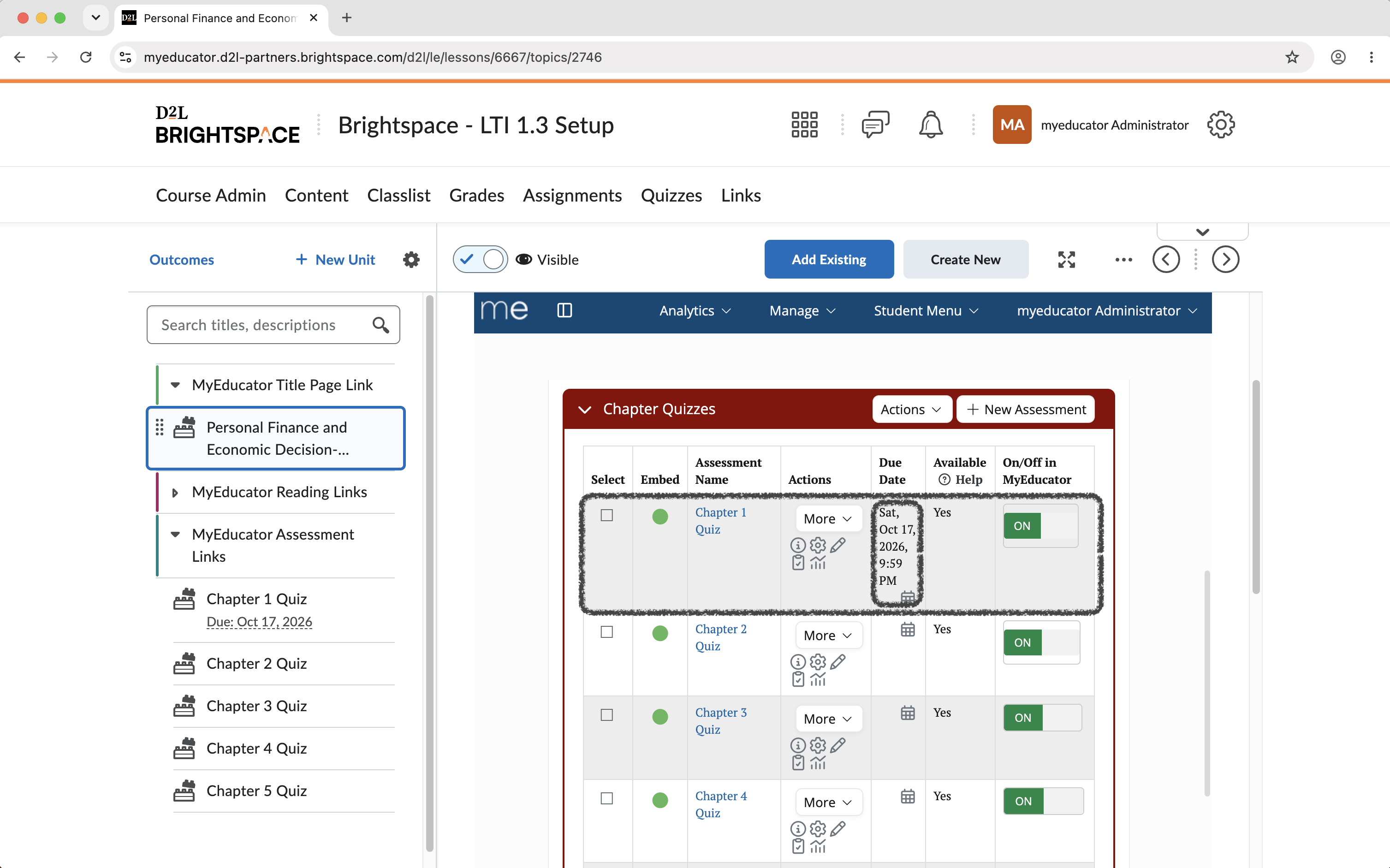
9) Verify that the due date for the assessment set in Brightspace shows up and shows correctly in MyEducator.
For assistance, contact integrations@myeducator.com or support@myeducator.com.