
This article is for LMS administrators.
Each step has associated text and screenshots. Be sure to read all text and view each screenshot for optimal results.
Your view and/or process might be different from what you see here.
For assistance, contact integrations@myeducator.com or support@myeducator.com.
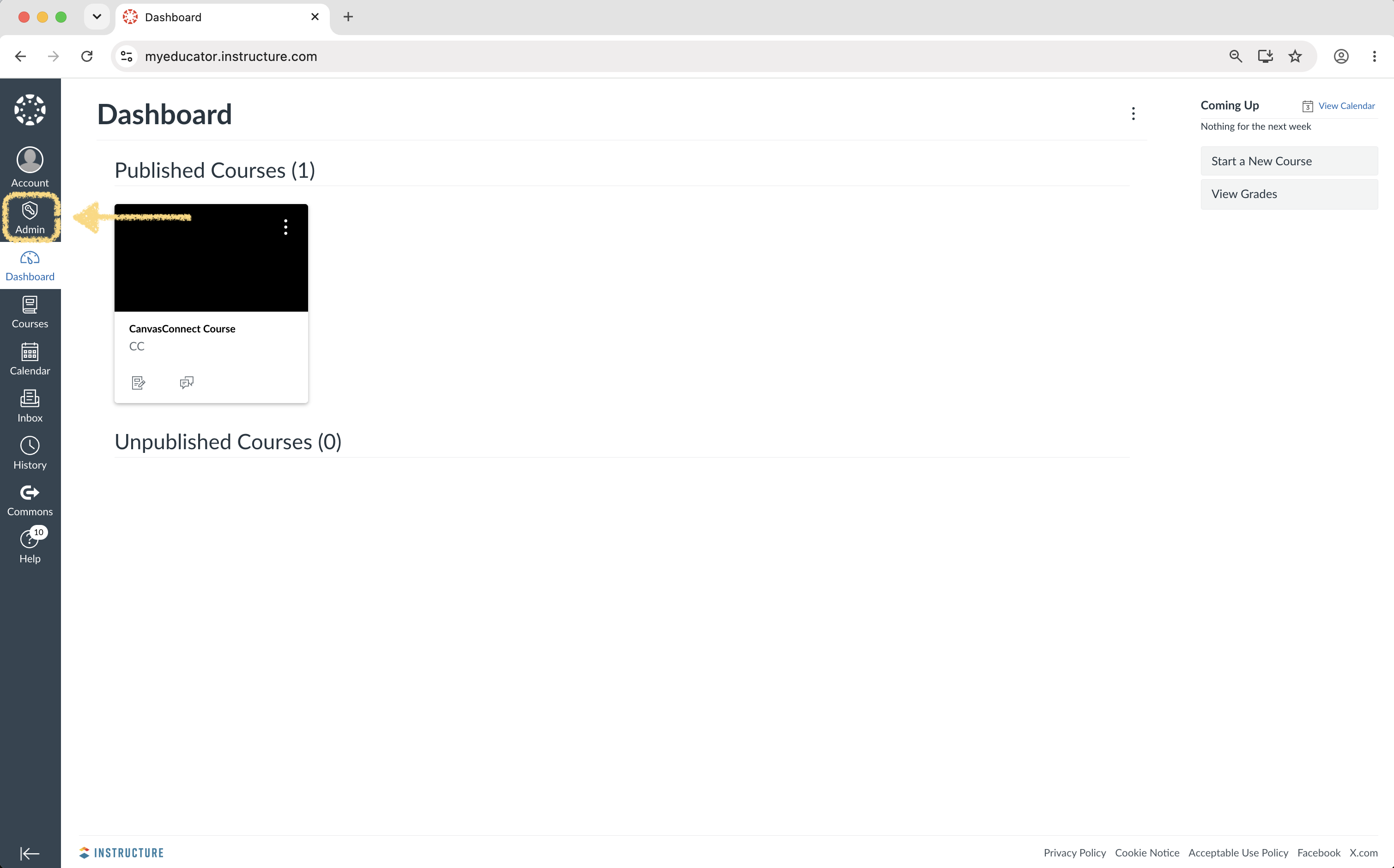
1. Select "Admin" in the left-hand menu
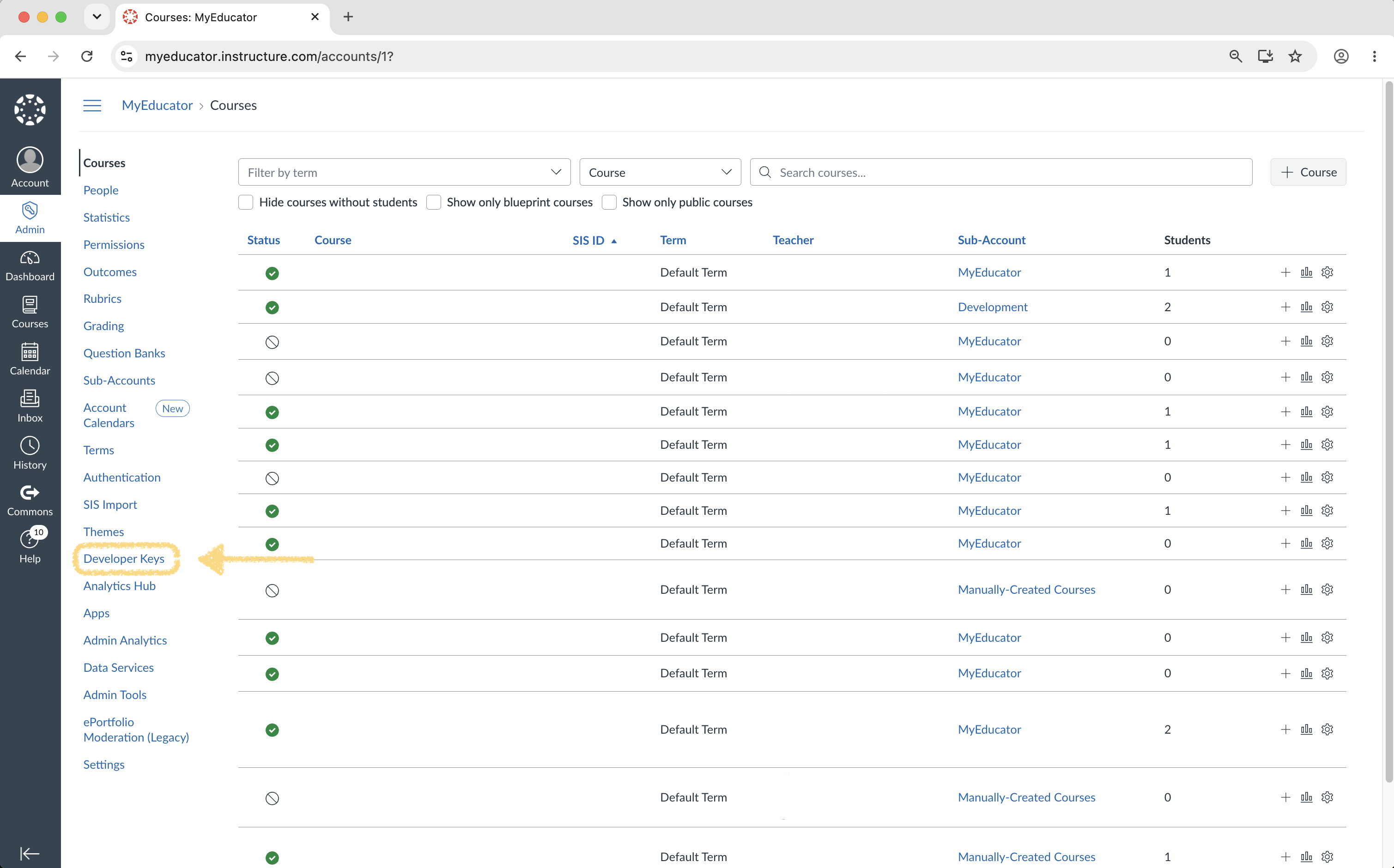
2. Click "Developer Keys"
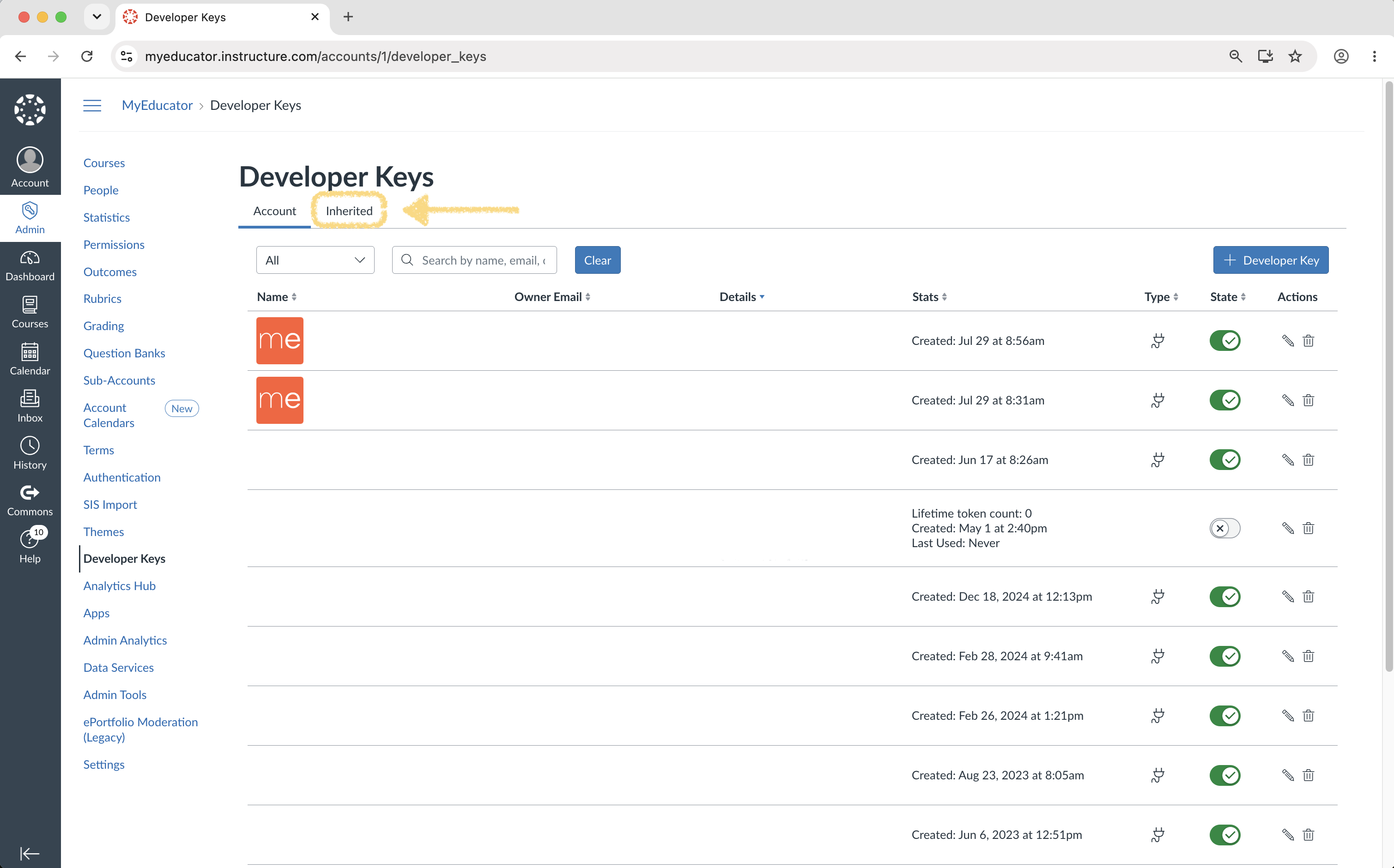
3. Select the Inherited option
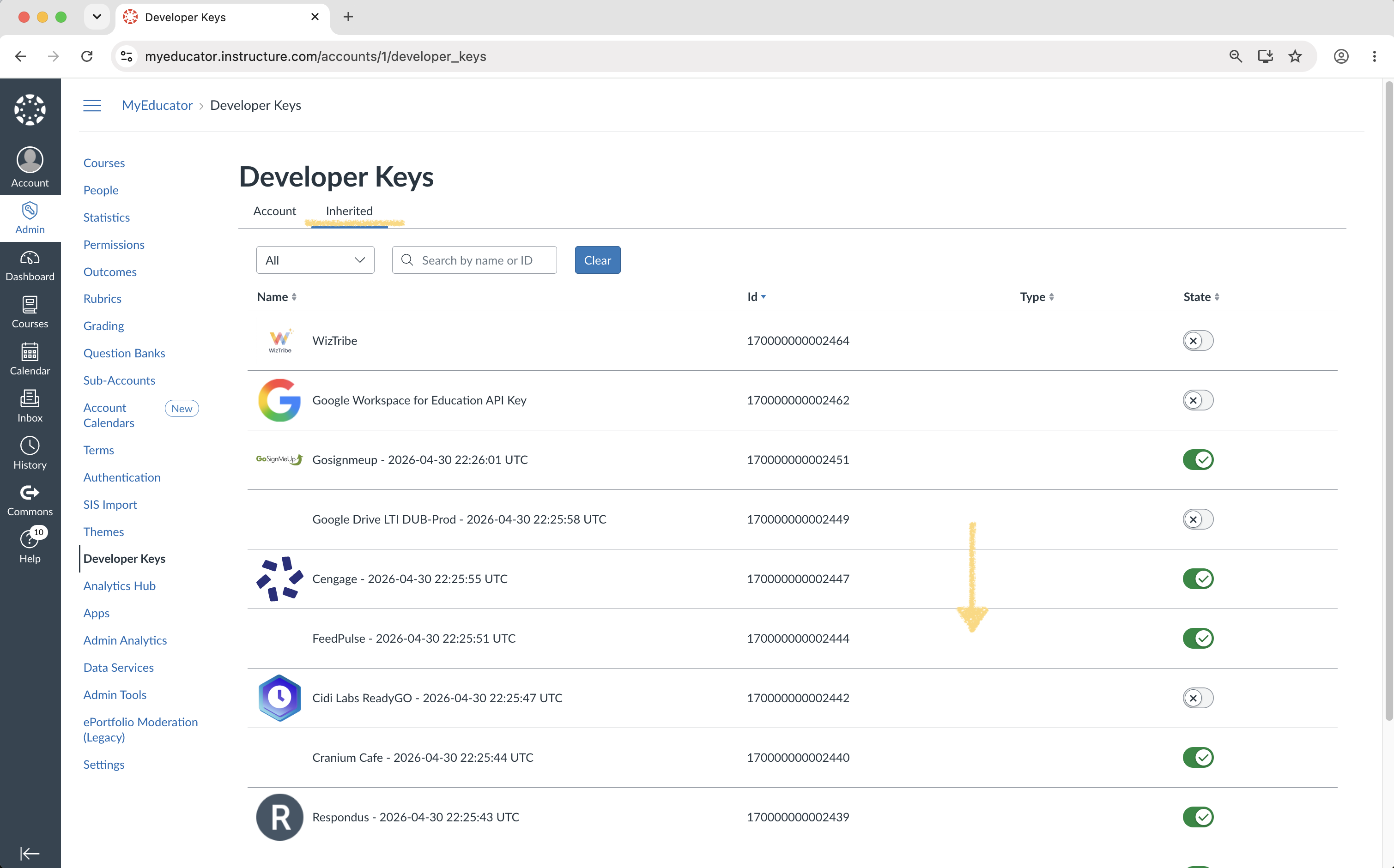
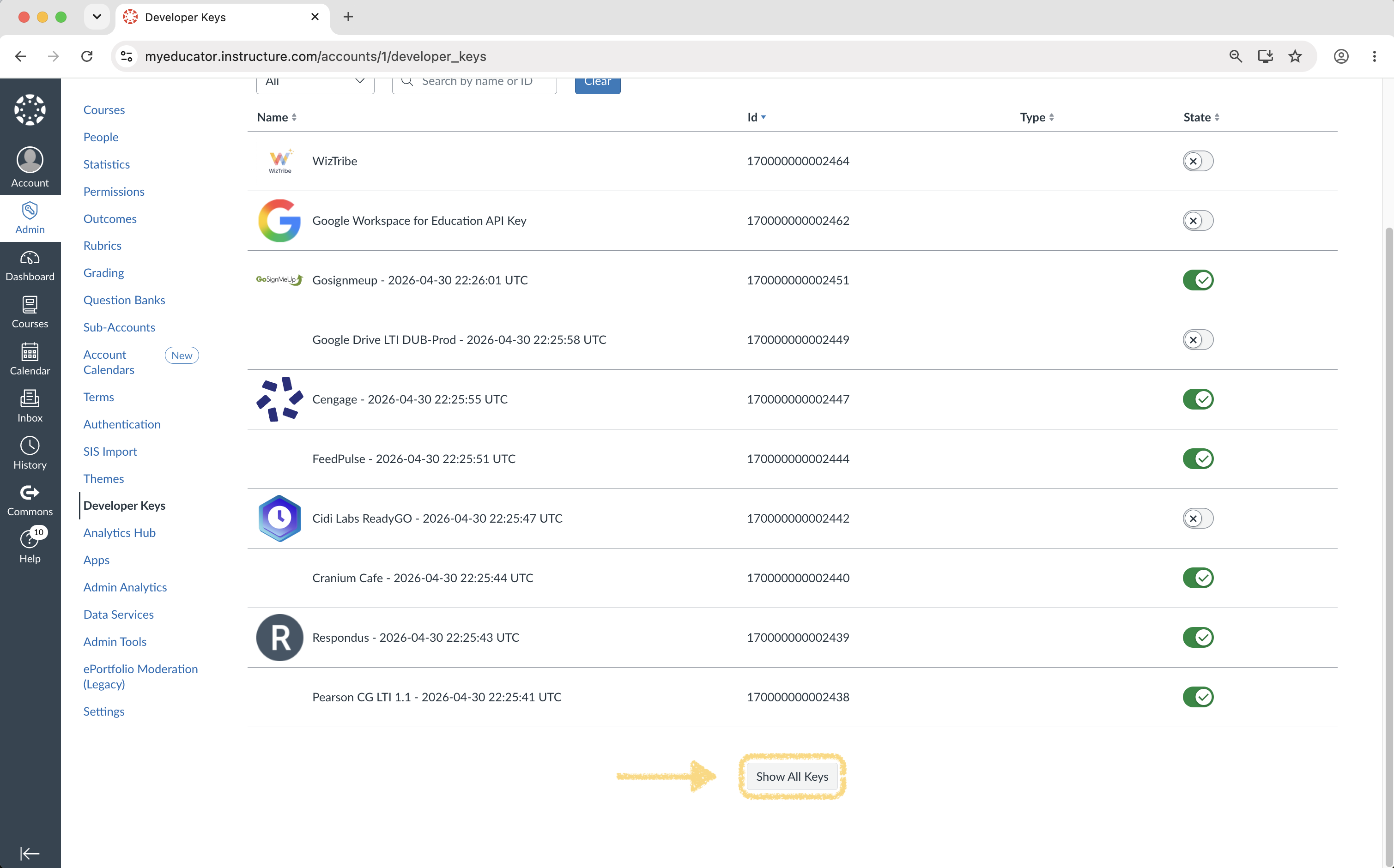
4. Scroll to the bottom of this page and click the "Show All Keys" button
5. Locate "MyEducator." Its ID is 170000000002393. Toggle its switch to the on position.
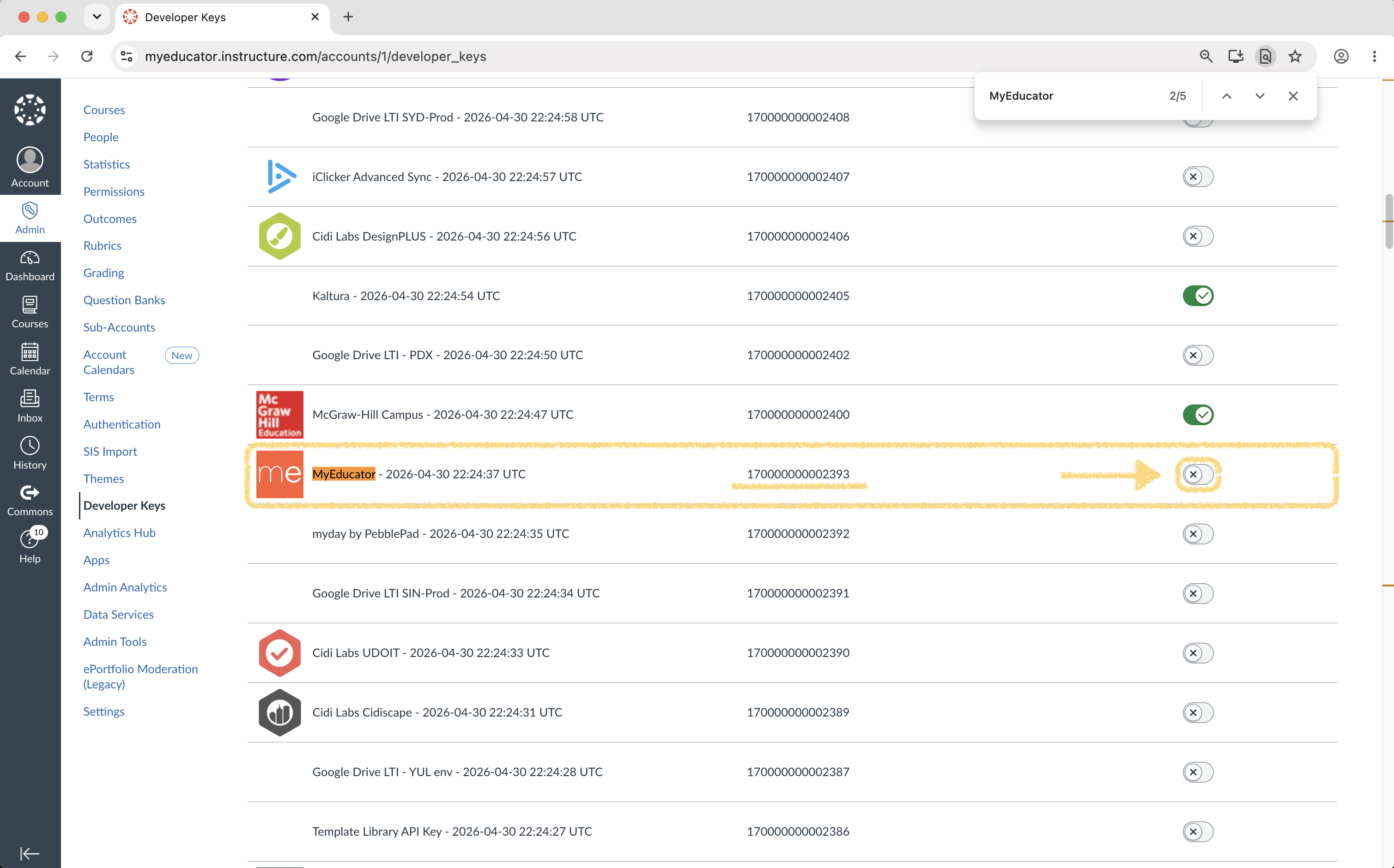
Note: The LTI 1.3 MyEducator Developer Key will also be on this list ("MyEducator Resources (LTI 1.3)"). Do not toggle this option.
6. Click the "Switch to On" button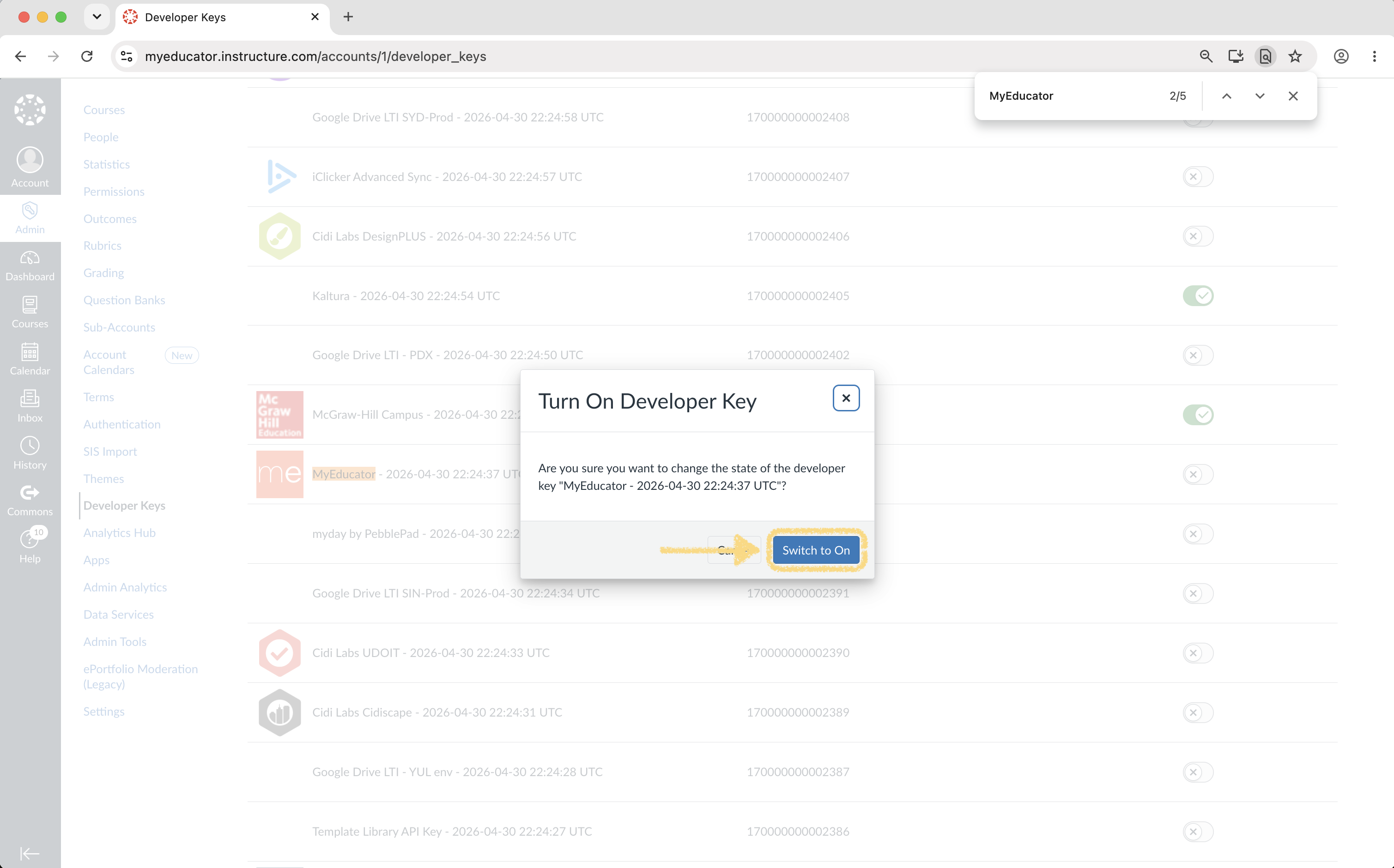
7. If the switch is in the "On" position, you have successfully enabled the LTI 1.1 MyEducator Developer Key.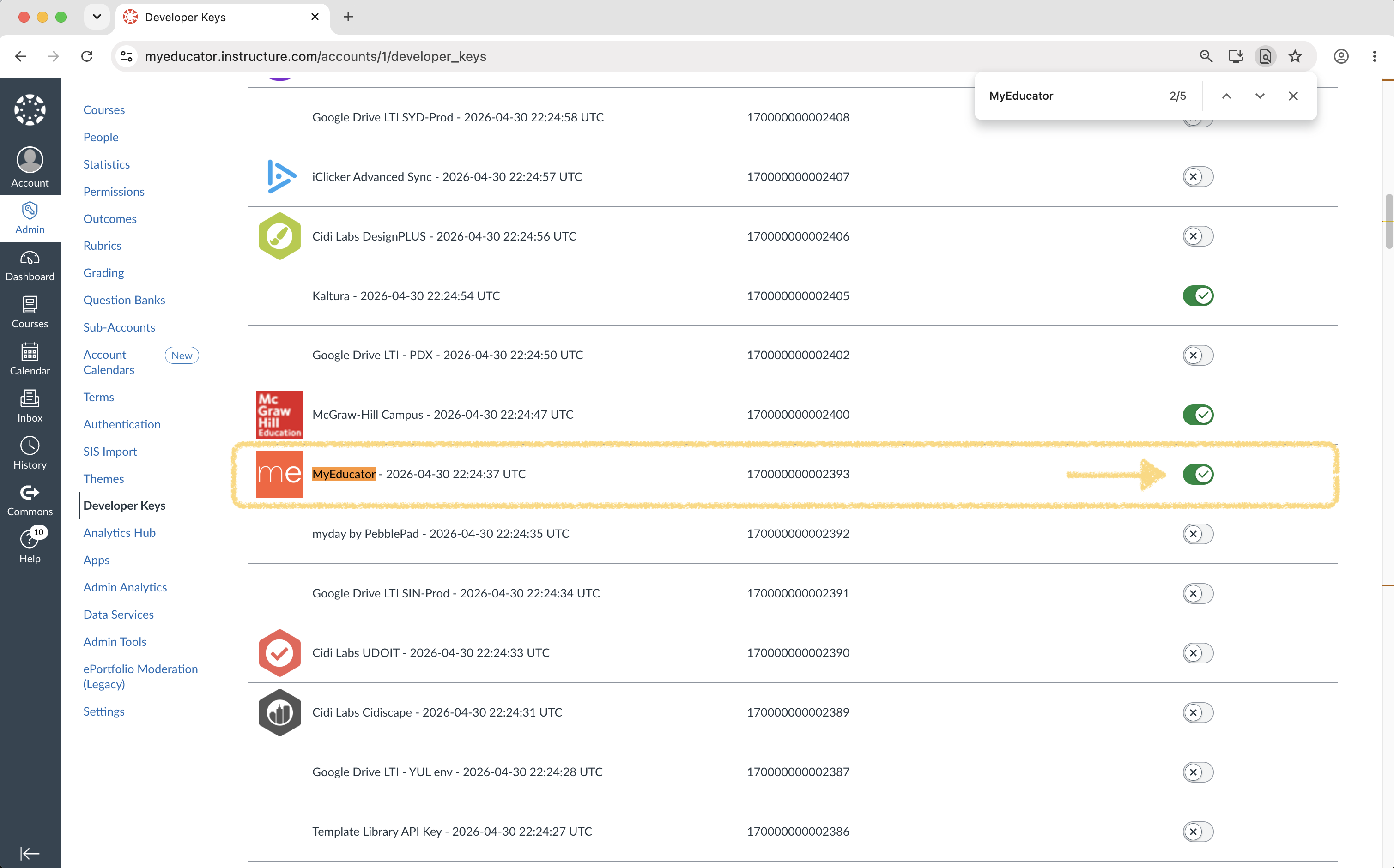
For assistance, contact integrations@myeducator.com or support@myeducator.com.