
This article is for LMS administrators.
Each step has associated text and screenshots. Be sure to read all text and view each screenshot for optimal results.
For assistance, contact integrations@myeducator.com or support@myeducator.com.
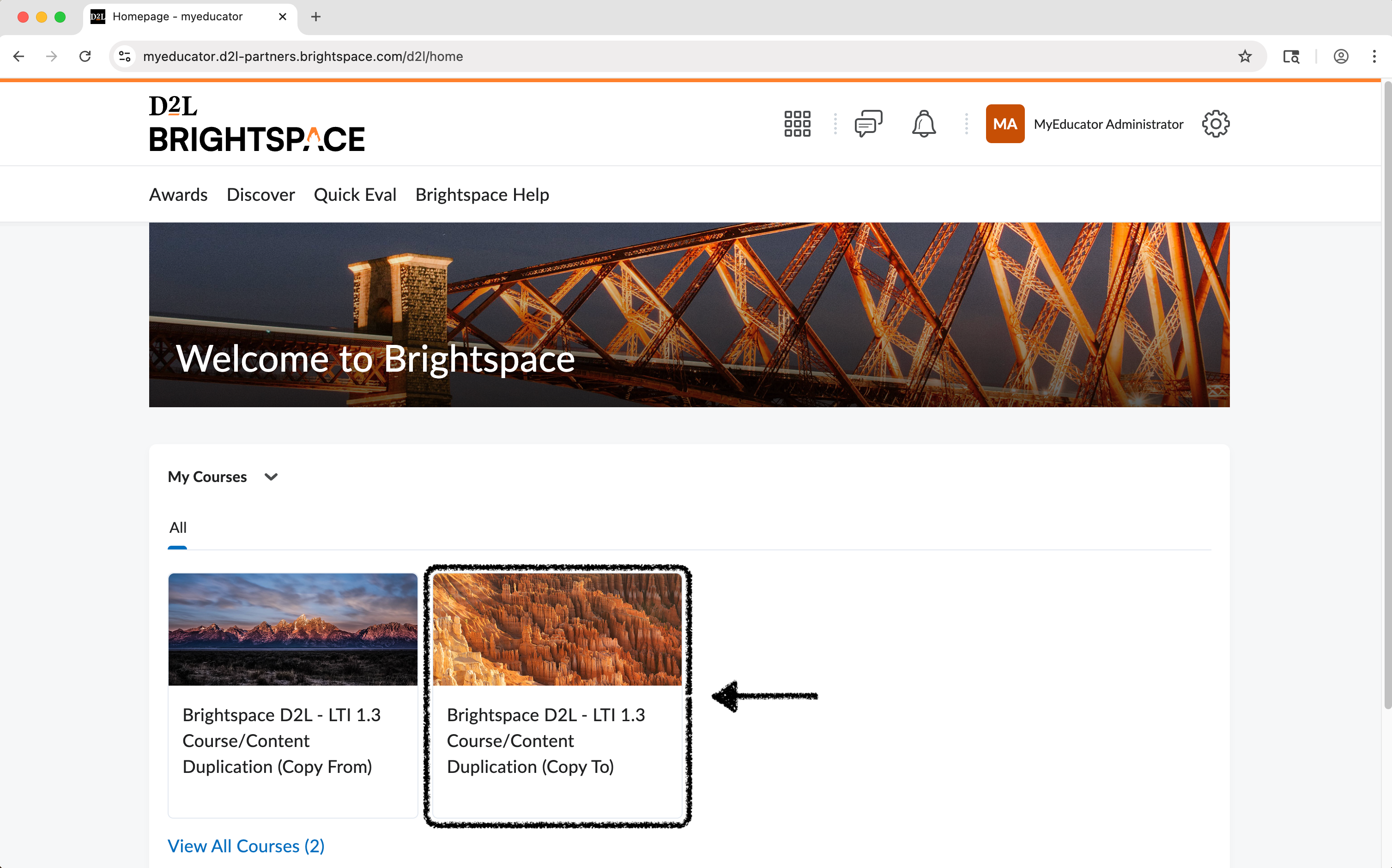
1) Locate and select (or create) the Brightspace course you would like to copy content to.
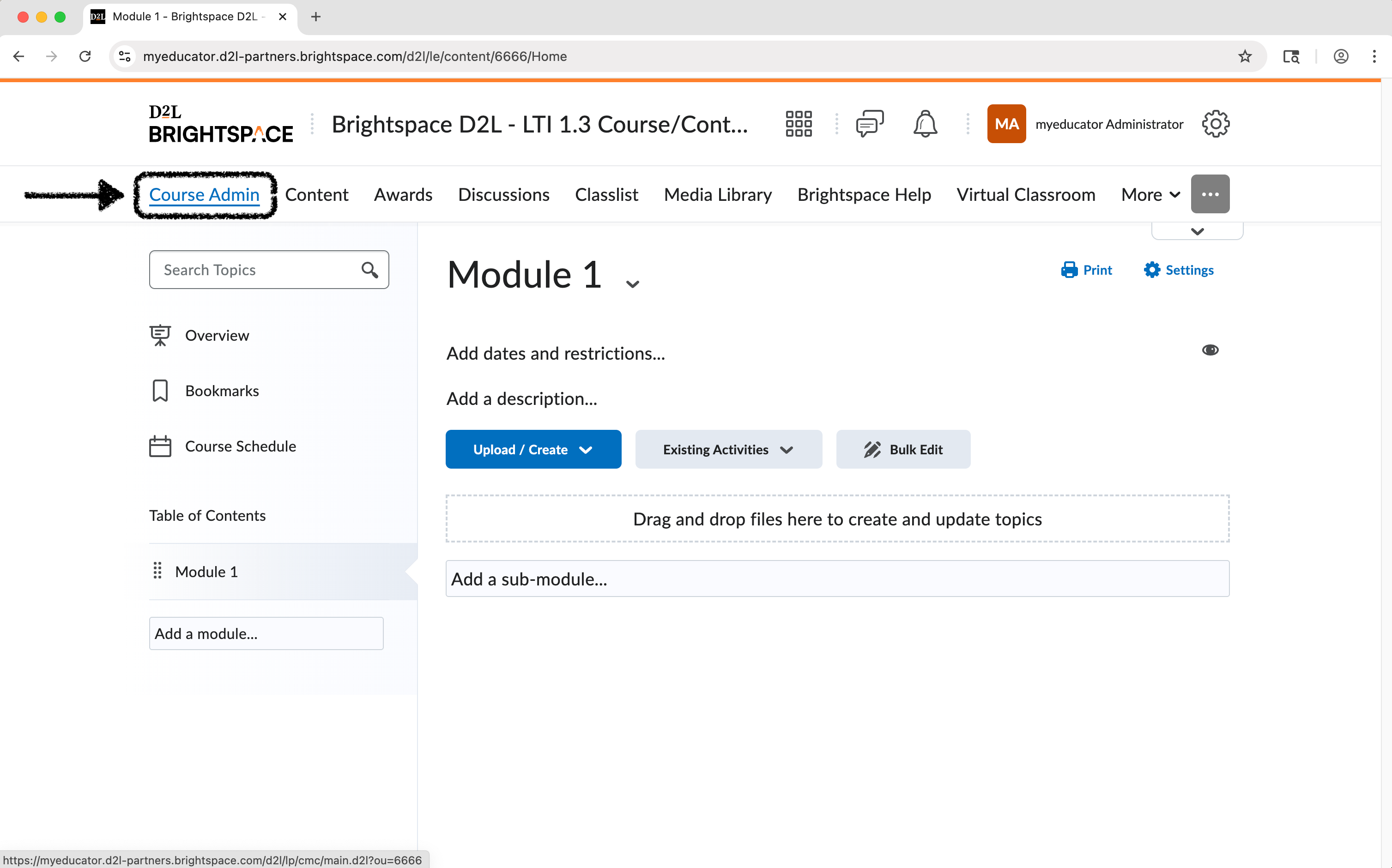
2) Select the “Course Admin” option.
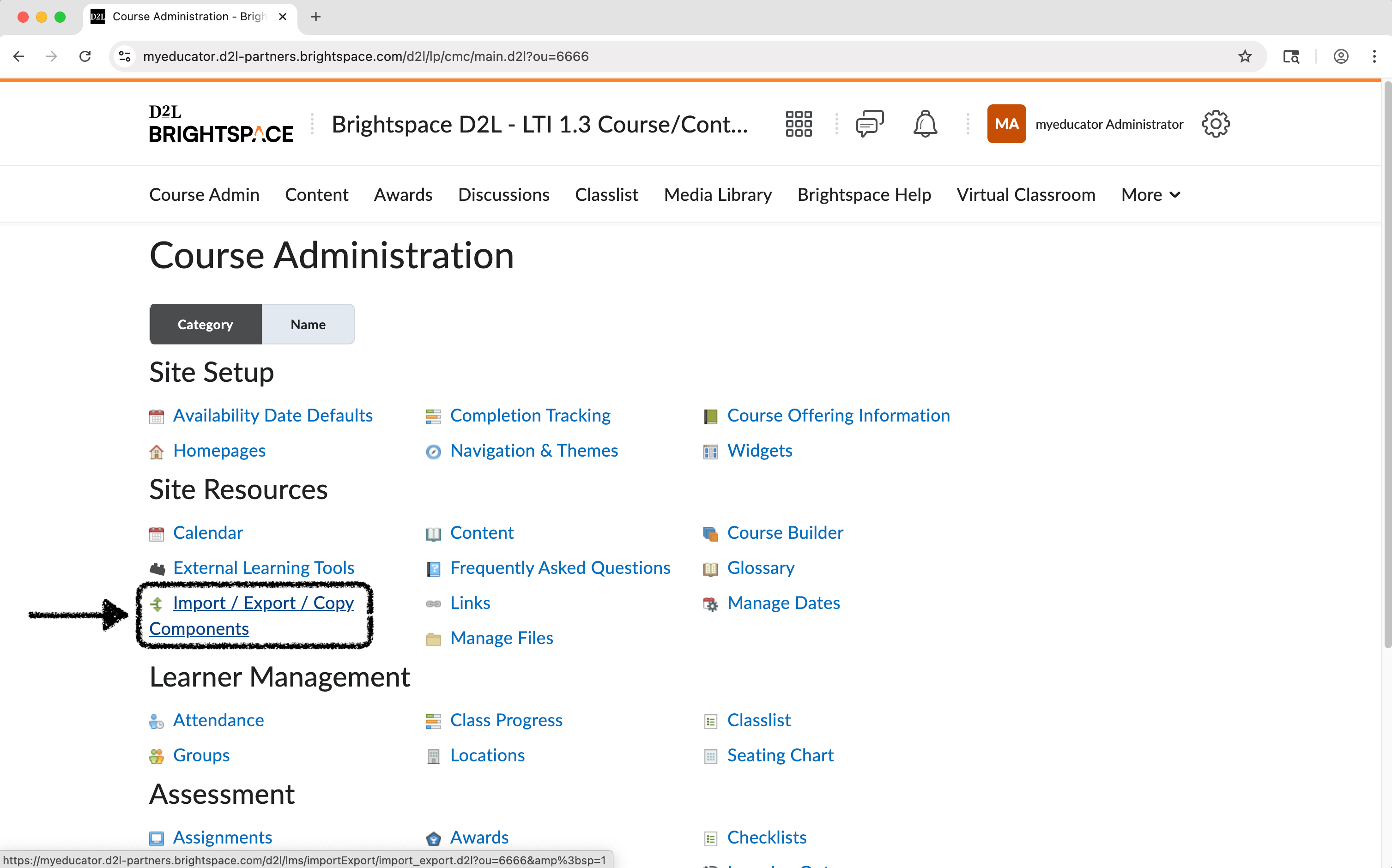
3) Under “Site Resources,” select “Import / Export / Copy Components.”
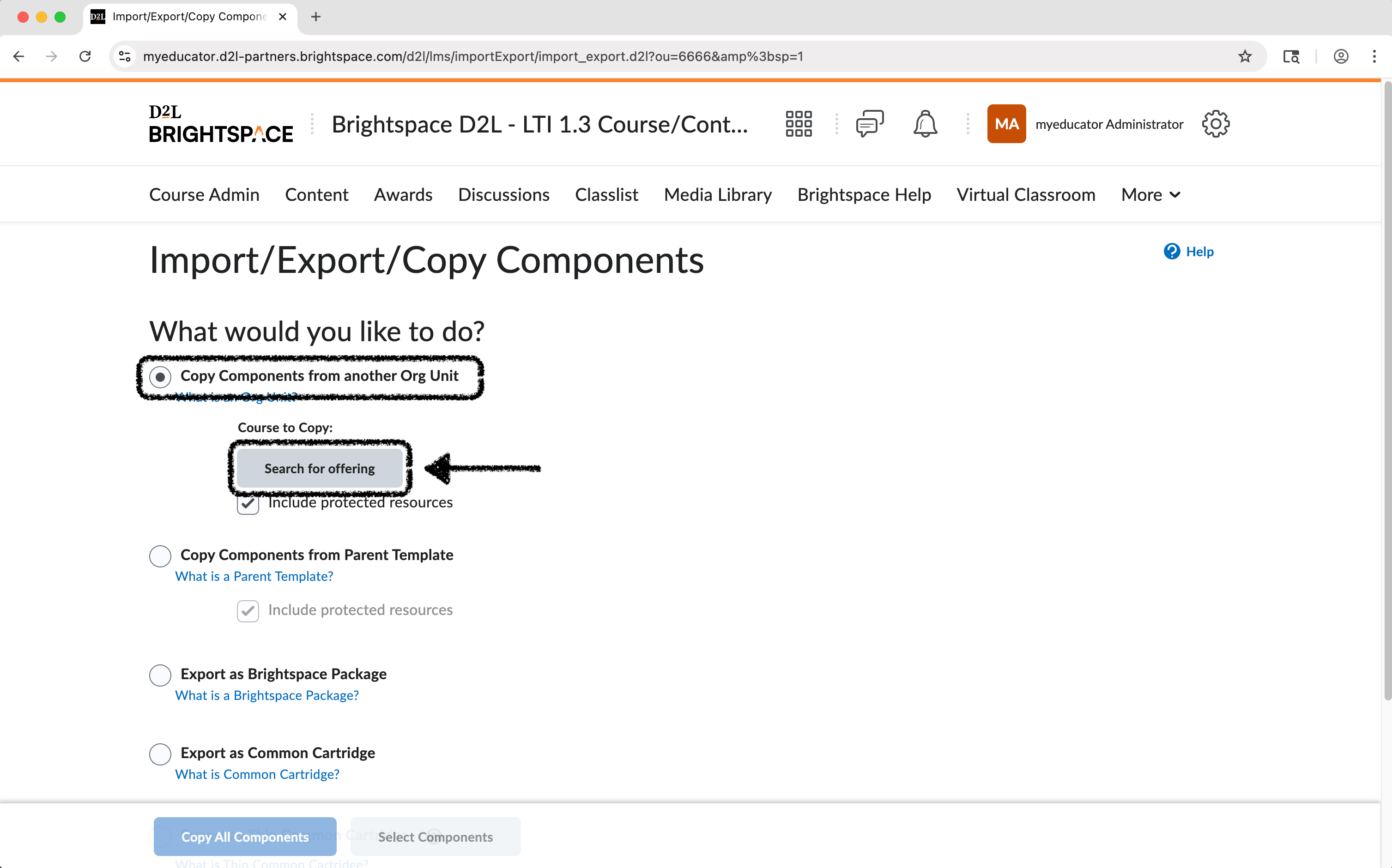
4) Make sure “Copy Components from another Org Unit” is selected.
Click “Search for offering” button.
5) Search for the Brightspace course you would like to copy content from (Enter course title and click “Search” button).
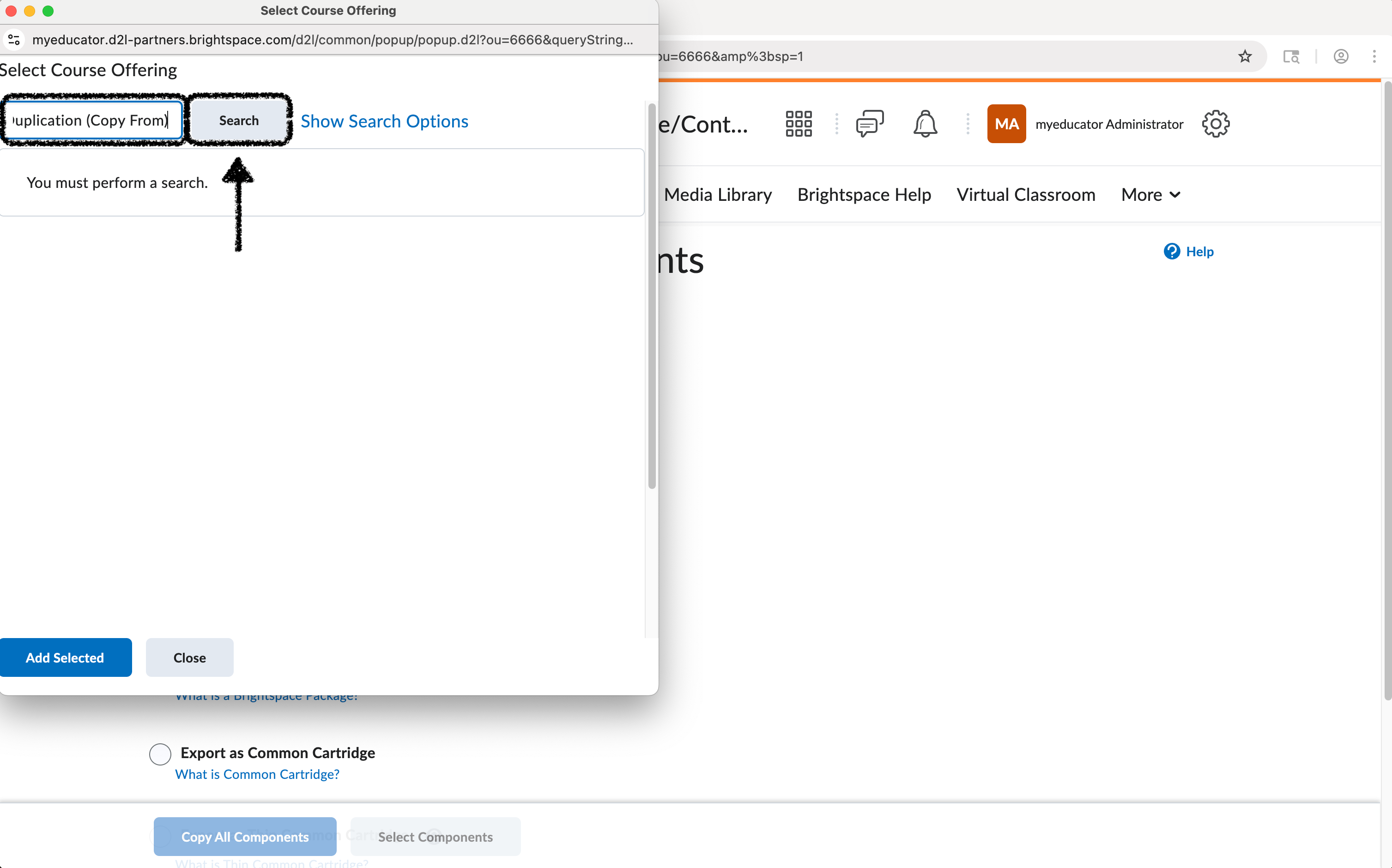
6) Select the course from the list of options.
Click the “Add Selected” button.
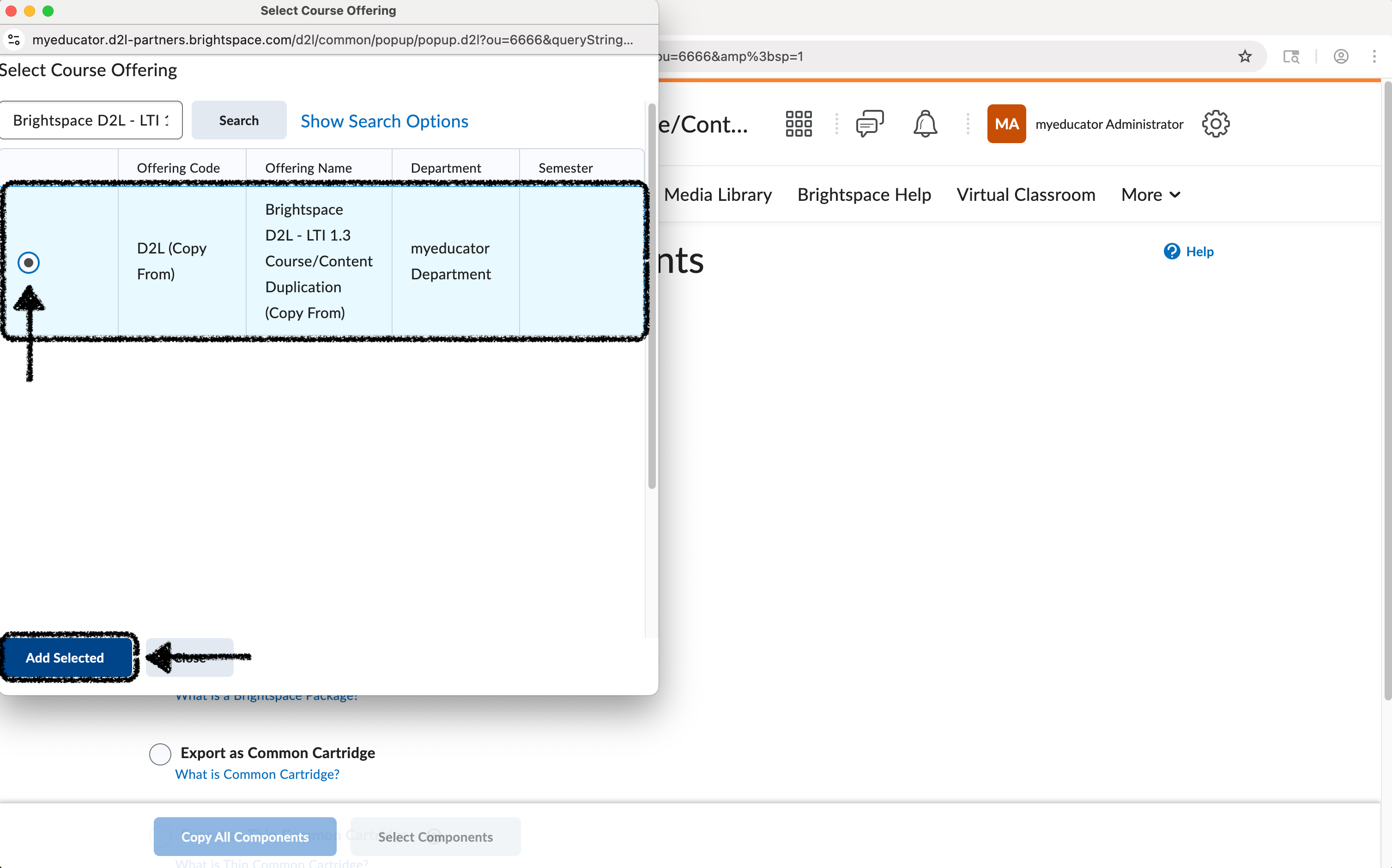
7) Make sure the course you selected shows up as the course to be copied.
Click the “Copy All Components” button.
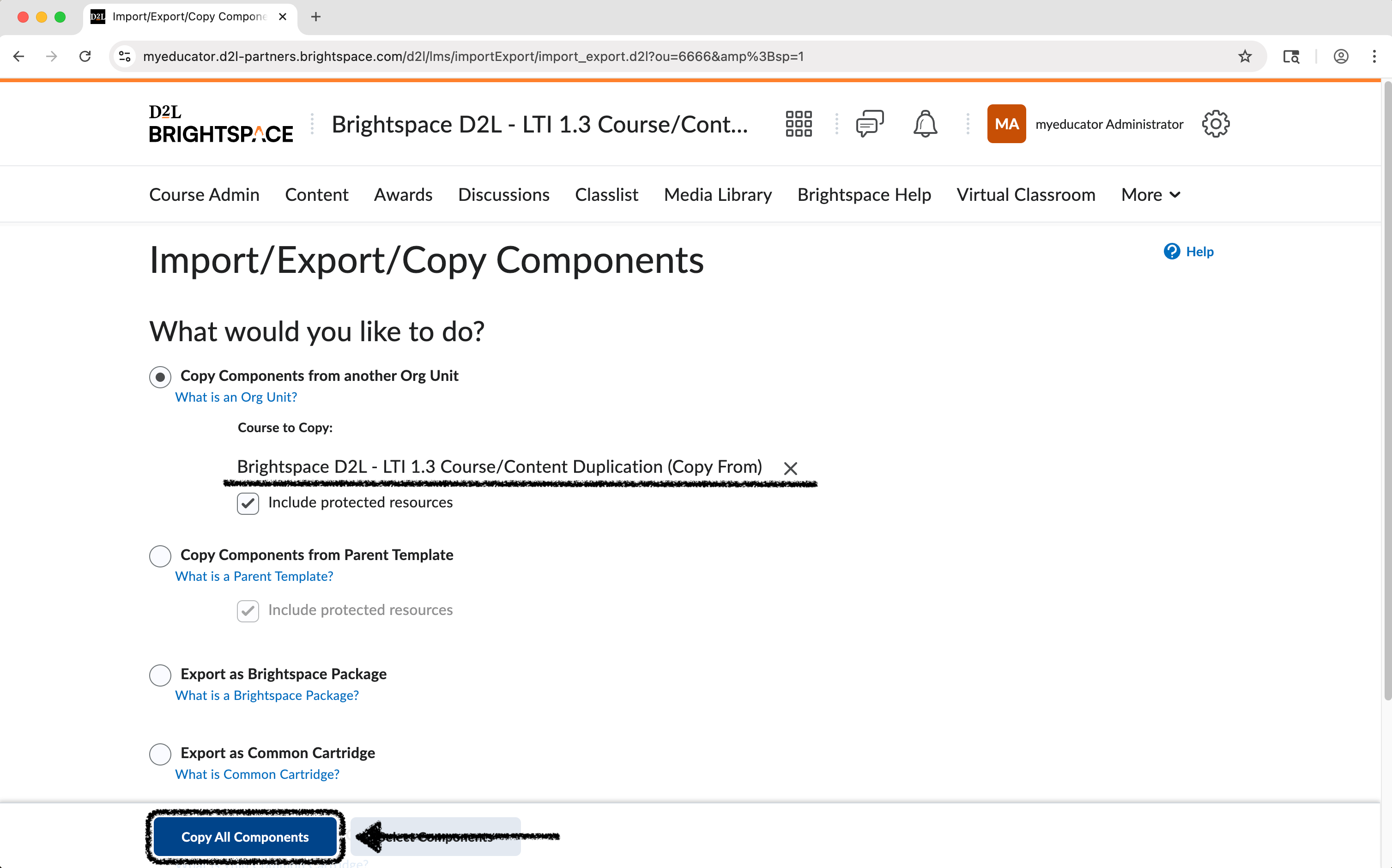
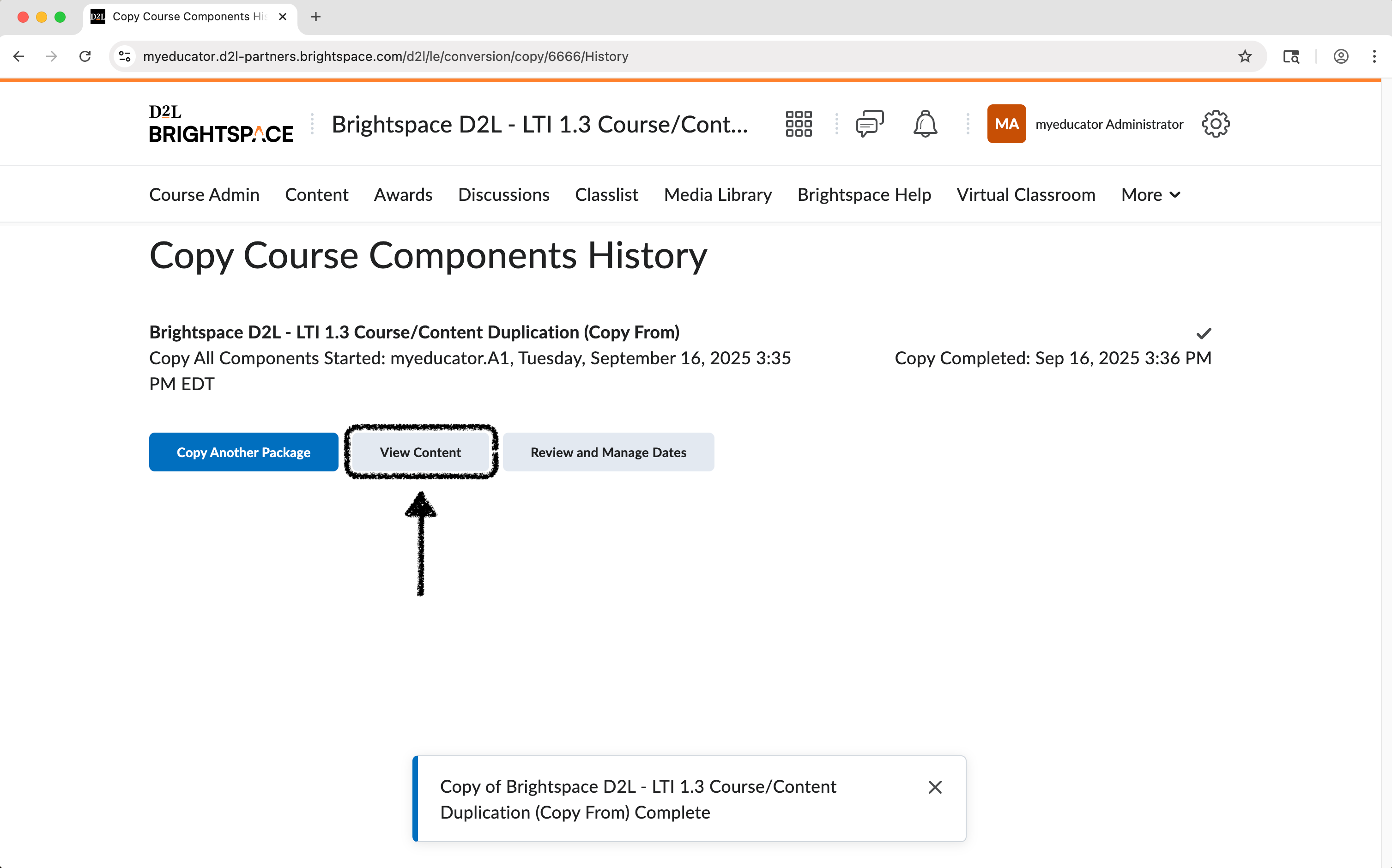
8) Wait for the copying process to finish.
Click “View Content” button.
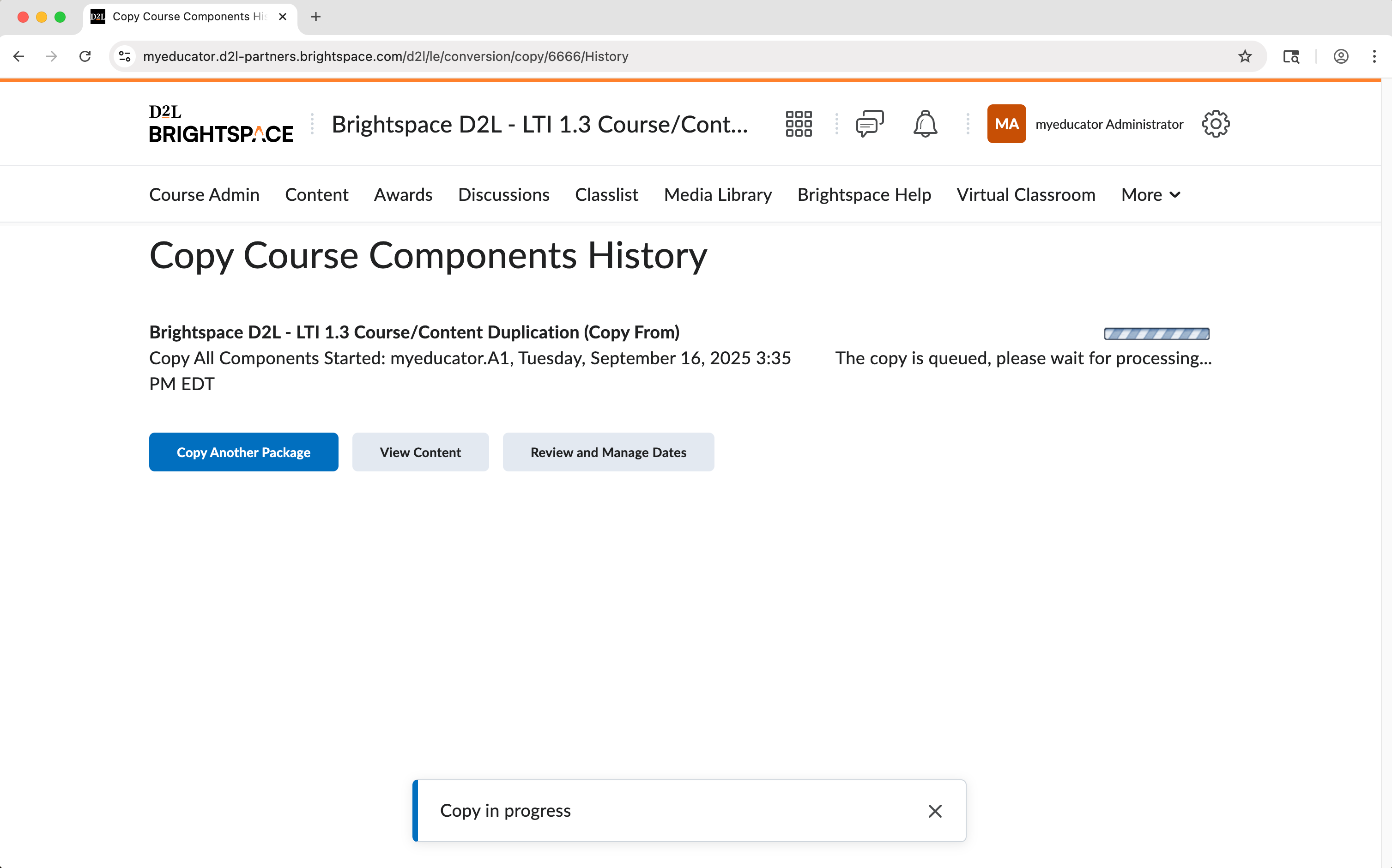
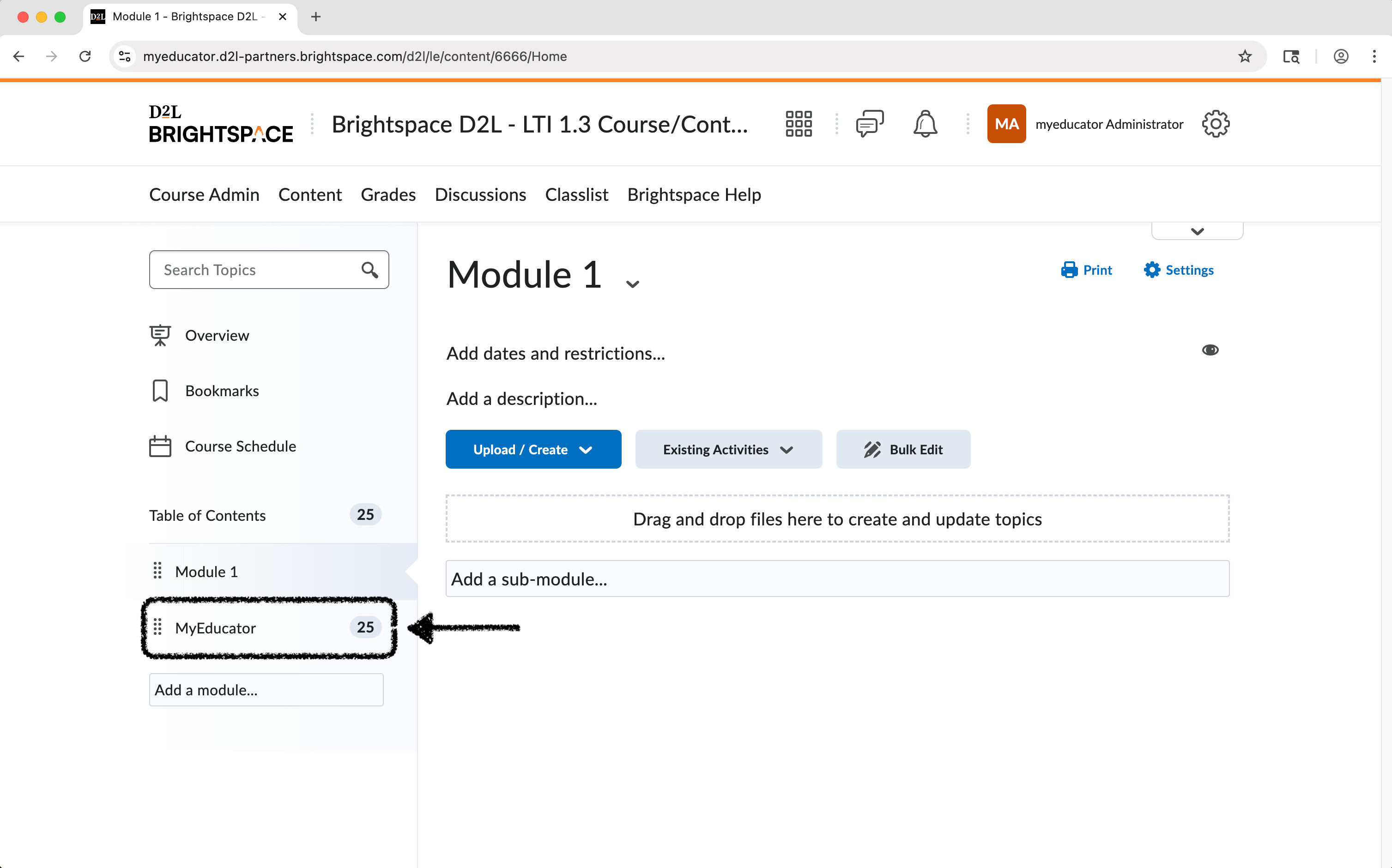
9) Locate and navigate to the module containing MyEducator links.
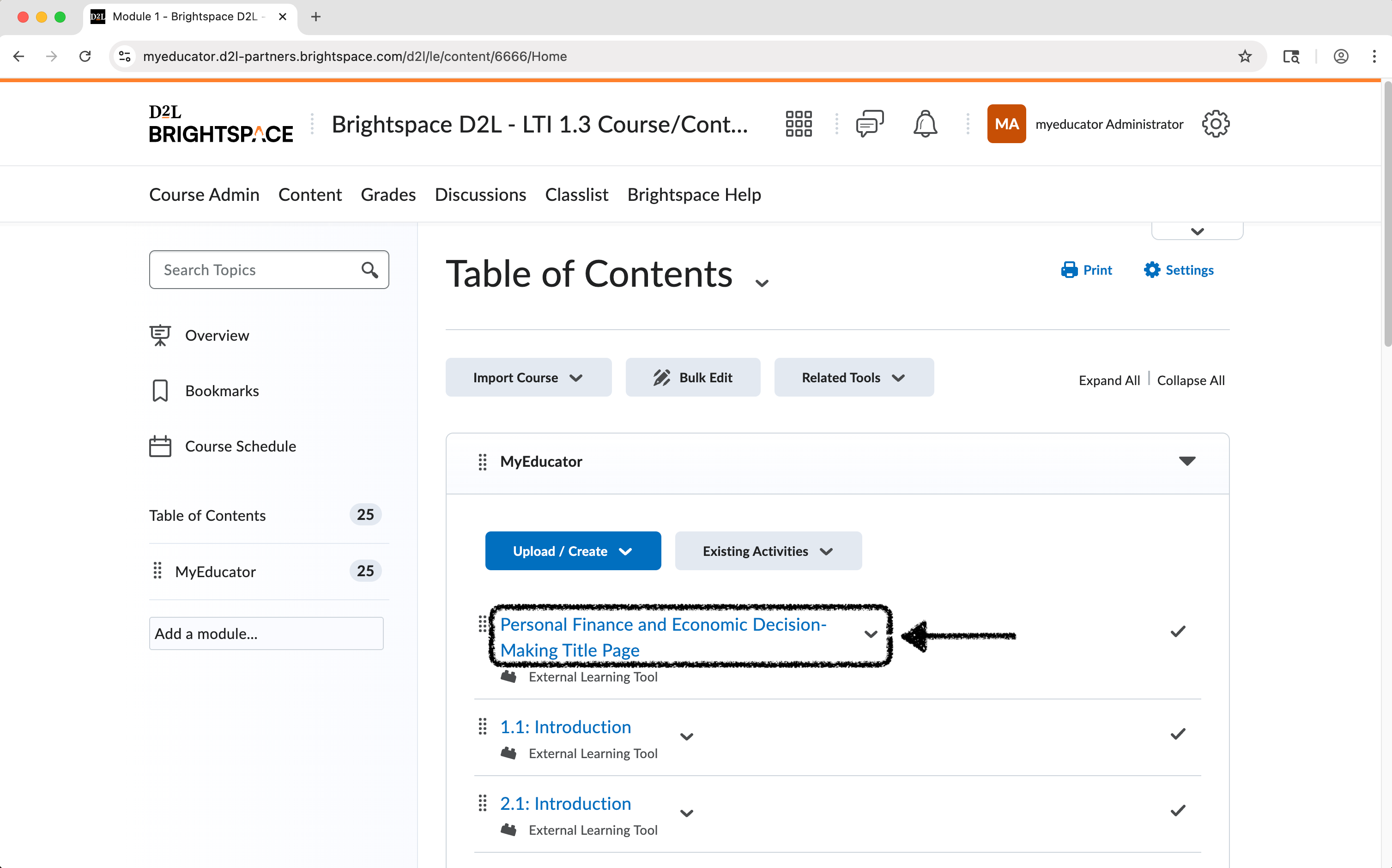
10) Click on any of the MyEducator content links.
11) You will see a MyEducator “LTI Message”. This is not an error. This page explains that your new MyEducator resource is being provisioned, and that this process will take a couple of minutes.
Refresh the page.
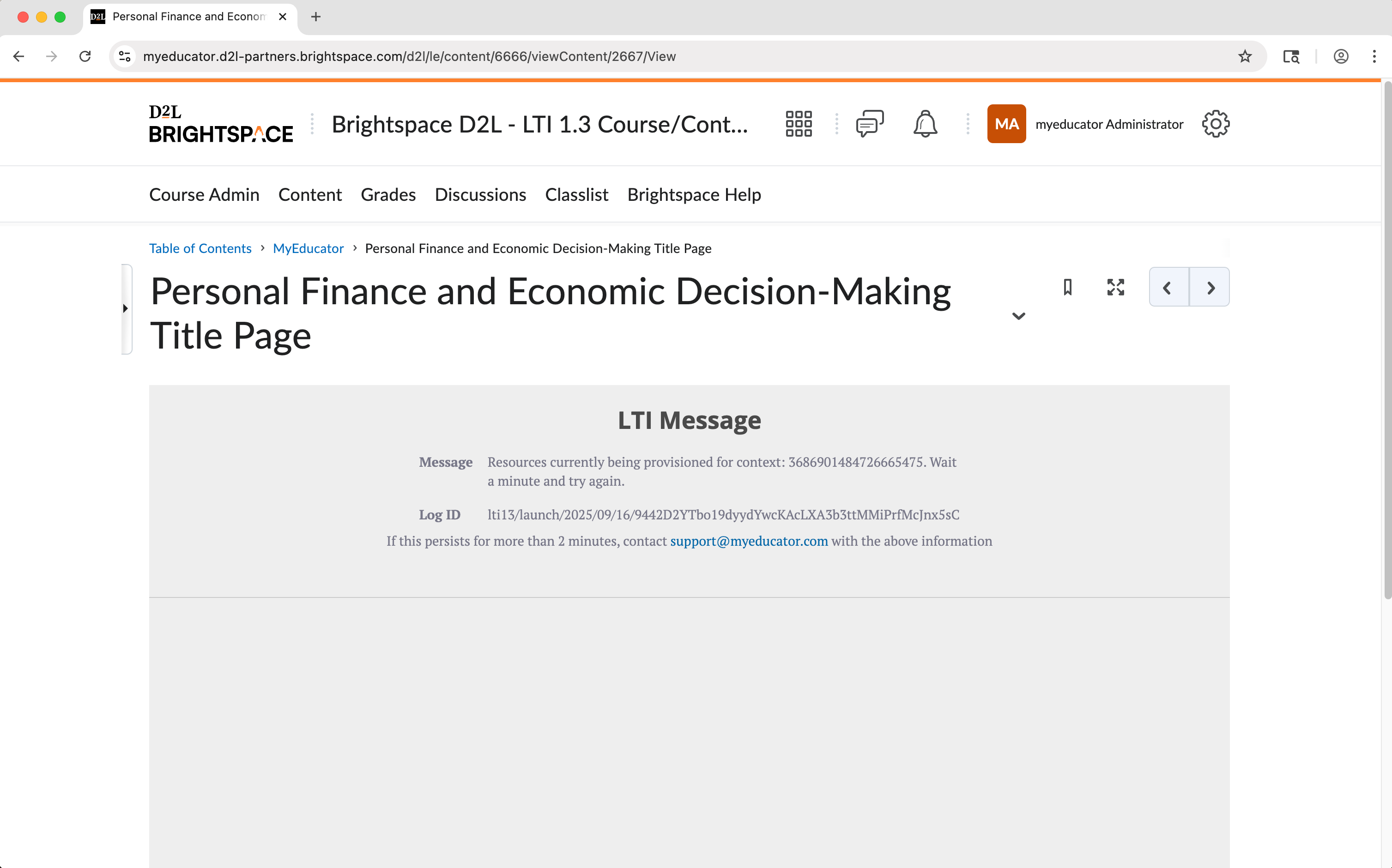
Note: If this screen does not change after a few minutes and refreshing the page, please contact integrations@myeducator.com or reach out to your MyEducator sales representative.
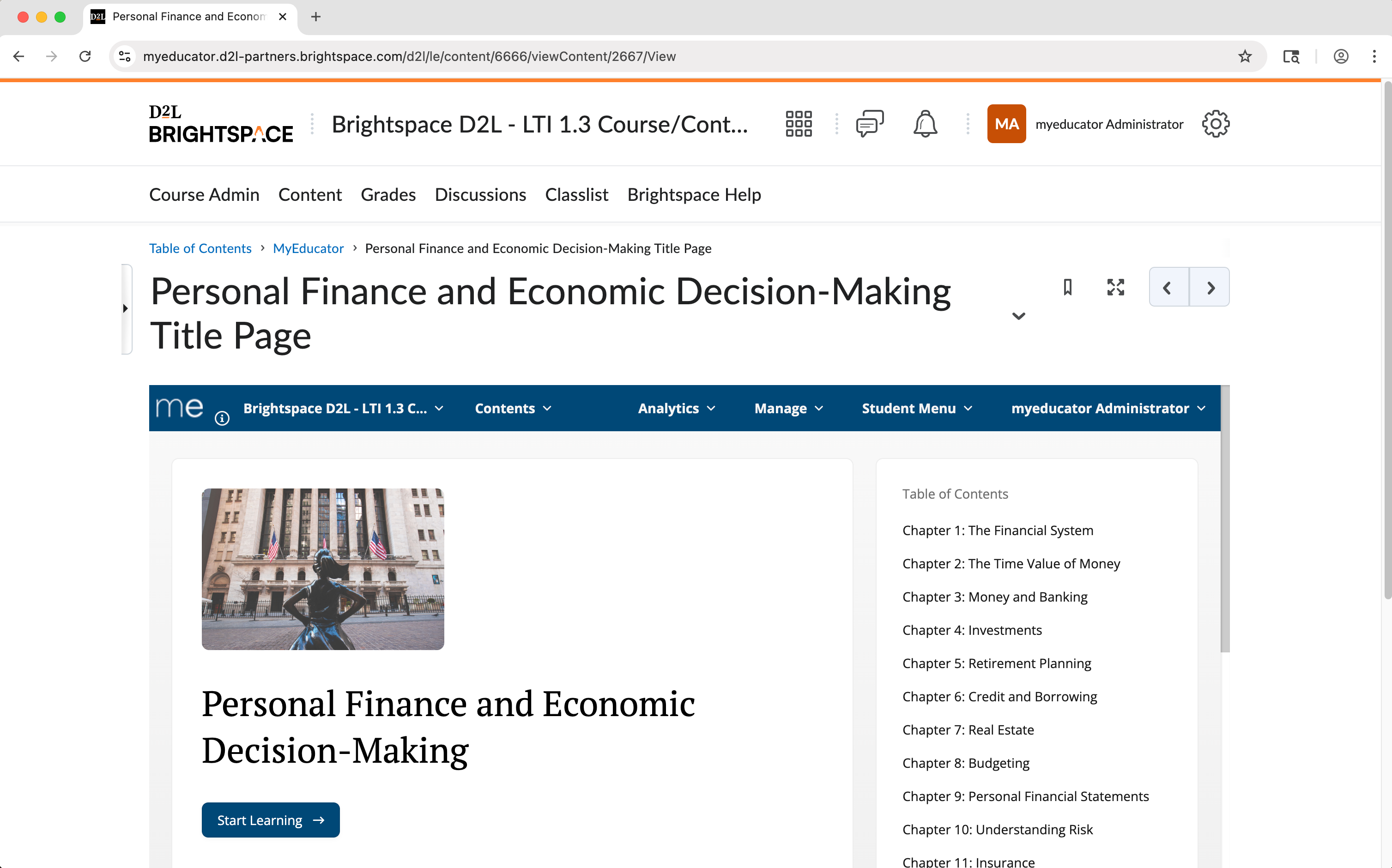
12) You should now be taken to the content you clicked on in the new MyEducator resource that was provisioned for this course.
You have now successfully duplicated your MyEducator course/content.
For assistance, contact integrations@myeducator.com or support@myeducator.com.