
This article is for LMS administrators.
Each step has associated text and screenshots. Be sure to read all text and view each screenshot for optimal results.
Your view and/or process might be different from what you see here.
For assistance, contact integrations@myeducator.com or support@myeducator.com.
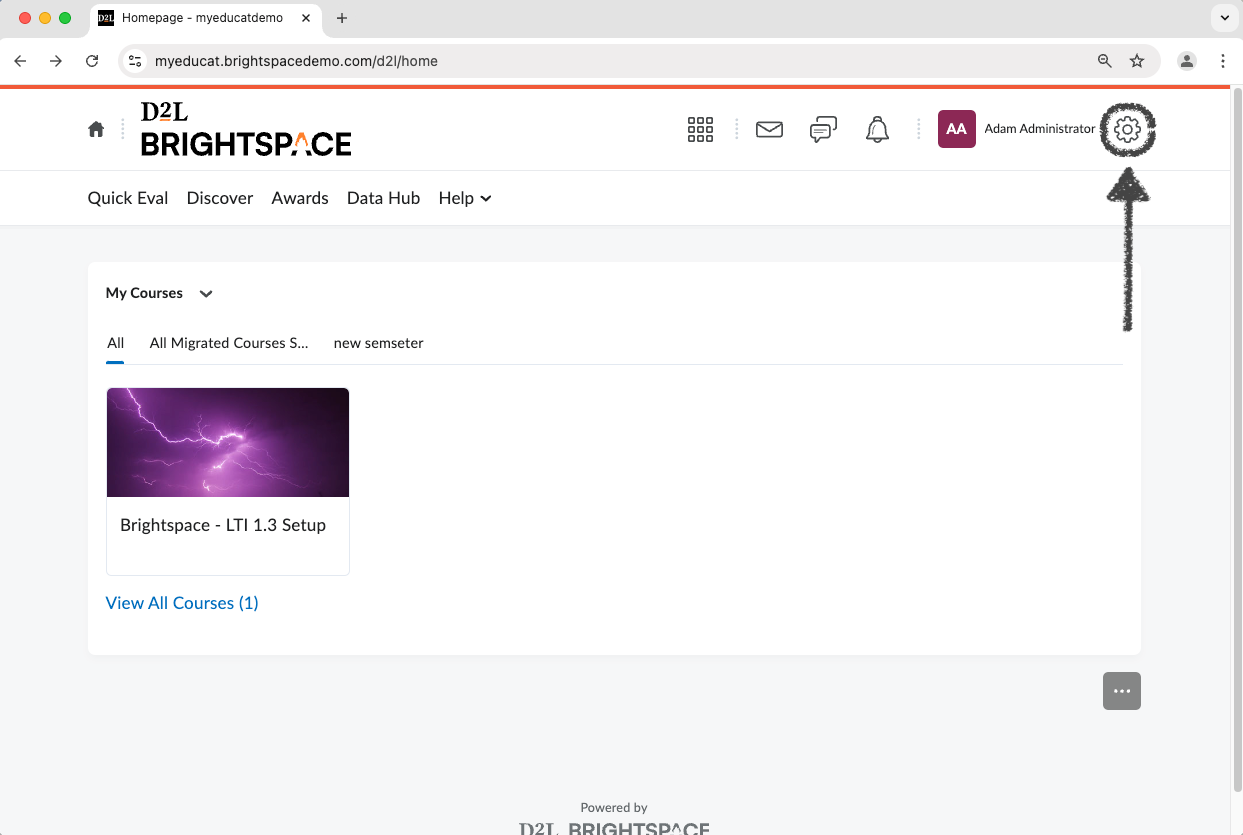
1) Click on the gear icon.
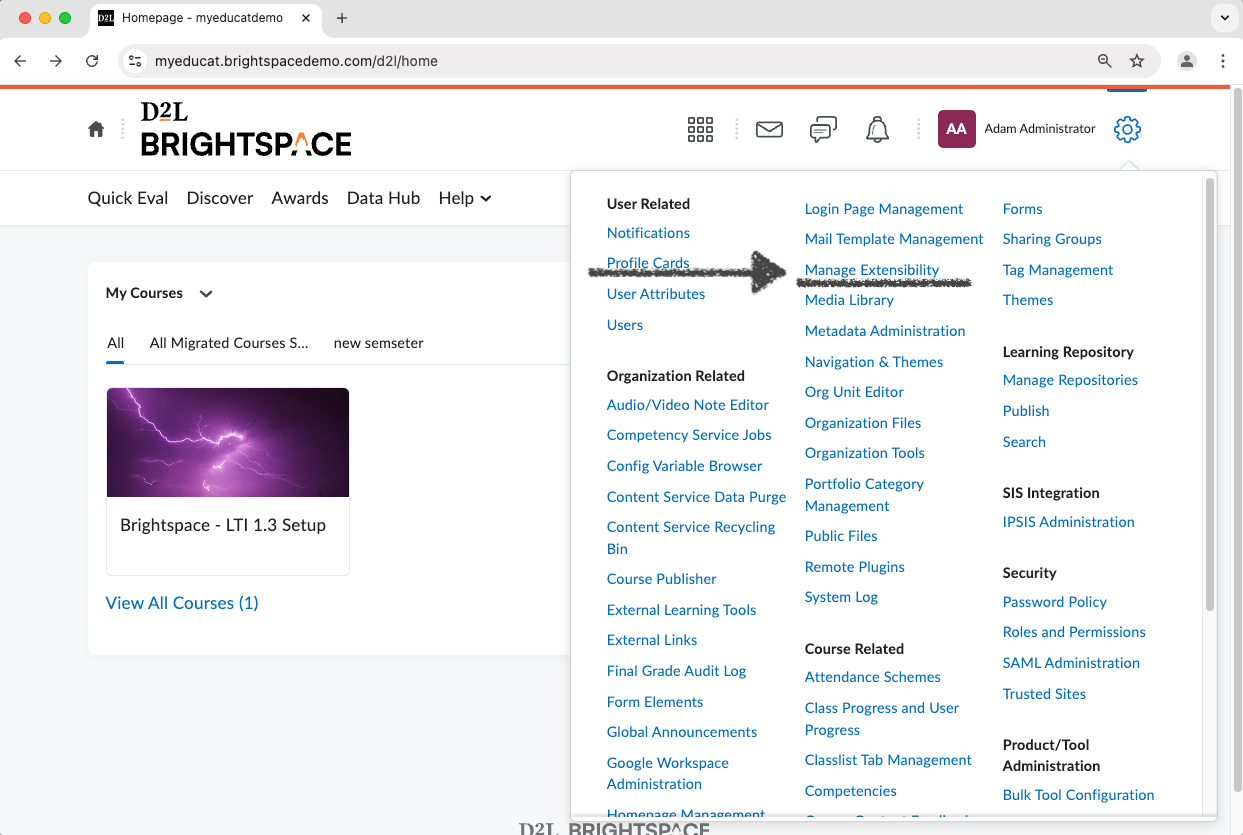
Choose “Manage Extensibility” from the drop-down menu.
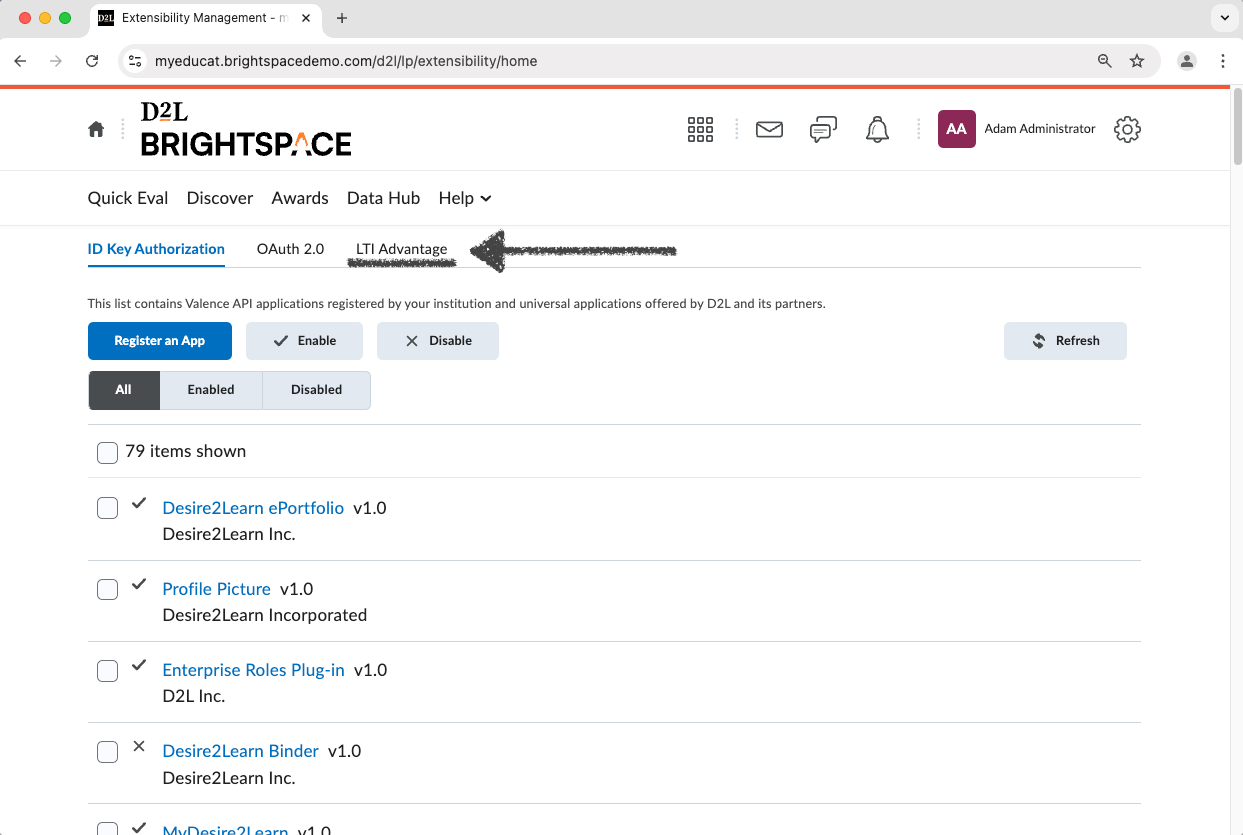
2) Click the “LTI Advantage” tab.
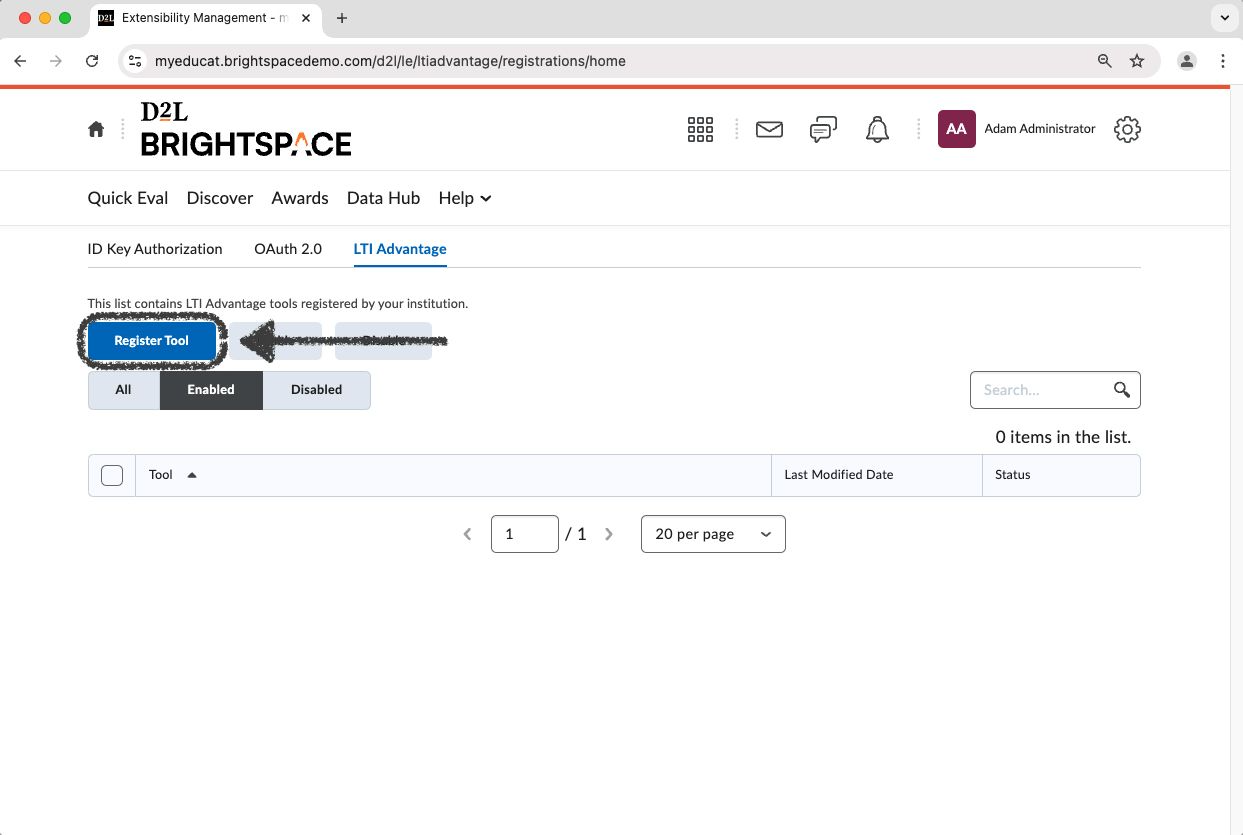
3) Click “Register Tool”.
4) Select the “Dynamic” registration option.
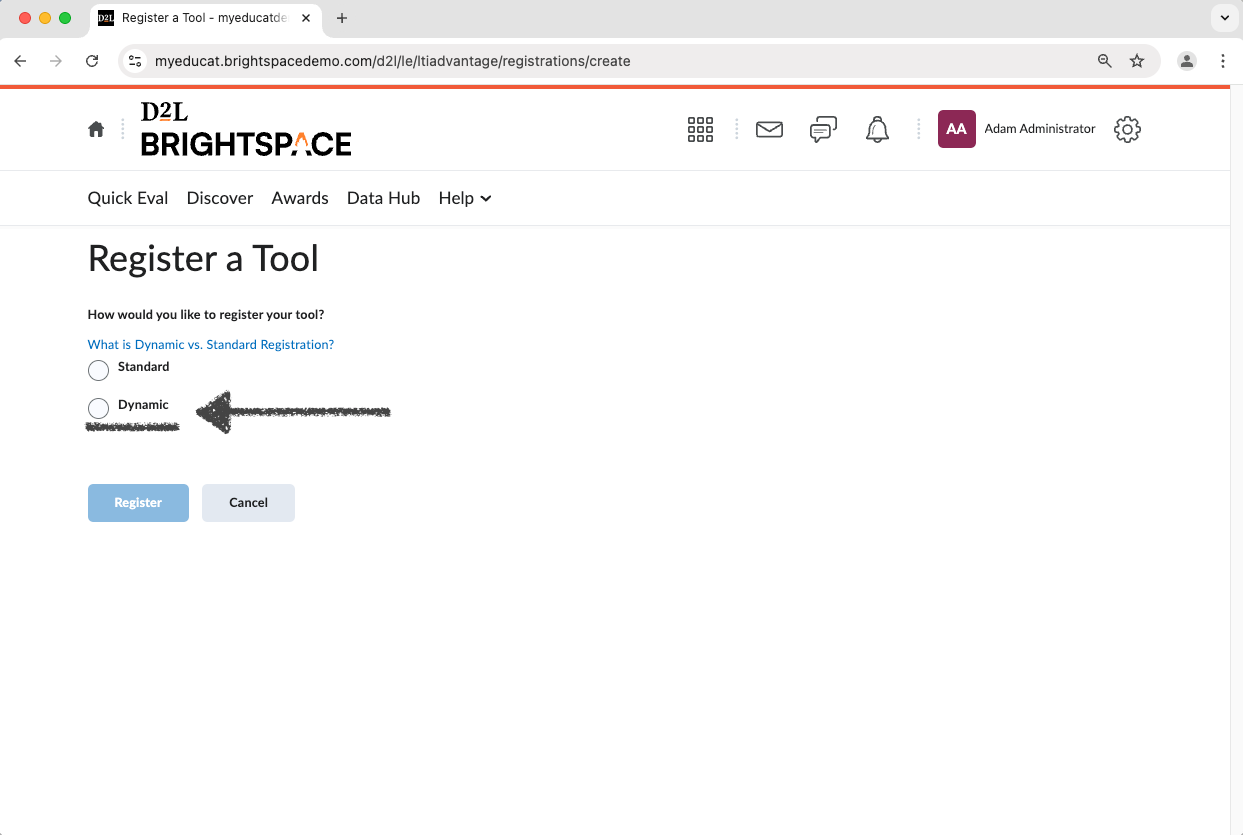
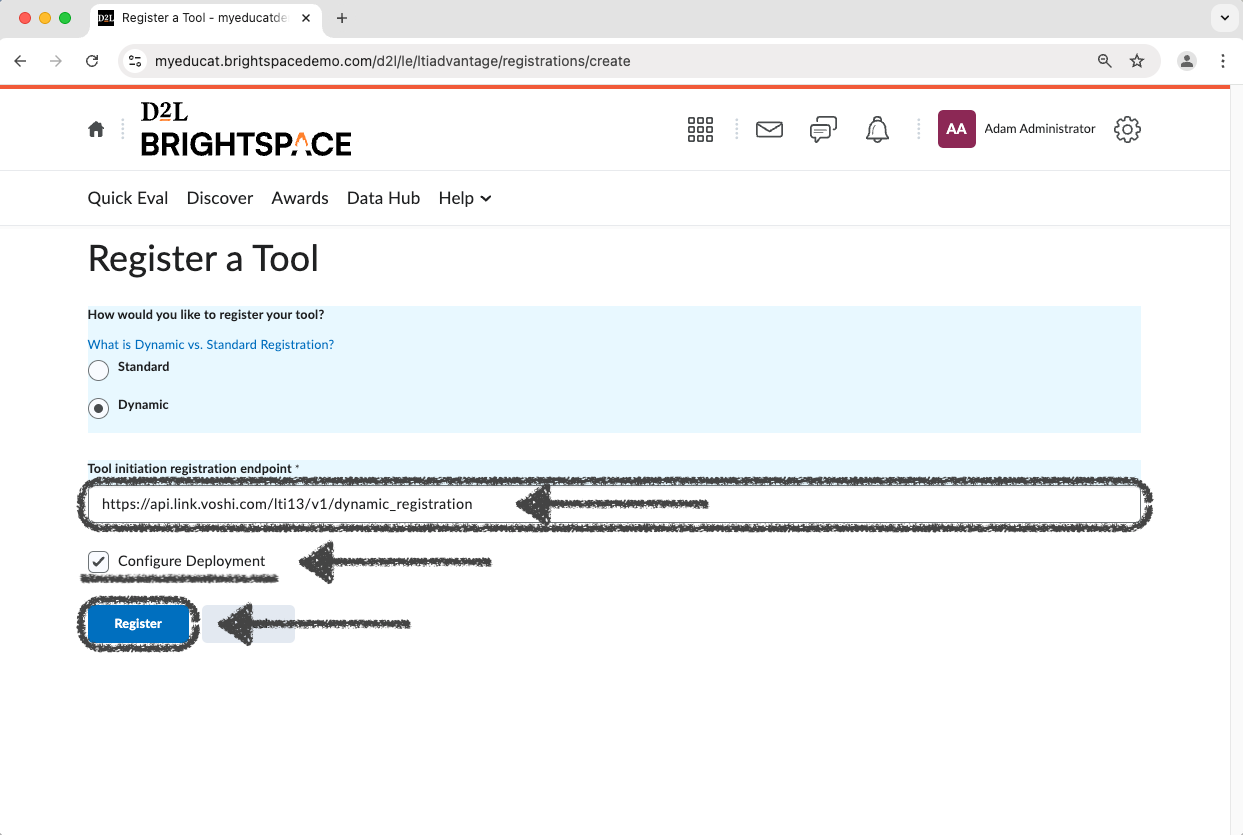
5) Input the following into the “Tool initiation registration endpoint” text box:
Tool Initiation Registration Endpoint (Text input): https://api.link.voshi.com/lti13/v1/dynamic_registration
Check “Configure Deployment.”
Click the “Register” button.
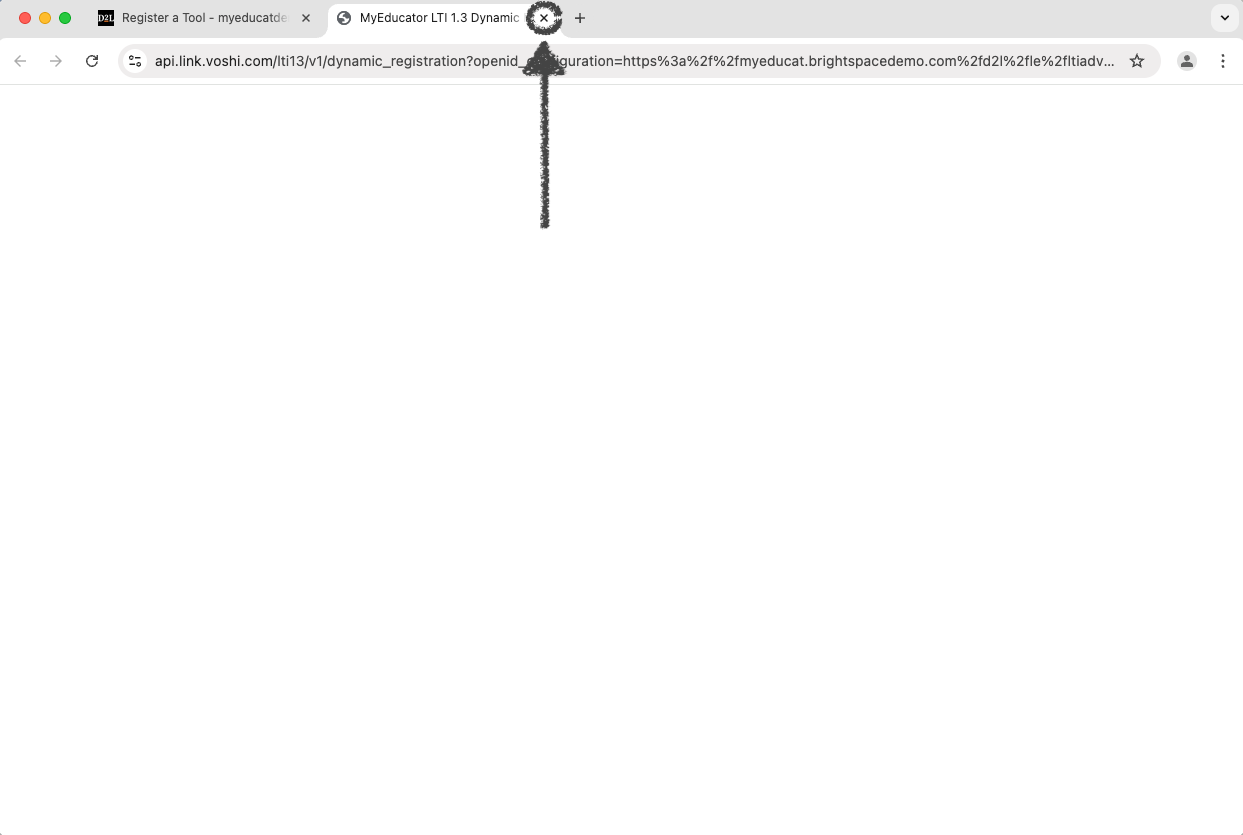
6) A new, blank tab should open. Exit this new tab.
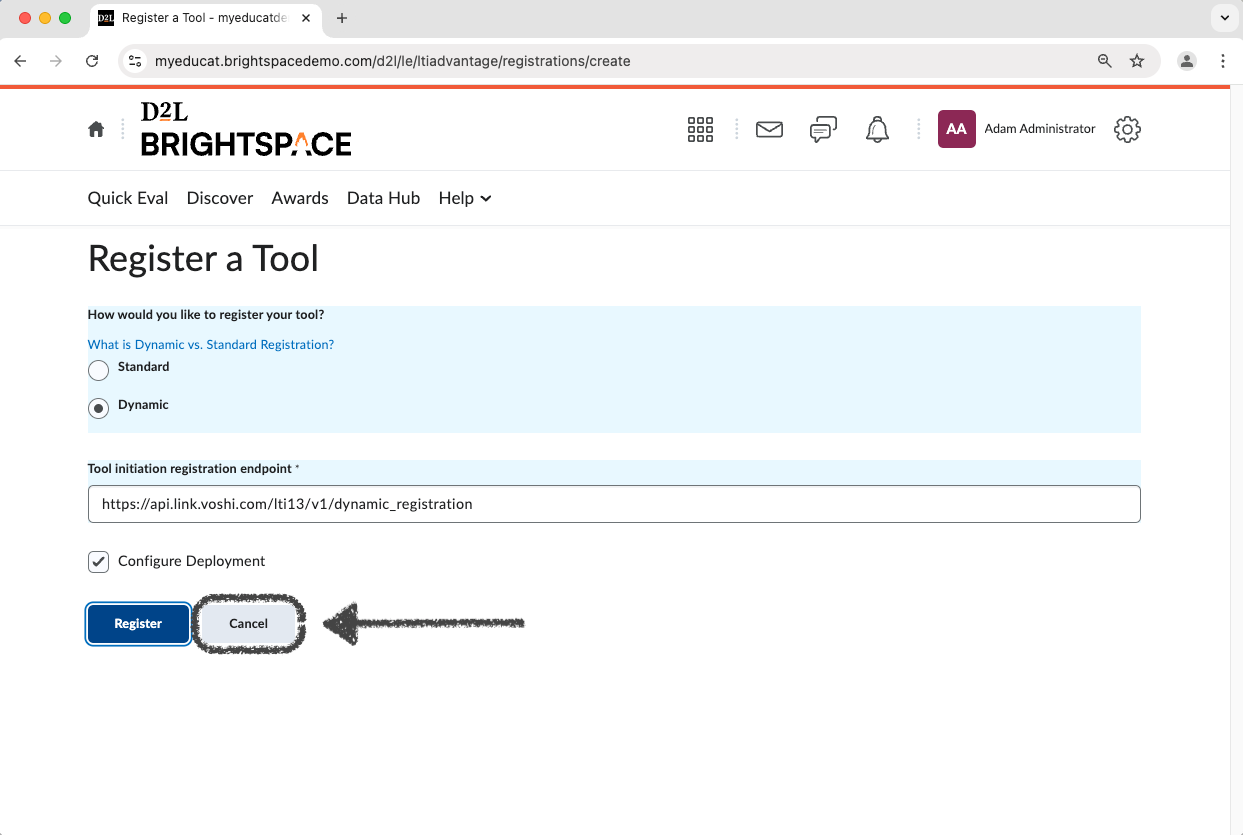
7) Click the “Cancel” button (you have already registered the tool, so clicking “Cancel” won’t have an affect on the registration of the tool).
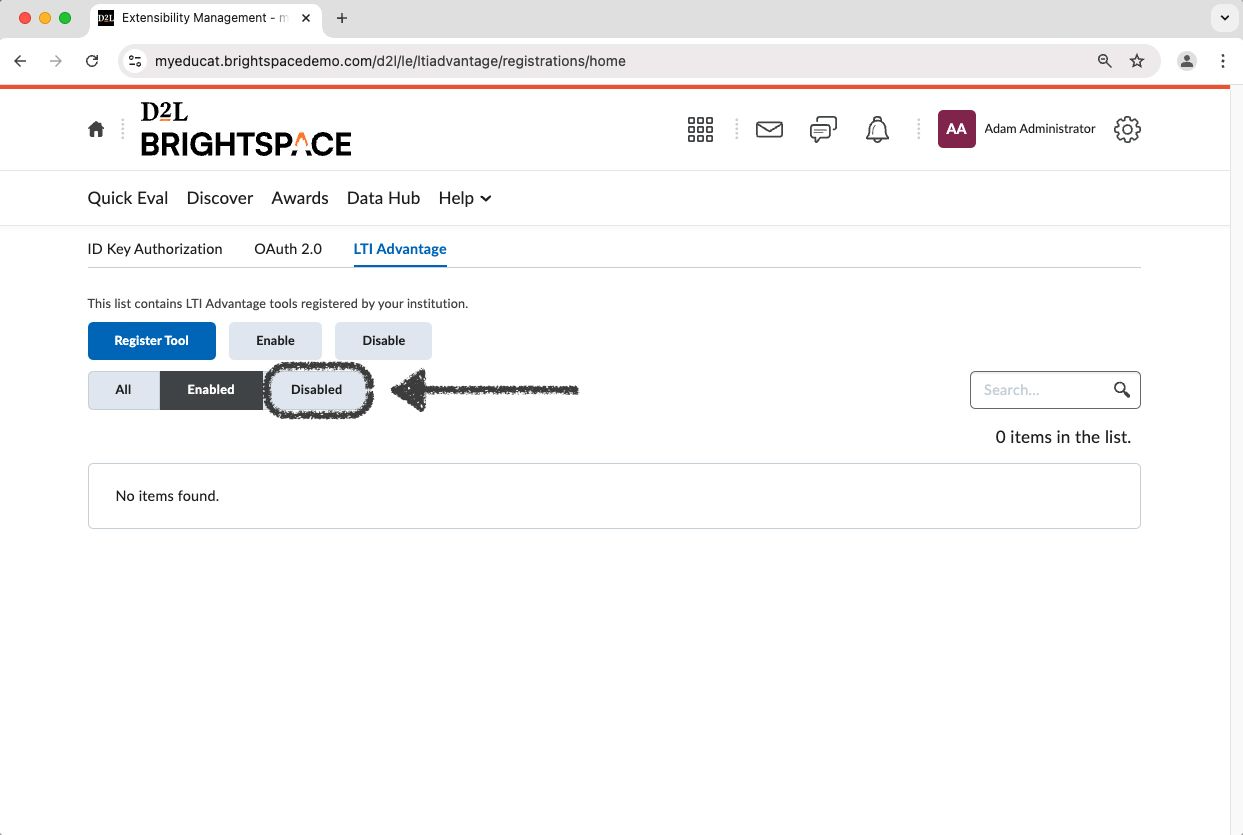
8) Click the “Disabled” button.
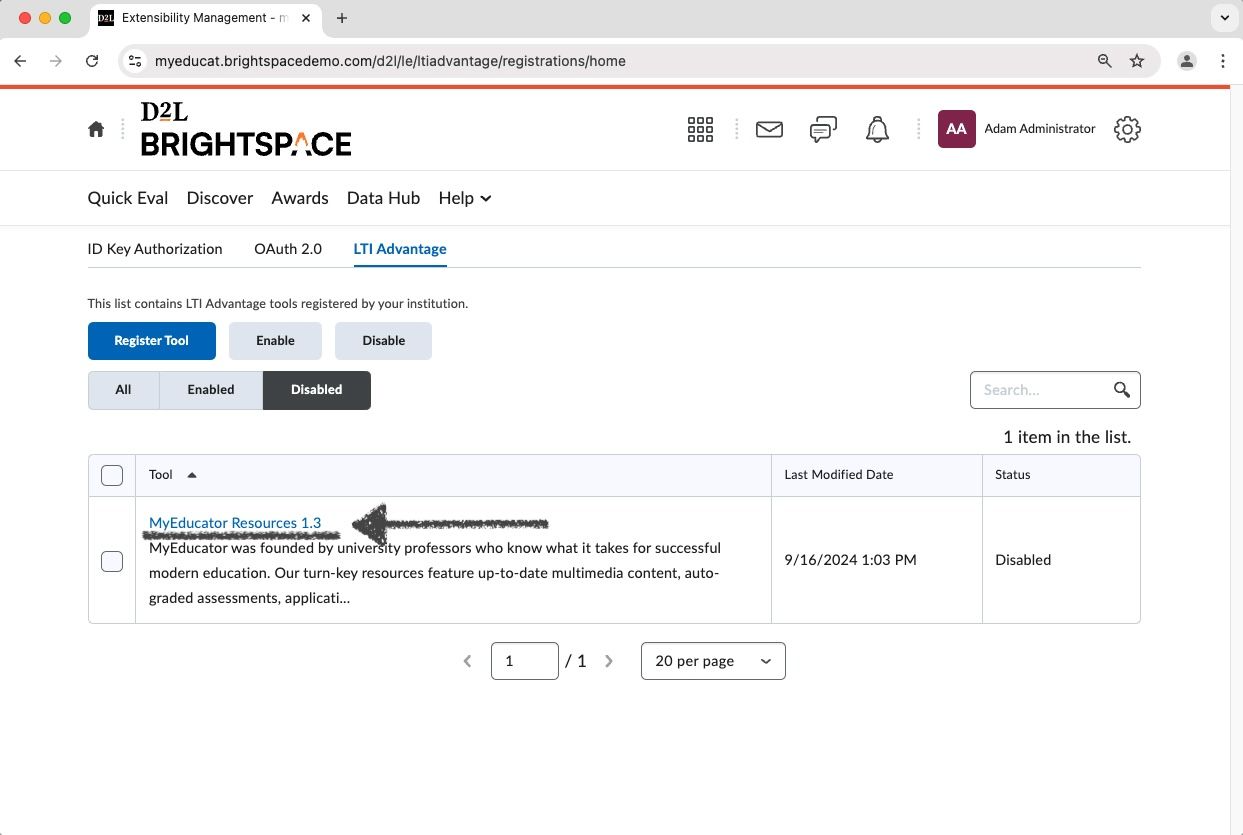
Locate the “MyEducator Resources 1.3” tool, then click on its title link.
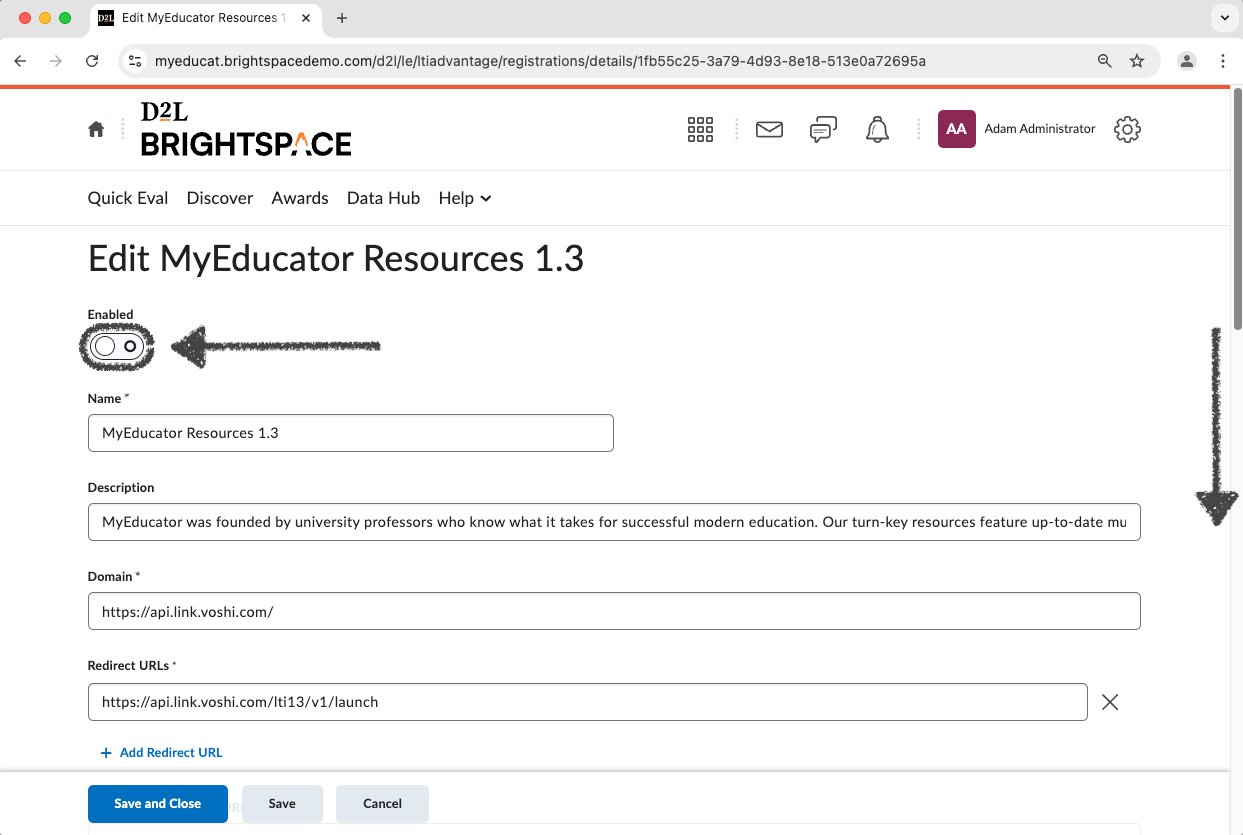
9) Toggle the “Enabled” switch to the on position.
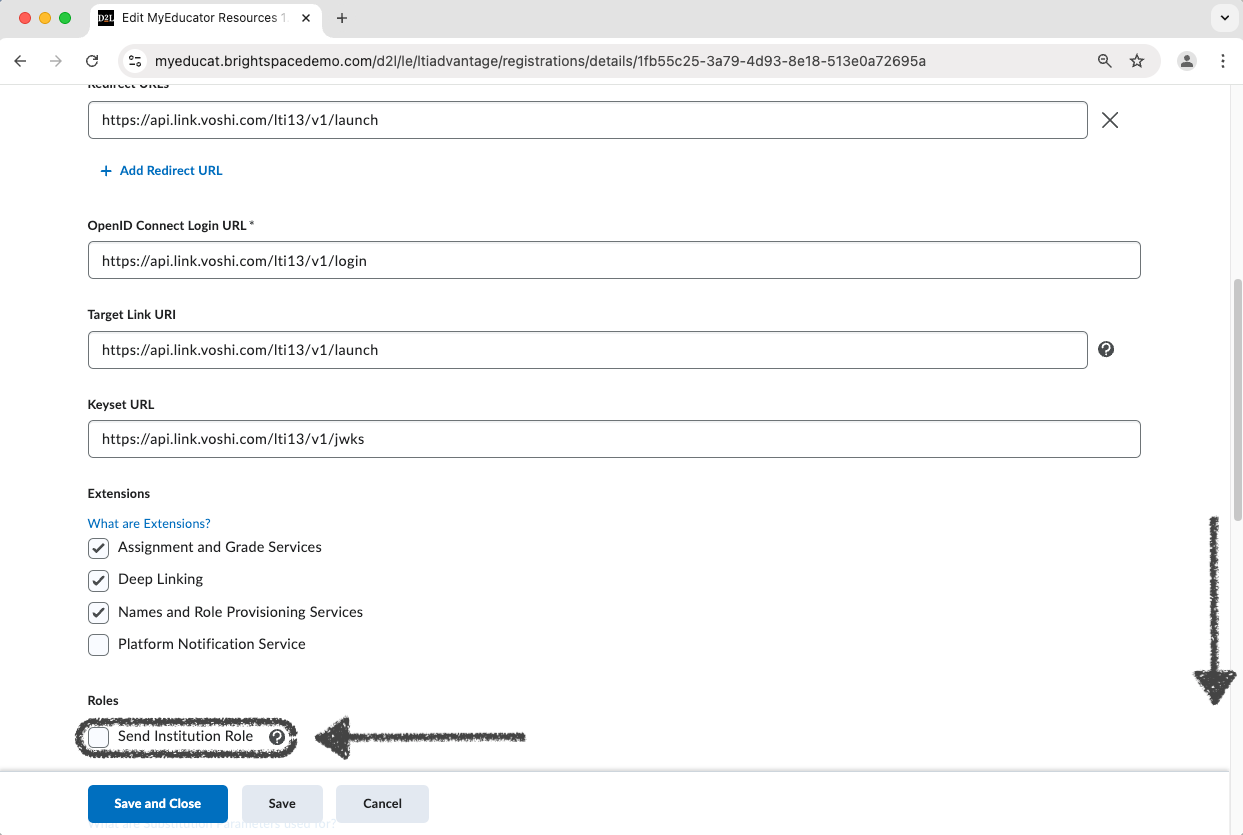
Scroll down to the “Roles” section.
10) Check the “Send Institution Role” check box.
Scroll to the bottom of the page.
11) Click “Save”.
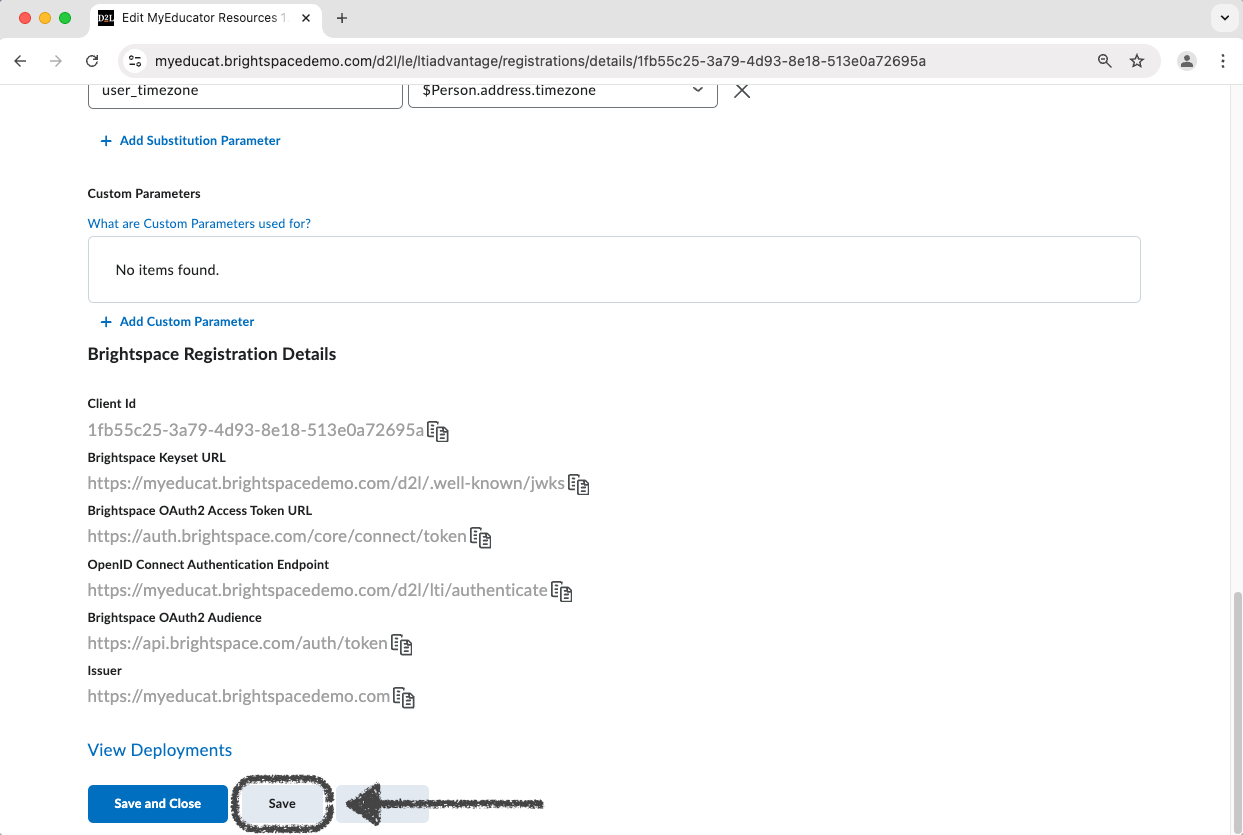
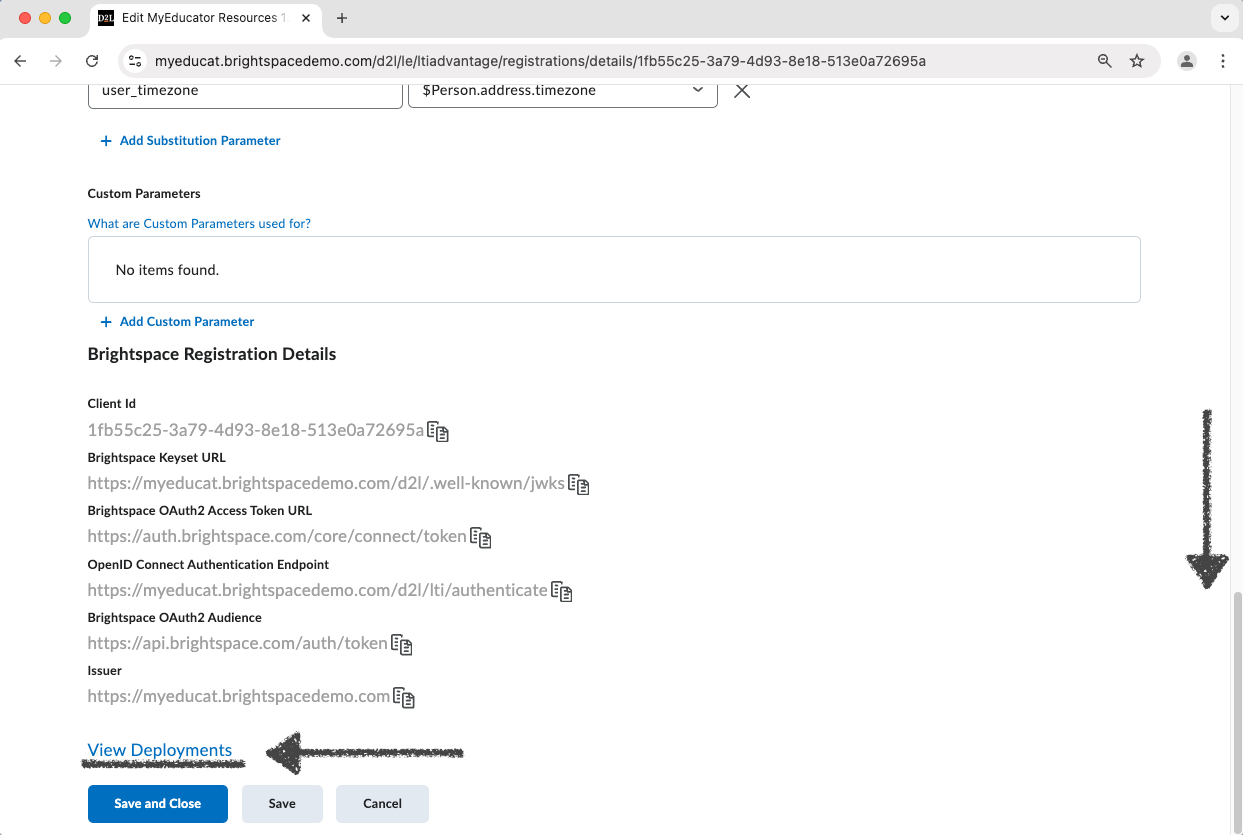
12) Scroll back down to the bottom of the page (If the screen has refreshed to the top of the page). Click the “View Deployments” link.
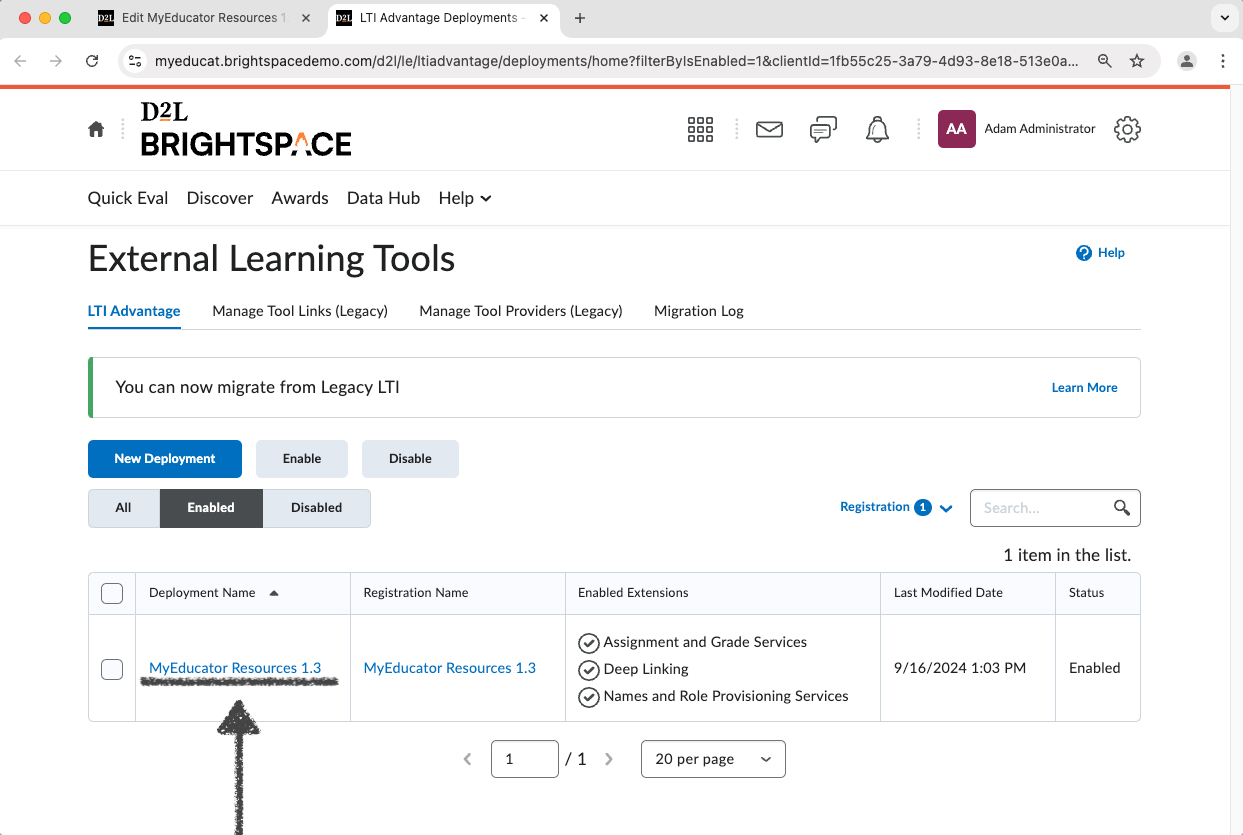
13) A new tab will open to the External Learning Tools page. Locate the “MyEducator Resources 1.3” tool and click on its title link.
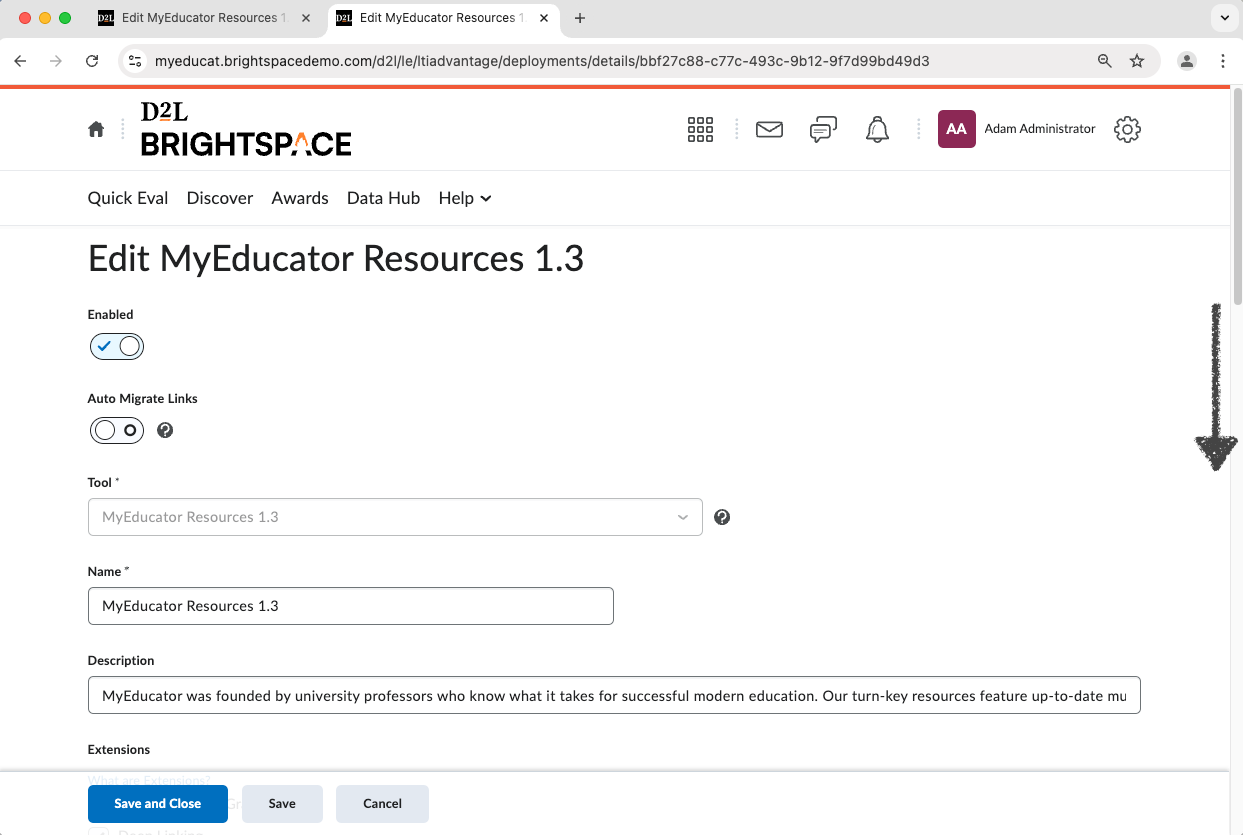
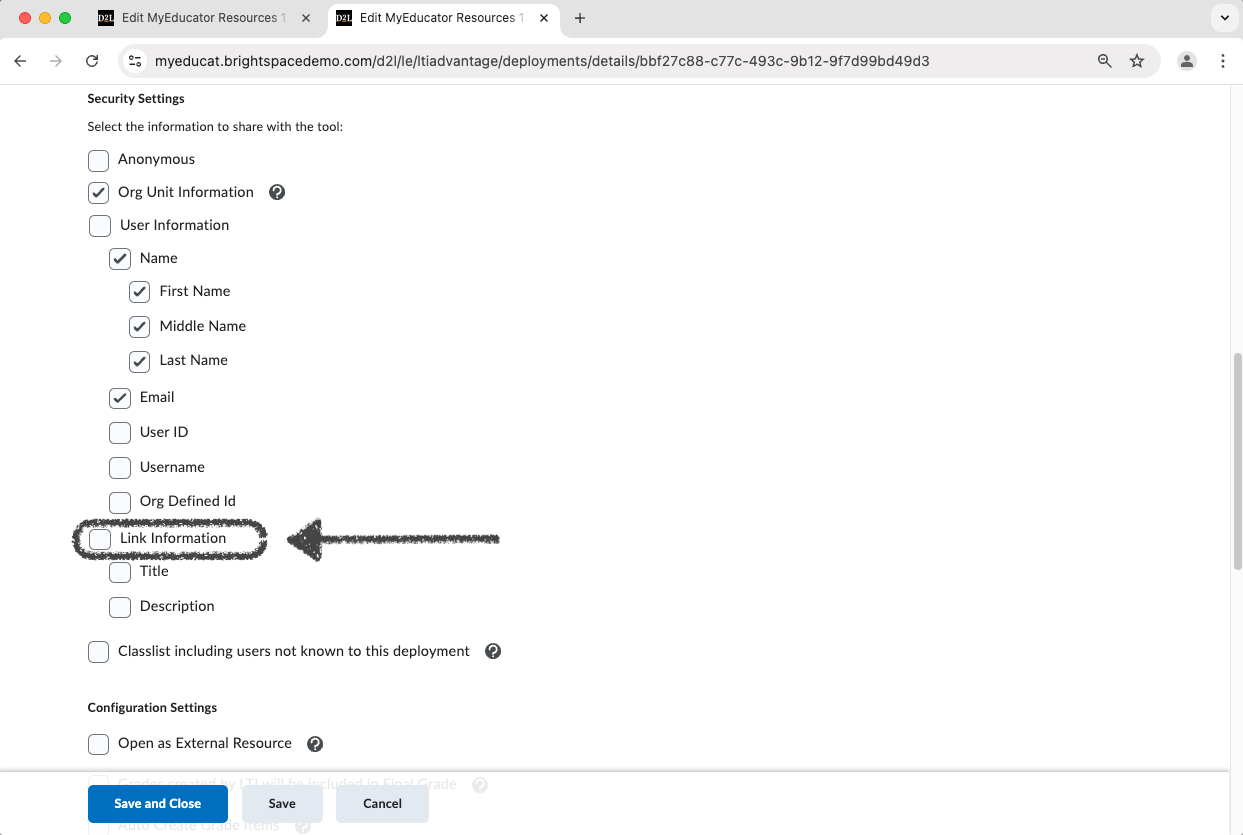
14) Scroll down to the “Security Settings” section.
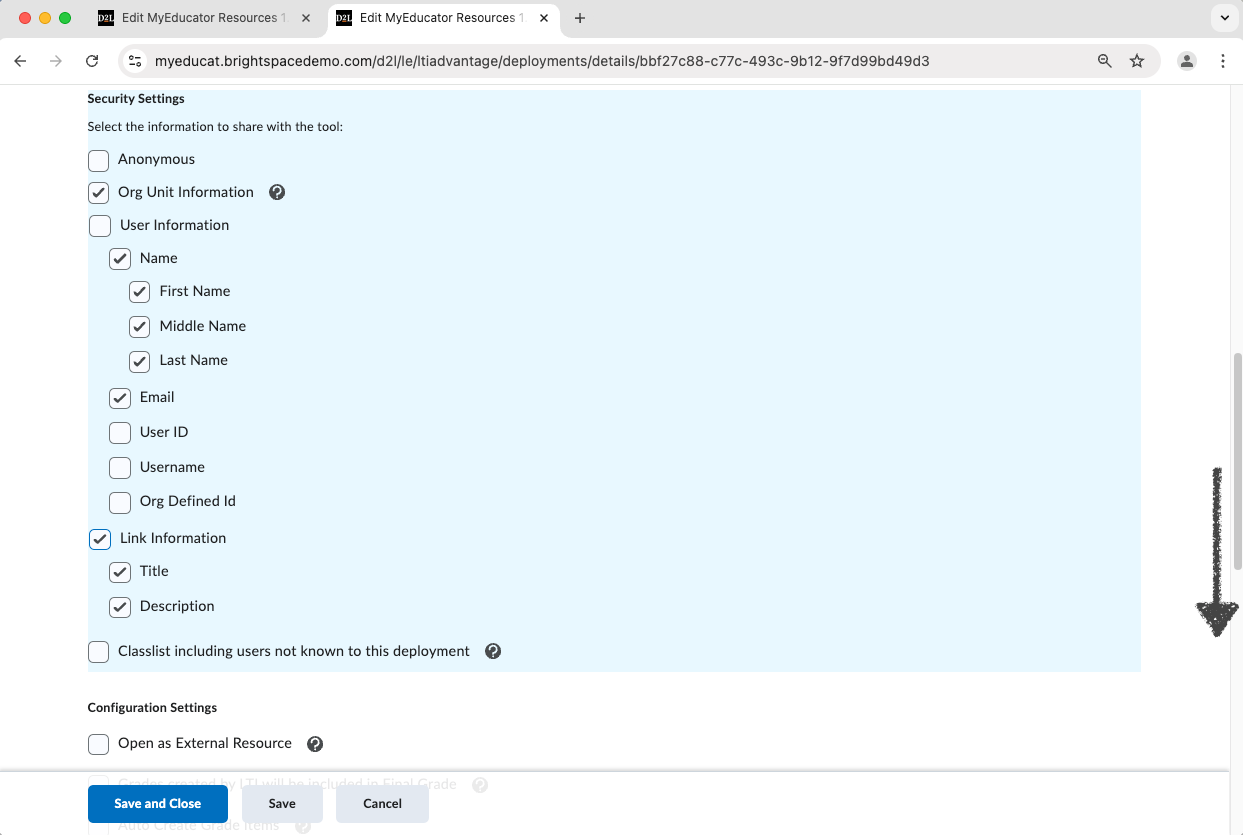
15) Click the “Link Information” check box. Doing so will check the “Link Information”, “Title”, and “Description” checkboxes.
Scroll down to the “Configuration Settings” section.
16) Check the “Grades created by LTI will be included in Final Grade” check box.
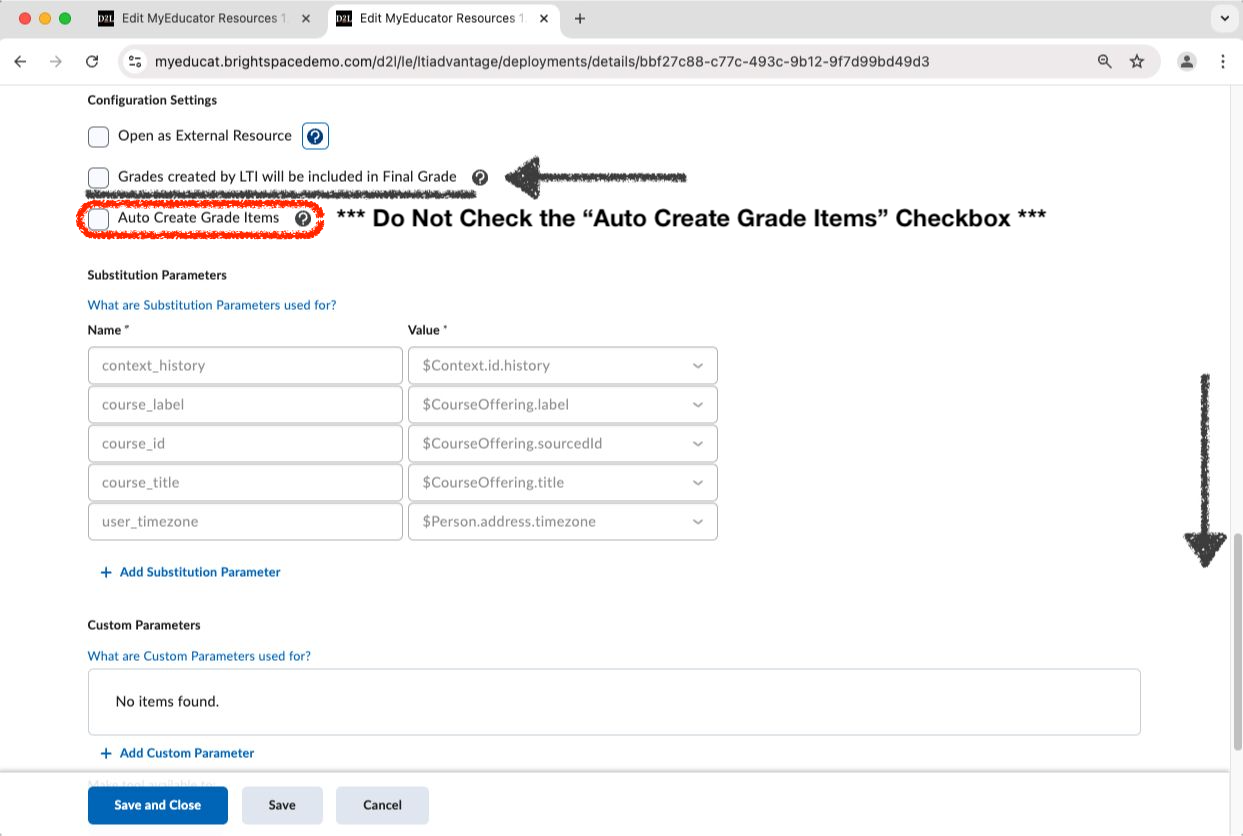 Note: Make sure the "Auto Create Grade Items" checkbox is NOT checked.
17) Scroll to the bottom of the page and click the “Add Org Units” button.
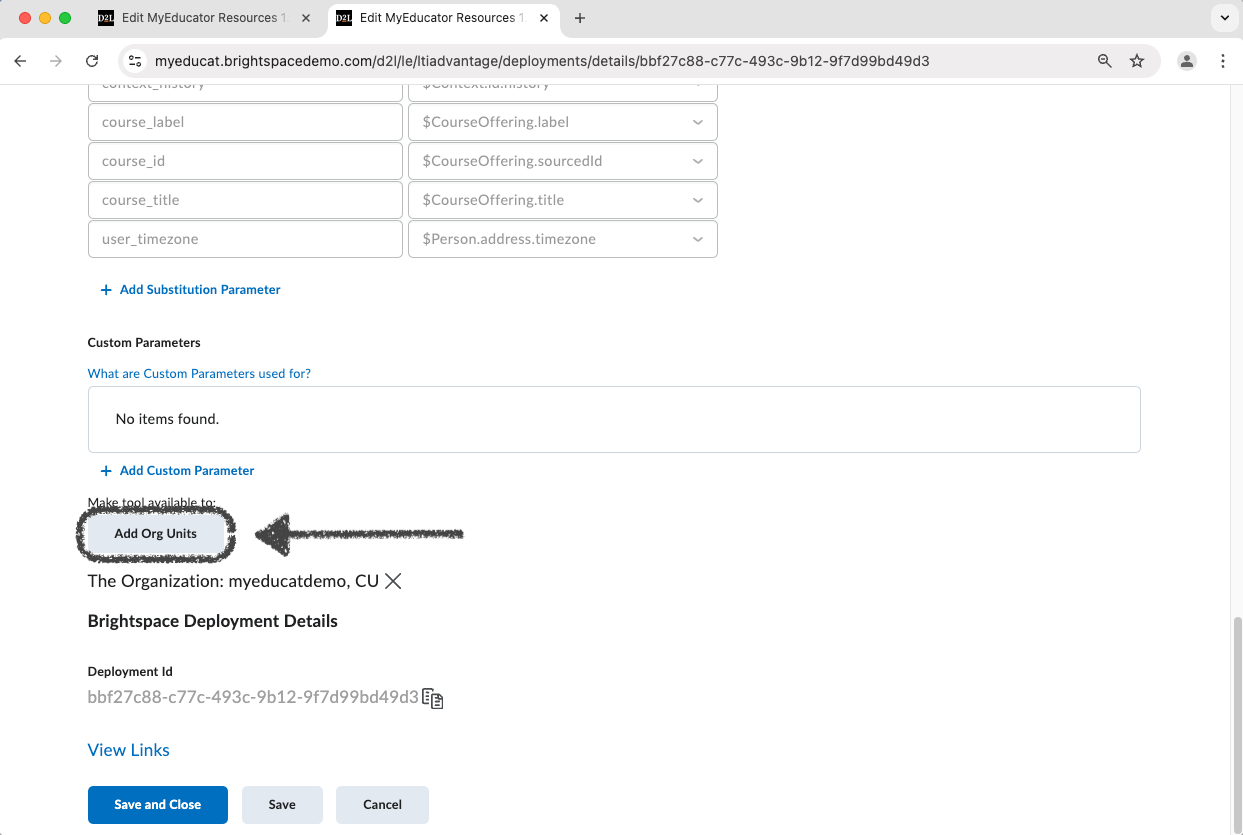
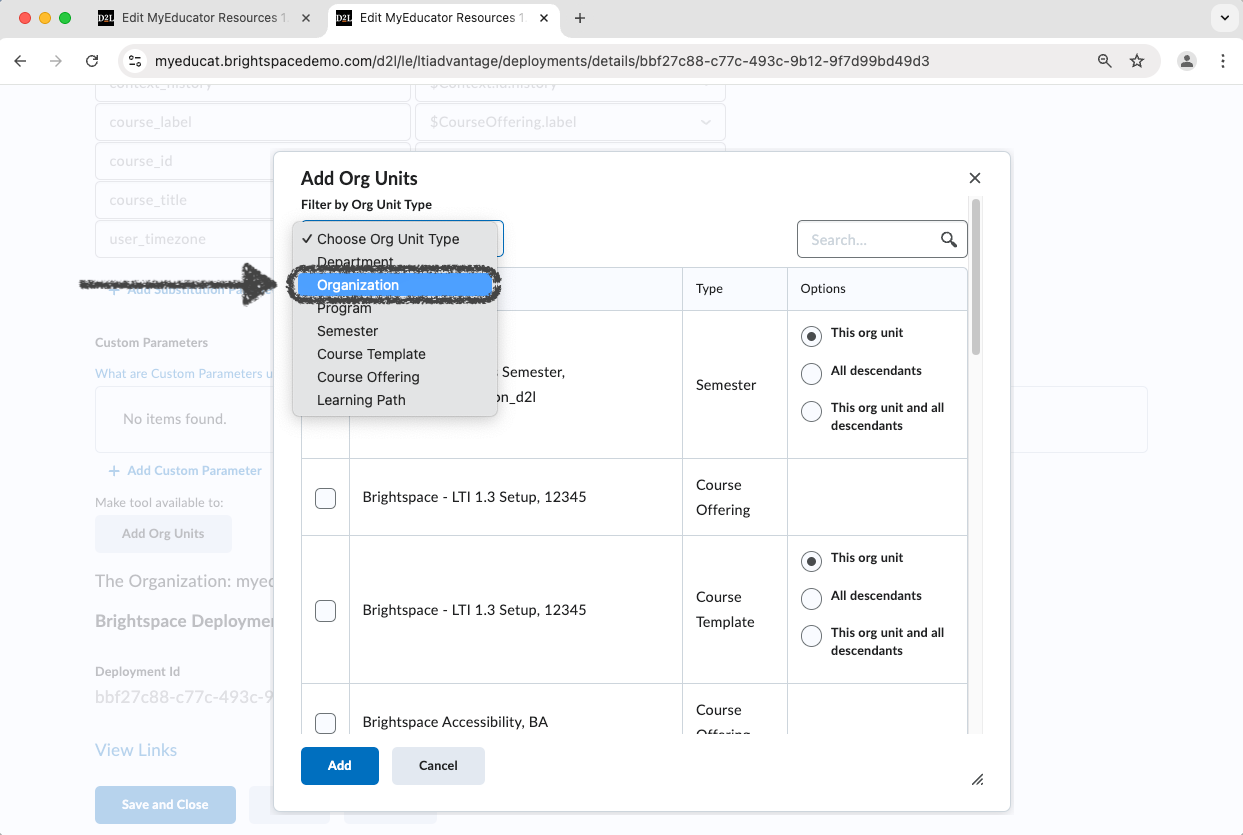
18) For most tool installations, we recommend changing the Org Unit Type to “Organization”.
Regardless of the Org Unit Type that is chosen, the “Options” button needs to be set to “This org unit and all descendants” for any and all chosen selections.
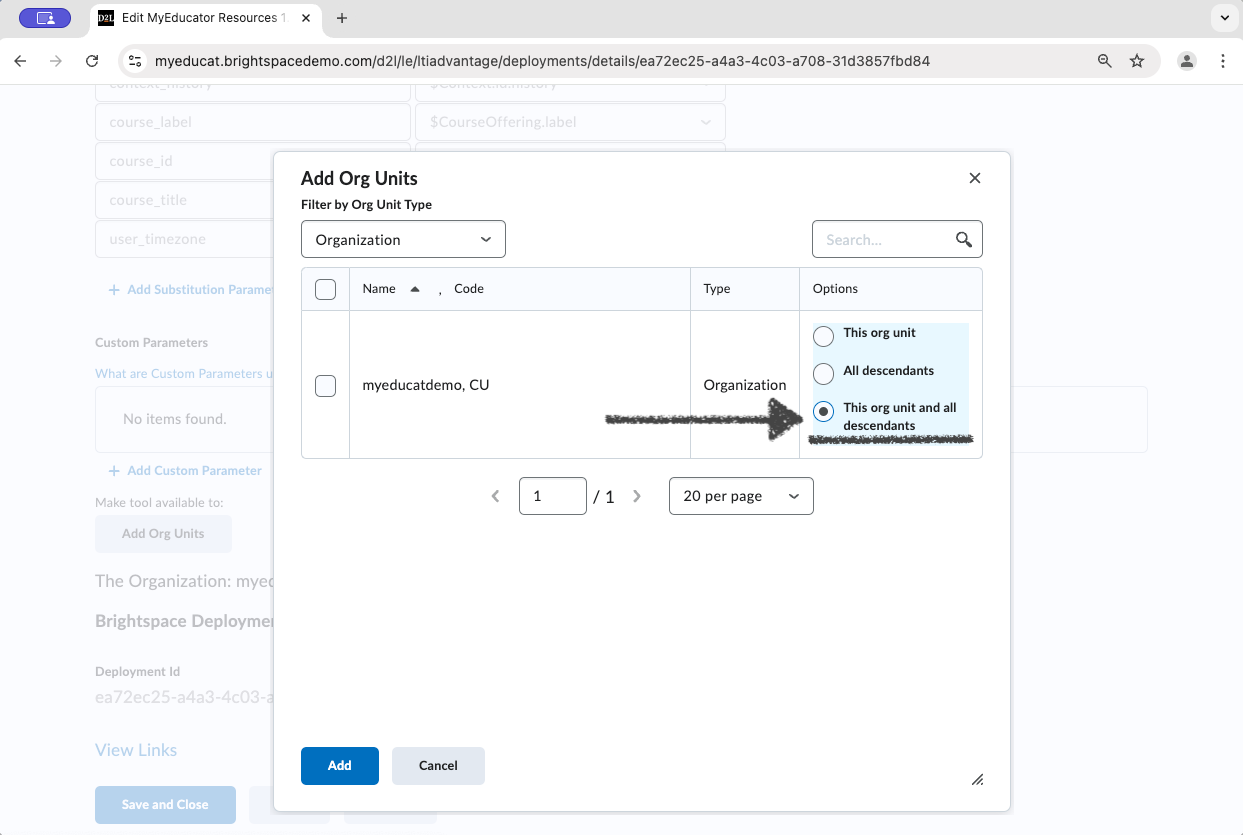
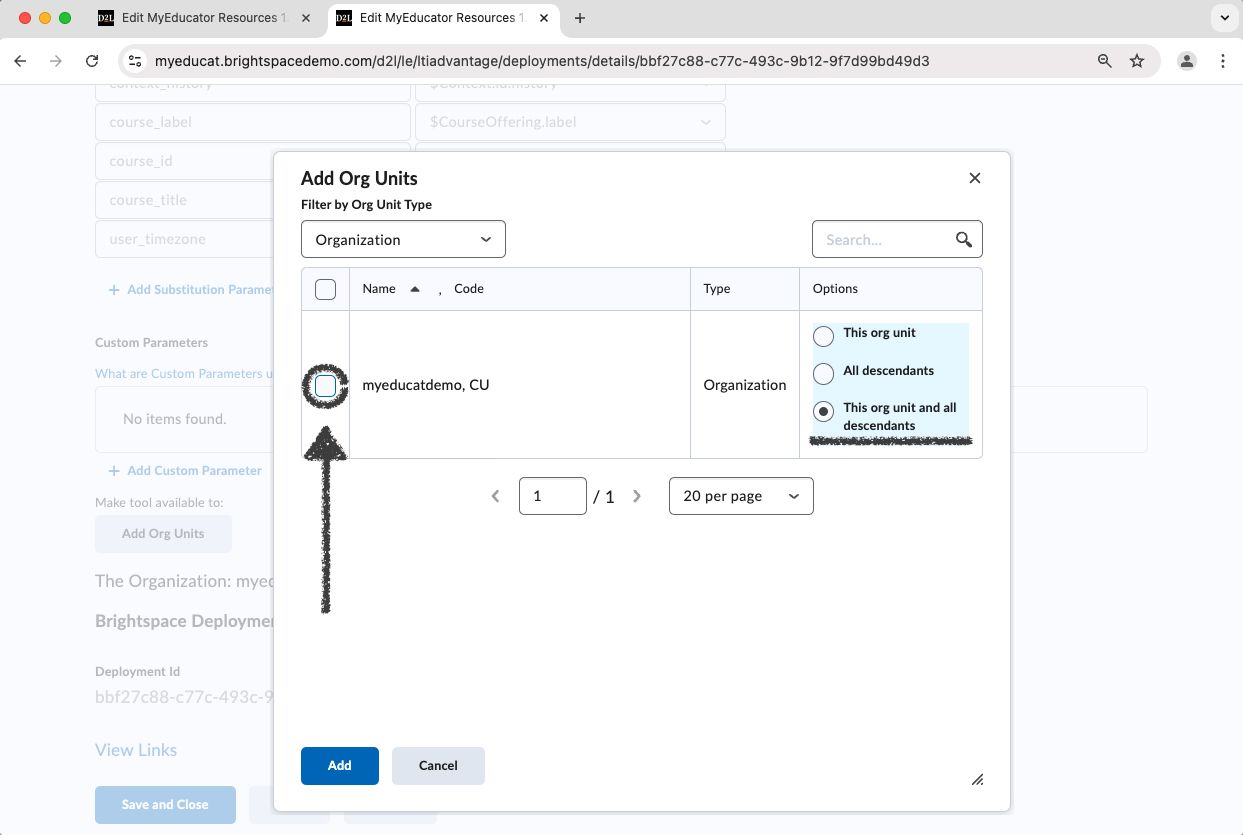
19) Click the selection’s checkbox. Click “Add”.
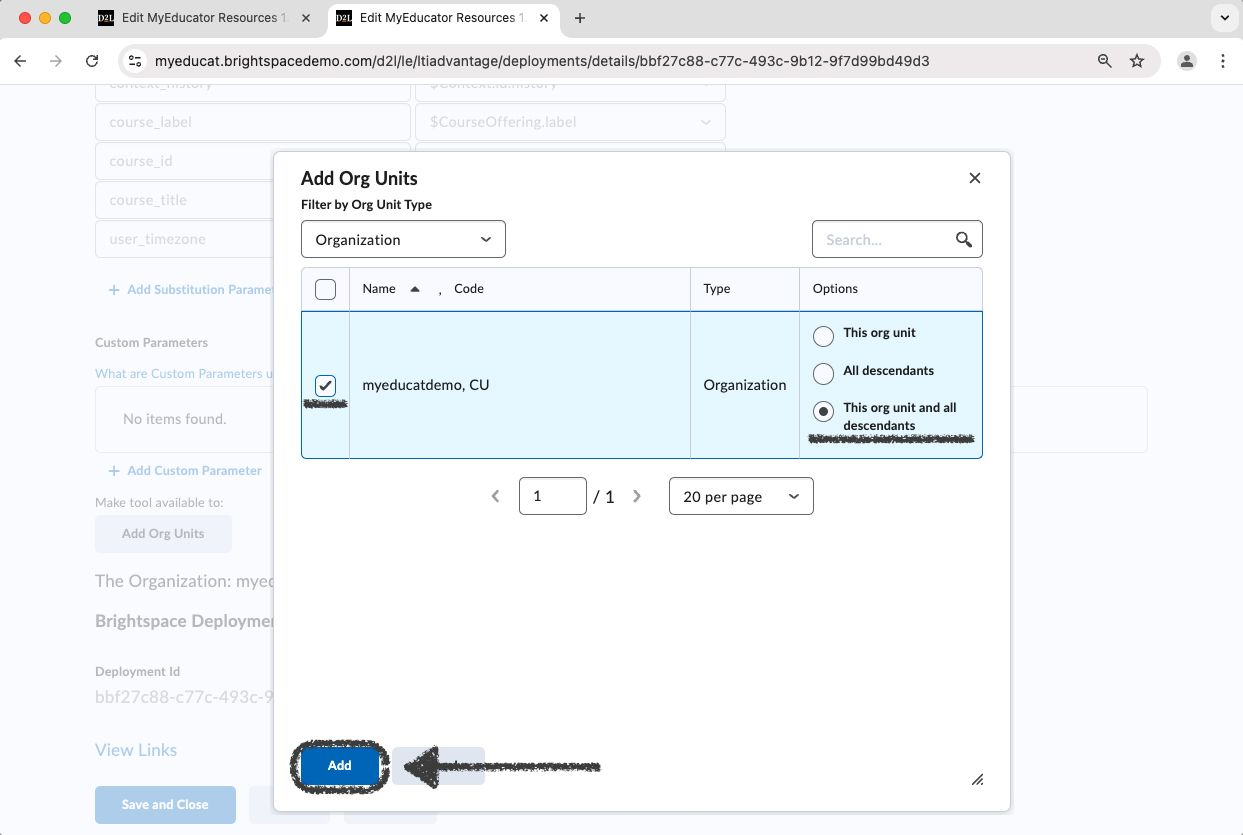
20) Click “Save”.
Once the Deployment has finished saving, exit the second tab.
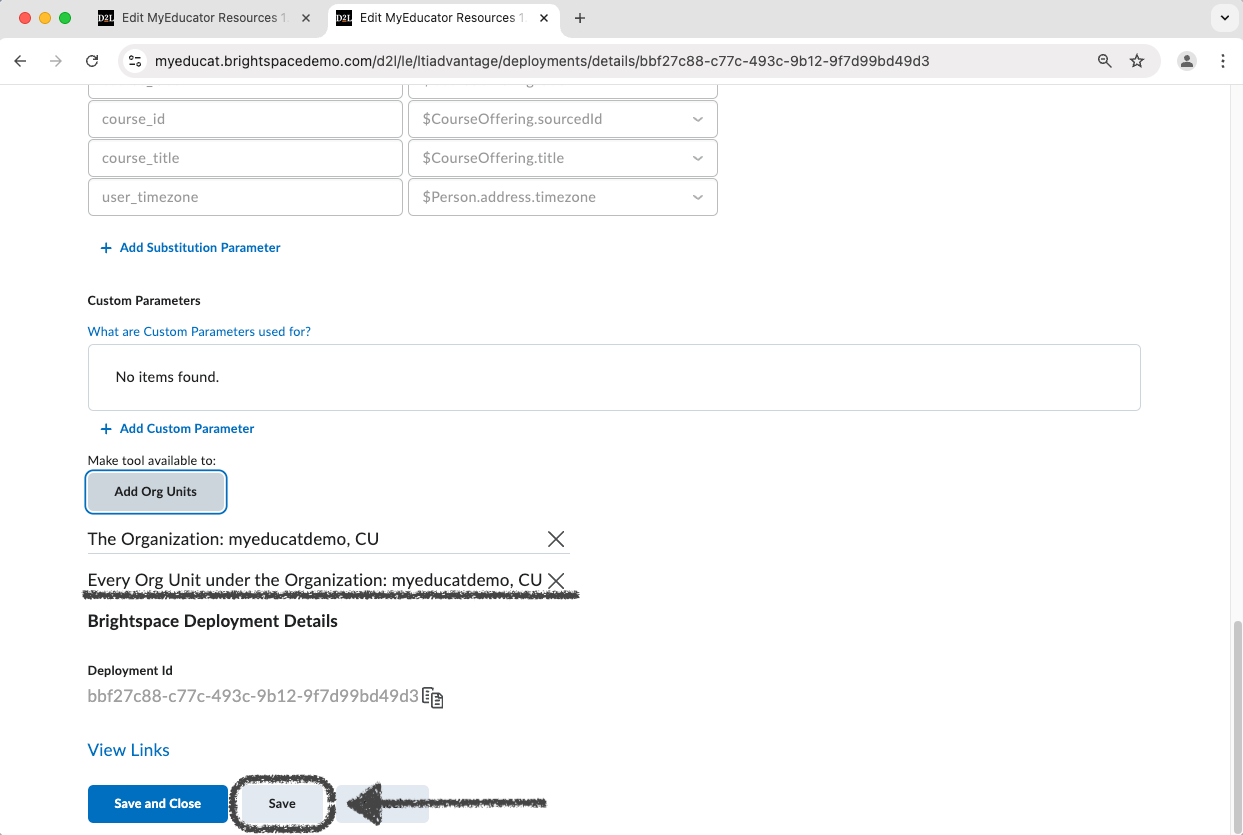
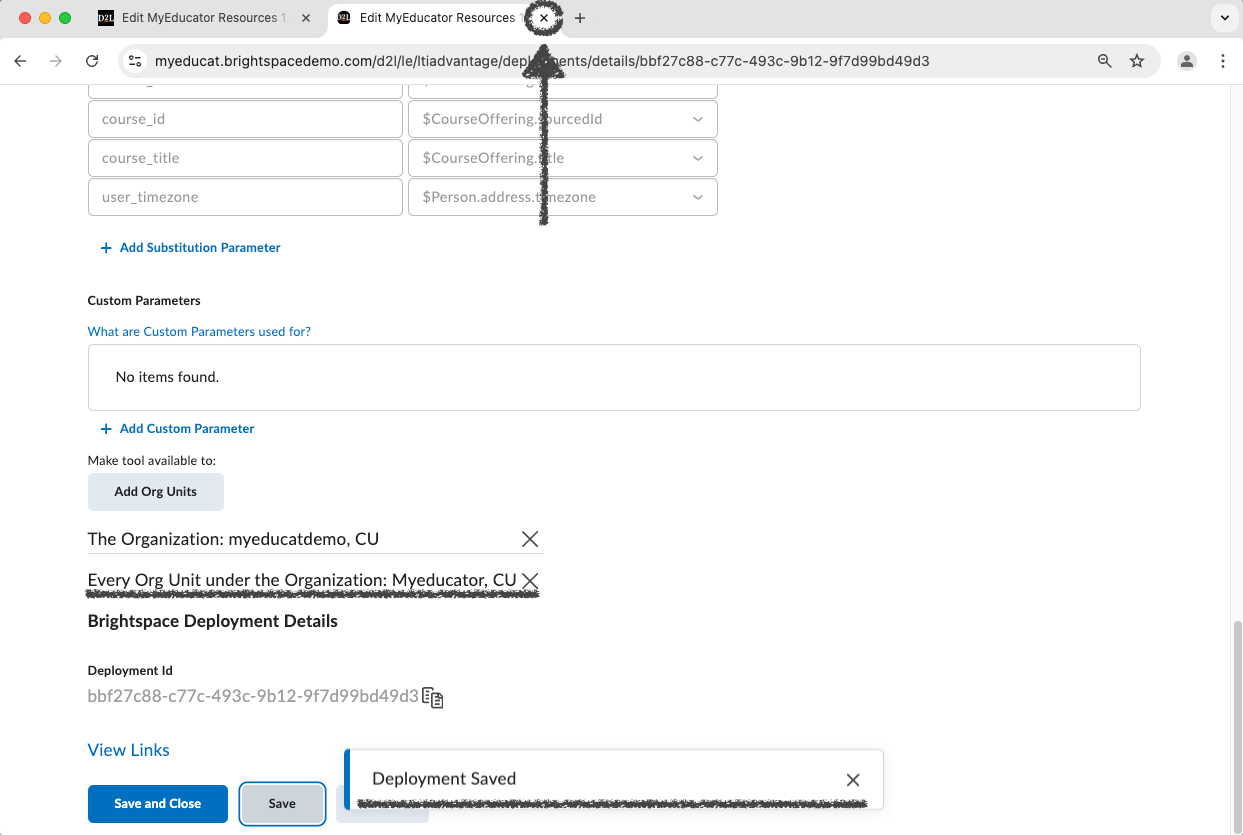
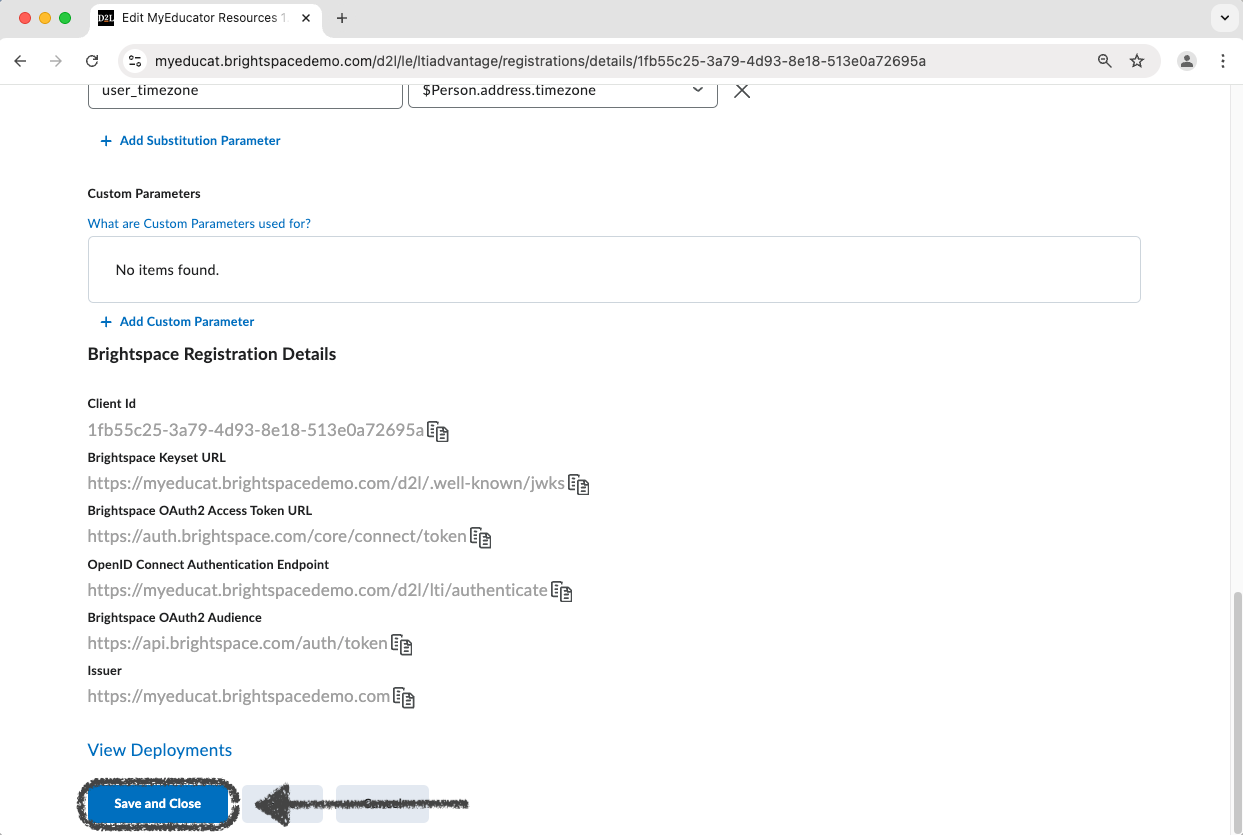
21) Click “Save and Close” in the original tab.
22) Navigate to a course (or create new course).
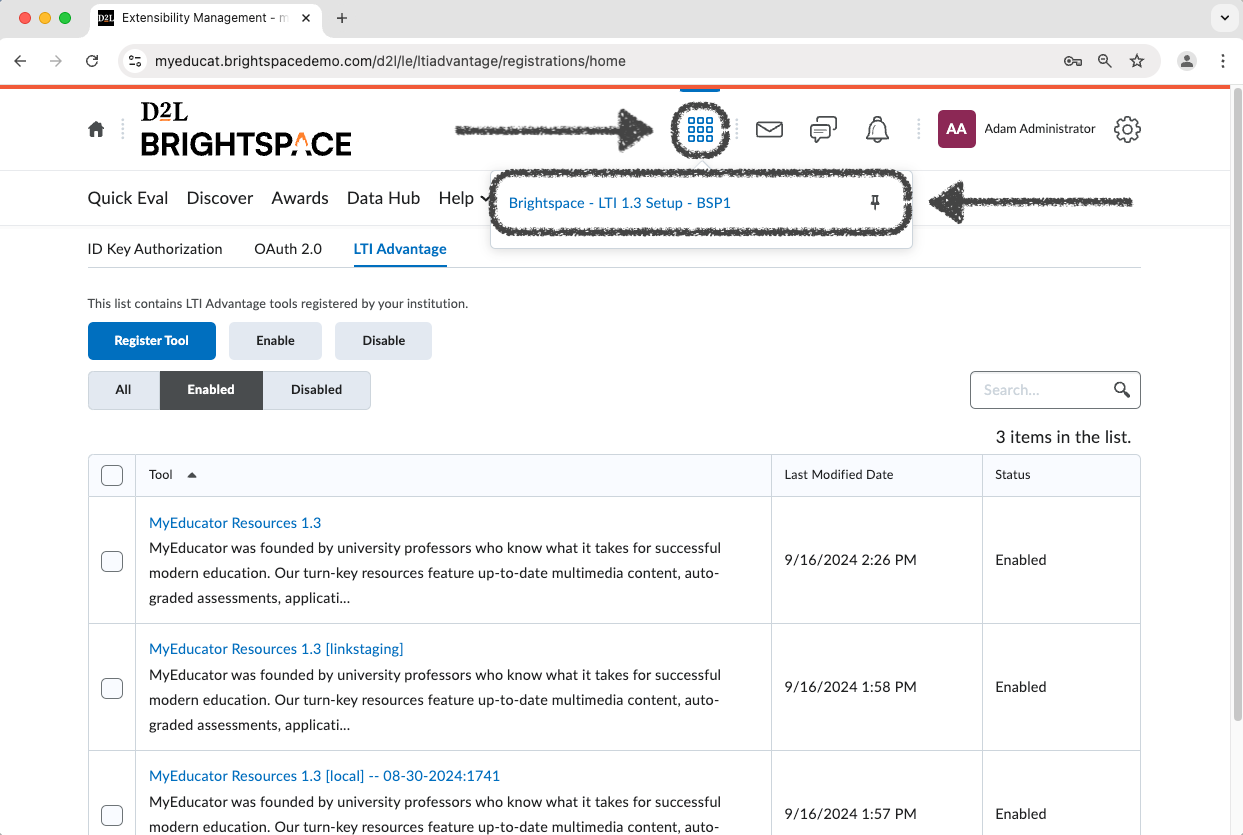
23) Click the “Content” tab.
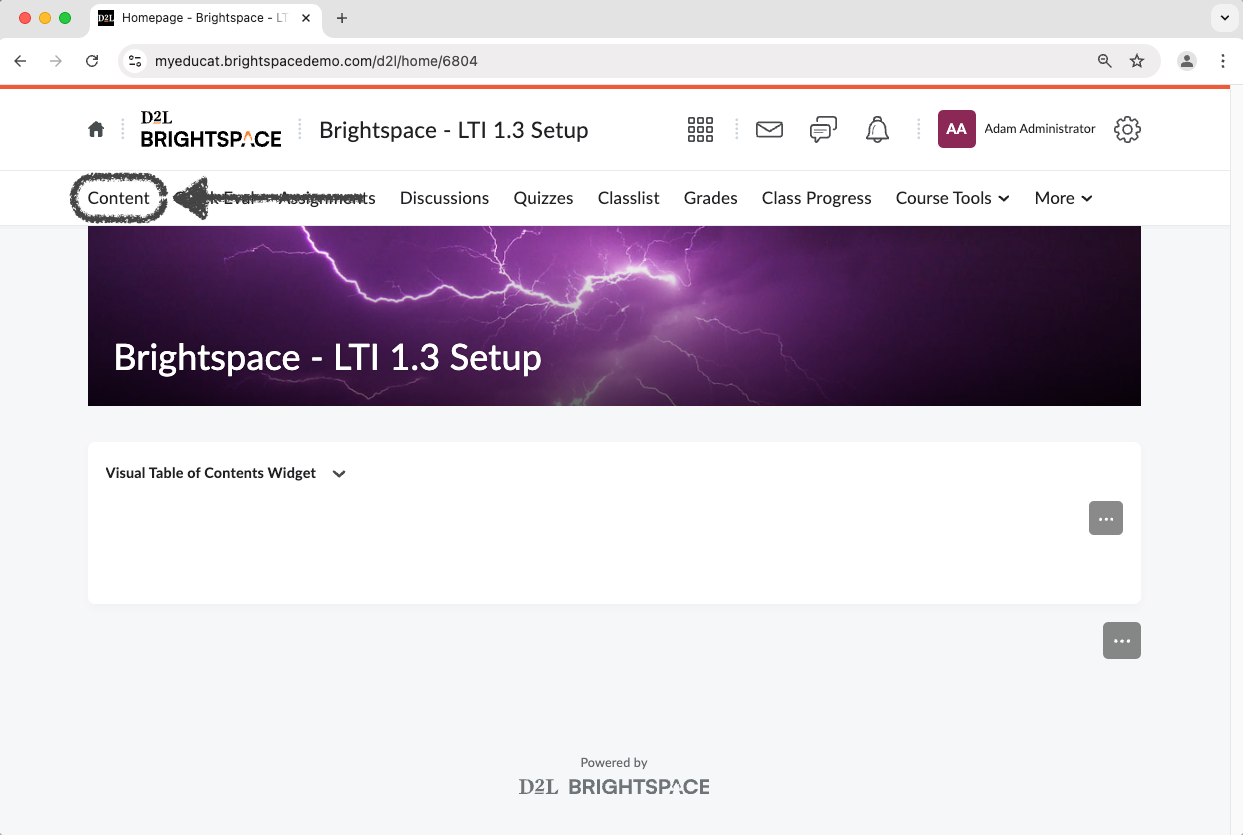
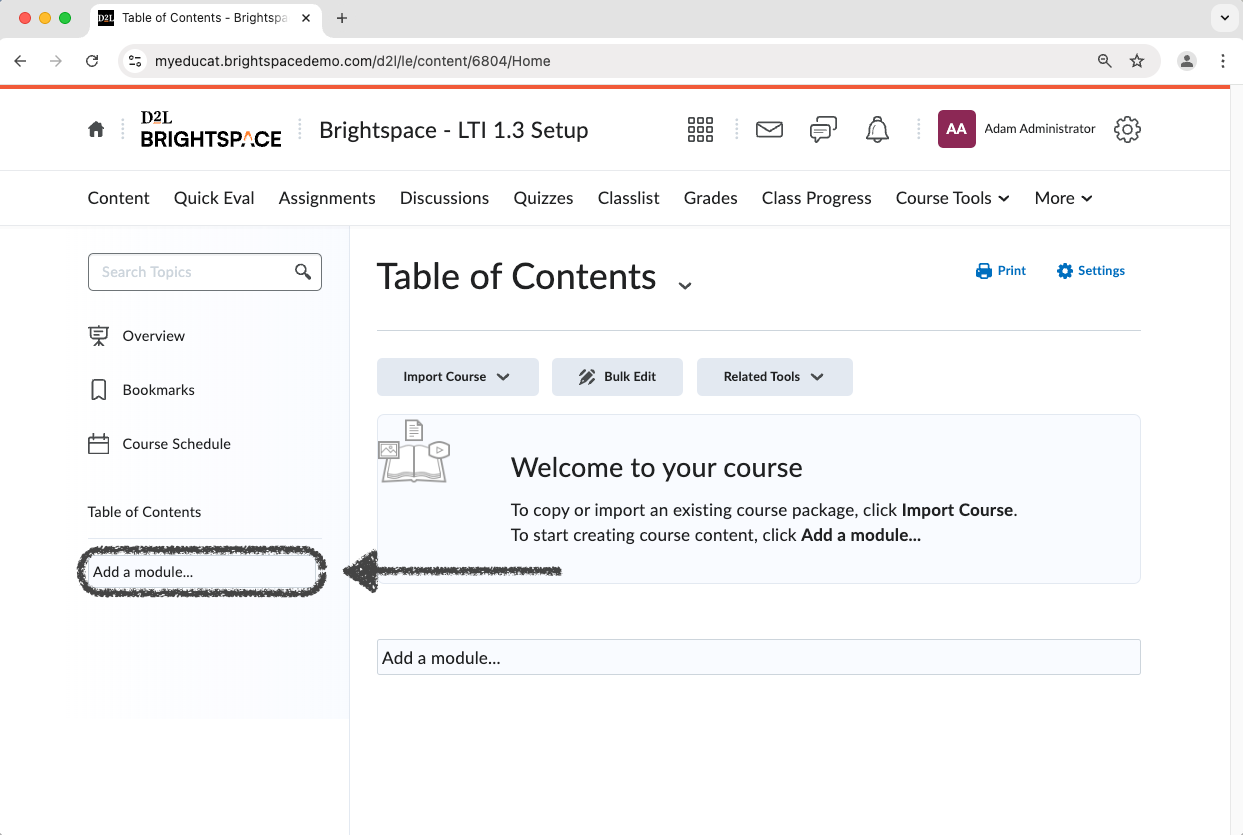
24) Add a new module.
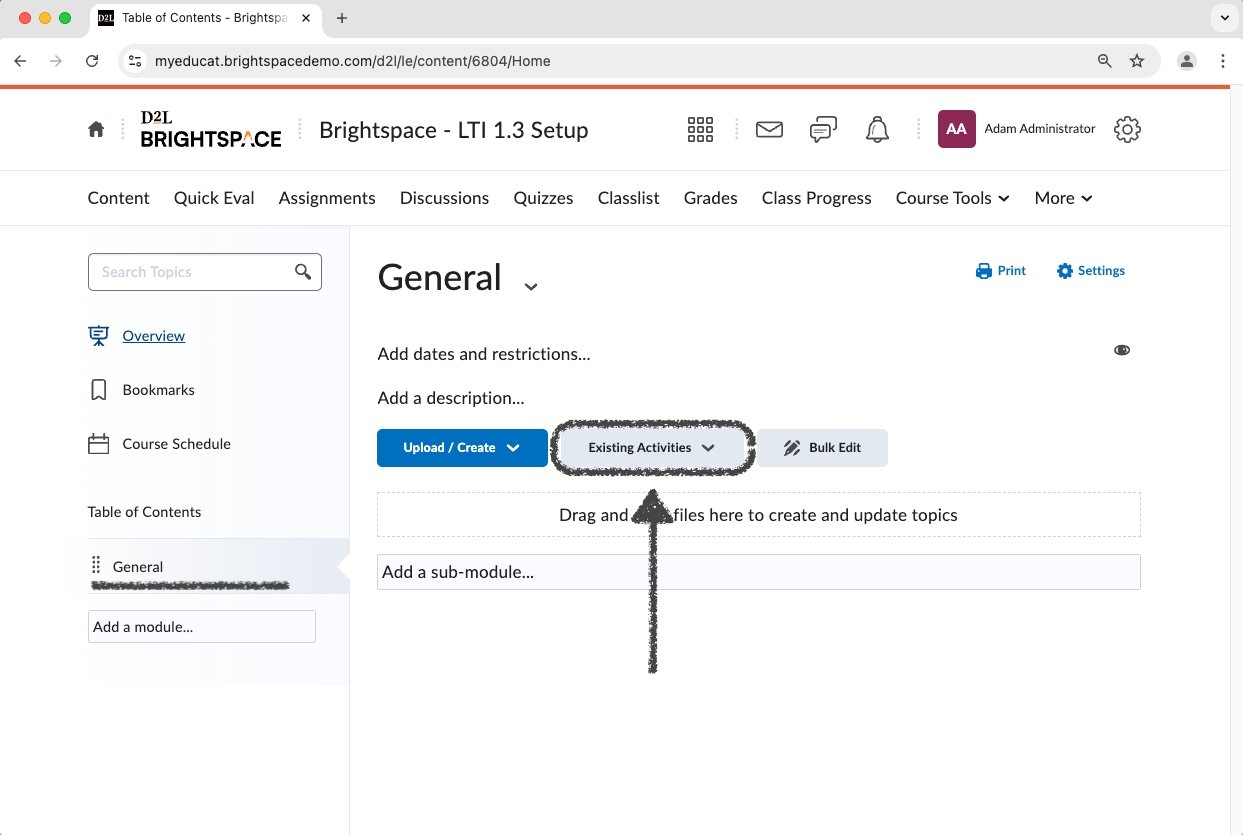
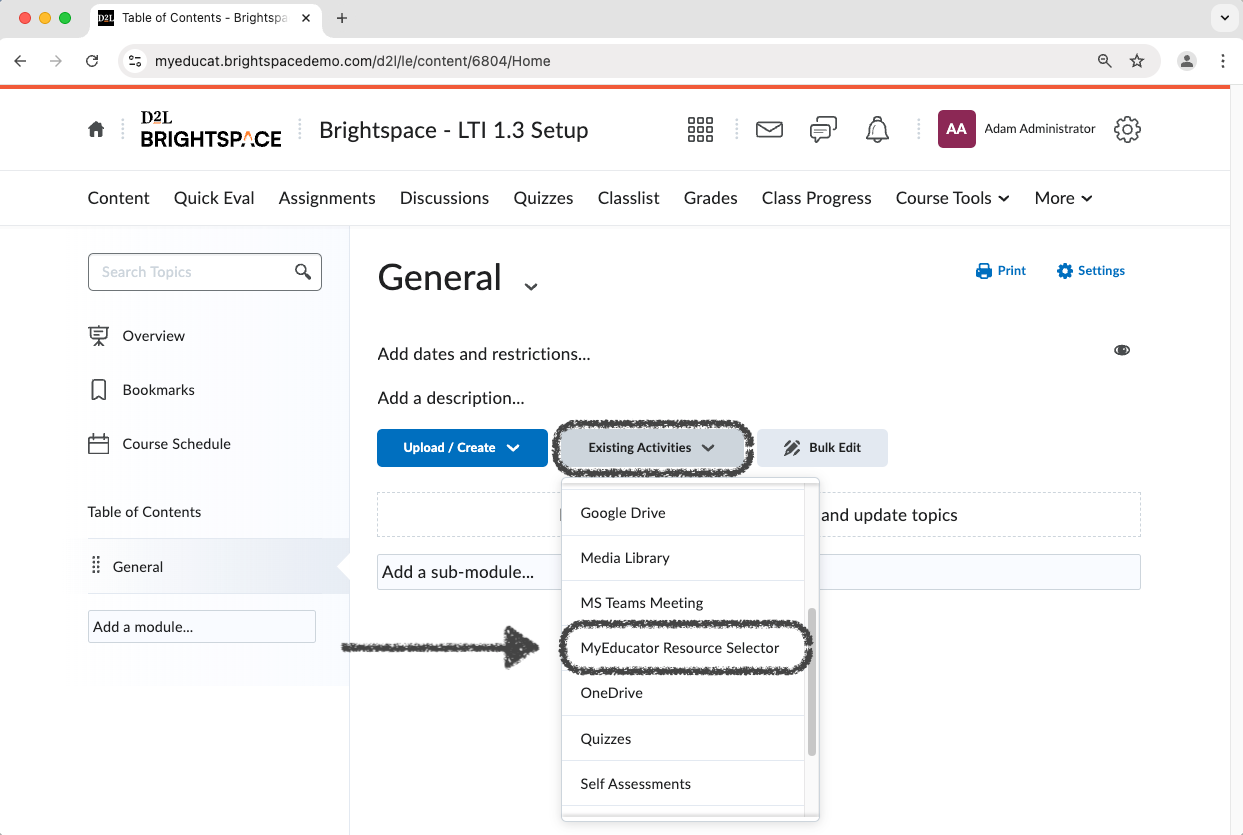
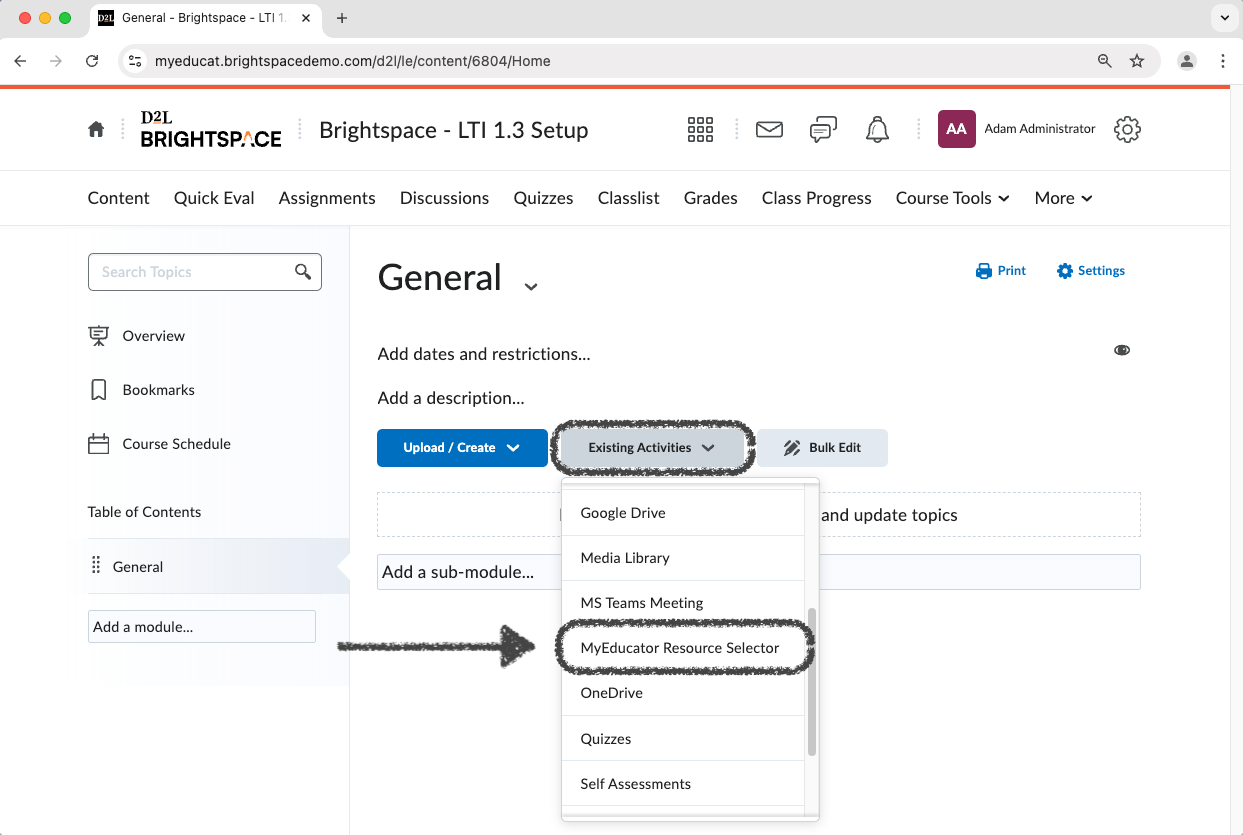
25) In the new module, click the “Existing Activities” drop down.
From that drop down, select “MyEducator Resource Selector”.
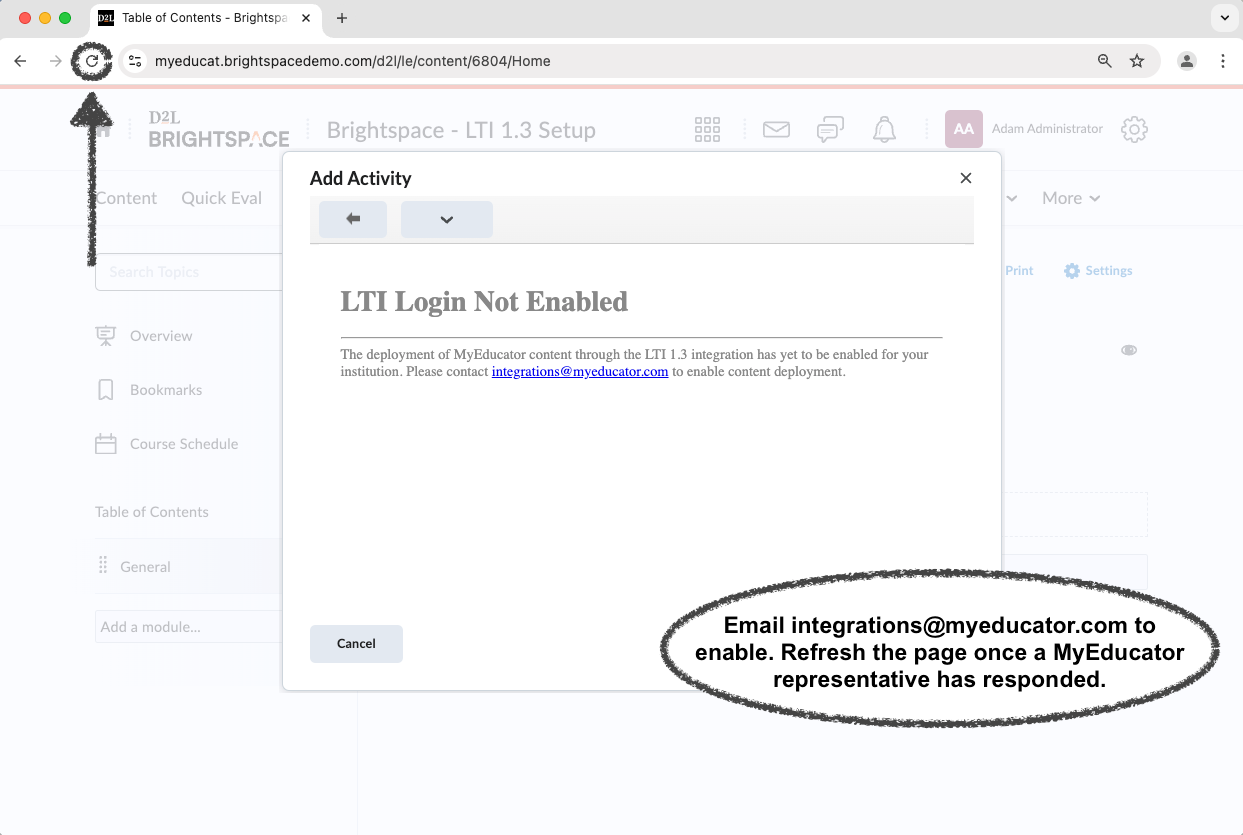
26) You should see an “LTI Login Not Enabled” alert. You will need assistance from a MyEducator representative.
Email integrations@myeducator.com or contact your MyEducator representative.
Once you have received help from a MyEducator representative, refresh the webpage and then again select “MyEducator Resource Selector” from the “Existing Activities” drop down.
27) If you see a version of the screenshot below, you have successfully completed the setup for globally integrating Brightspace with MyEducator (LTI 1.3) for your institution.
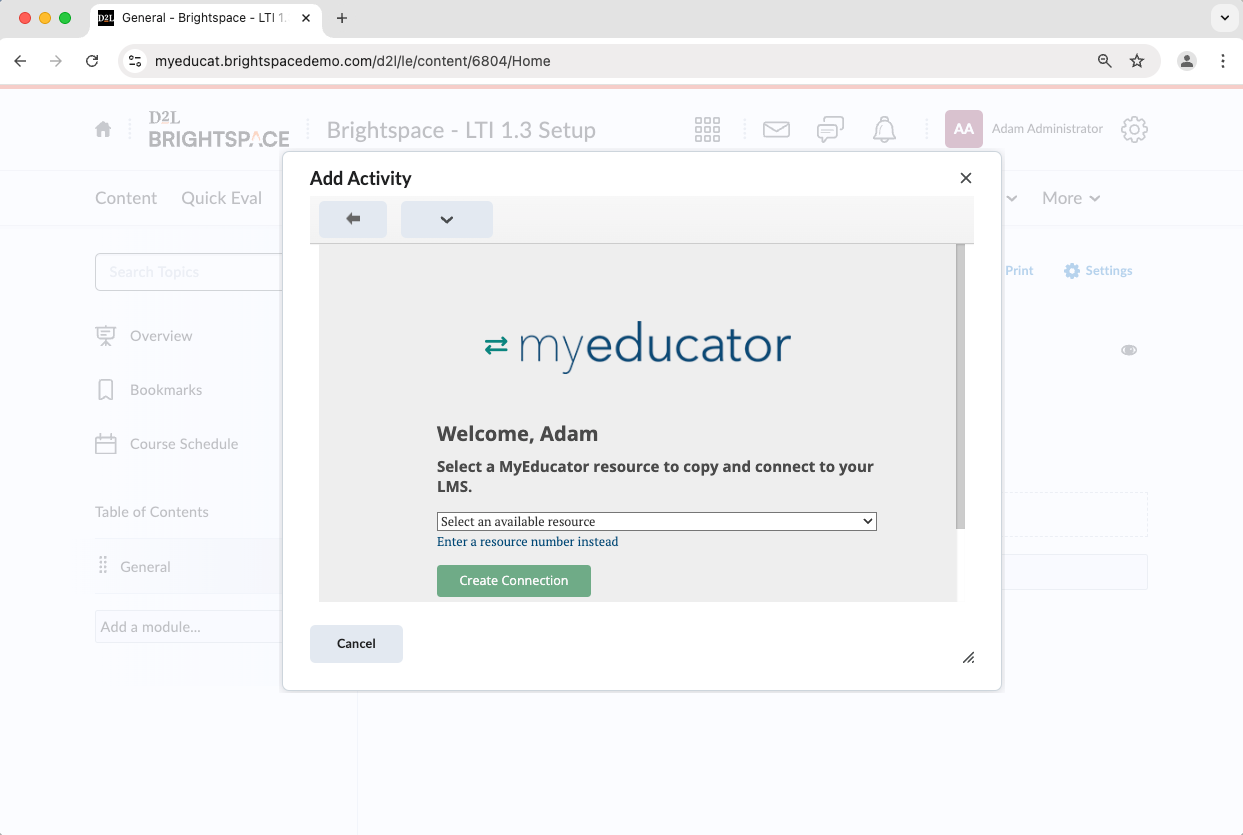
Note: Professors, instructors, and designers can now start the course integration setup.
For assistance, contact integrations@myeducator.com or support@myeducator.com.