
This article is for LMS administrators.
Each step has associated text and screenshots. Be sure to read all text and view each screenshot for optimal results.
For assistance, contact integrations@myeducator.com or support@myeducator.com.
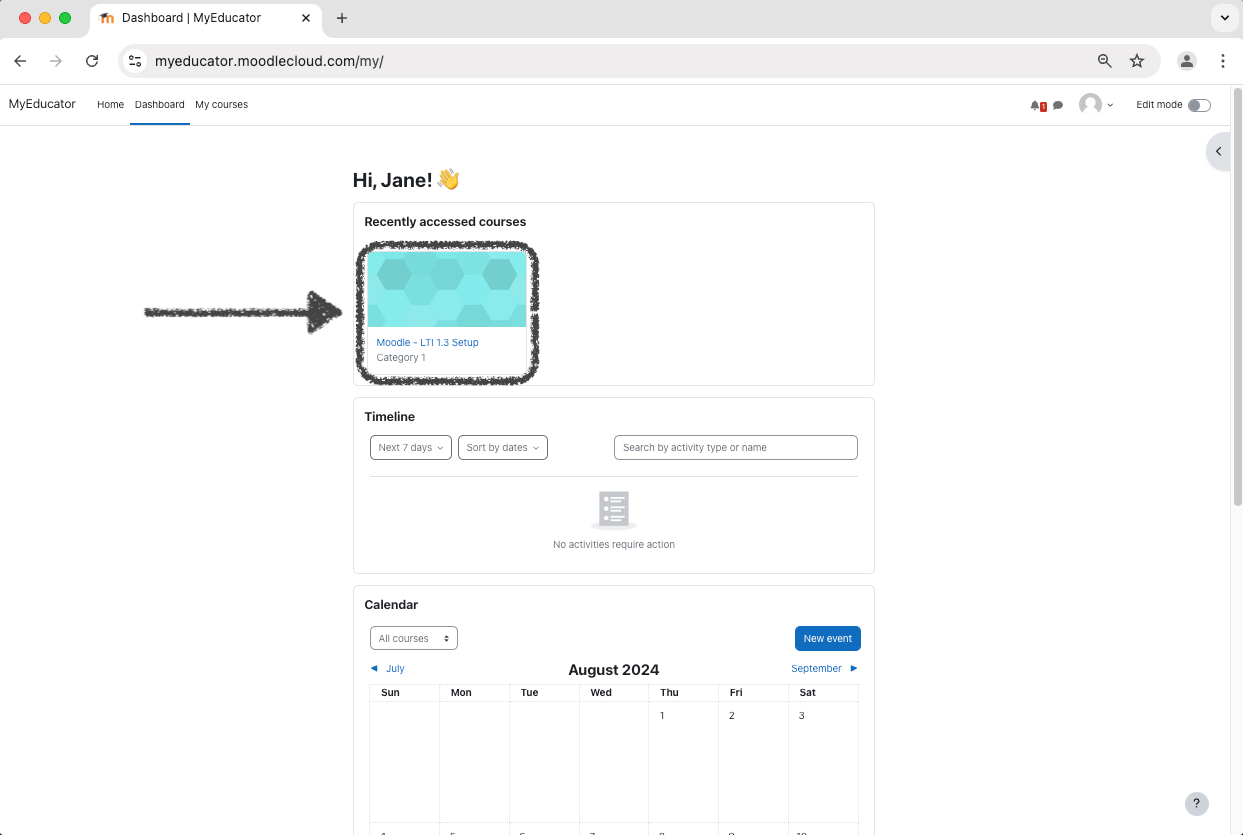
1) Log in to your Moodle account. Locate and click on your course.
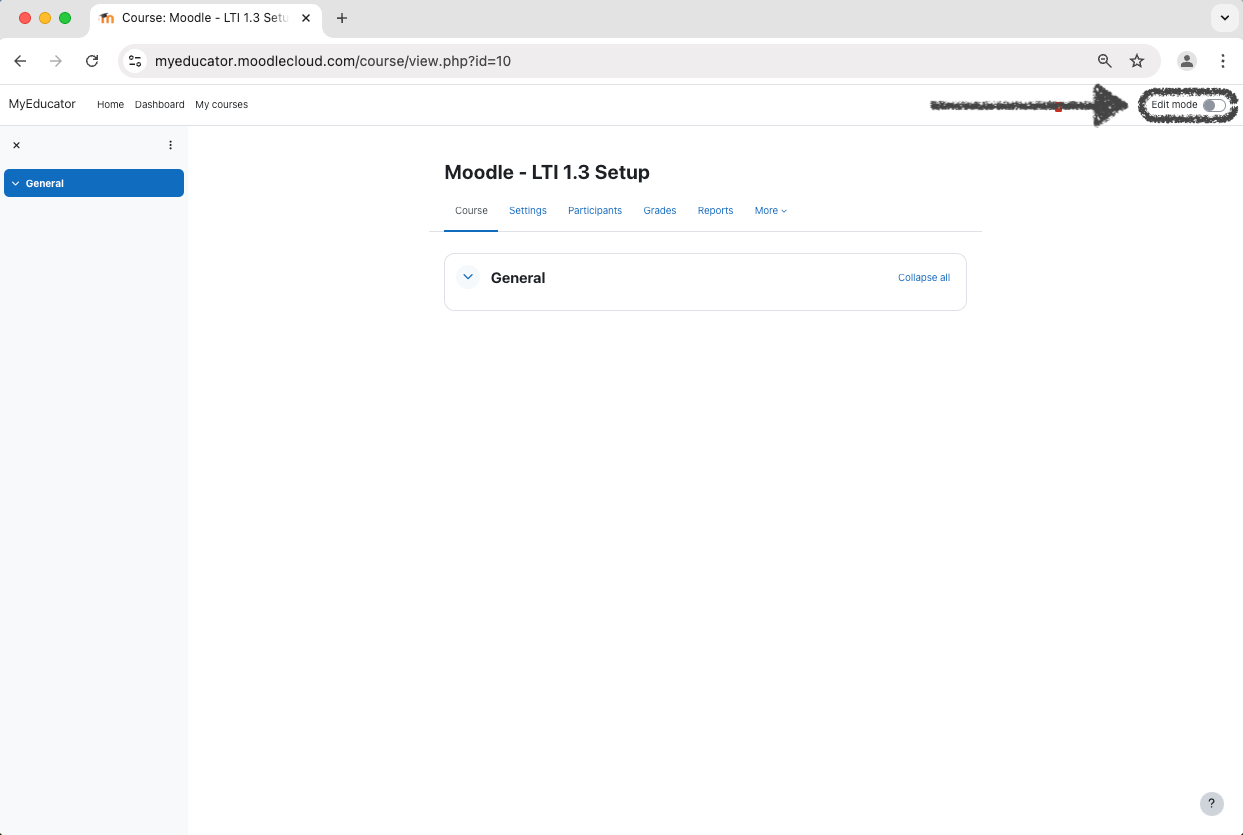
2) Turn on “Edit Mode”.
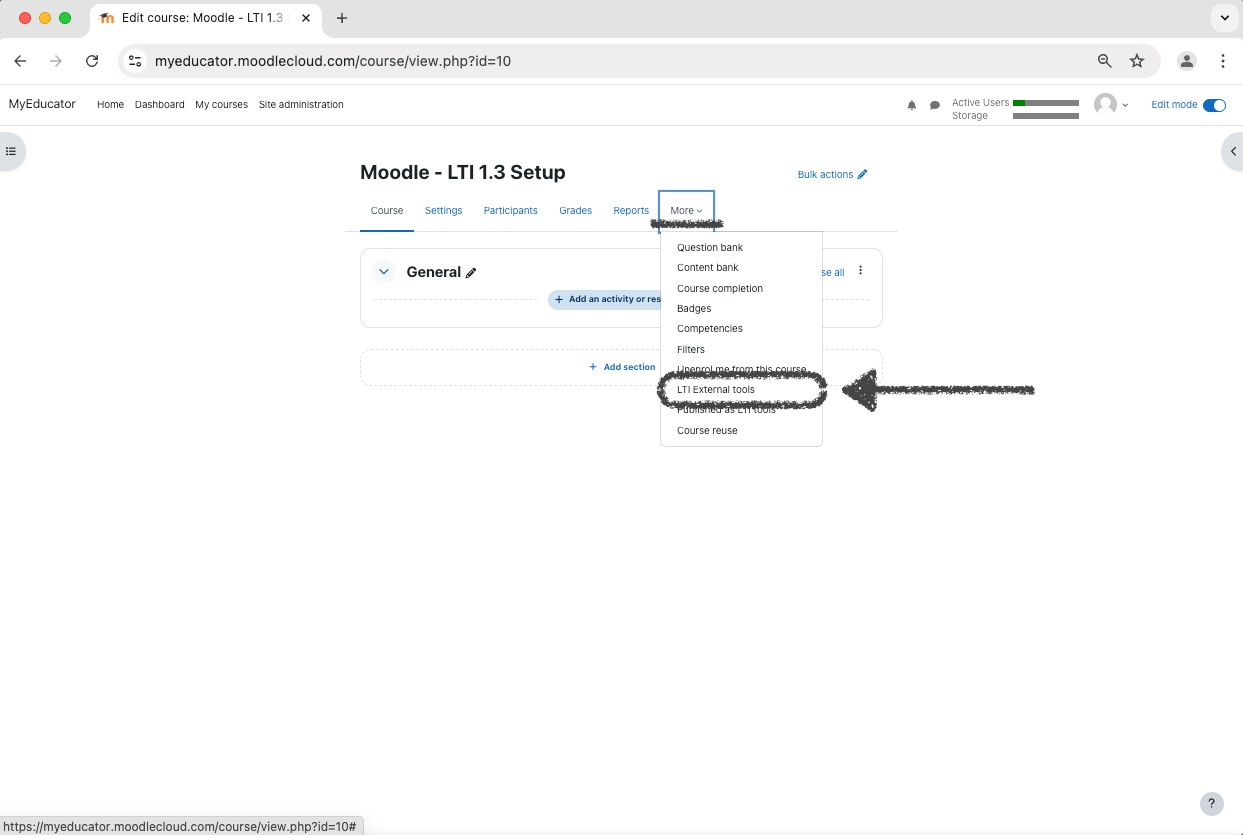
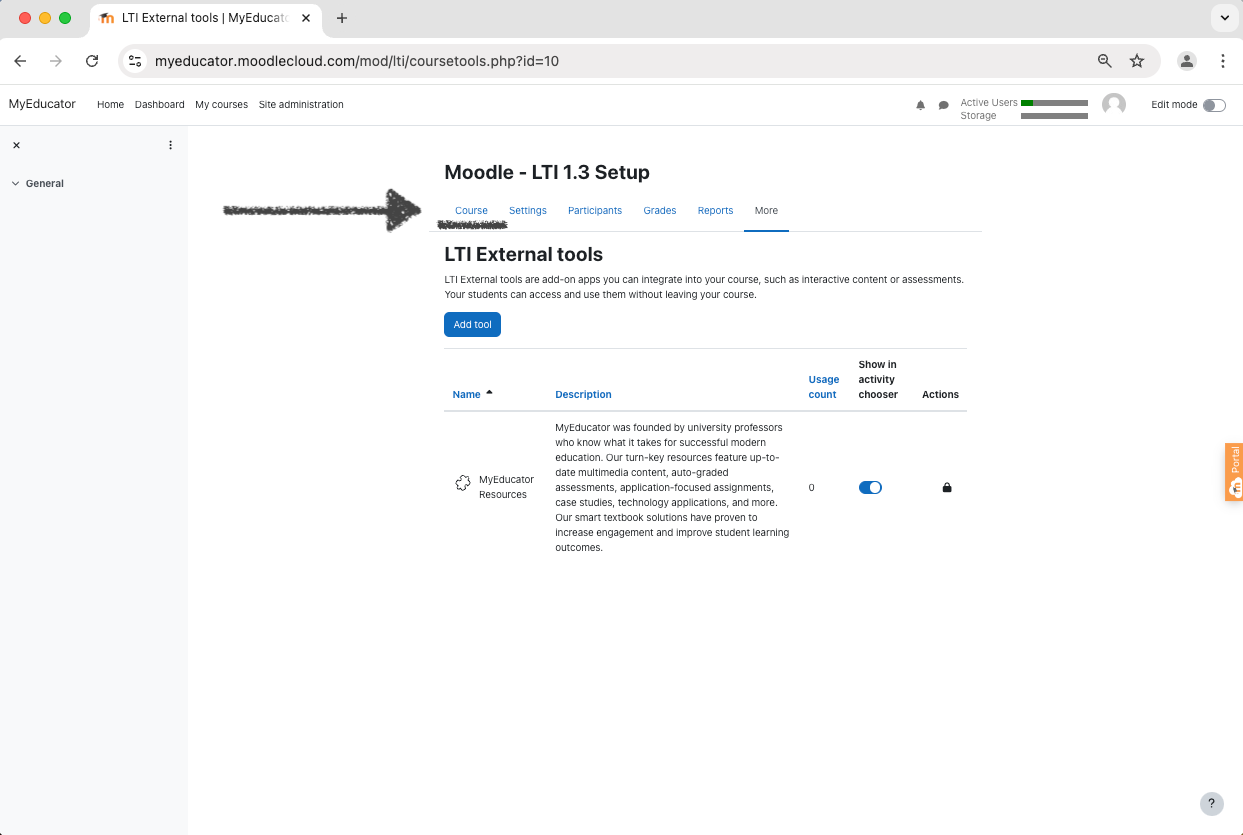
3) Click the “More” tab dropdown menu. Select the “LTI External tools” option.
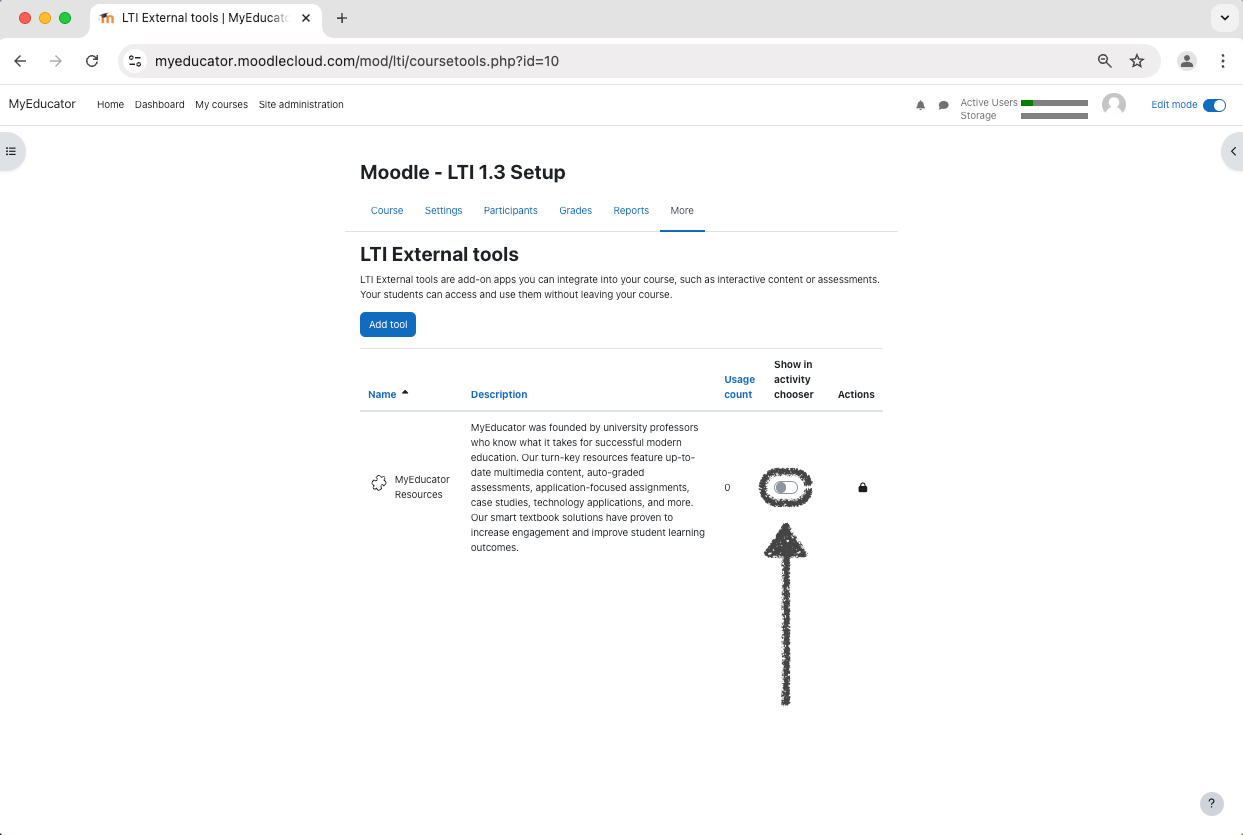
4) Toggle the “Show in activity chooser” switch to the on position for the “MyEducator Resources” tool.
5) Click the “Course” tab.
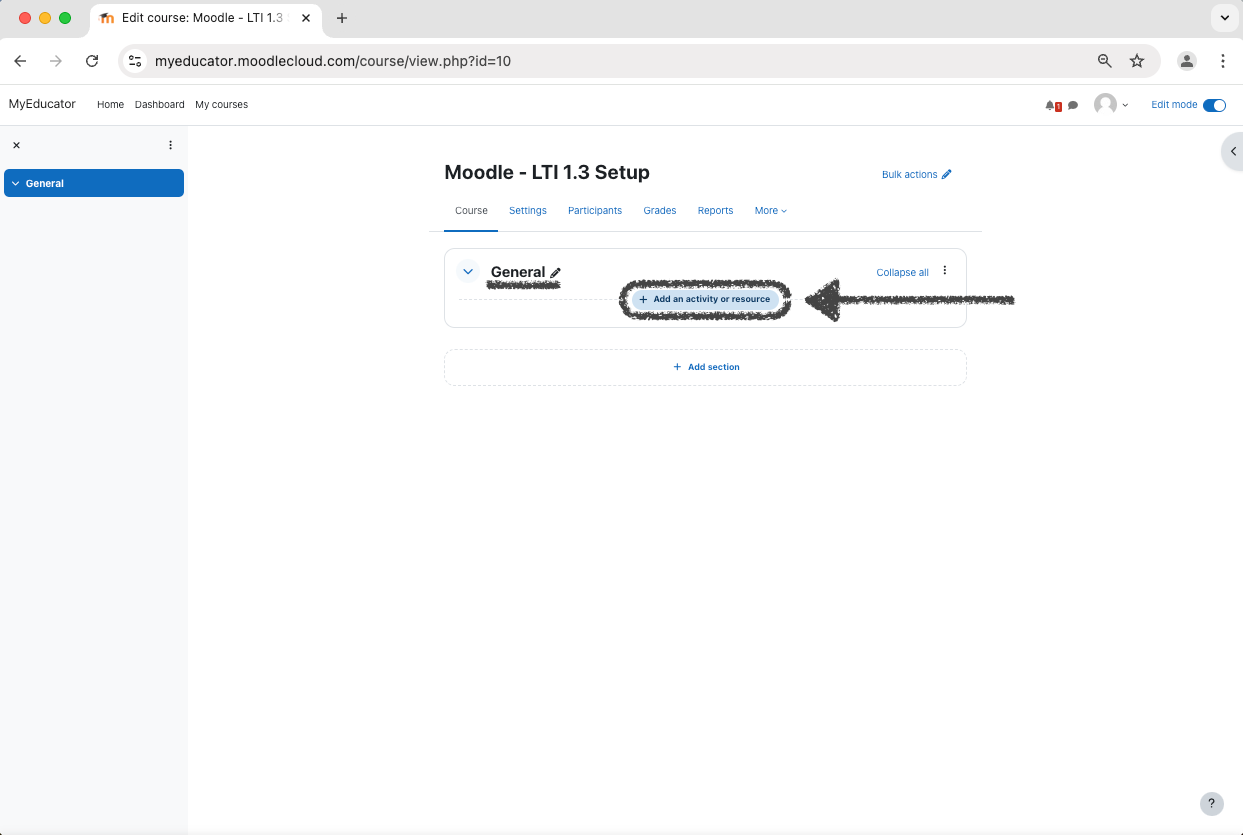
6) Identify or create a section to add MyEducator content to.
Click that section’s “Add an activity or resource” button.
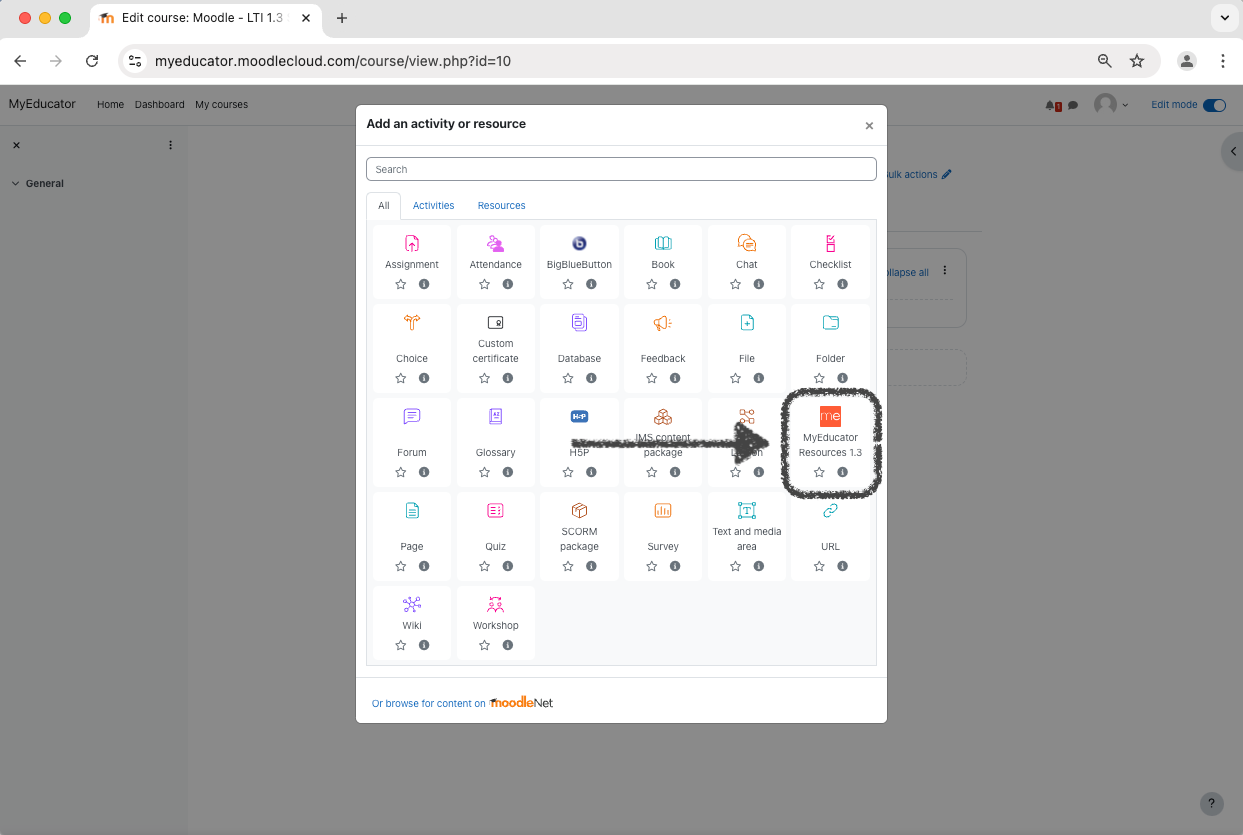
7) Select the “MyEducator Resources” option.
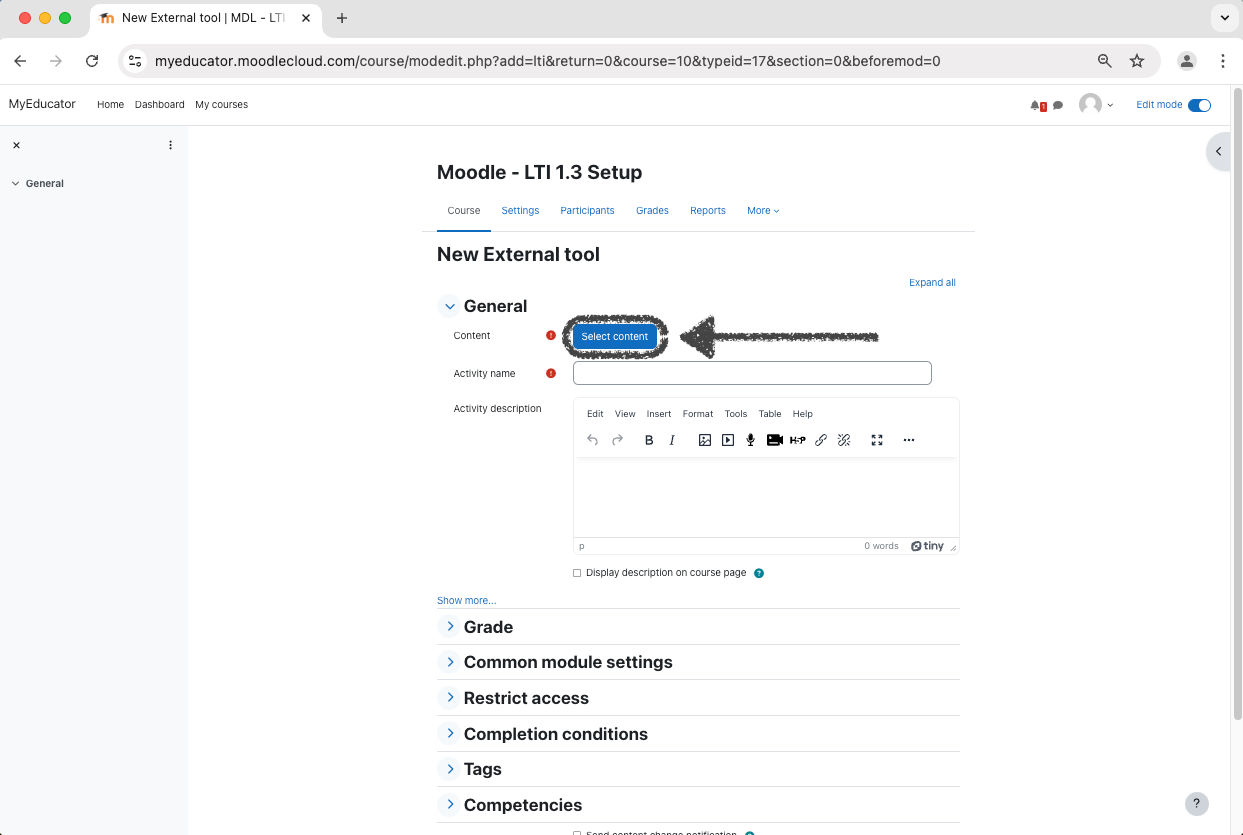
8) A page titled “New External tool” should now be seen.
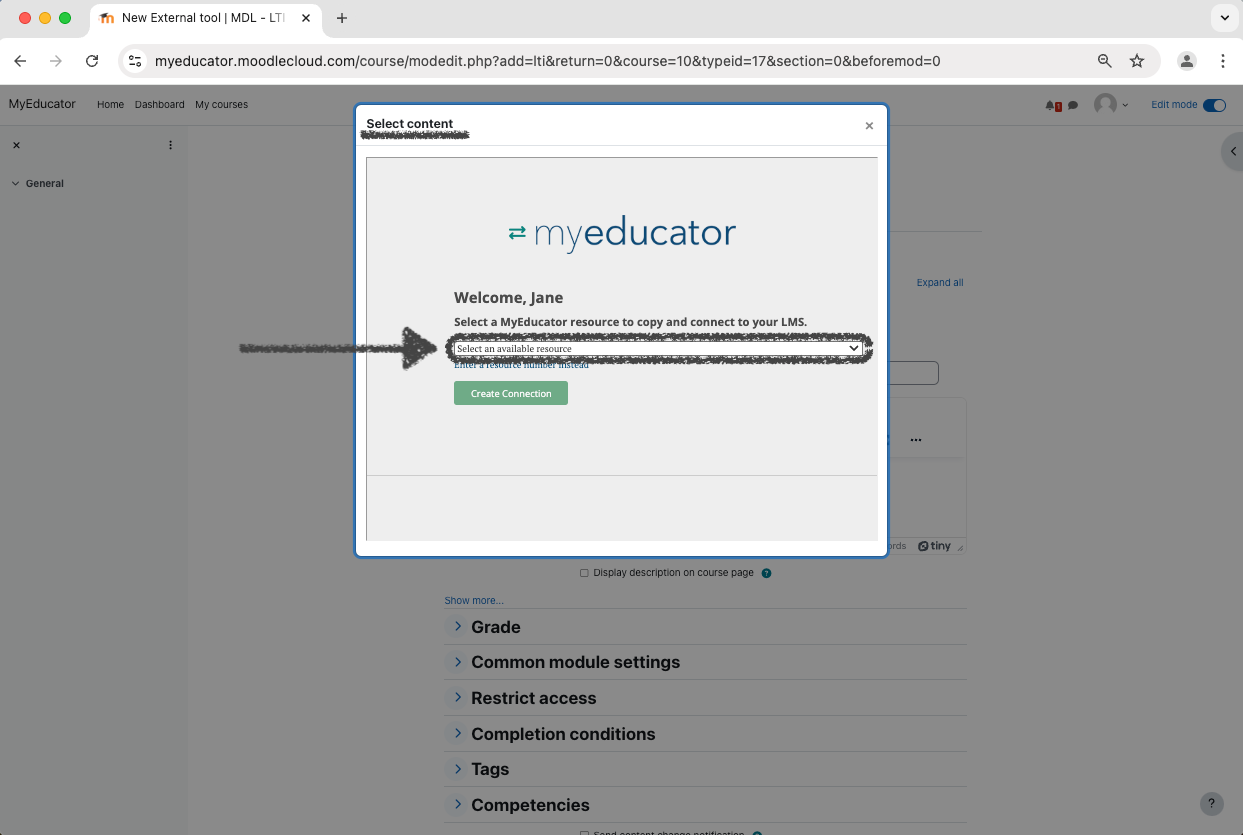
Under the “General” section, click the “Select content” button.
9) A modal titled “Select Content” should appear.
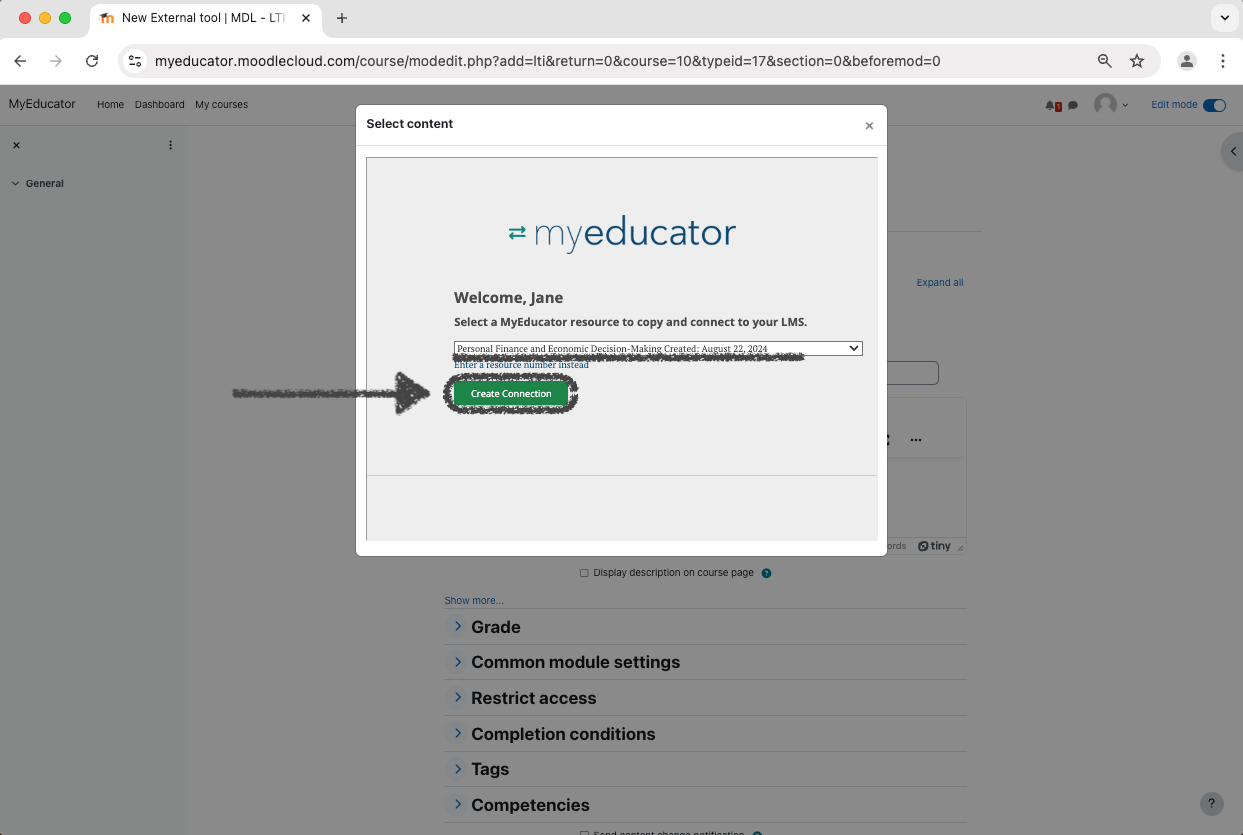
Use the drop down menu to select the MyEducator resource you would like to copy and then connect to Moodle.
Click “Create Connection”.
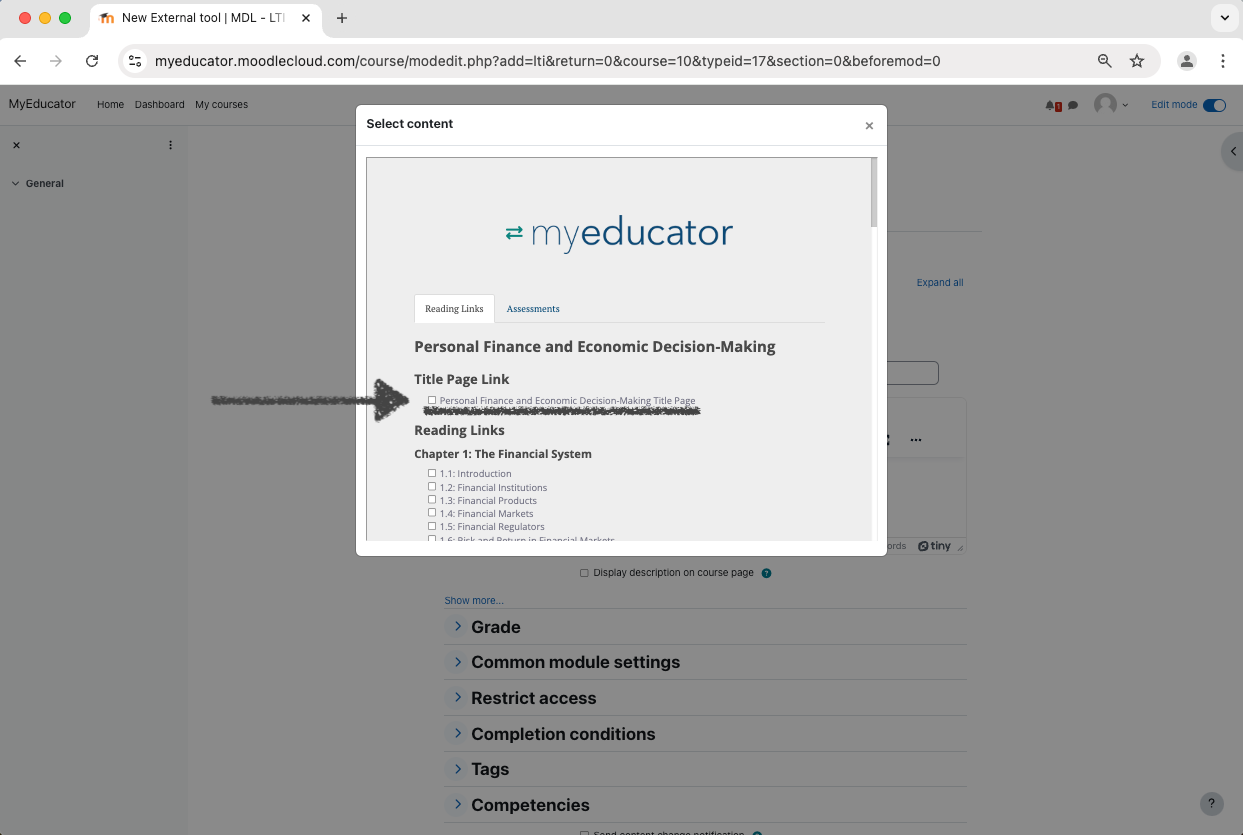
10) Select the “Title Page Link” option.
11) Select the reading links you would like to have appear in your Moodle course.
Best practice is to only select the first reading link from each chapter, but you are free to add as many reading links as desired.
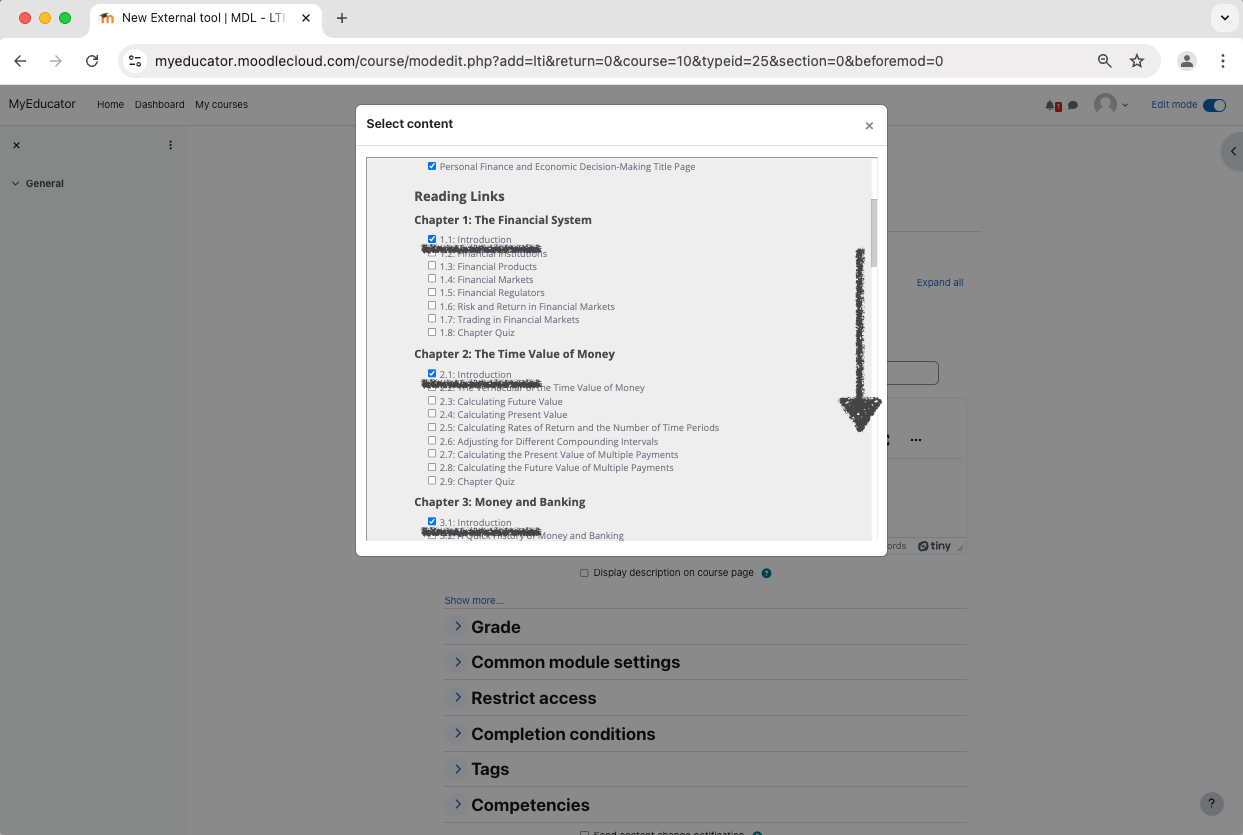
12) Scroll to the top of the modal.
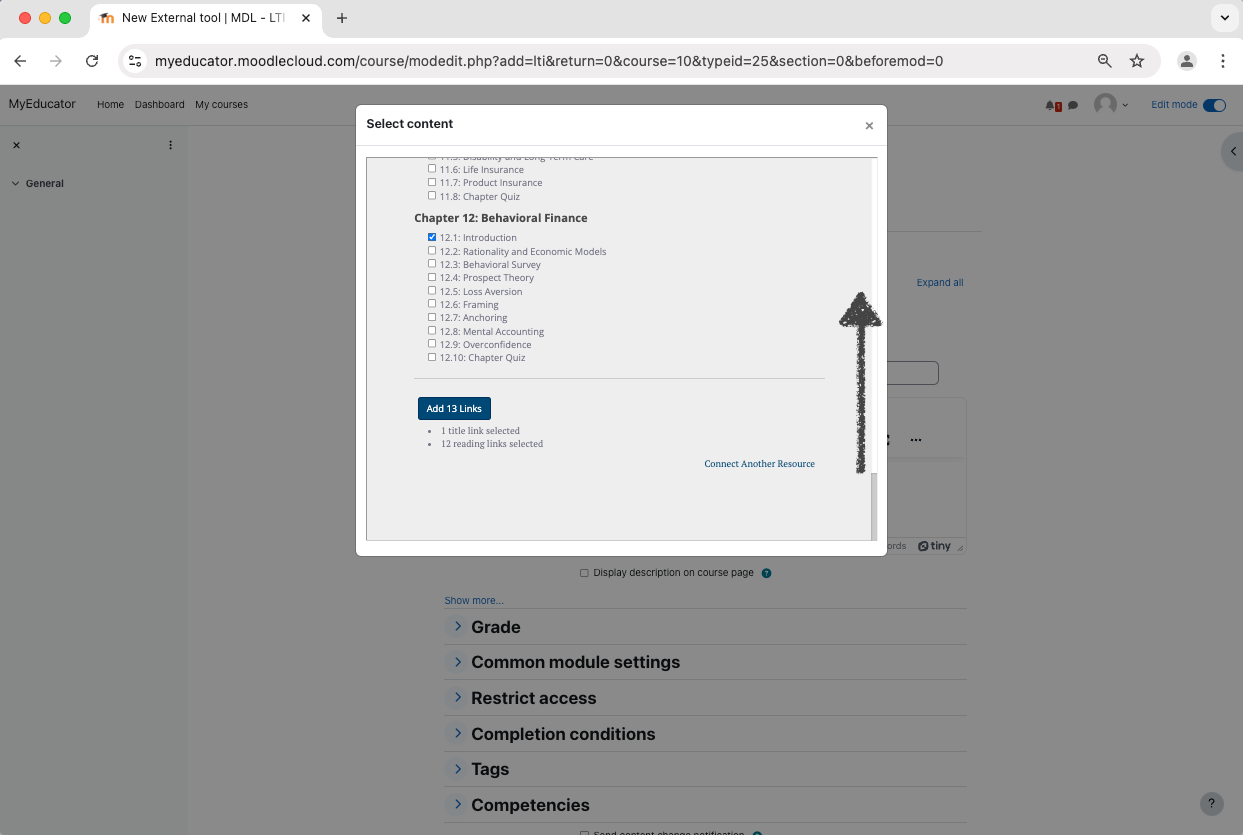
13) Click on the "Assessments" tab.
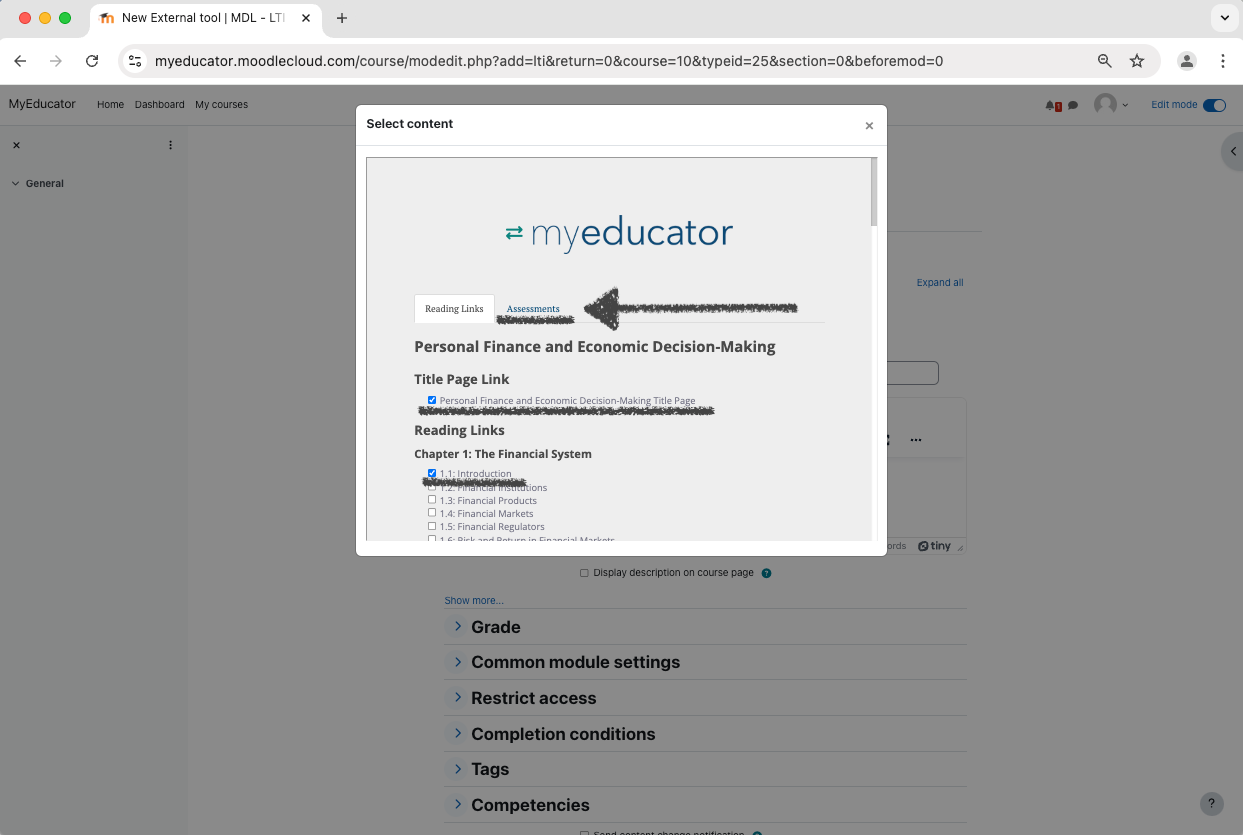
14) Select the assessments that you would like as graded assessments in your Blackboard course.
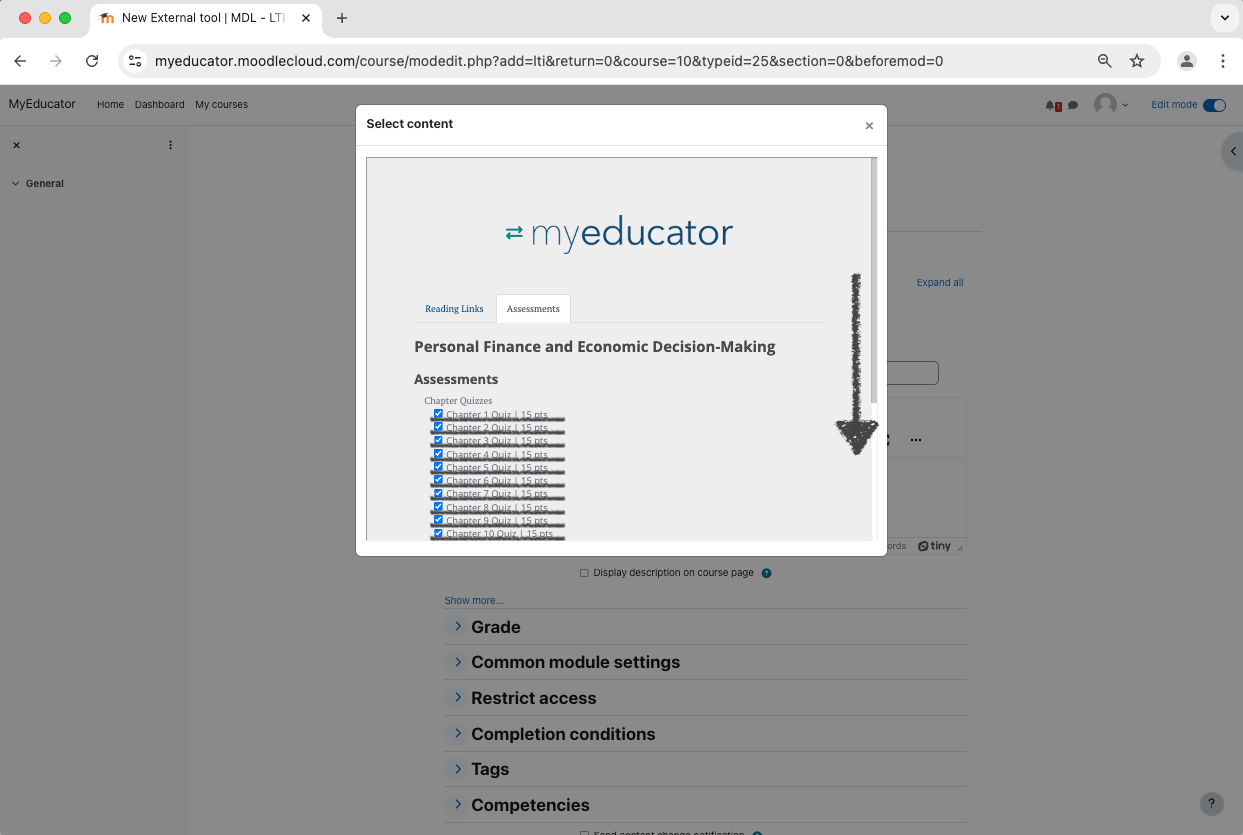
15) Click the Add Links button.
This action will add any other selected links as well (“Title Page Link”, reading links).
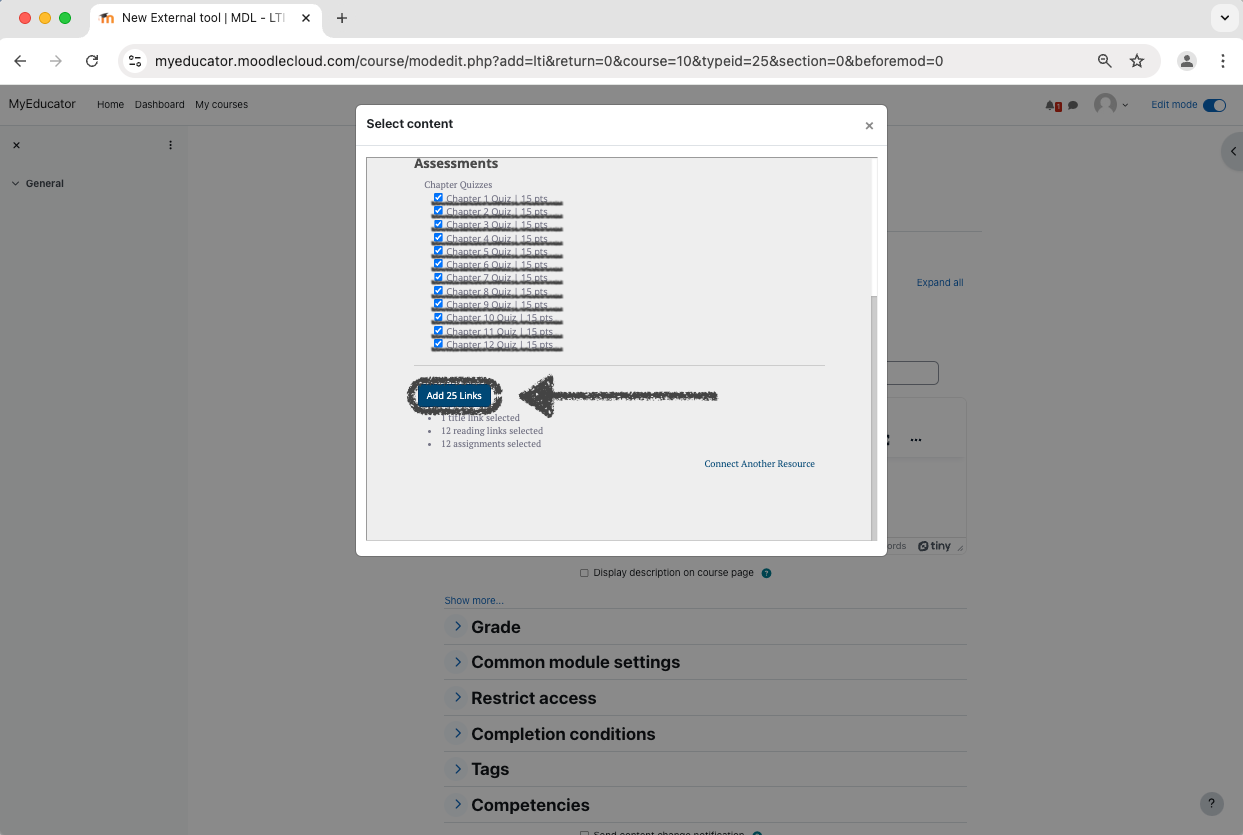
16) Click the “Save and return to course” button.
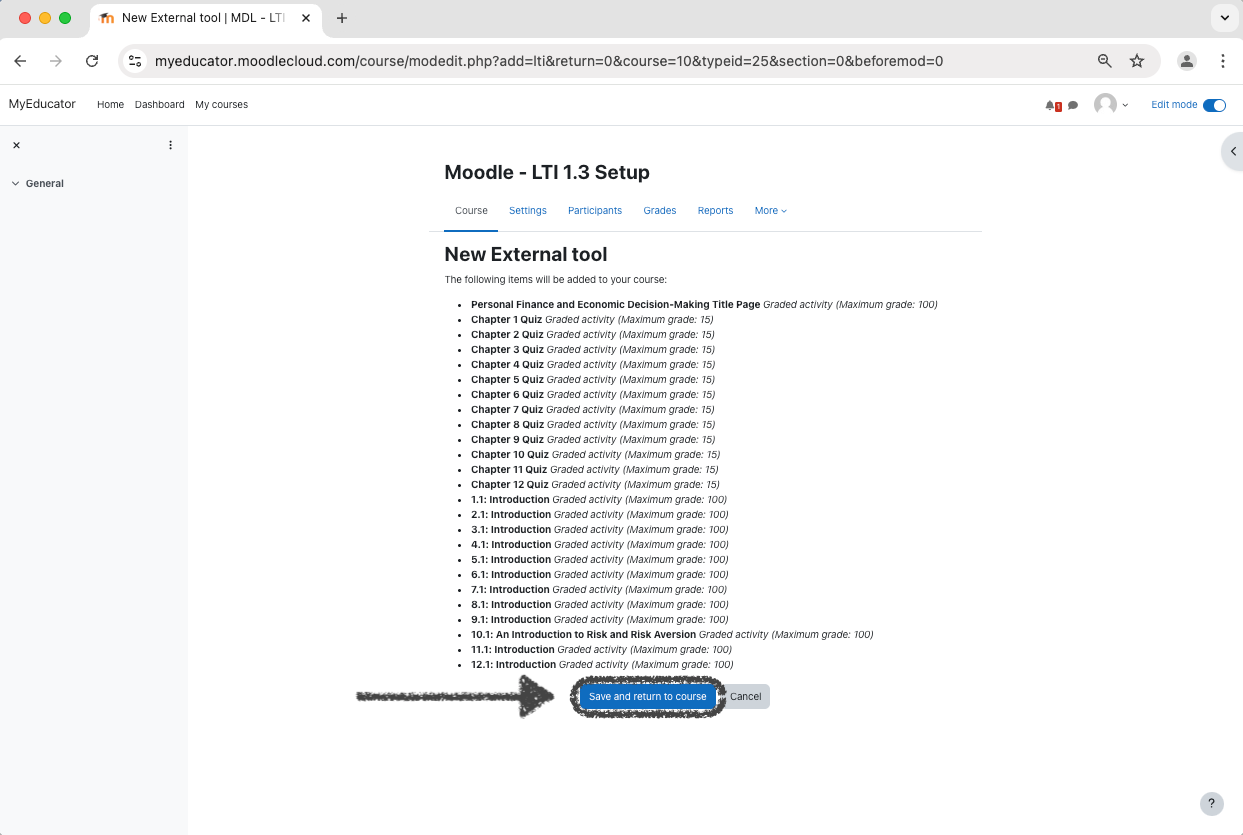
17) You will be taken back to the course home page.
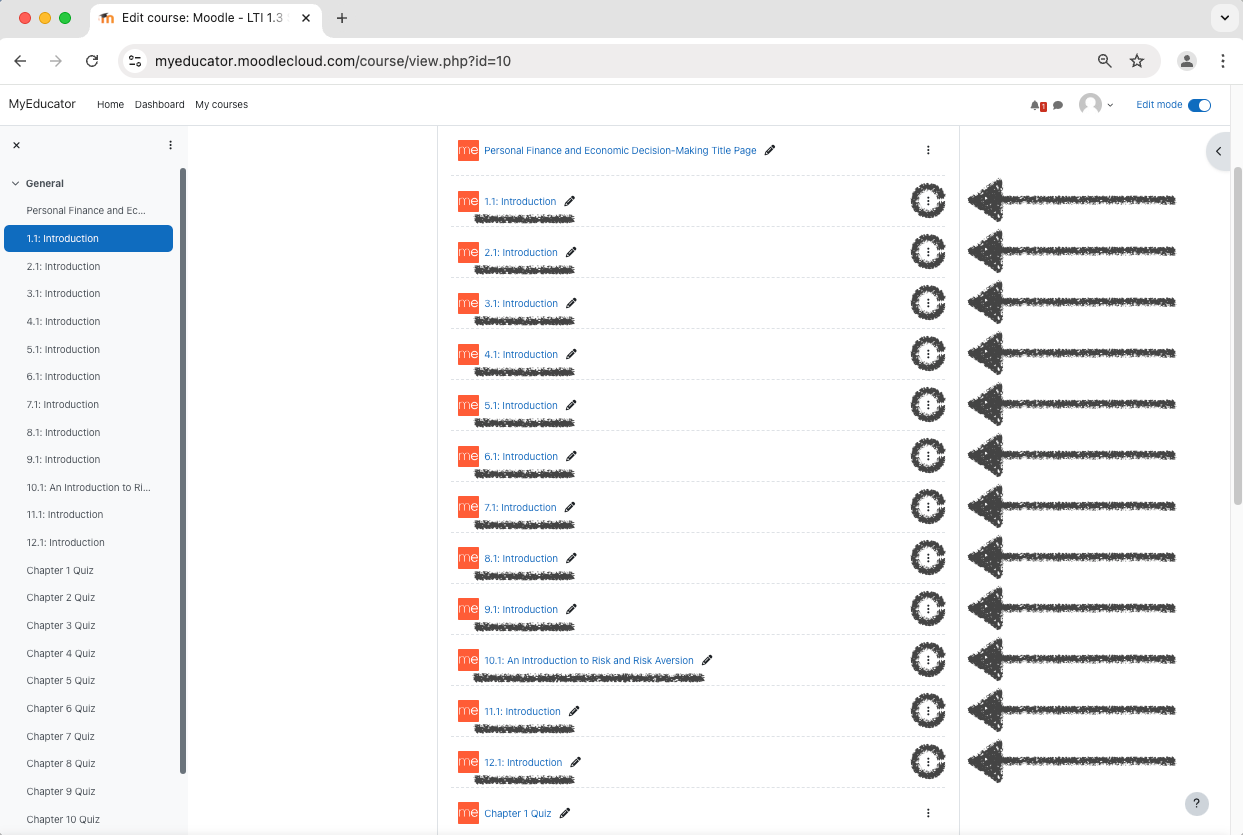
Edit the Title Page link by clicking the three dots icon and selecting the “Edit settings” option from the drop down menu.
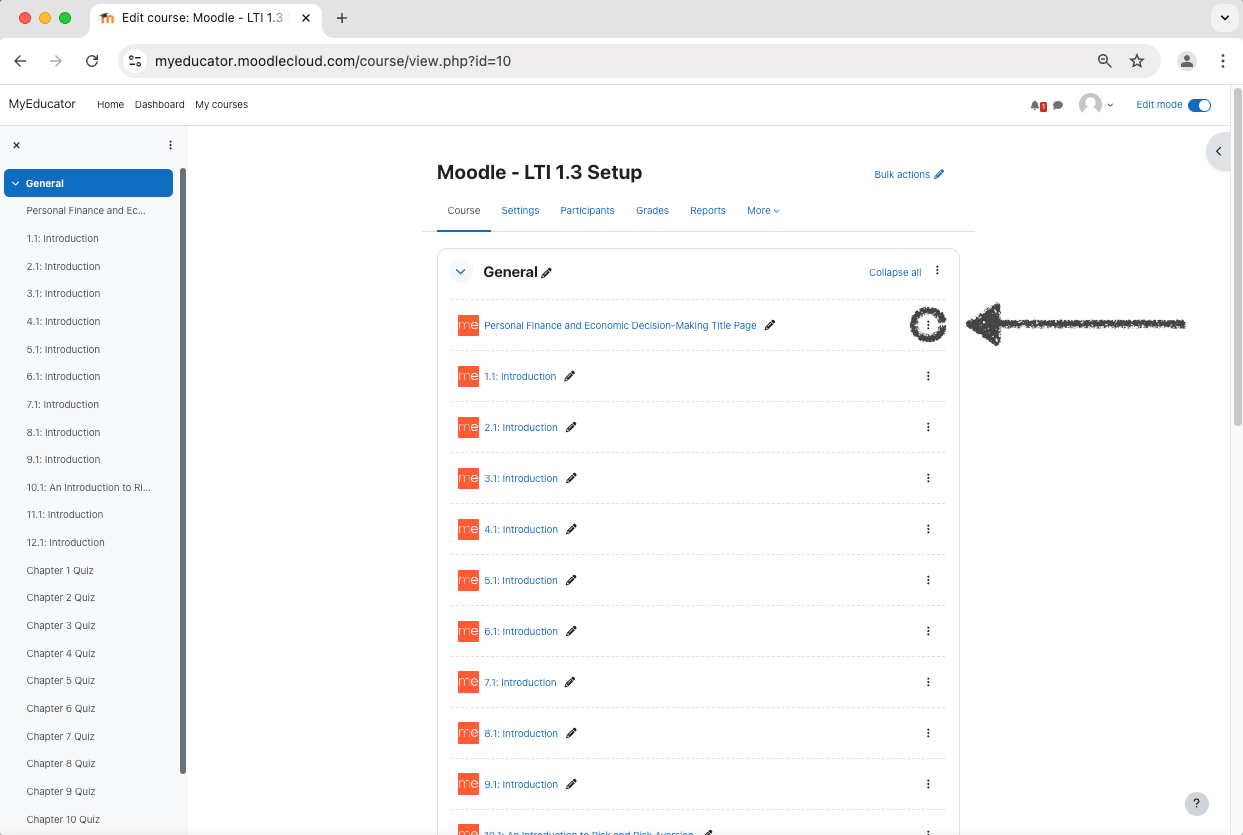
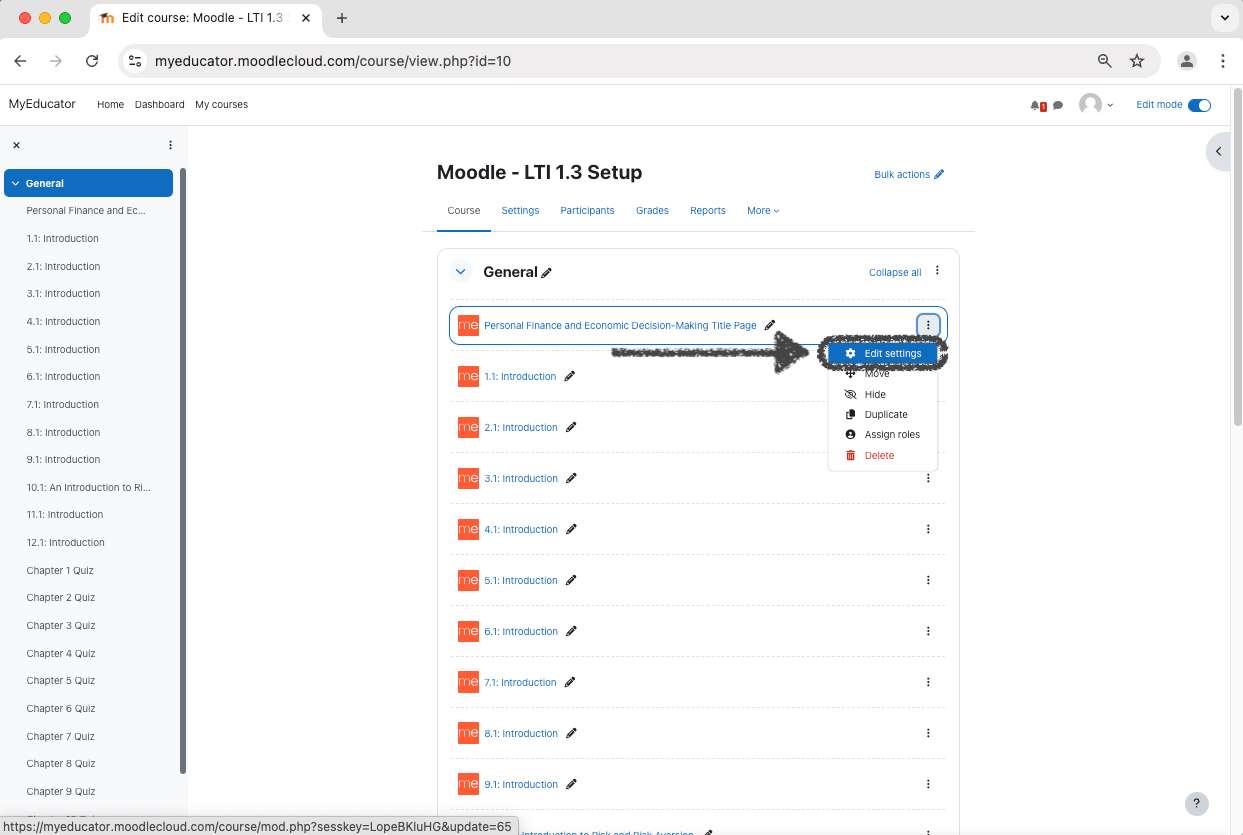
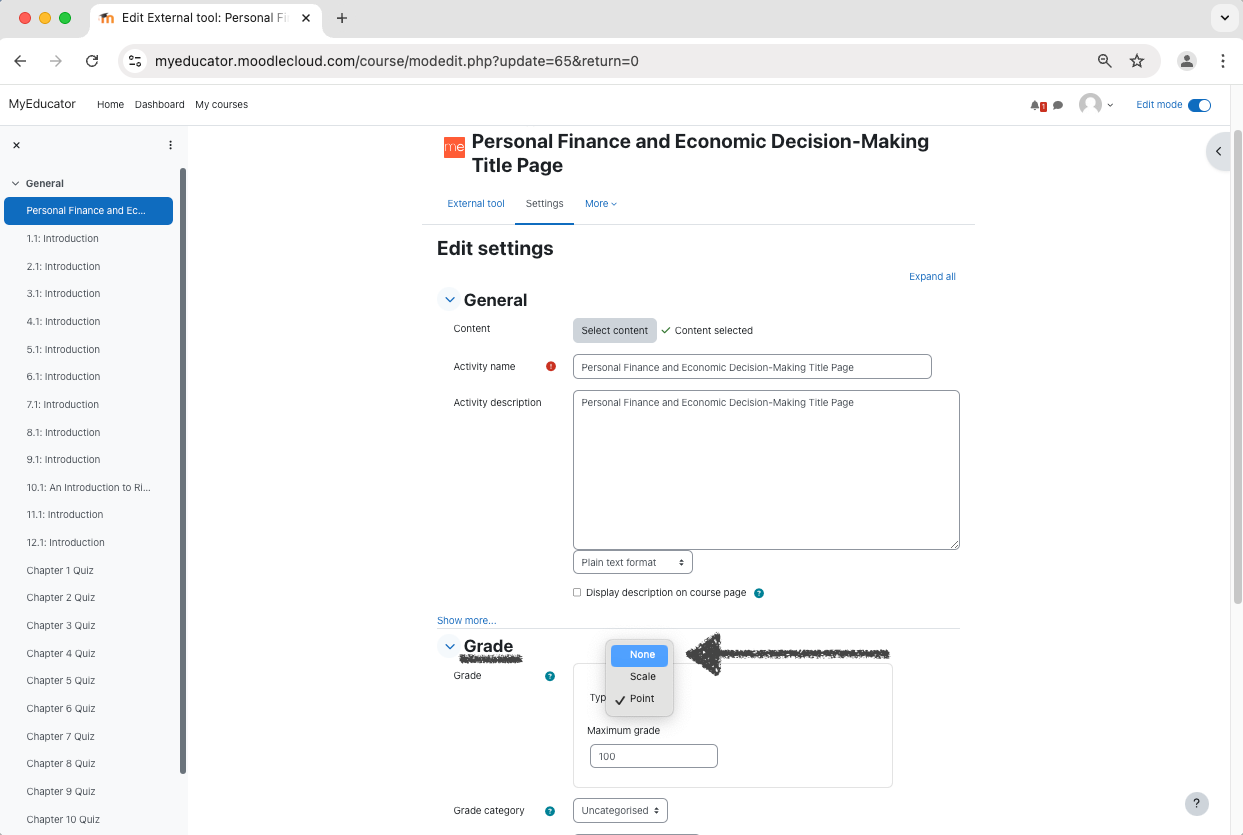
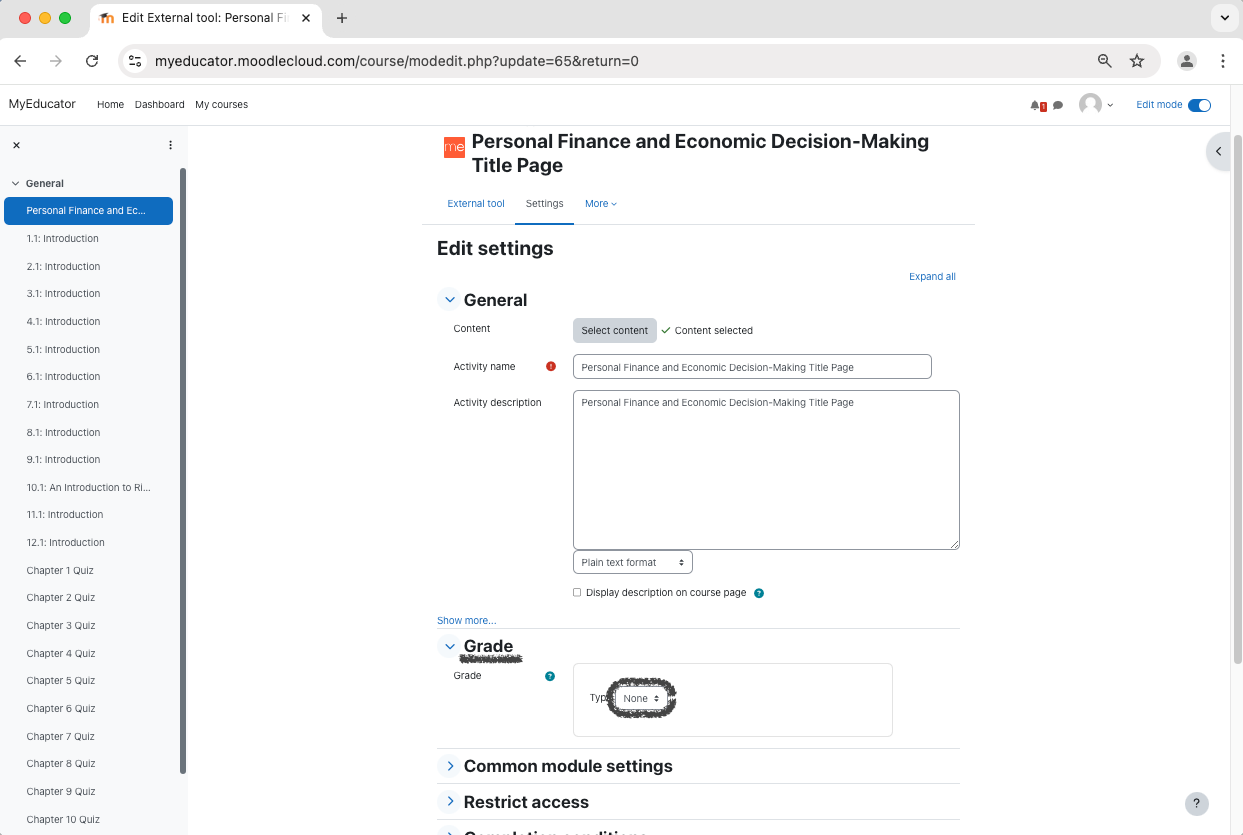
18) Expand the “Grade” section, and change the Grade Type from “Point” to “None”.
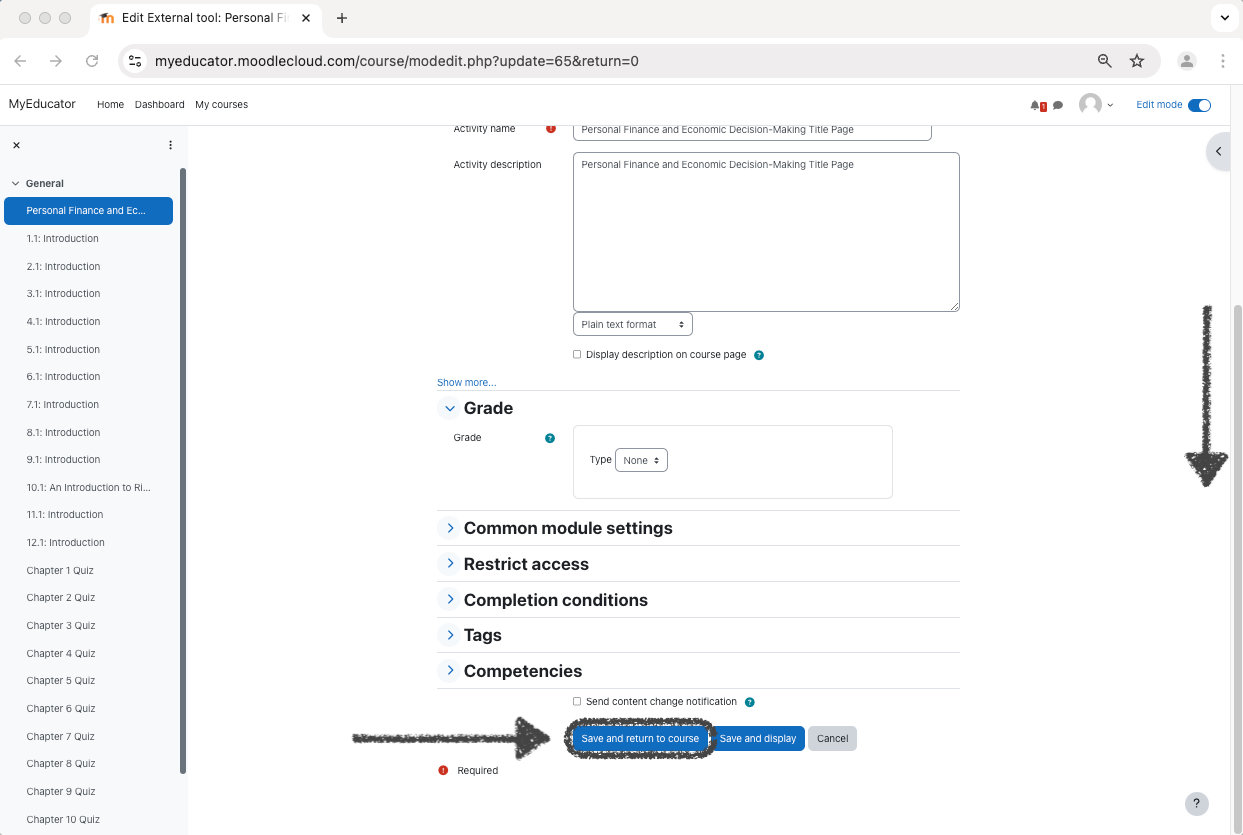
19) Scroll to the bottom of the page.
Click the “Save and return to course” button.
20) Repeat steps 17 - 19 for all other reading (non-assessment) links.
21) Click on the Title Page link to test.
You can also do this for any of the reading and assessment links as well.
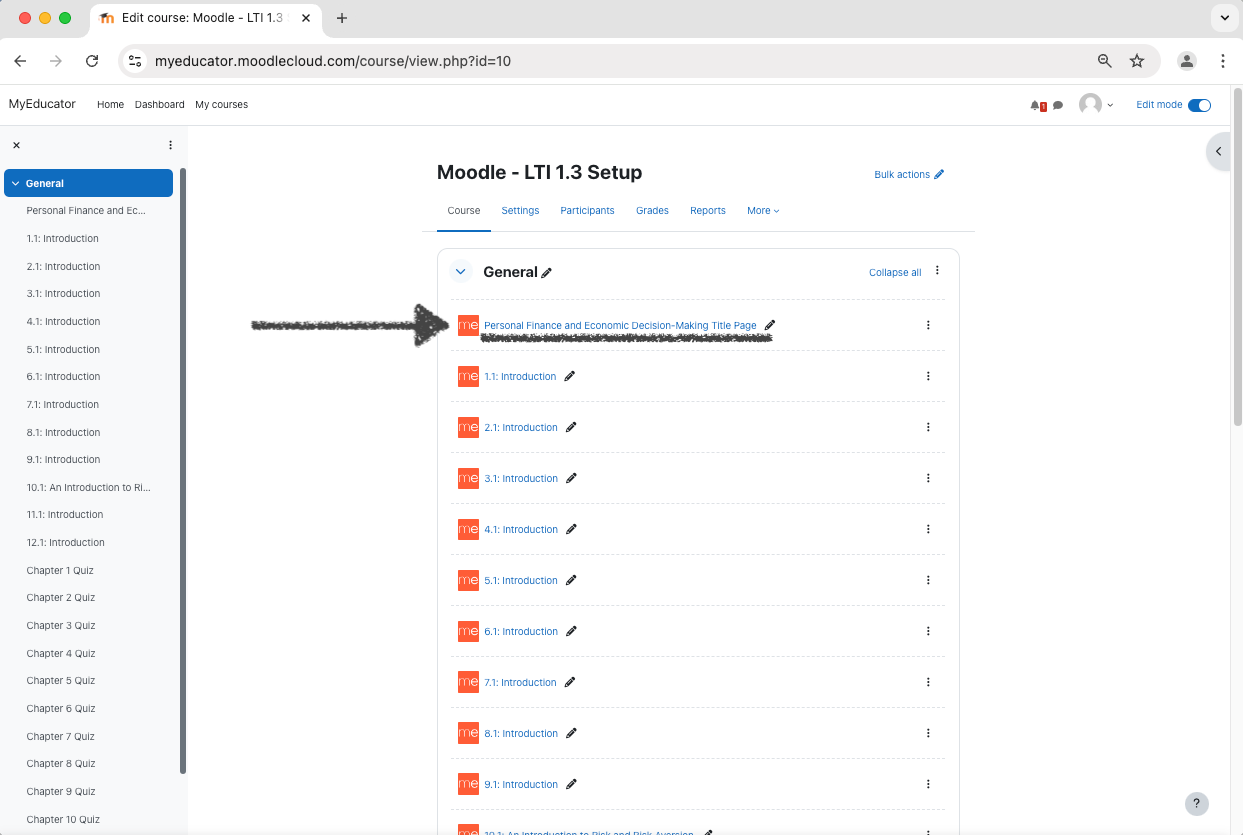
22) If you see a version of the screenshot below, showing the title page of your MyEducator resource, you have successfully completed the setup for integrating your Moodle course with MyEducator (LTI 1.3) while also adding reading and assessment links.

For assistance, contact integrations@myeducator.com or support@myeducator.com.