
This article is for LMS administrators.
Each step has associated text and screenshots. Be sure to read all text and view each screenshot for optimal results.
For assistance, contact integrations@myeducator.com or support@myeducator.com.
1) Verify the Blackboard course you would like to copy content to has been created (or create it now).
Locate and select the Blackboard course you would like to copy content from.
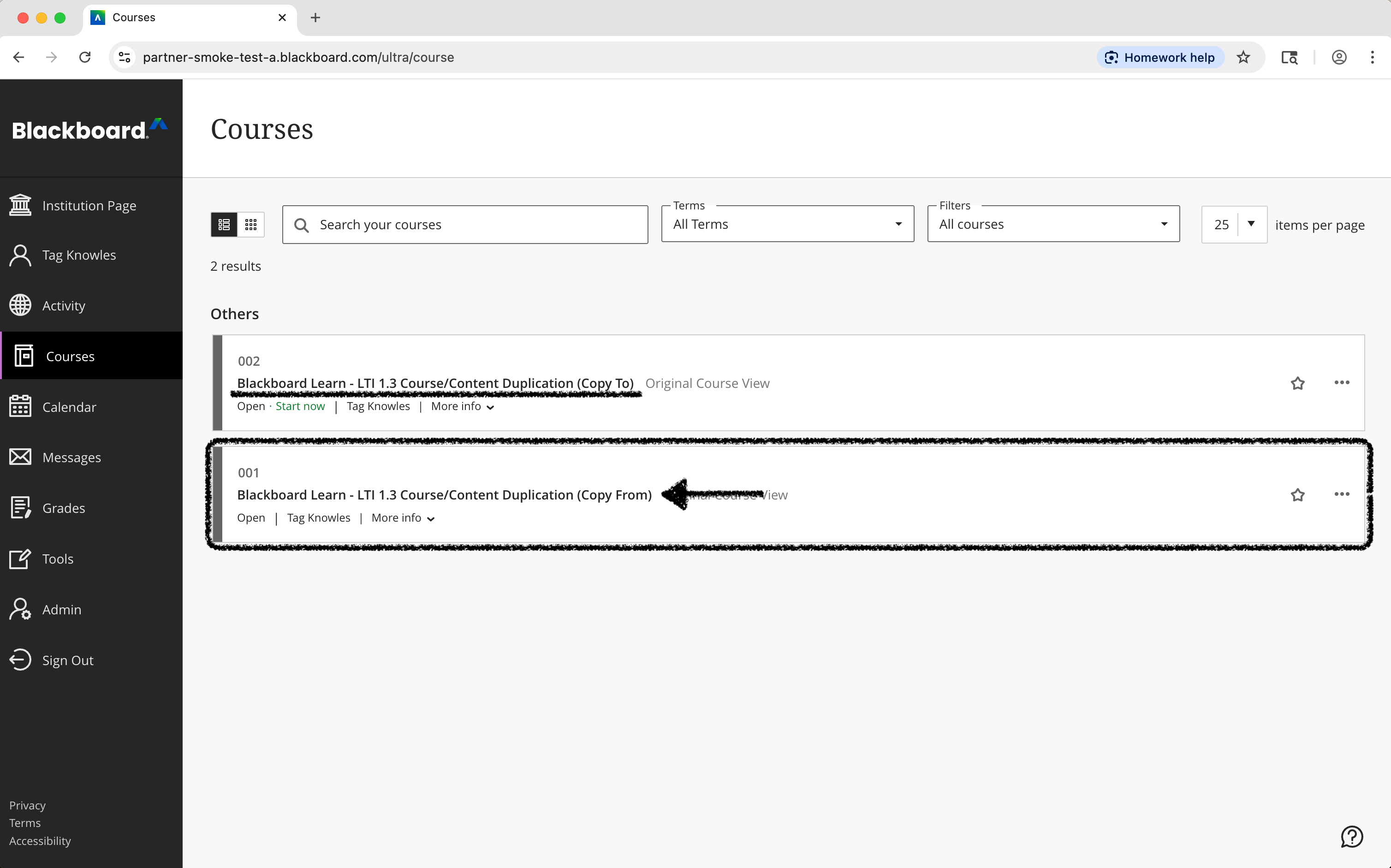
2) In the left-hand course menu, click “Control Panel”.
Expand “Packages and Utilities”.
Select “Course Copy”.
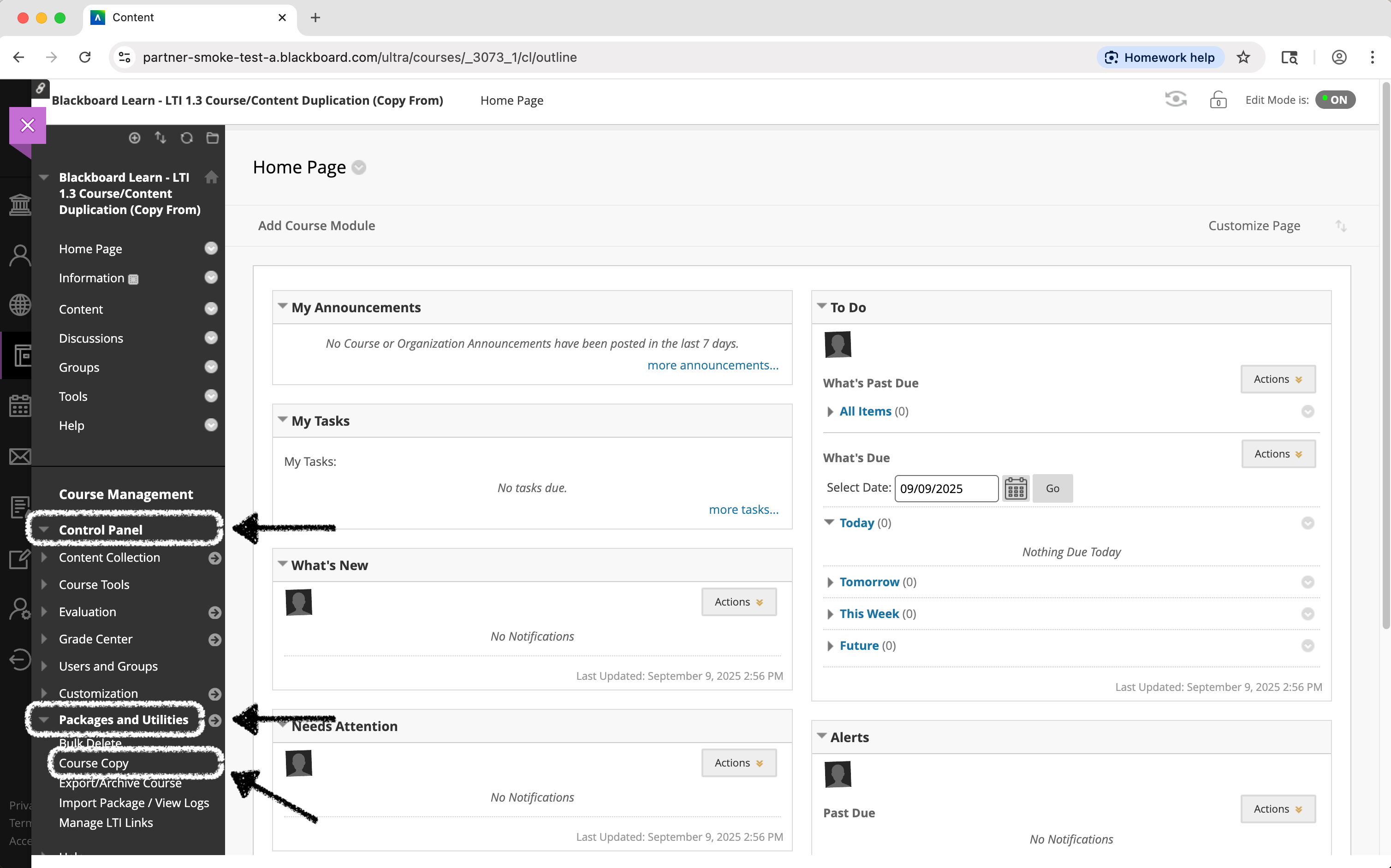
3) On the “Copy Course” page, select Copy Course Materials into an Existing Course from the “Select Copy Type” drop-down menu.
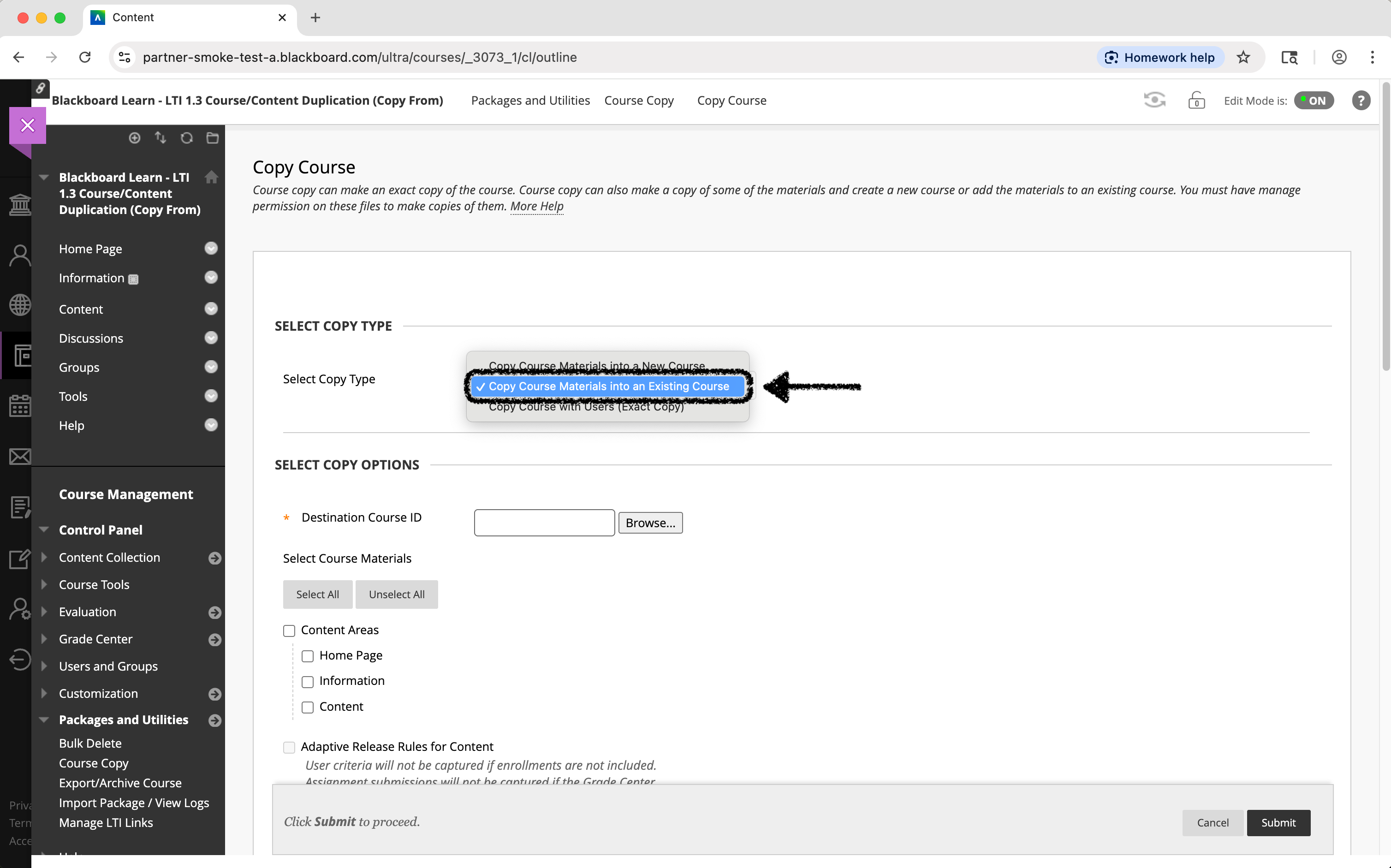
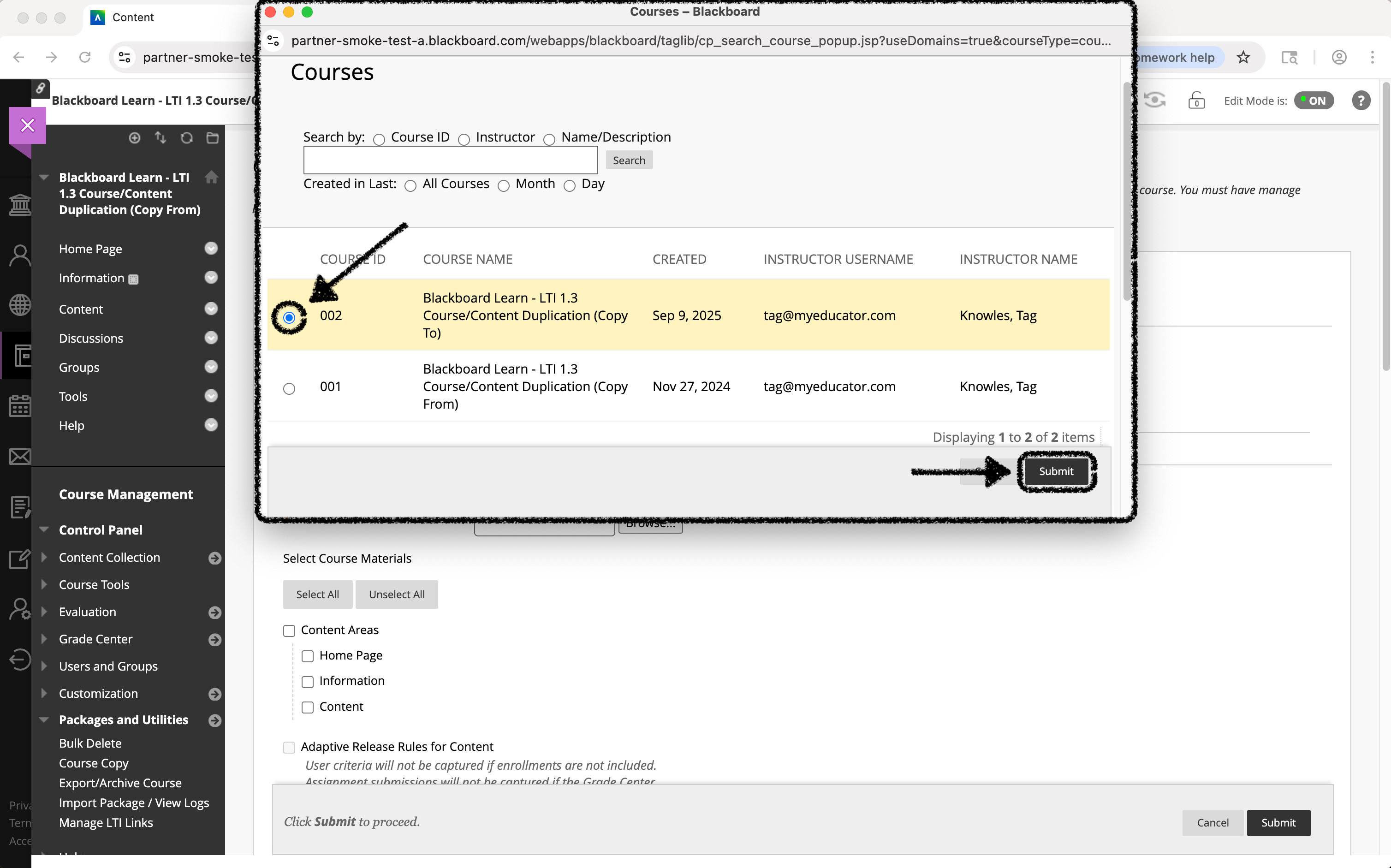
4) Click the “Browse” button next to "Destination Course ID."
A new window will open with a list of all your courses.
Find and select the radio button next to the new, empty course you want to copy into, then click “Submit”.
The course ID for your destination course will now appear in the text box.
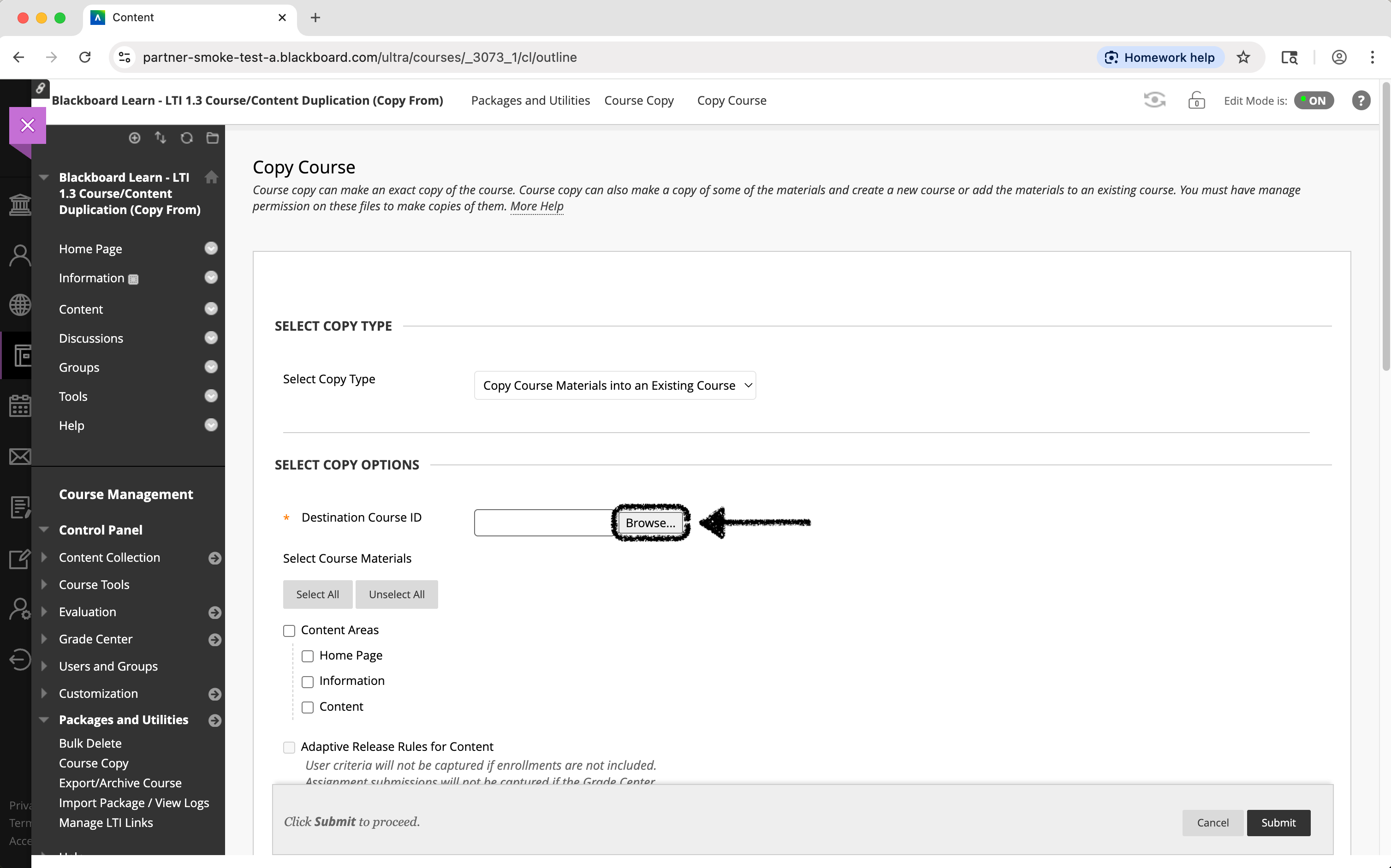
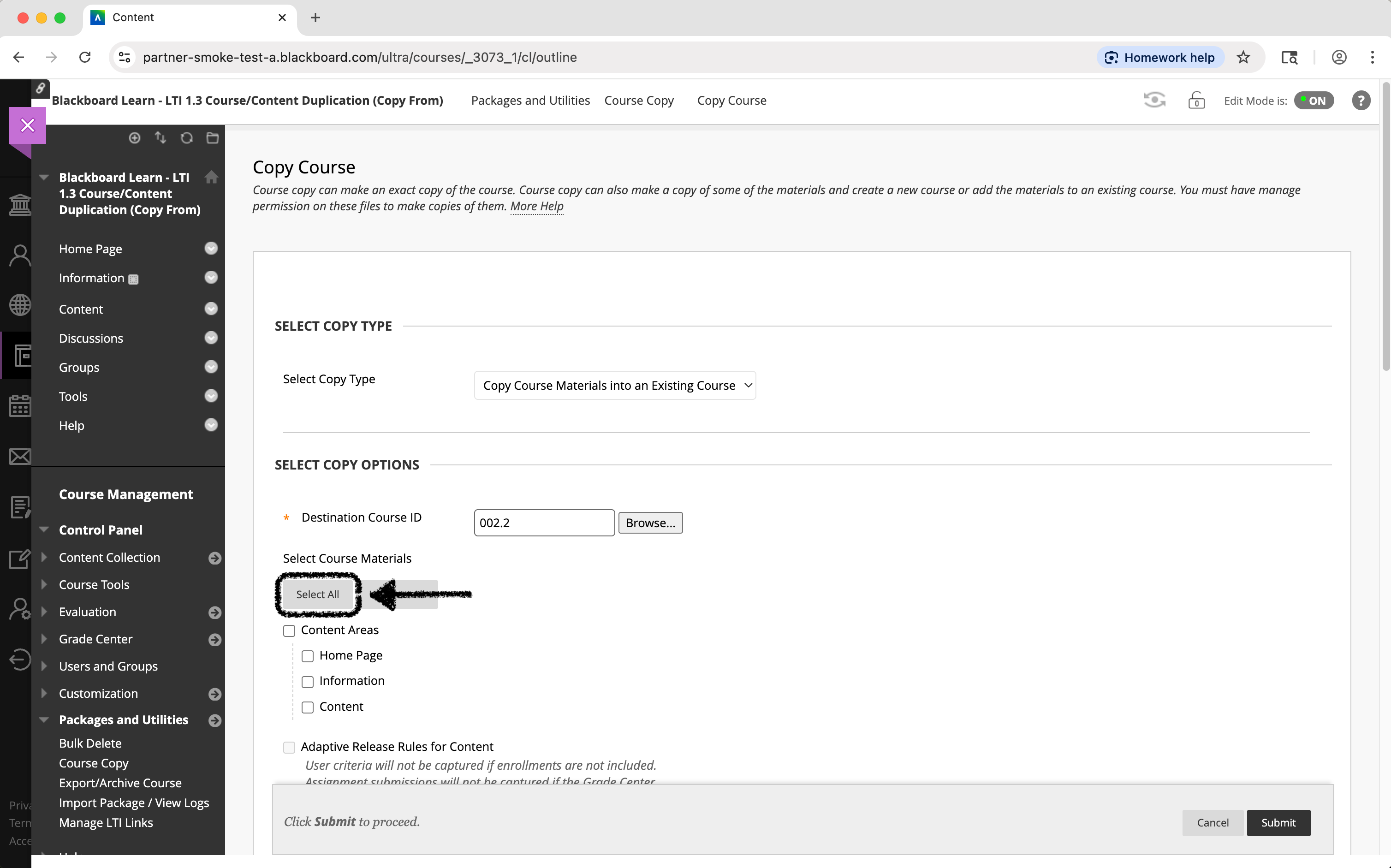
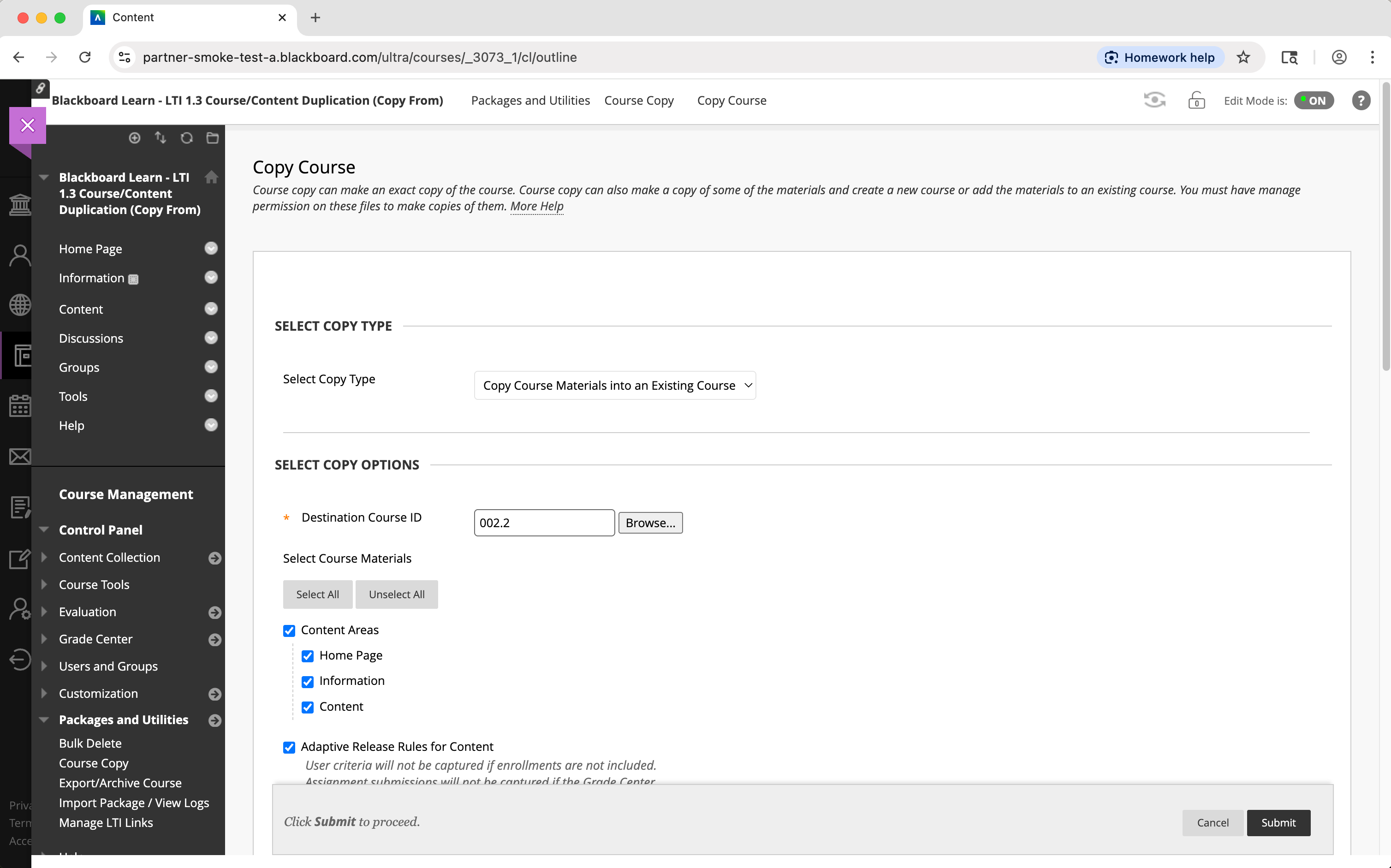
5) Select the Course Materials to copy to your new course.
To copy everything, click the “Select All” button (Recommended).
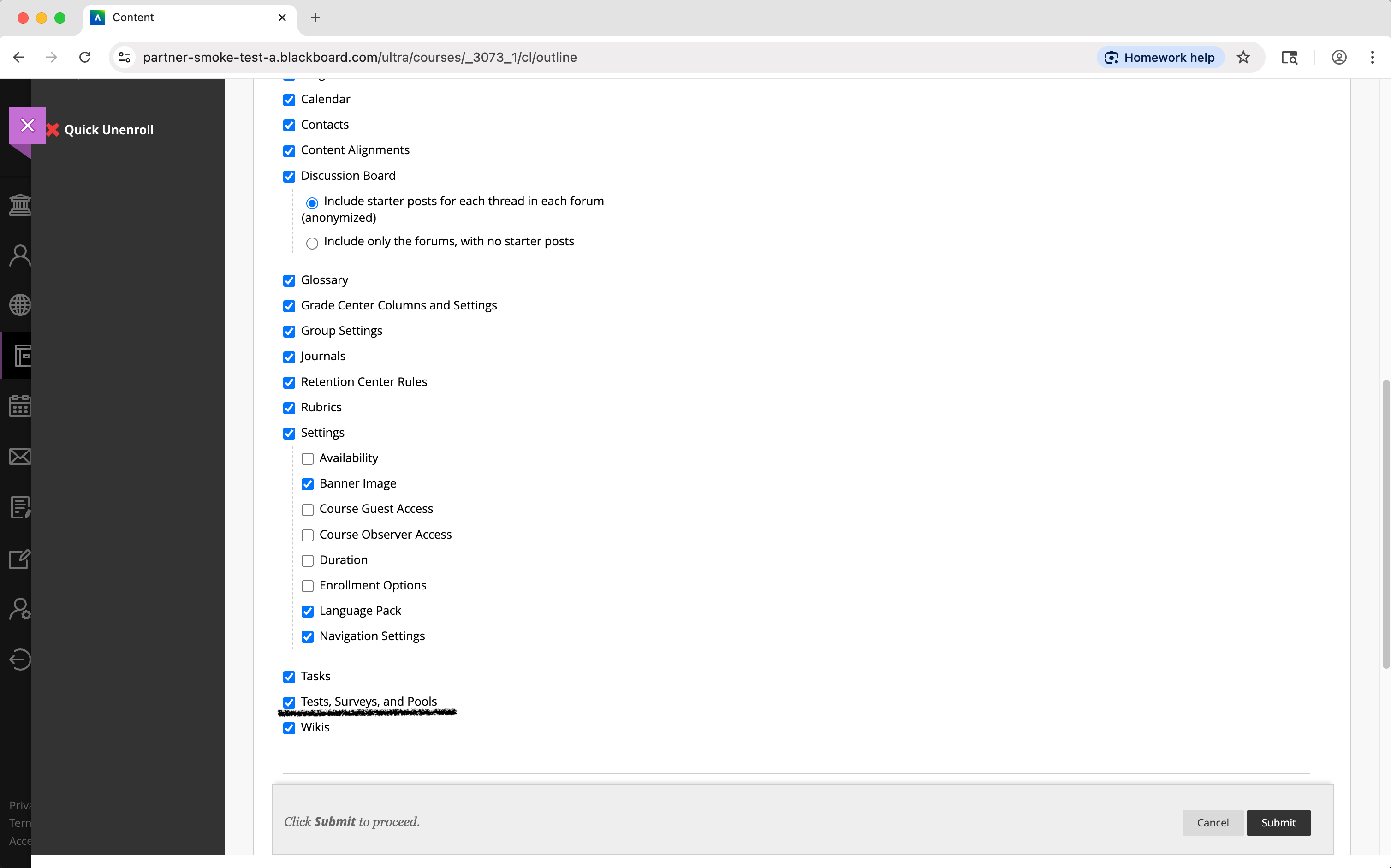
To be selective, manually check the boxes next to the content you want to copy (If you are copying tests or assignments, you MUST also check the boxes for "Tests, Surveys, and Pools" and "Grade Center Columns and Settings" to ensure all links and gradebook entries copy correctly).
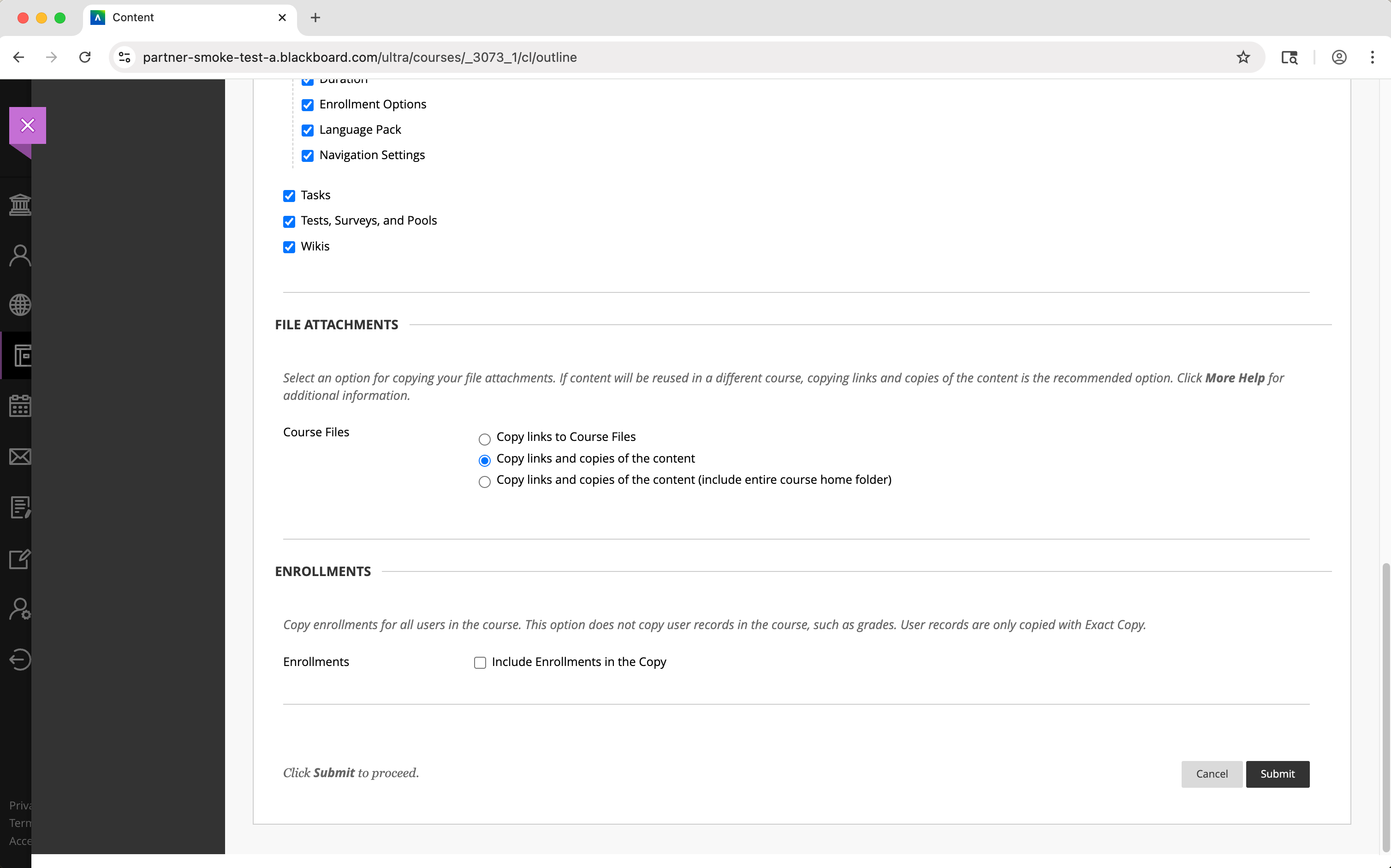
6) Under the “File Attachments” section, select the Copy links and copies of the content option.
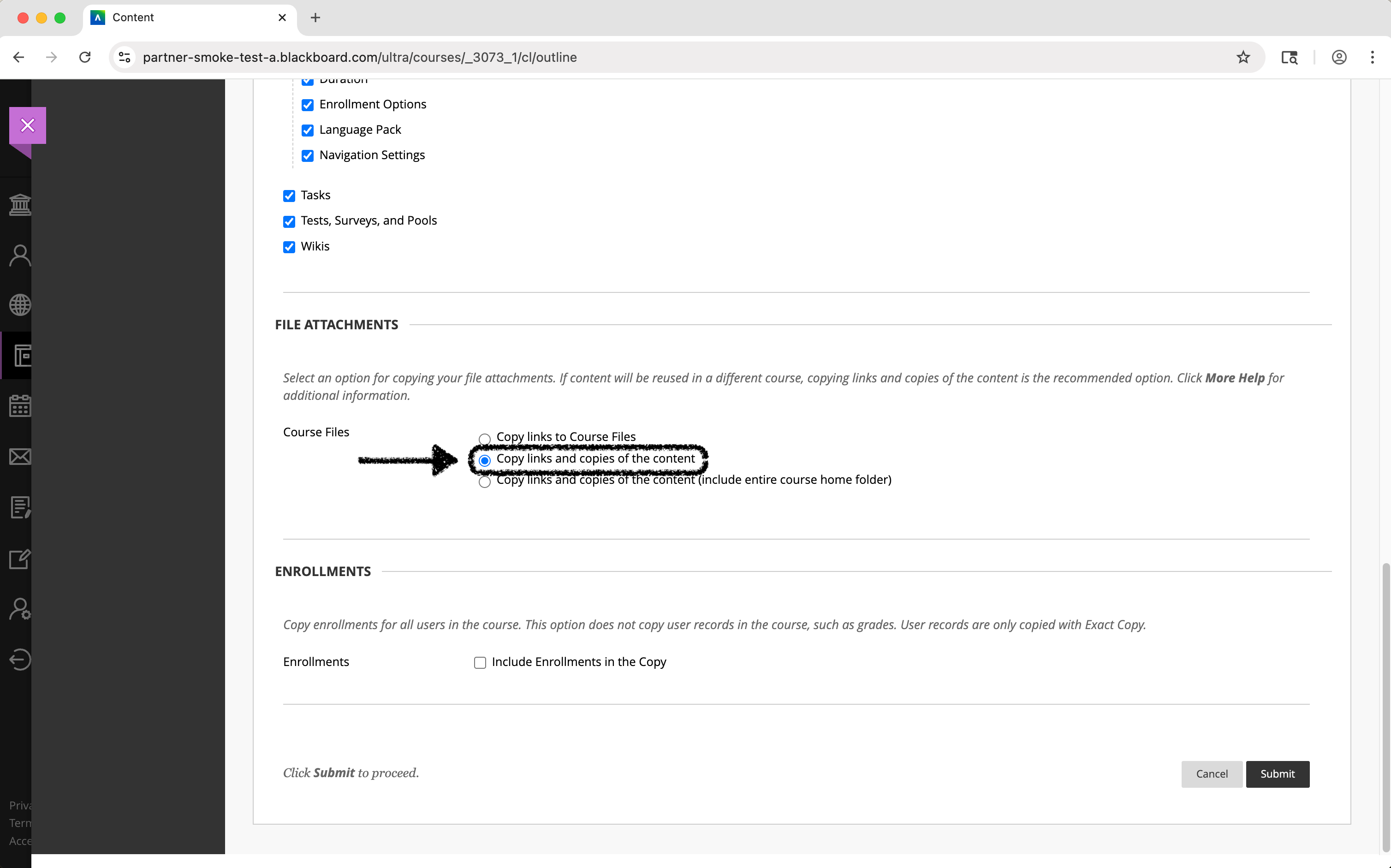
7) Under the “Enrollments” section, DO NOT select the “Include Enrollments in the Copy” option.
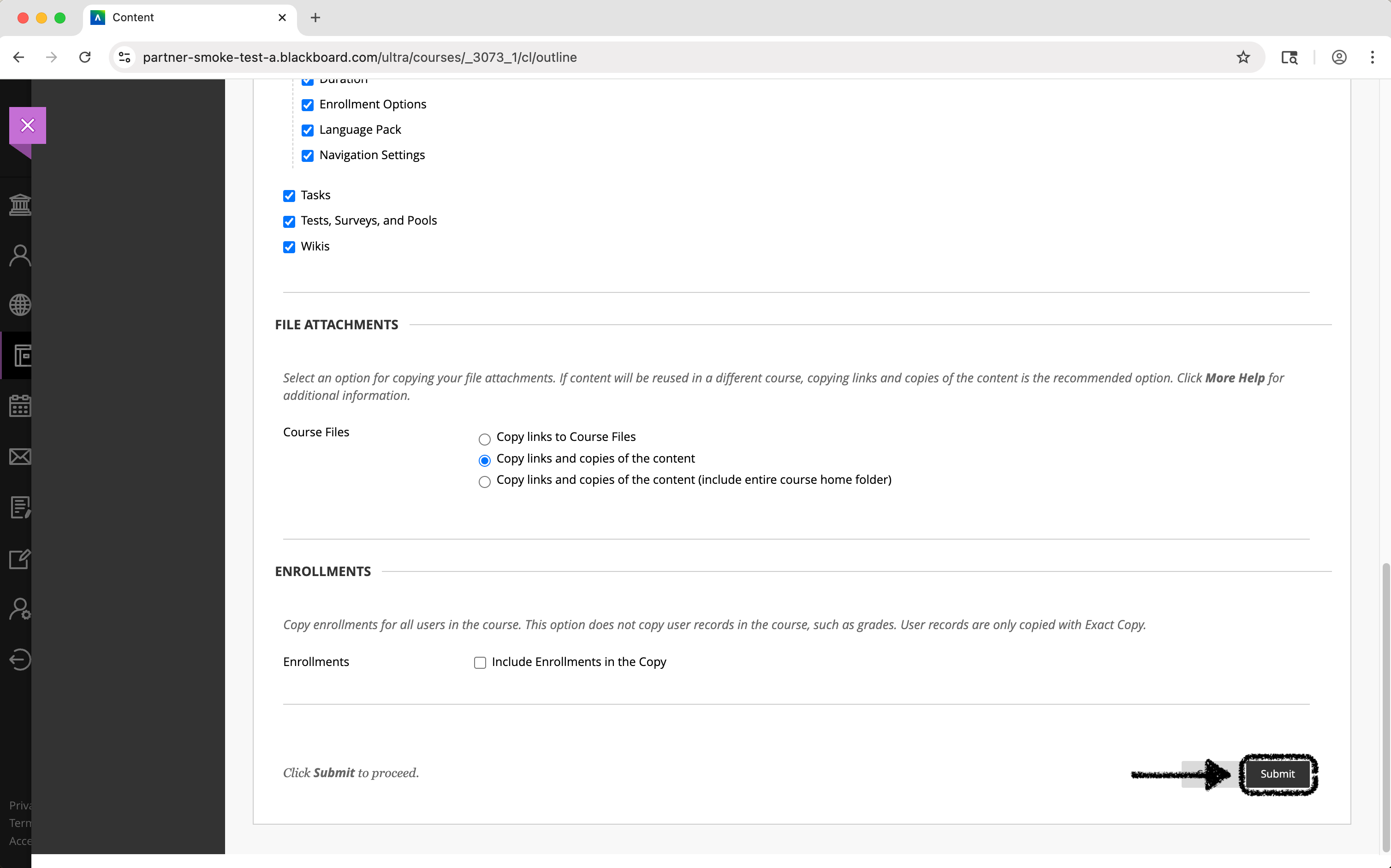
8) Click the “Submit” button.
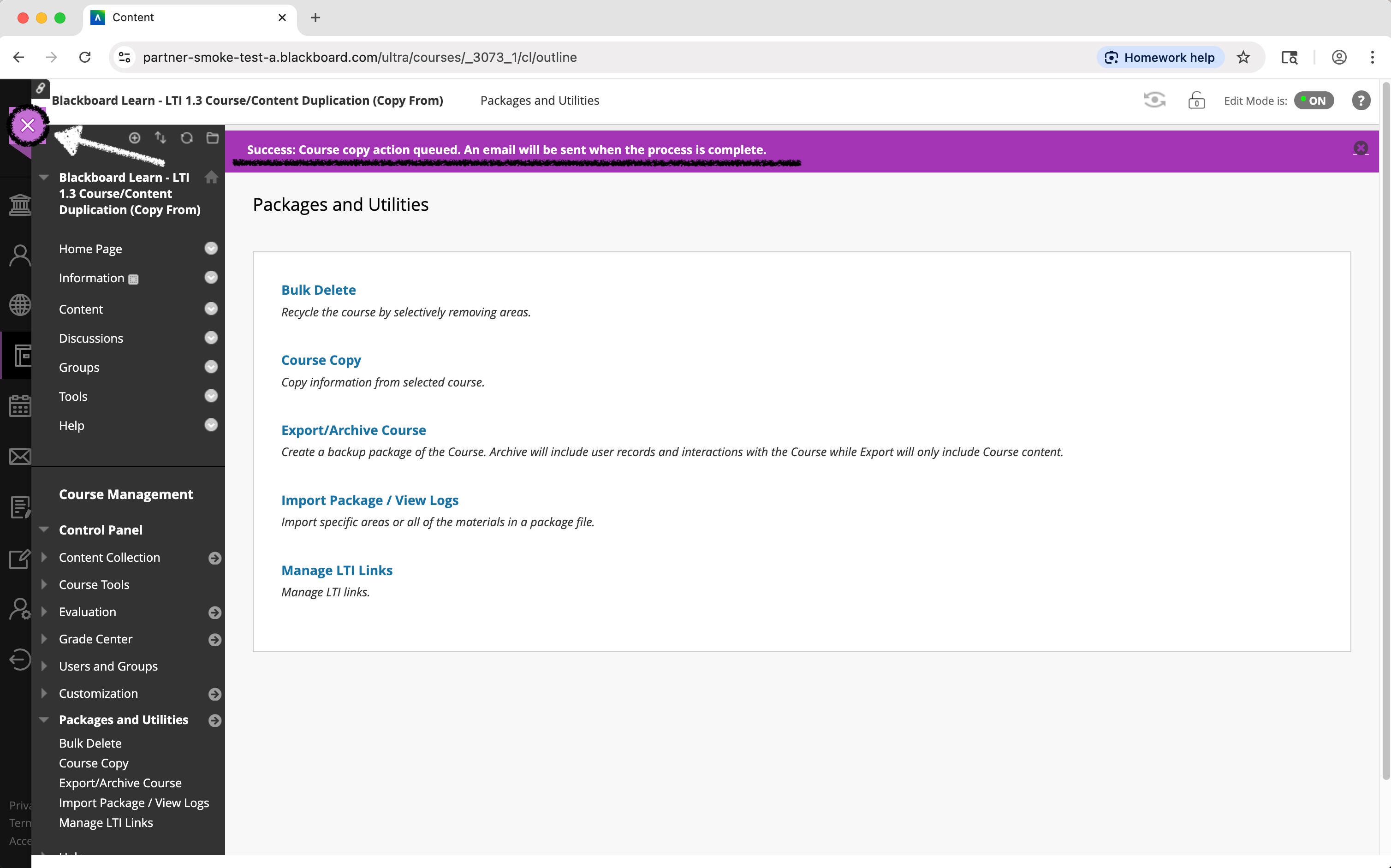
9) You will be taken to the following page.
A banner will appear with the text “Success: Course copy action queued. An email will be sent when the process is complete.”
You should receive an email from Blackboard when the process has finished. This could take a few minutes or quite some time depending on the amount of content to be copied.
Navigate back to the “Courses” page.
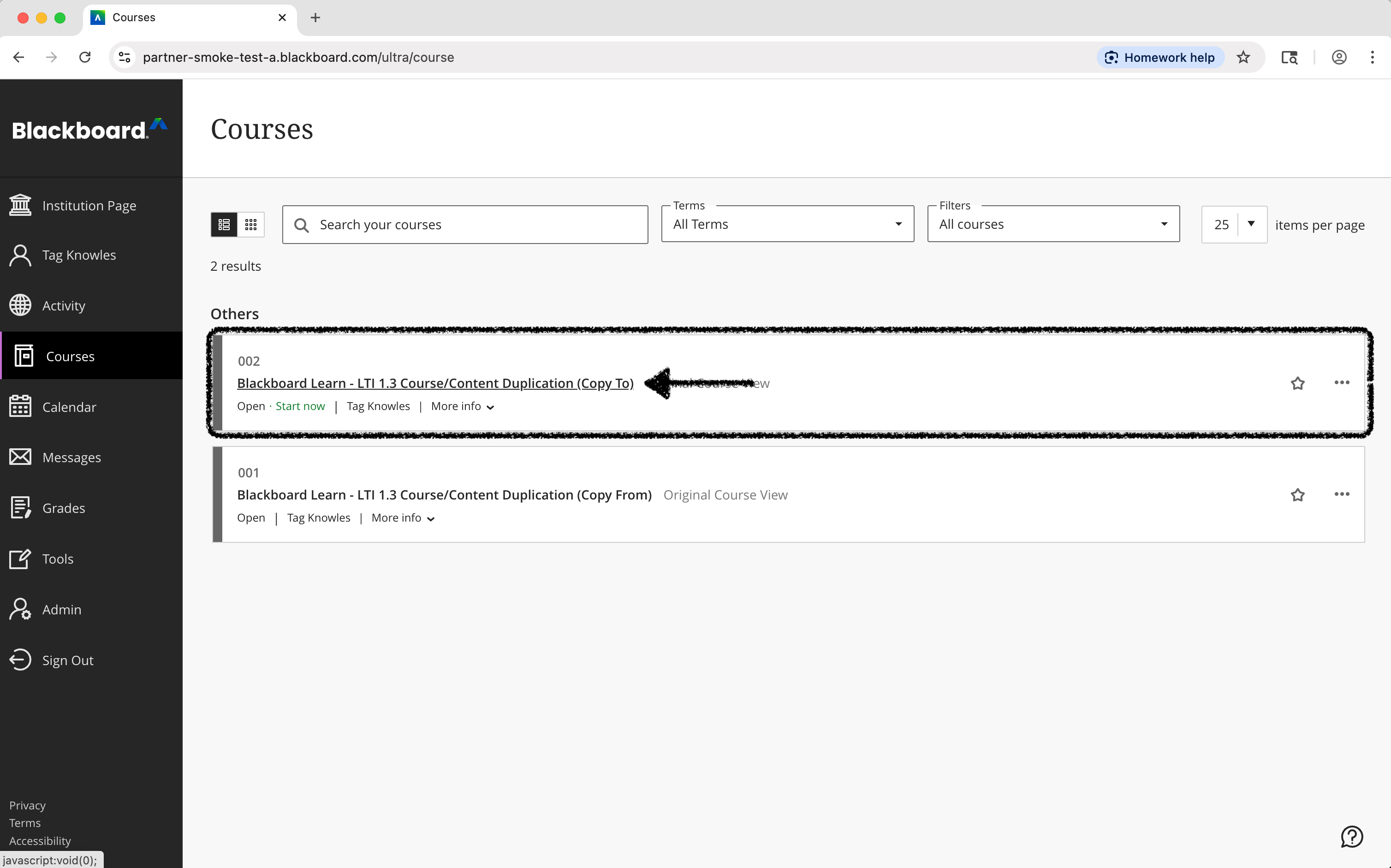
10) Locate and select the new course.
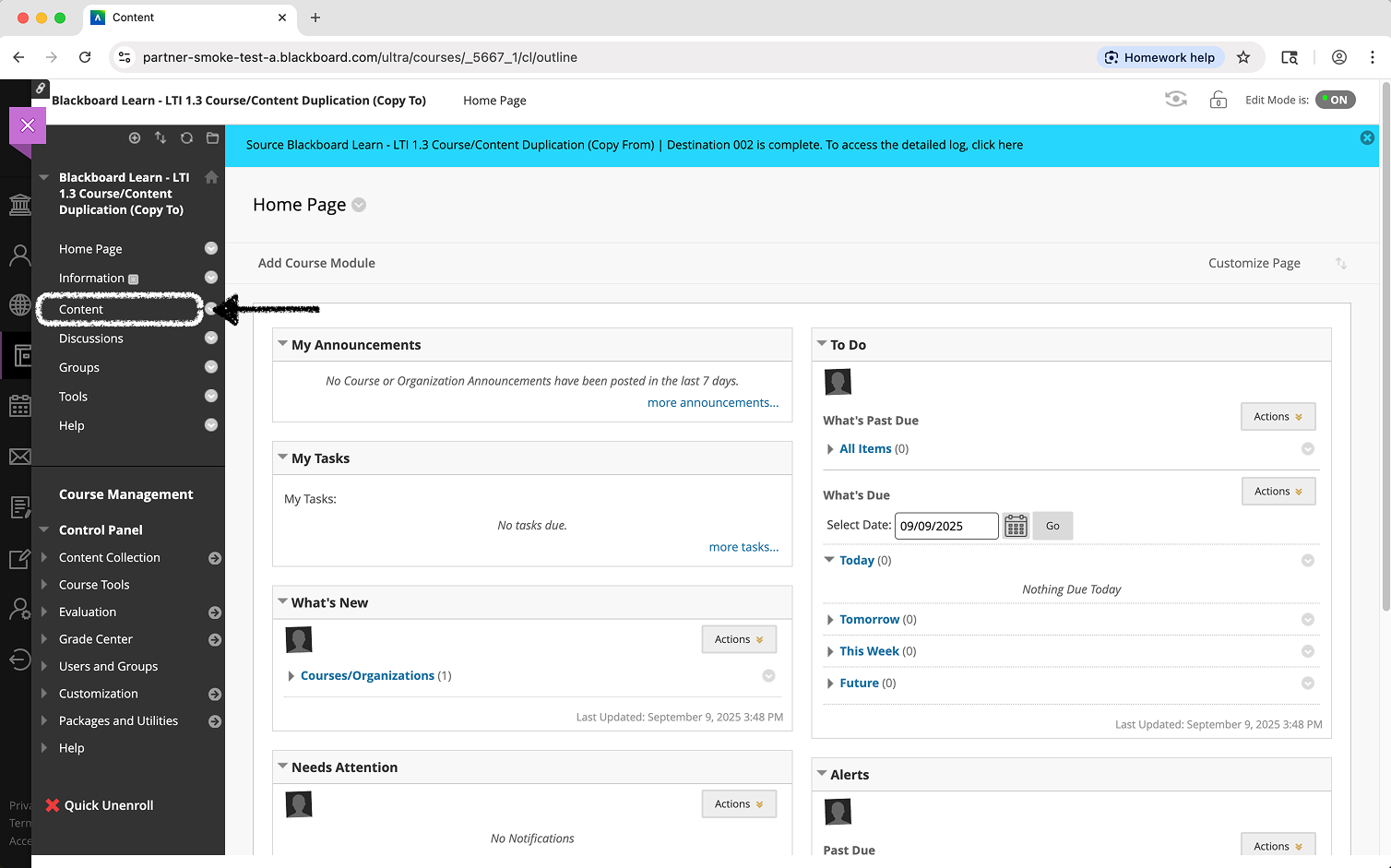
11) On the left-hand course menu, select “Content”.
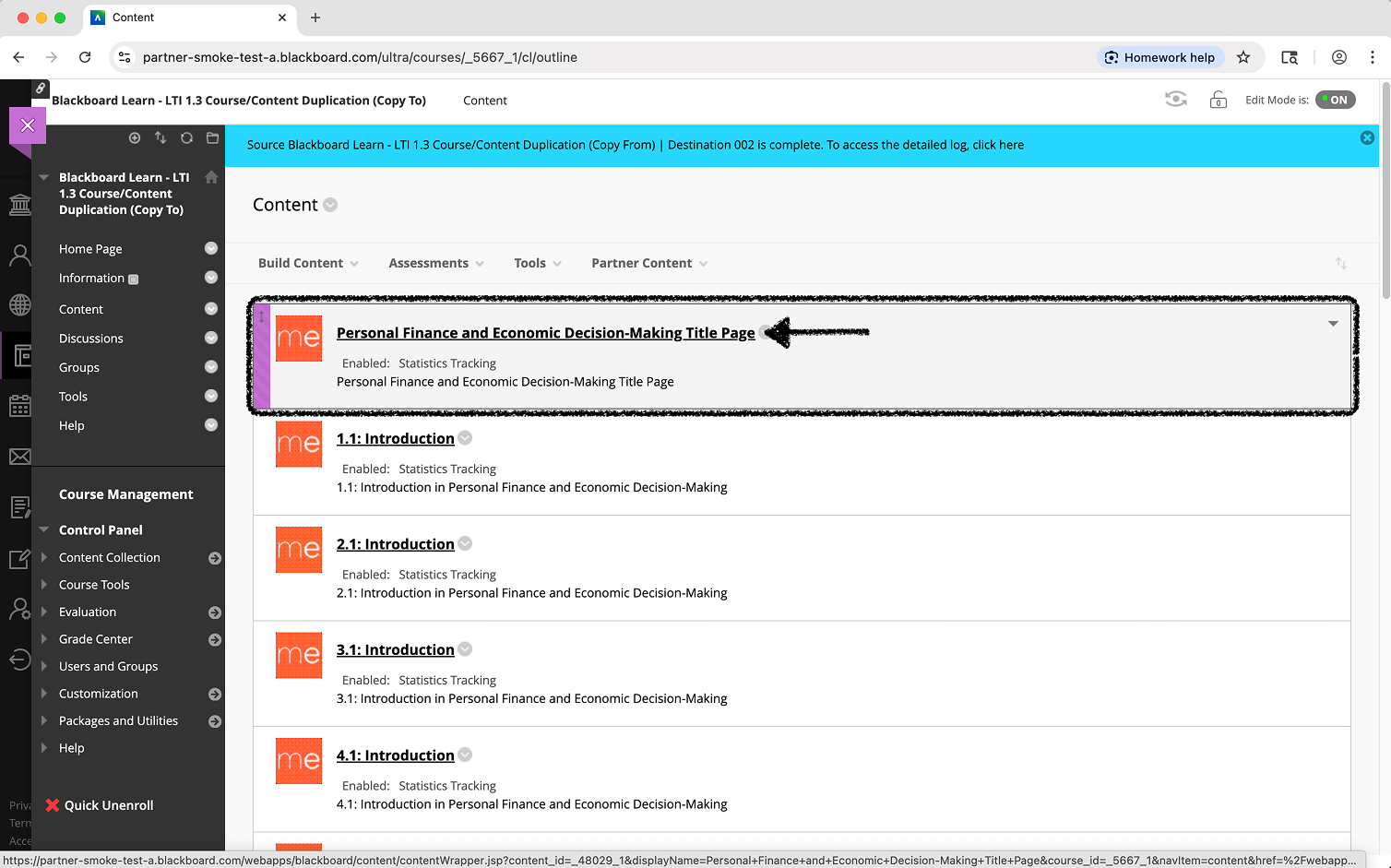
12) You should see the MyEducator content links you had in your previous course.
Click on any of the MyEducator links.
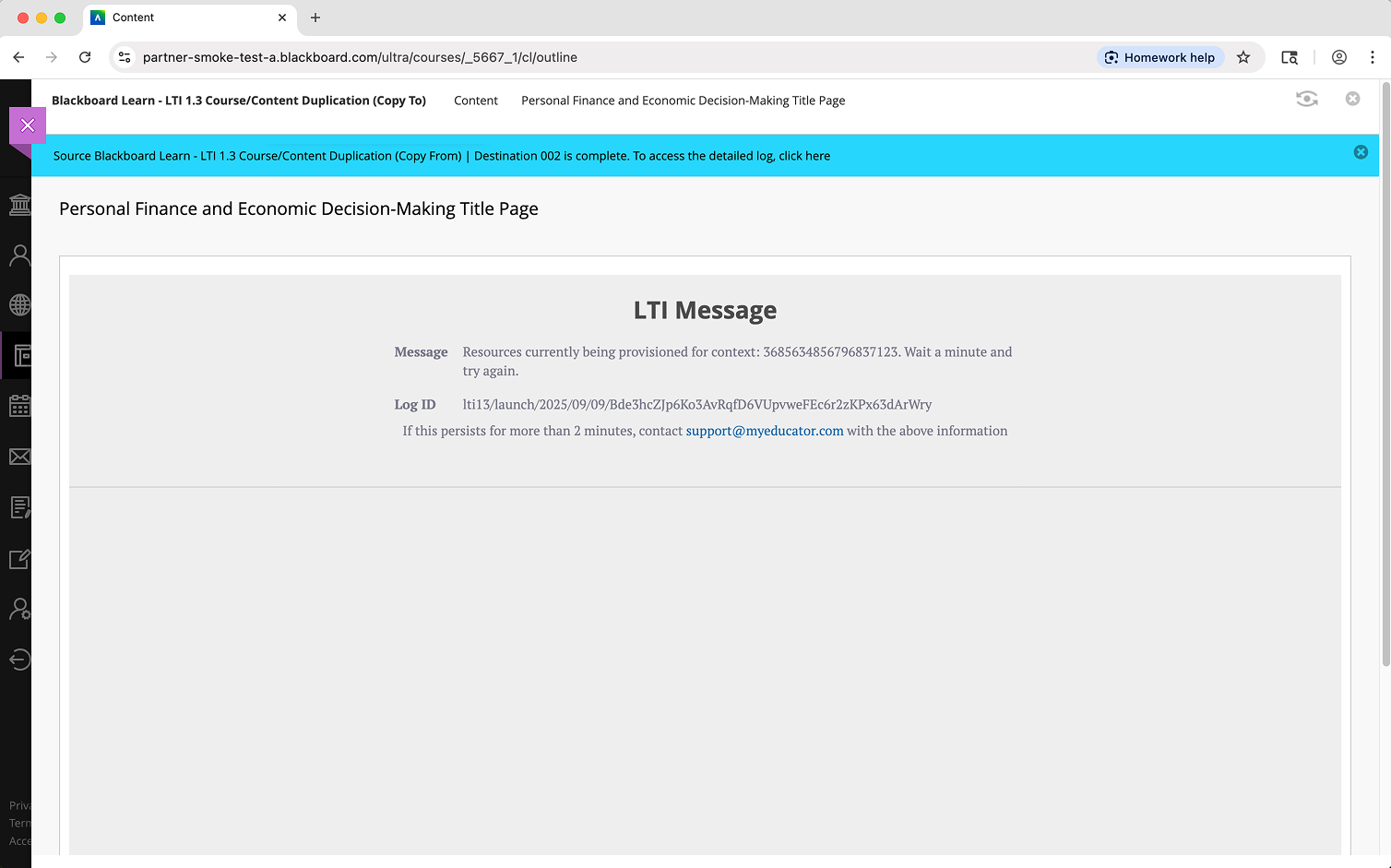
13) You will see a MyEducator “LTI Message”. This is not an error. This page explains that your new MyEducator resource is being provisioned, and that this process will take a couple of minutes.
Refresh the page. Click the MyEducator link again if needed.
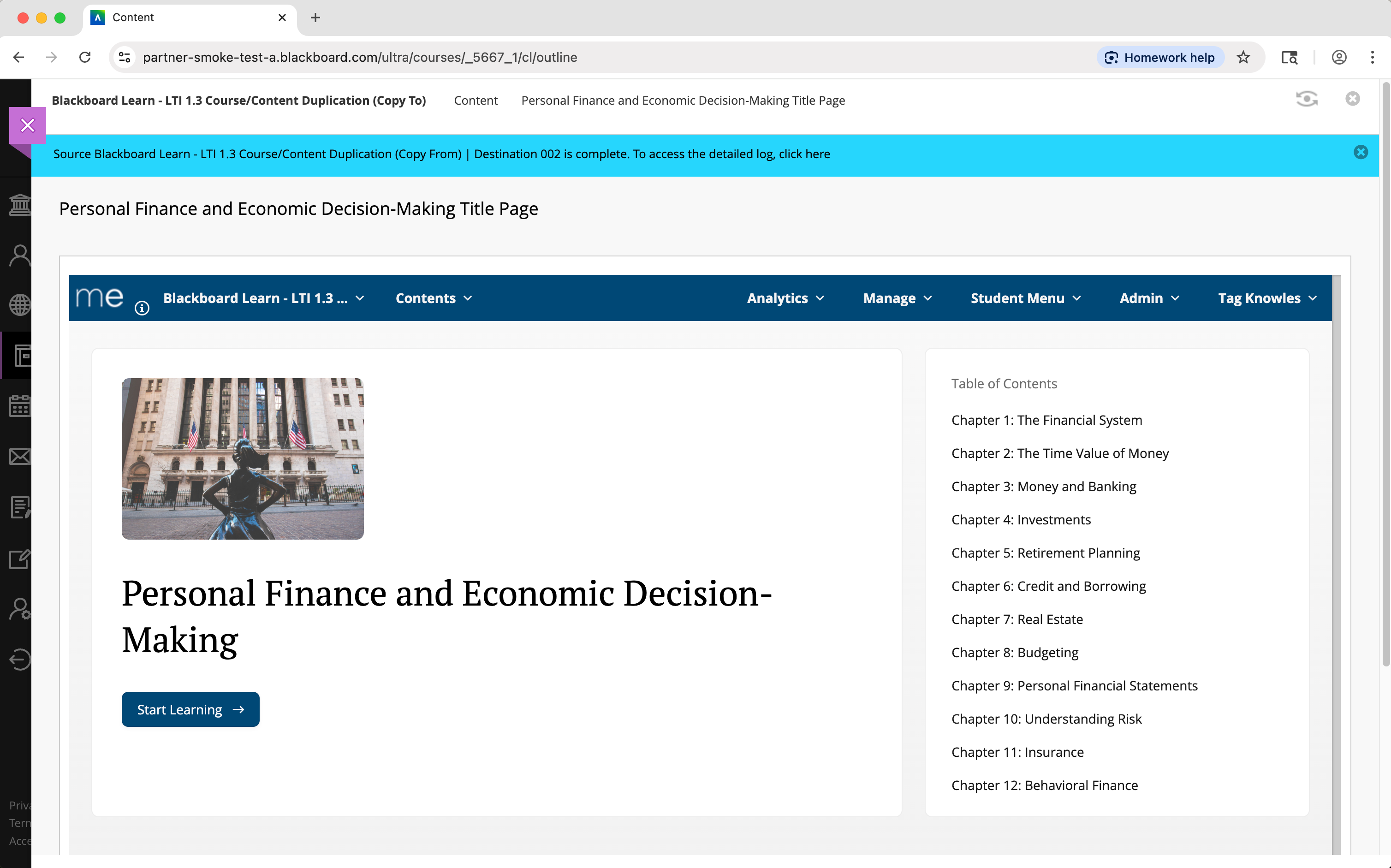
14) You should now see the content you clicked on in the new MyEducator resource that was provisioned.
You have now successfully duplicated your MyEducator course/content.
For assistance, contact integrations@myeducator.com or support@myeducator.com.