
This article is for LMS administrators.
Each step has associated text and screenshots. Be sure to read all text and view each screenshot for optimal results.
For assistance, contact integrations@myeducator.com or support@myeducator.com.
1) Log in to your Blackboard account. Click on the "Courses" tab.
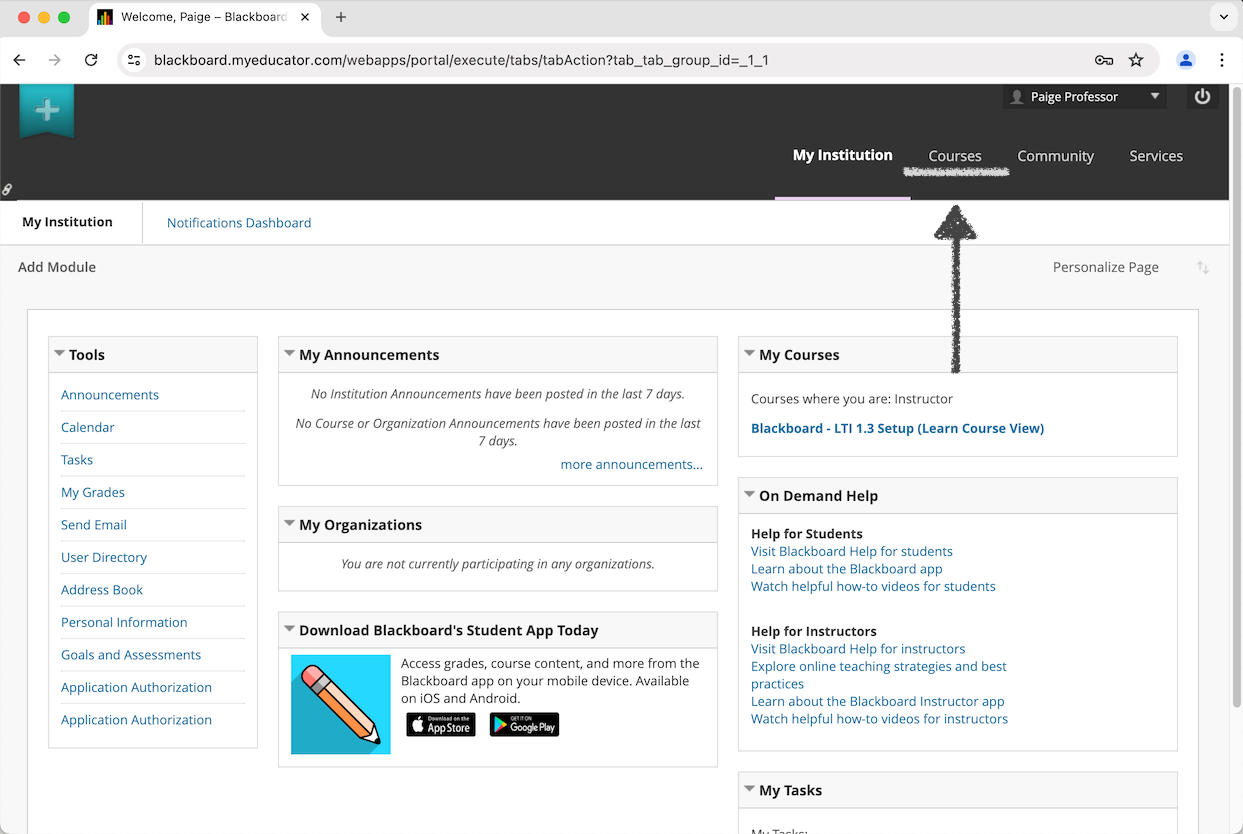
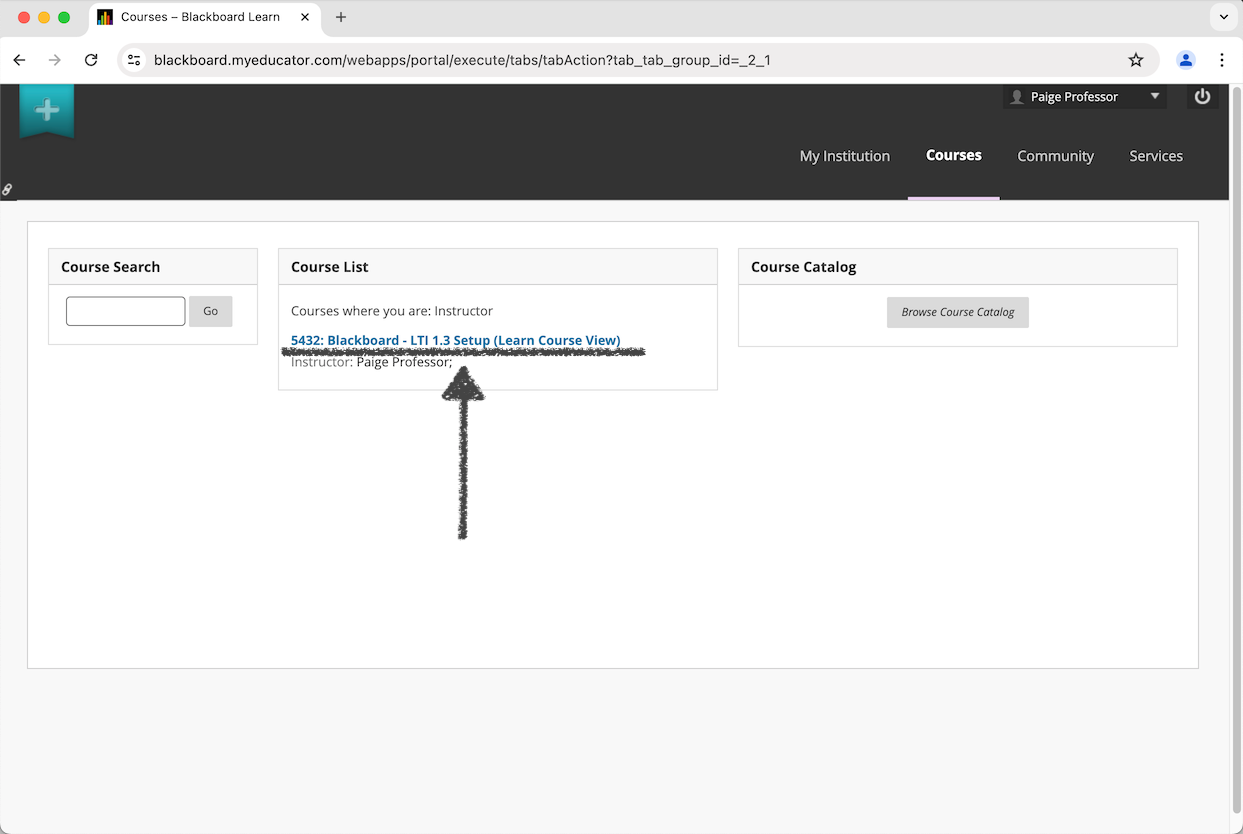
2) Locate and navigate to the Blackboard course you want to integrate with MyEducator.
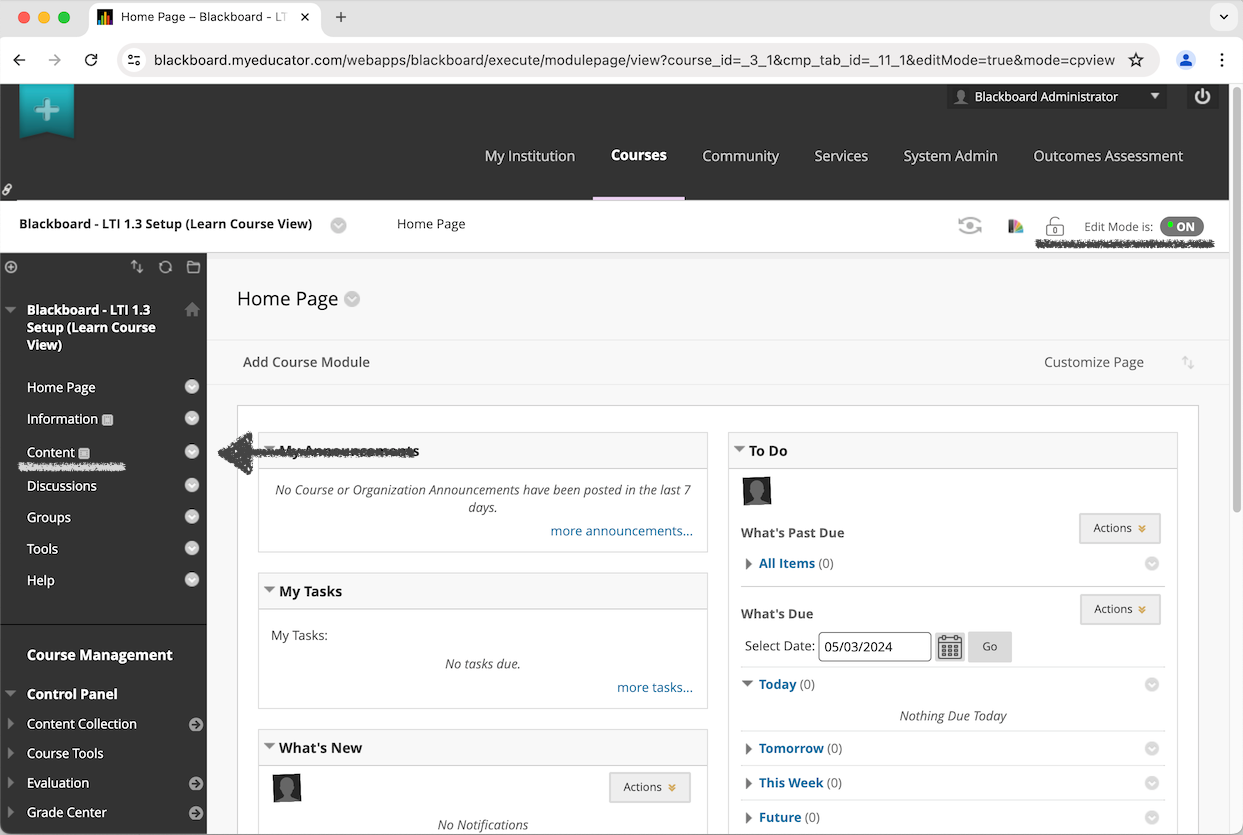
3) Ensure the lock button and the "On/Off" button in the upper-right corner of the page are set as “unlocked” and "ON" as seen below.
Click on the "Content" link on the left side of the page.
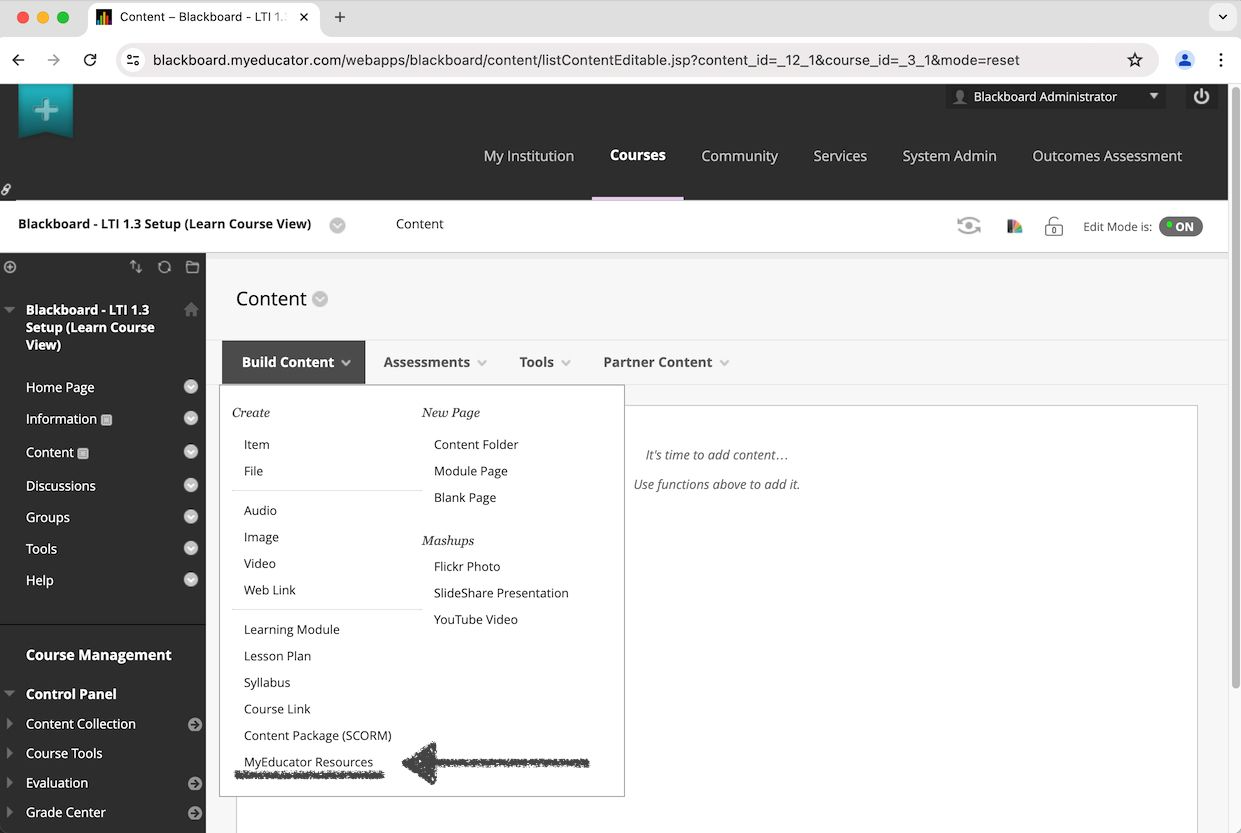
4) Hover over the "Build Content" dropdown menu. Click "MyEducator Resources.”
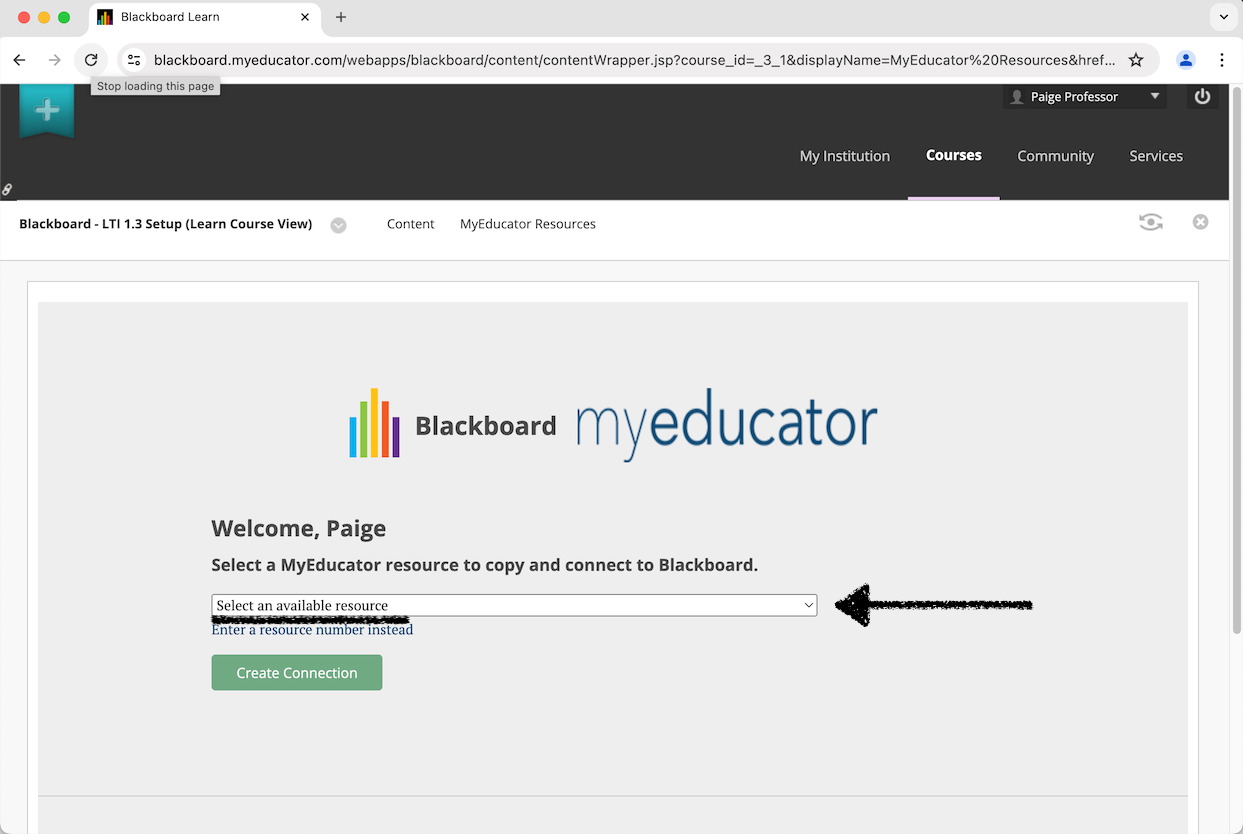
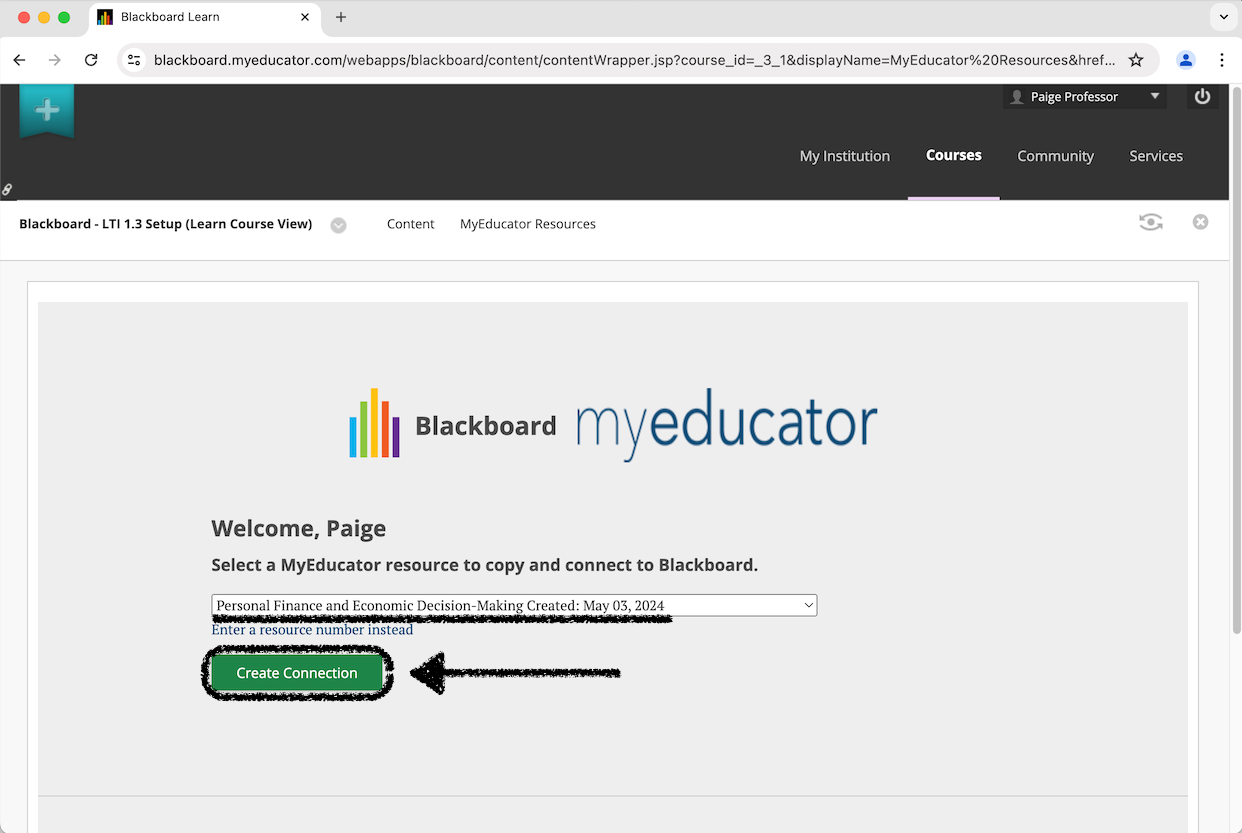
5) Select an available MyEducator resource from the dropdown menu. Click "Create Connection."
Please note that the resource you choose will be copied and then that copy will be connected to your course.
Note: If the “Select an available resource” dropdown menu does not appear, contact your MyEducator representative for assistance.
6) Select the “Title Page Link” option.
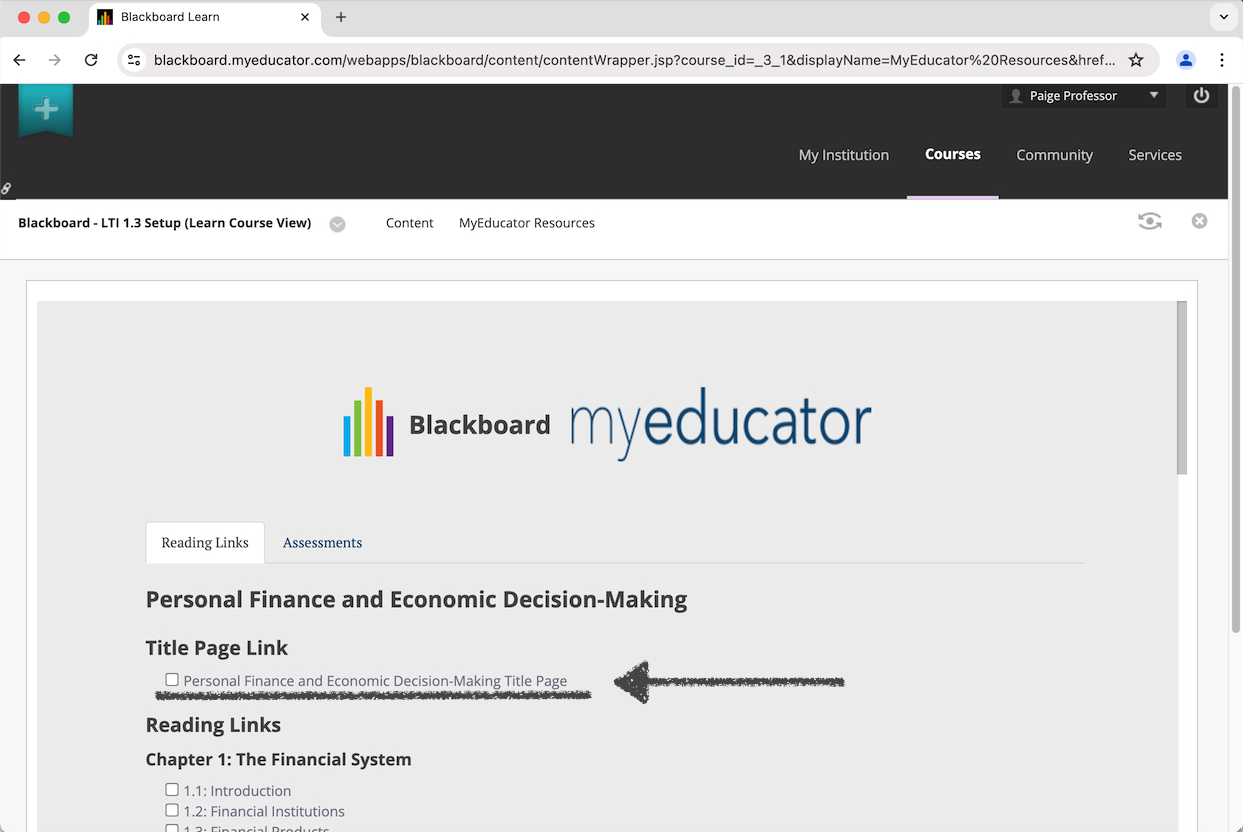 Note: This screen typically contains two scroll bars: an inner and an outer scroll bar.
7) Select the reading links you would like to have appear in your Blackboard course.
Best practice is to only select the first reading link from each chapter, but you are free to add as many reading links as desired.
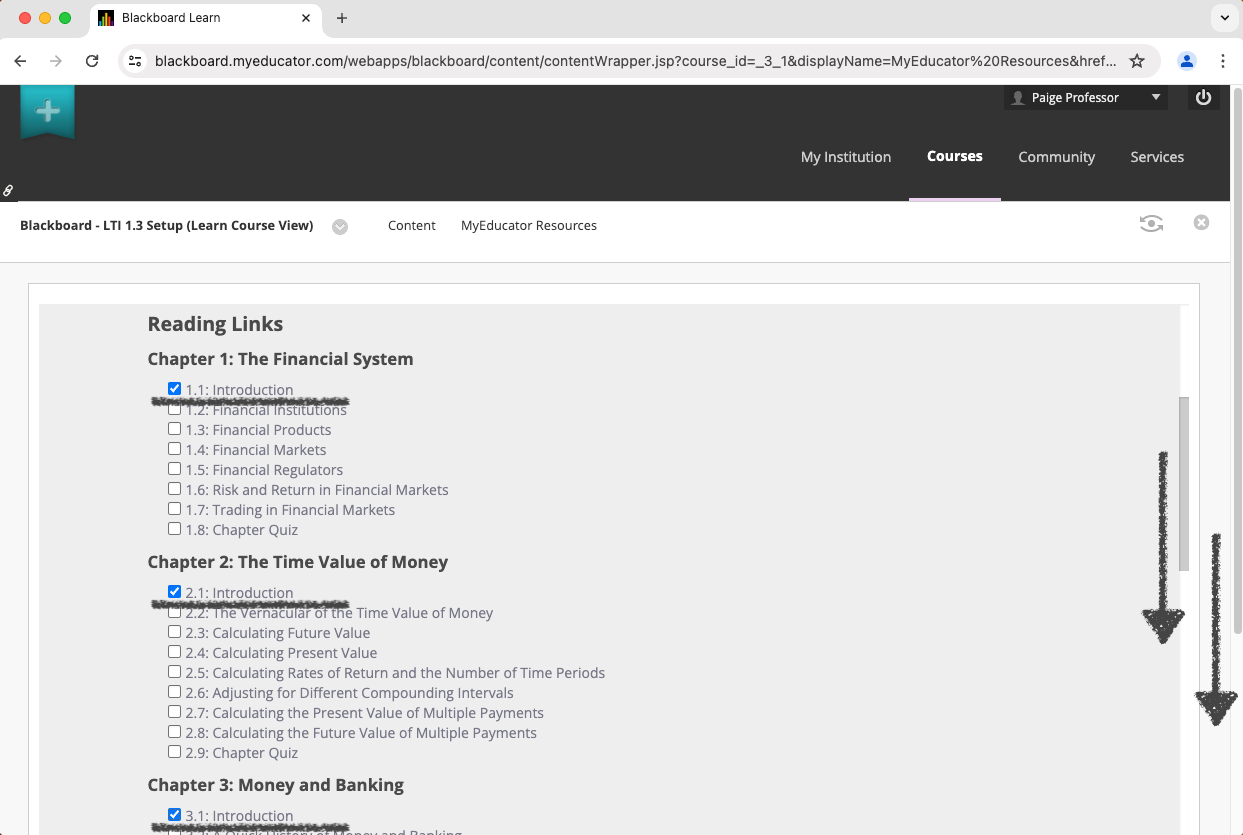 Note: This screen typically contains two scroll bars: an inner and an outer scroll bar.
8) Scroll to the top of the page.
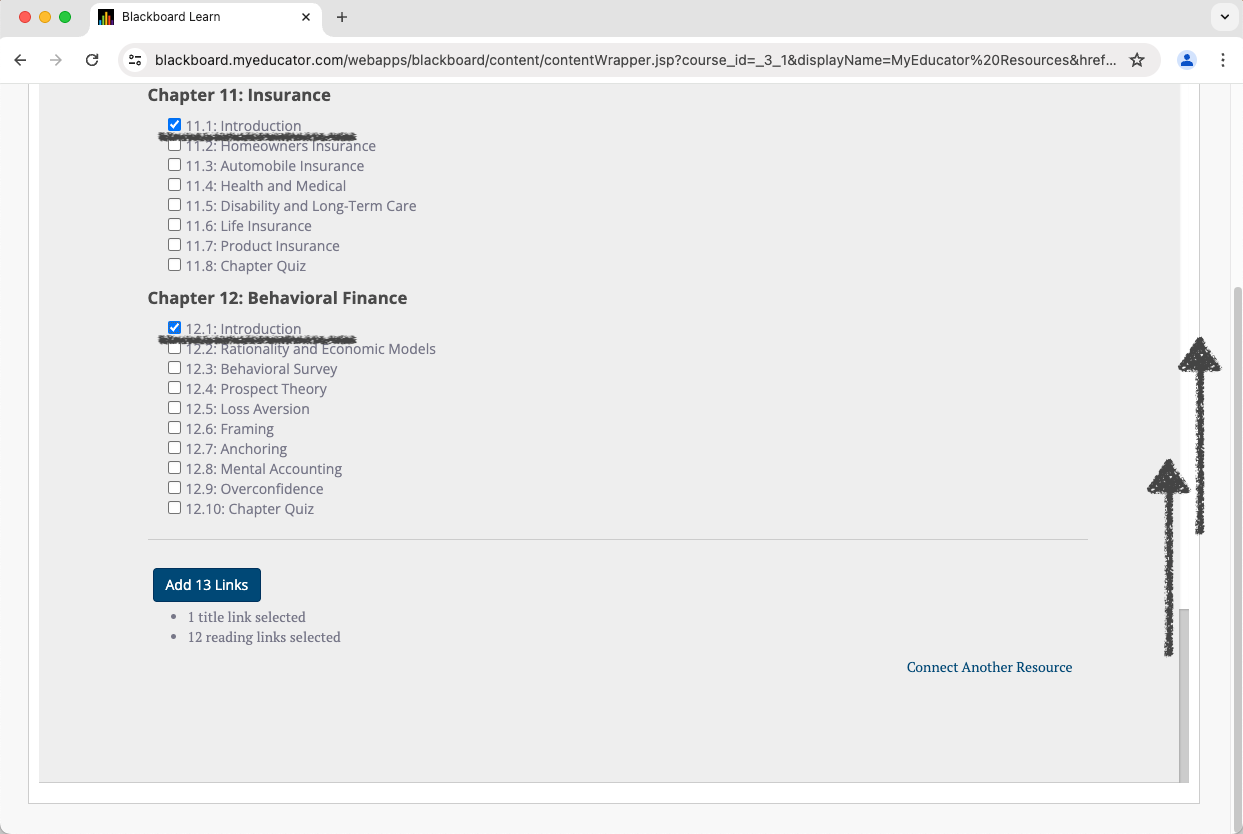 Note: This screen typically contains two scroll bars: an inner and an outer scroll bar.
9) Click on the "Assessments" tab.
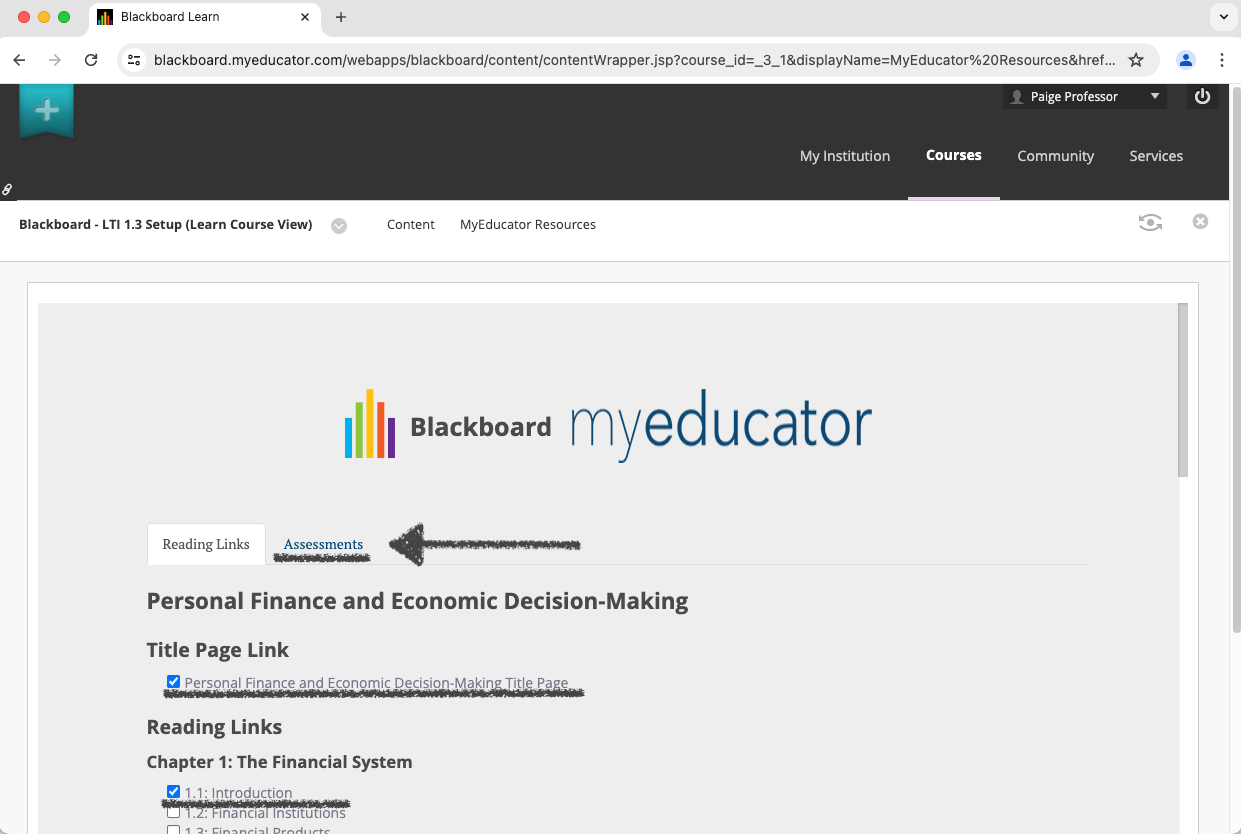
Note: This screen typically contains two scroll bars: an inner and an outer scroll bar.
10) Select the assessments that you would like as graded assessments in your Blackboard course.
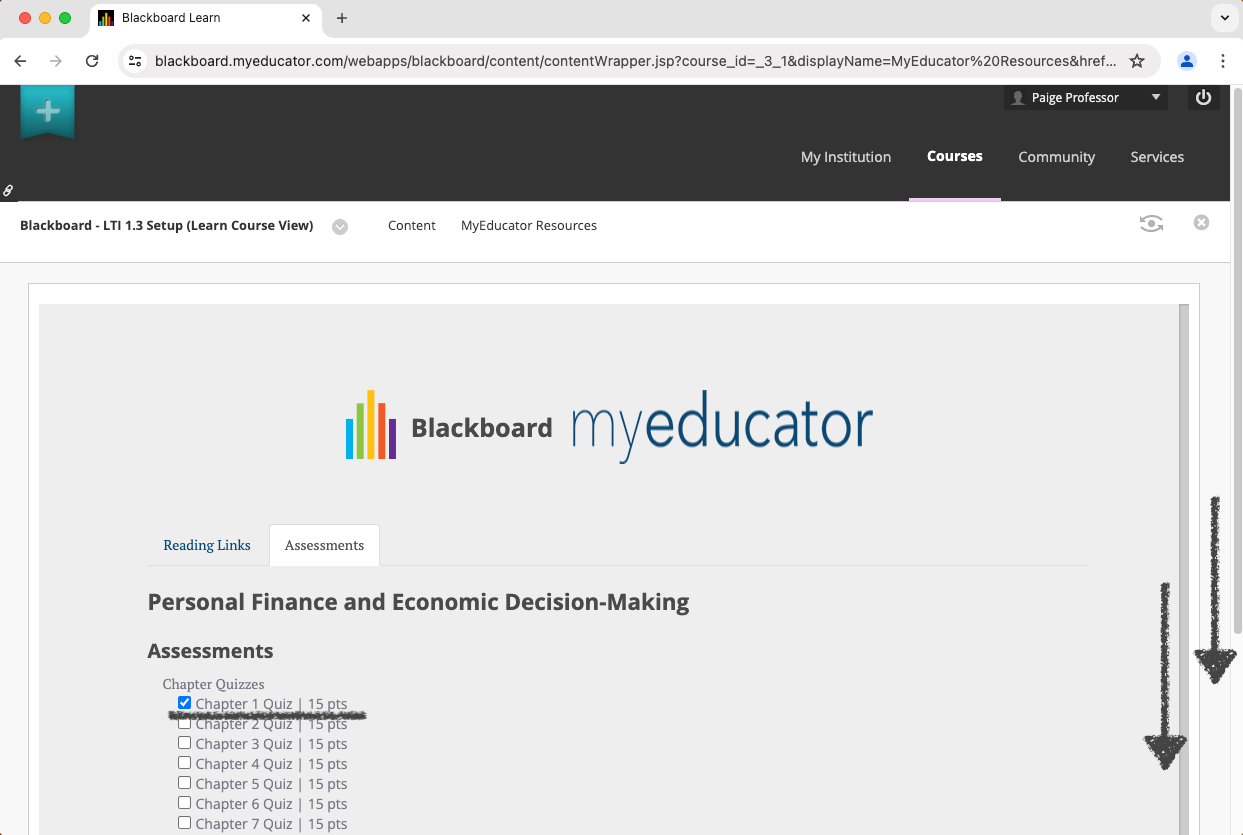
Note: This screen typically contains two scroll bars: an inner and an outer scroll bar.
11) Click the Add Links button.
This action will add any other selected links as well (“Title Page Link”, reading links).
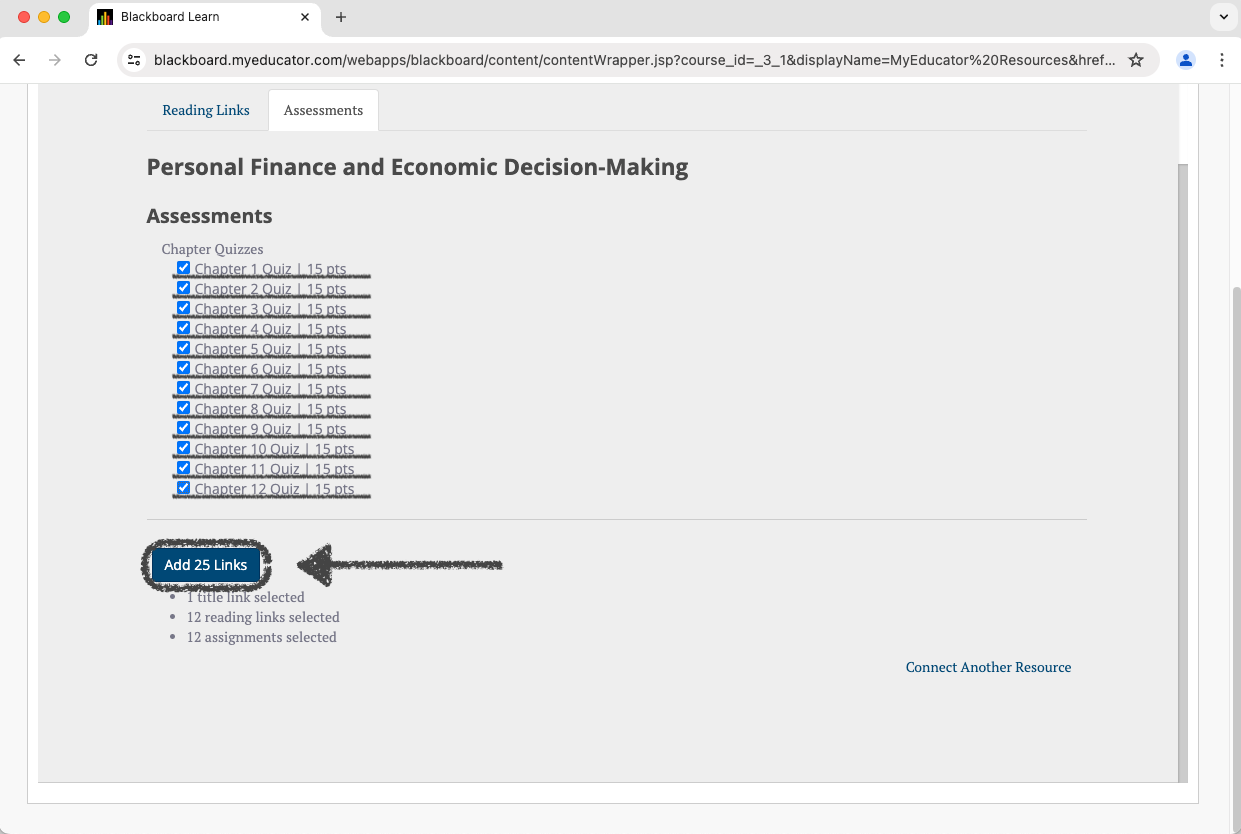
Note: The Add Links button might show a different number of links than what you see above.
Note: This screen typically contains two scroll bars: an inner and an outer scroll bar.
12) Scroll through this page to verify all of the links and assessments have been added.
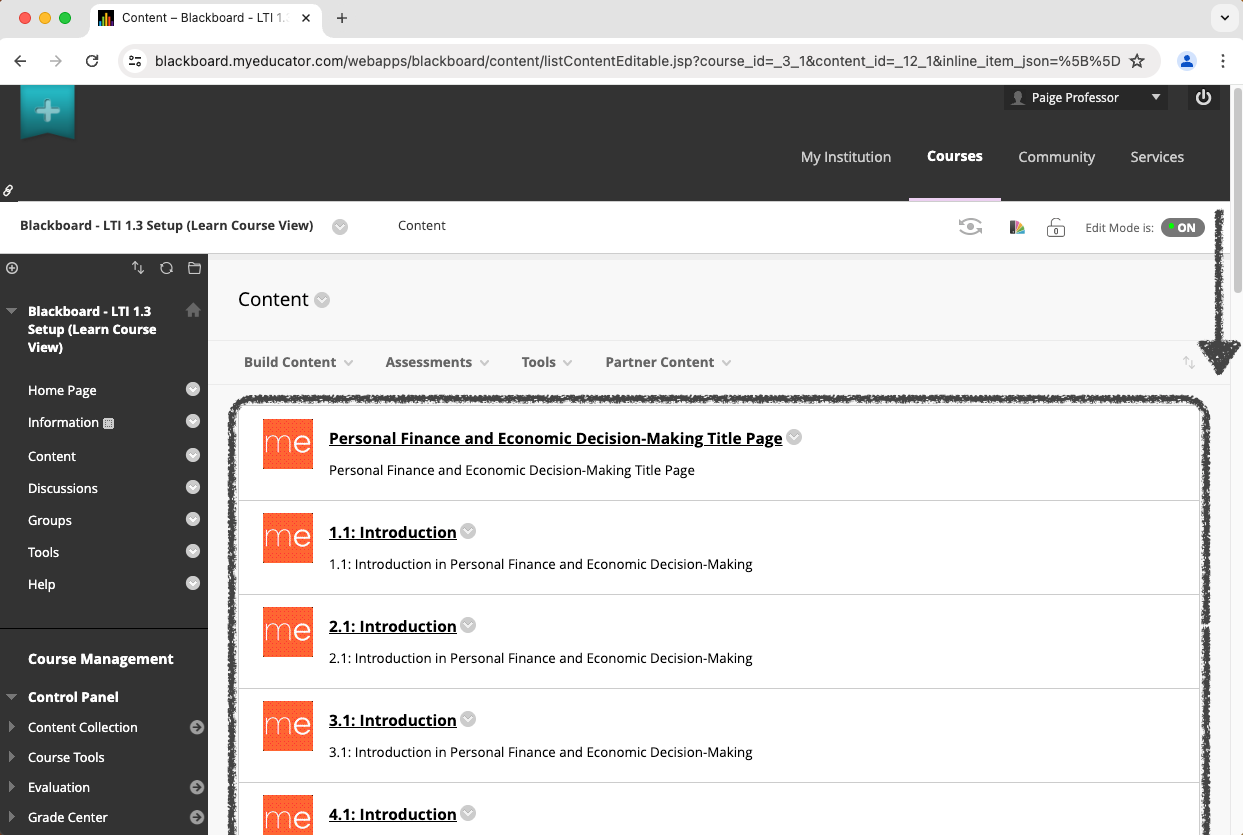
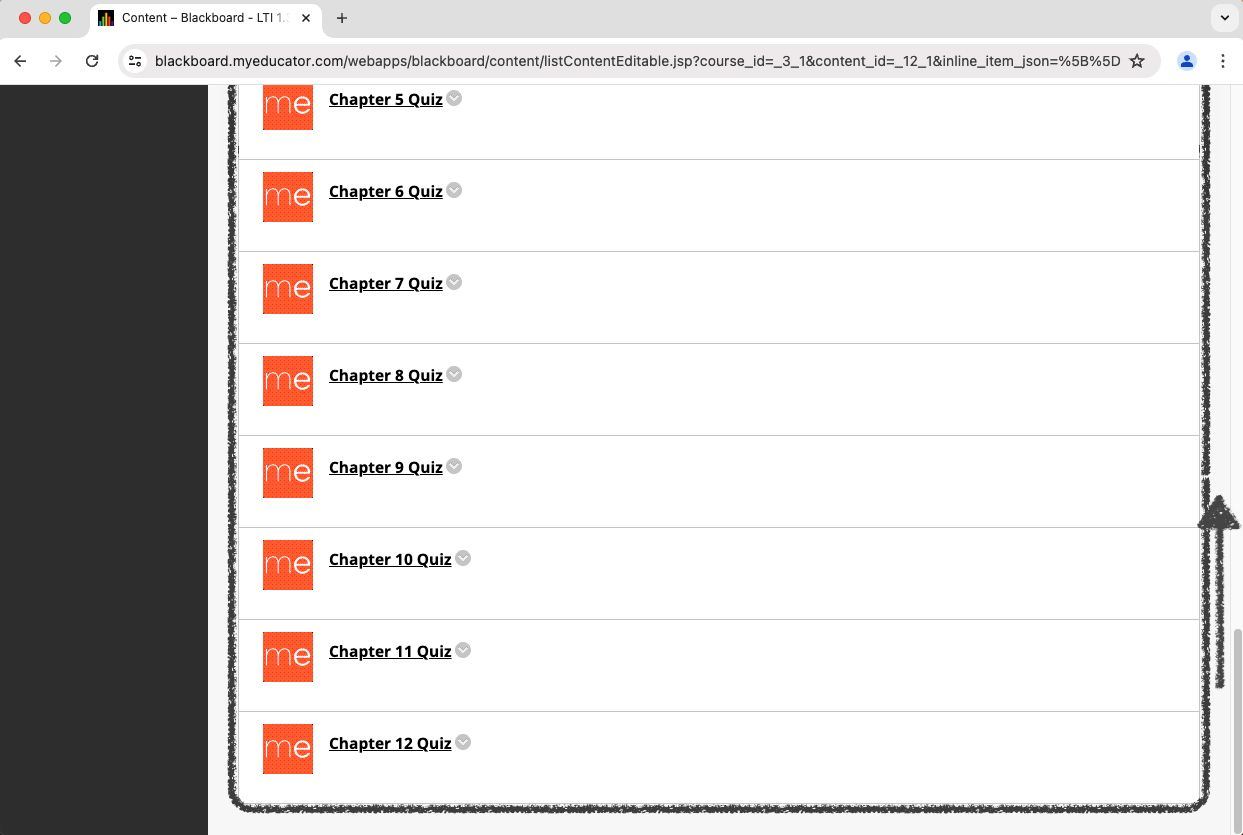
Note: Links may not have been added in the order you might have expected.
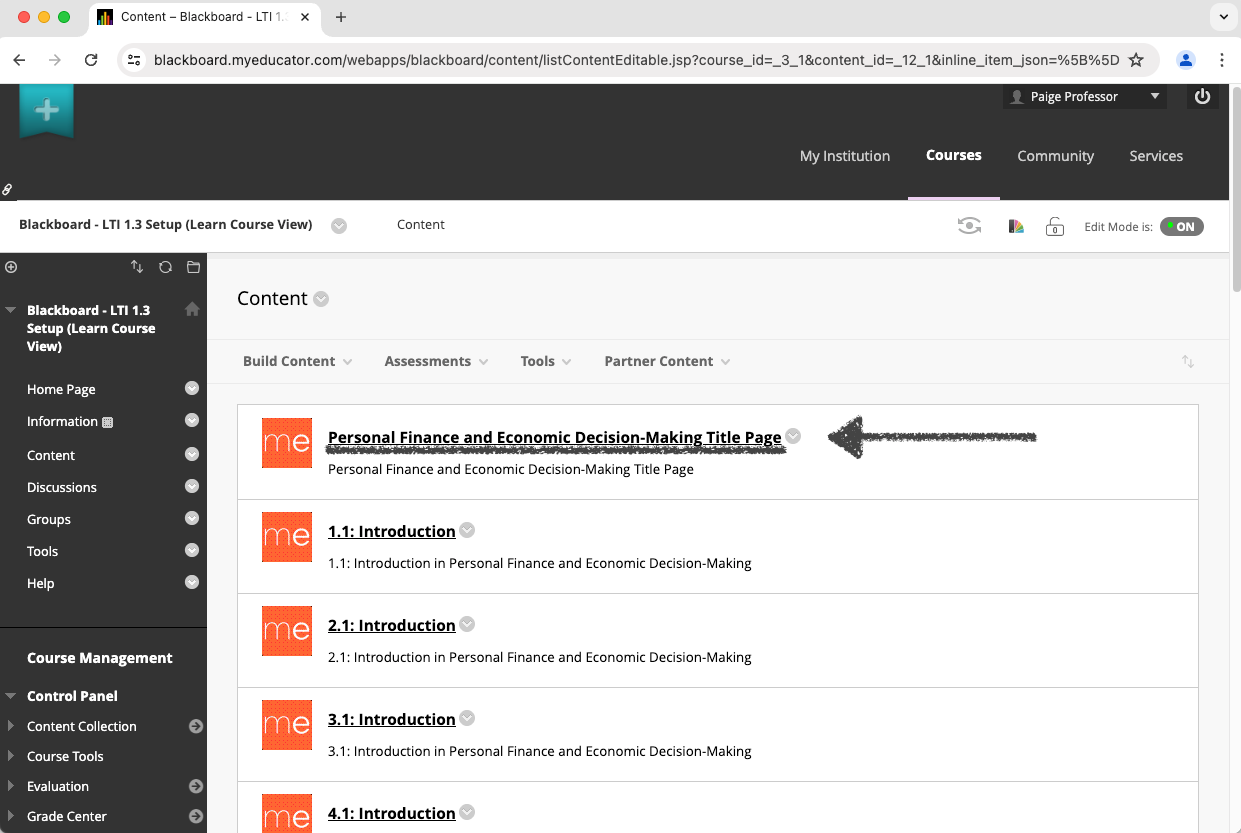
13) Click the “Title Page” link to verify it works as expected and opens the appropriate MyEducator resource.
You can also do this for any of the reading and assessment links as well.
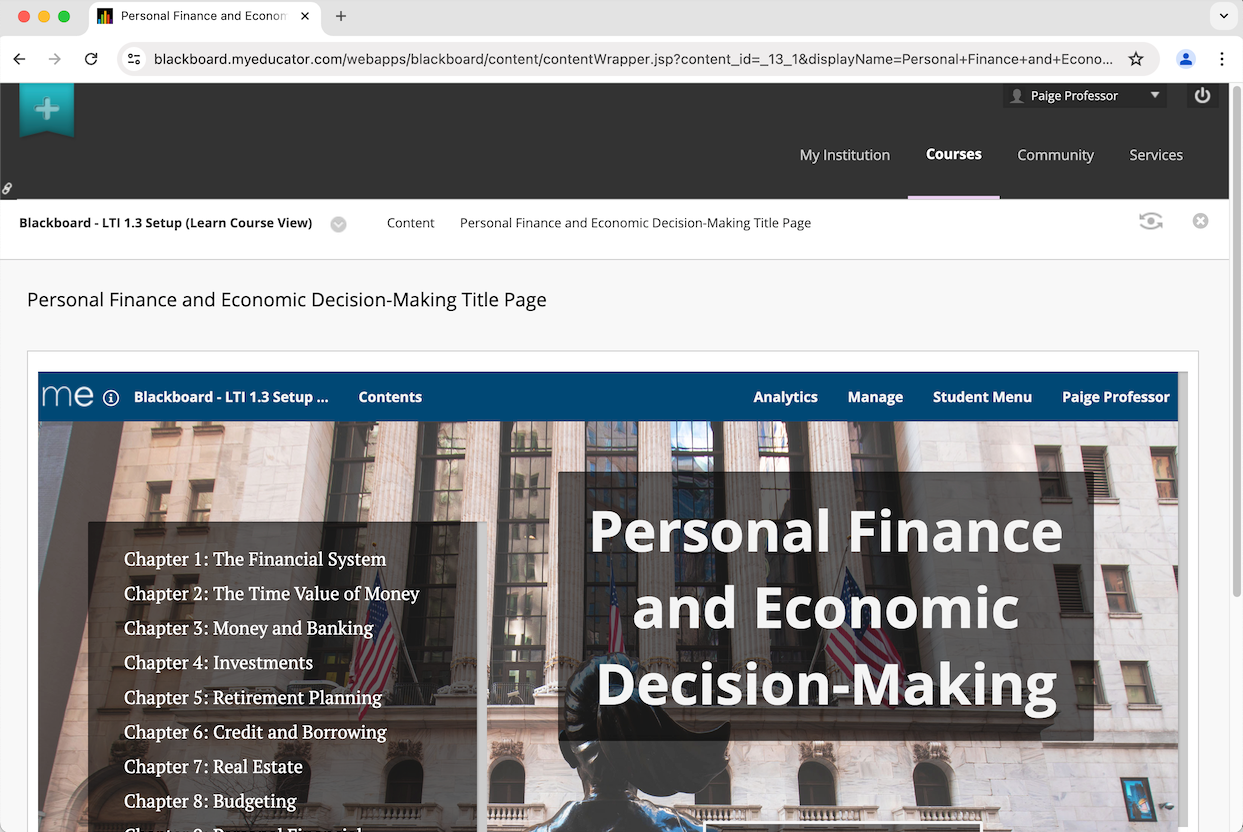
14) If you see a version of the screenshot below, showing the title page of your MyEducator resource, you have successfully completed the setup for integrating your Blackboard course with MyEducator (LTI 1.3) while also adding reading and assessment links.
For assistance, contact integrations@myeducator.com or support@myeducator.com.