
This article is for LMS administrators.
Each step has associated text and screenshots. Be sure to read all text and view each screenshot for optimal results.
For assistance, contact integrations@myeducator.com or support@myeducator.com.
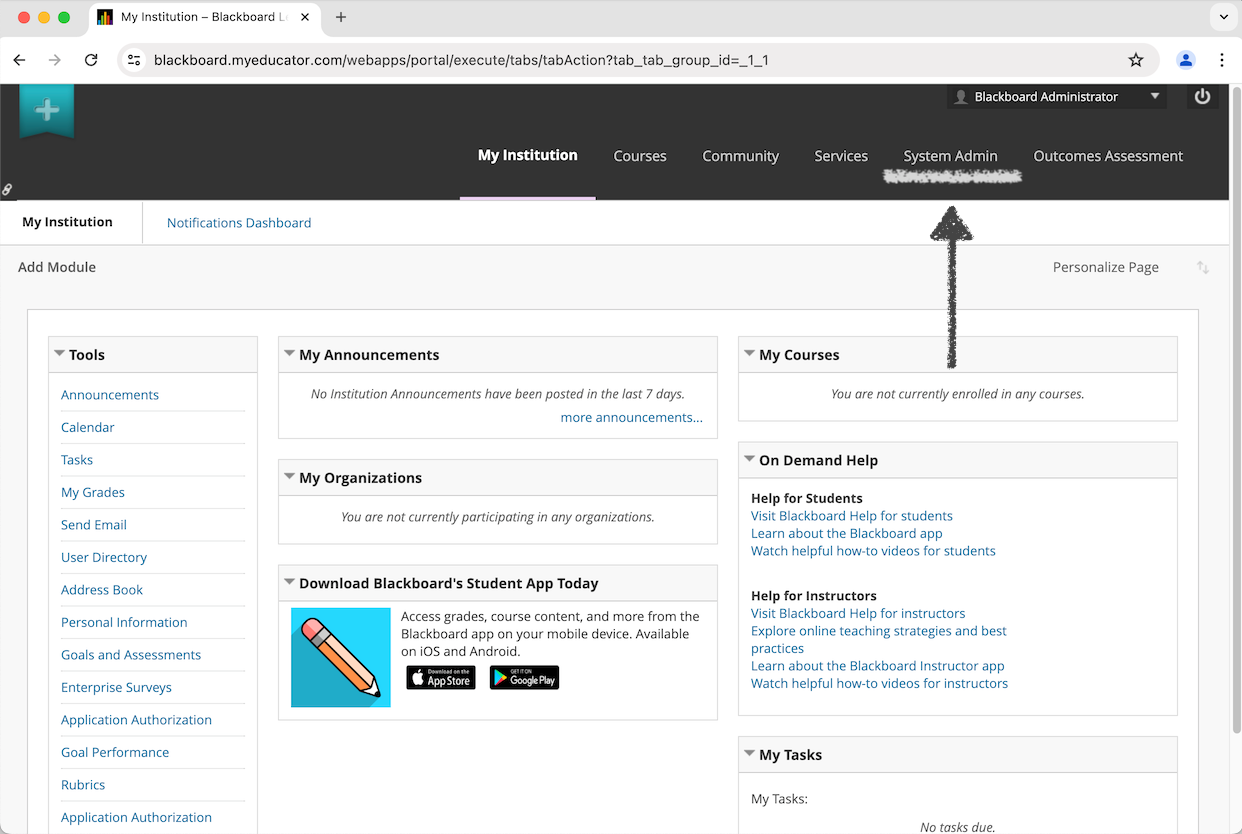
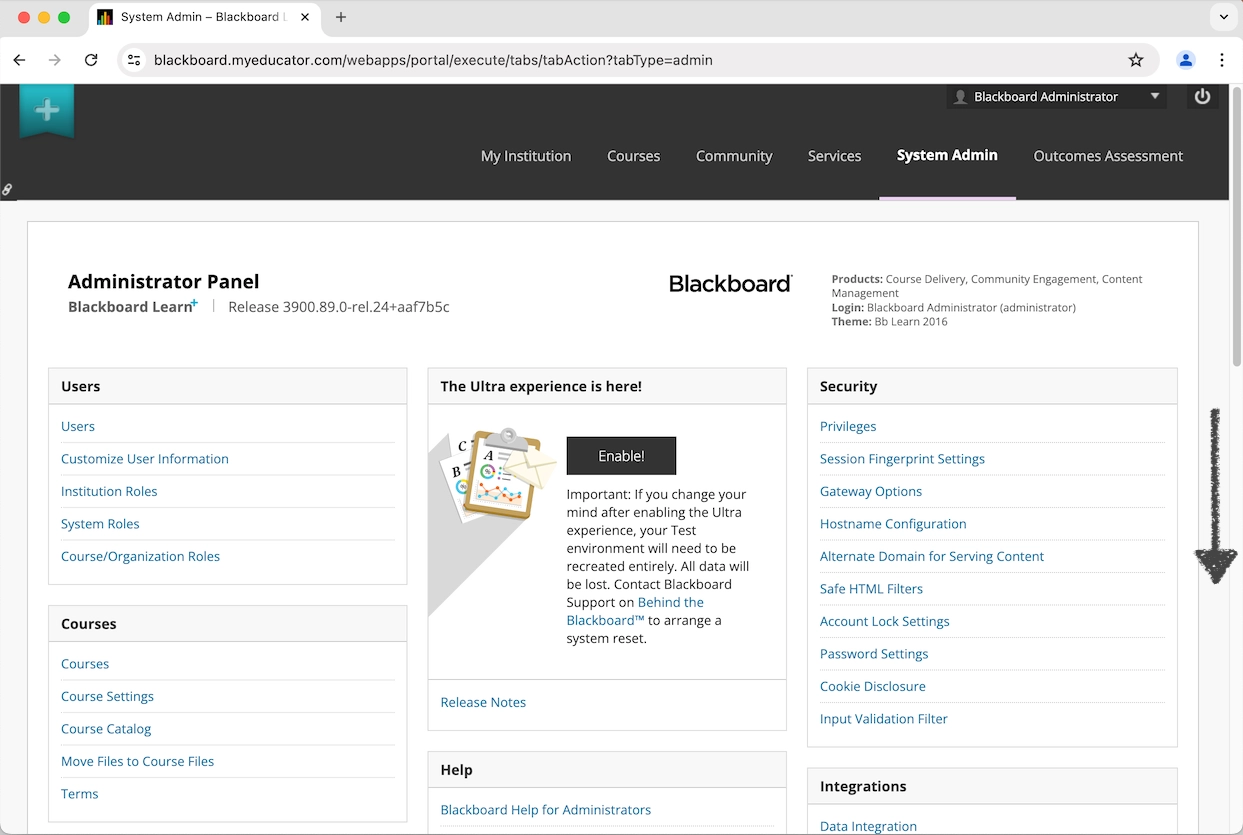
1) Log in to your Blackboard administrator account. Locate and click on the "System Admin" tab.
2) Locate the "Integrations" section on the "Administrator Panel" page.
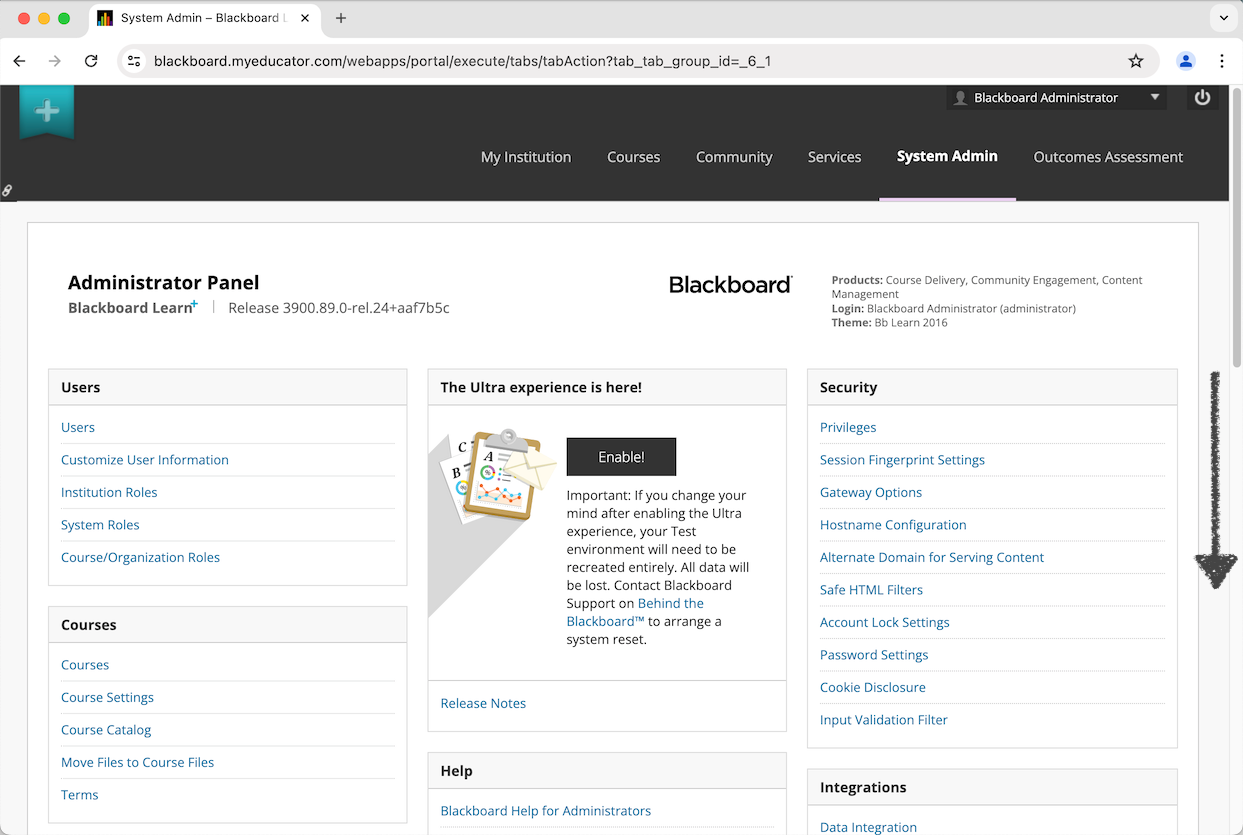
3) Locate and click on "LTI Tool Providers.”
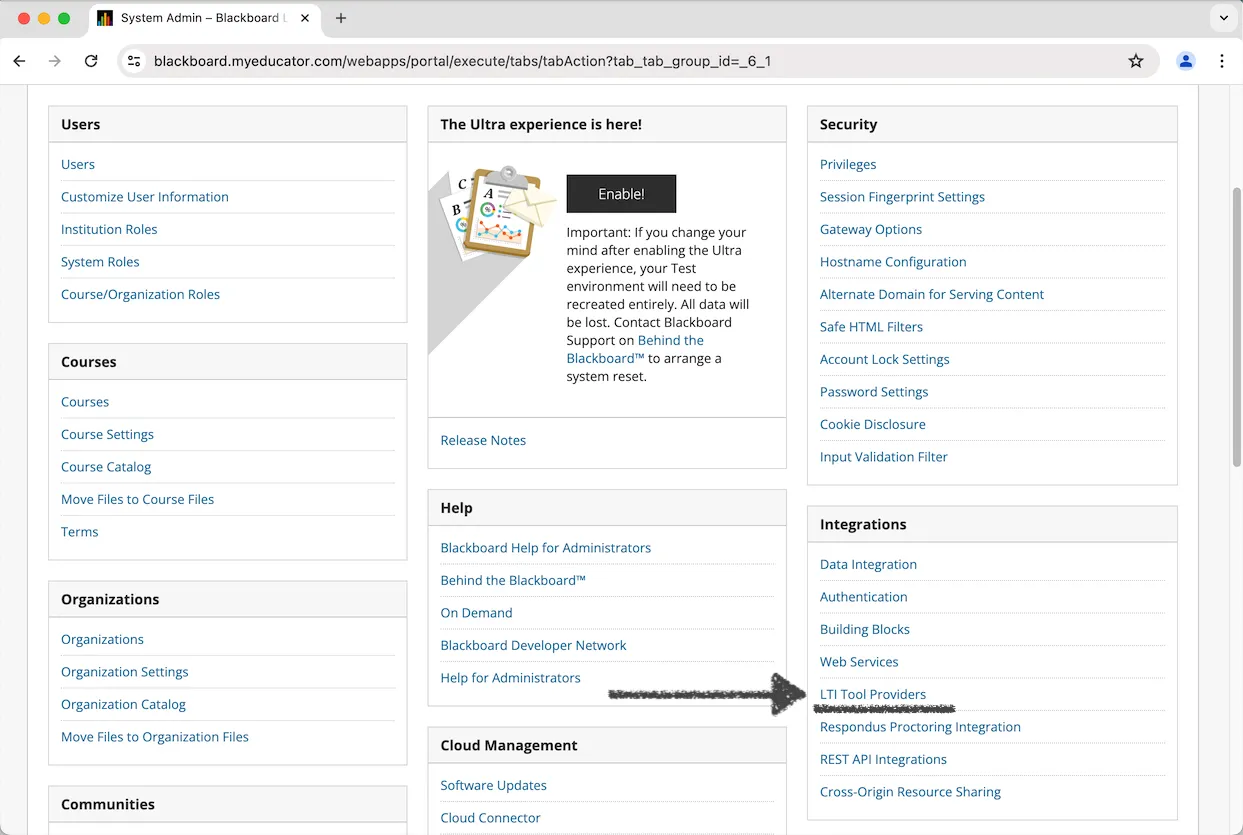
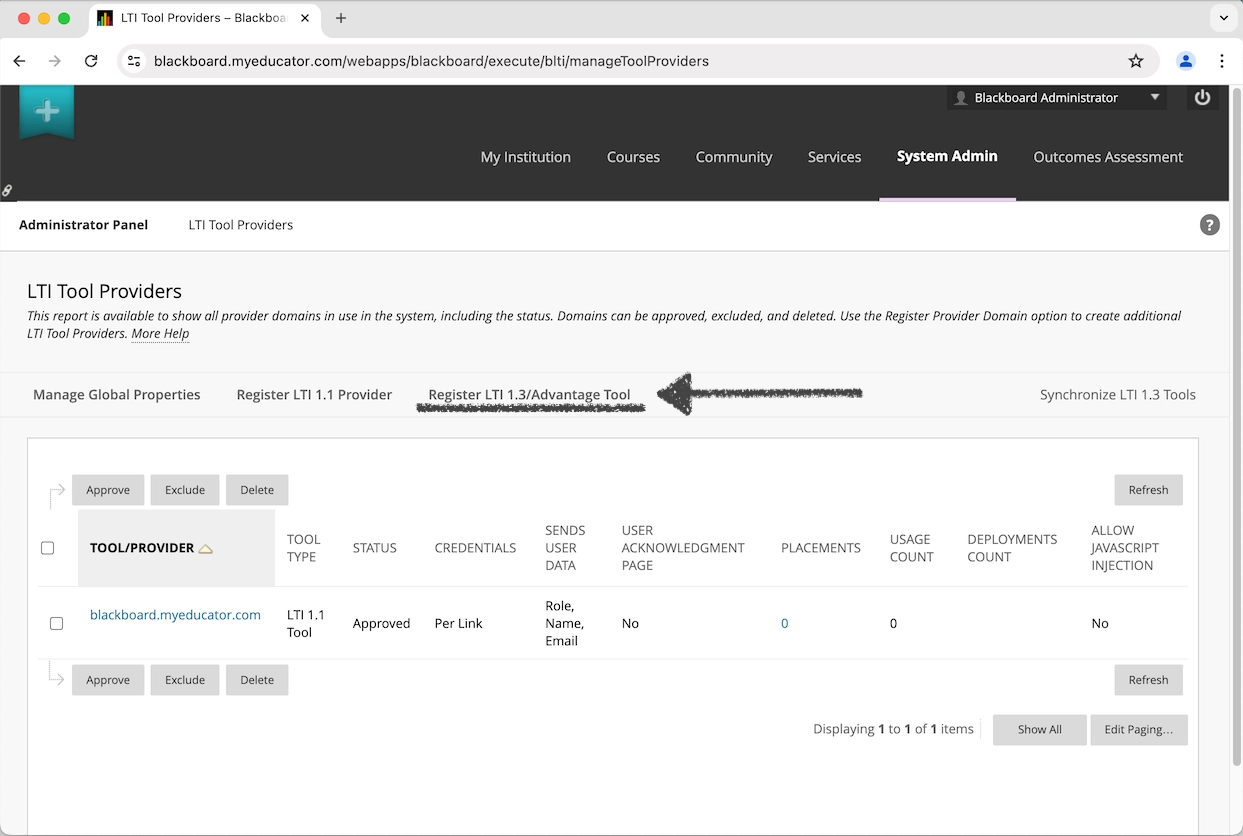
4) Click on "Register LTI 1.3/Advantage Tool.”
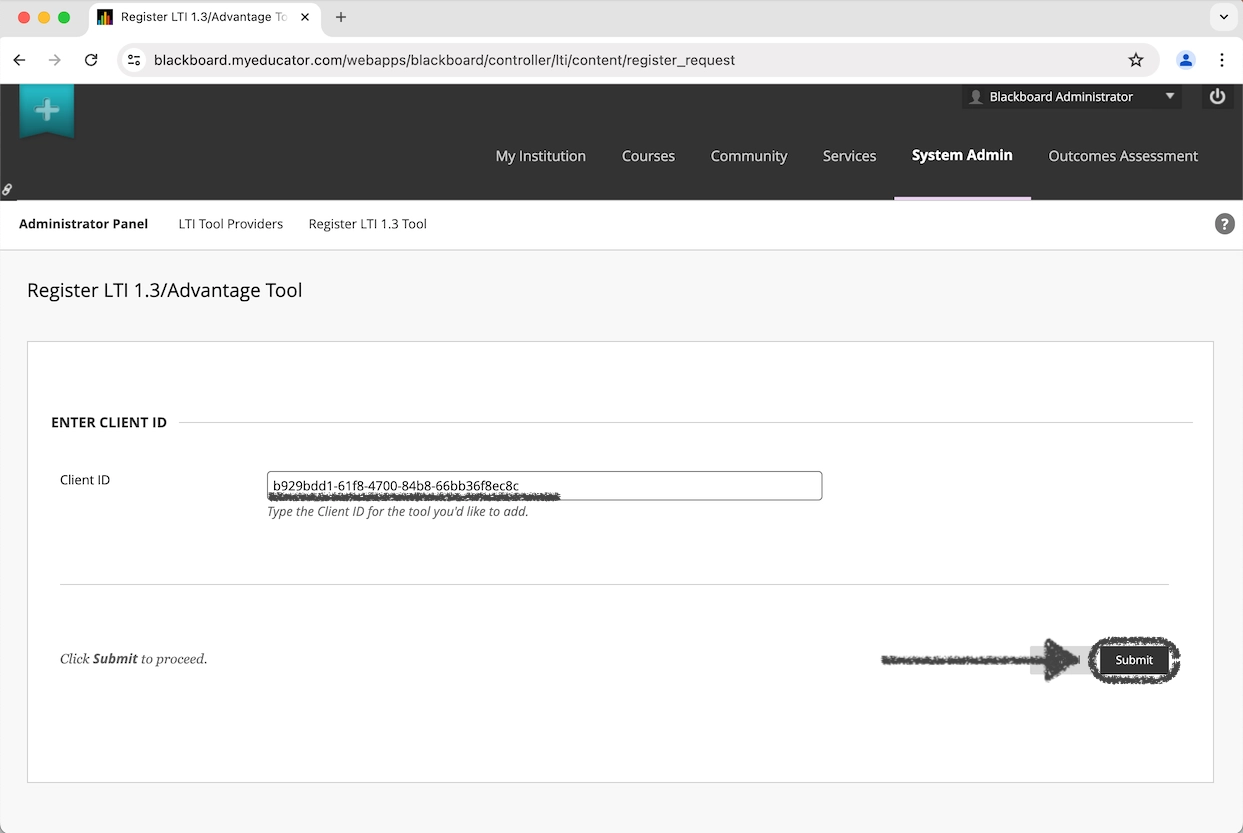
5) Copy the Client ID and paste it into the "Client ID" text box.
Client ID: b929bdd1-61f8-4700-84b8-66bb36f8ec8c
Click the "Submit" button.
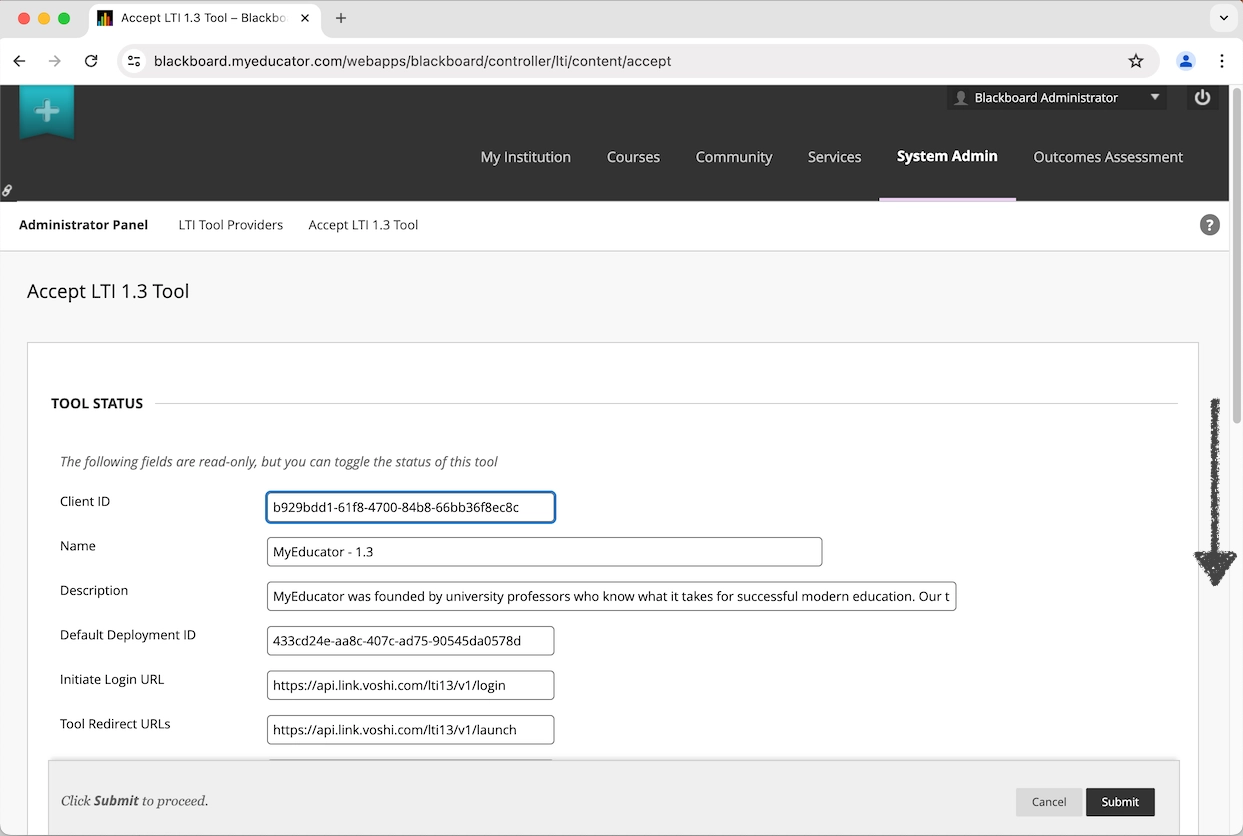
6) In the “Tool Status” section of the “Accept LTI 1.3 Tool” page:
- Locate the "Tool Status" option.
- Set the “Tool Status” option to "Approved."
Locate the “Institution Policies” section.
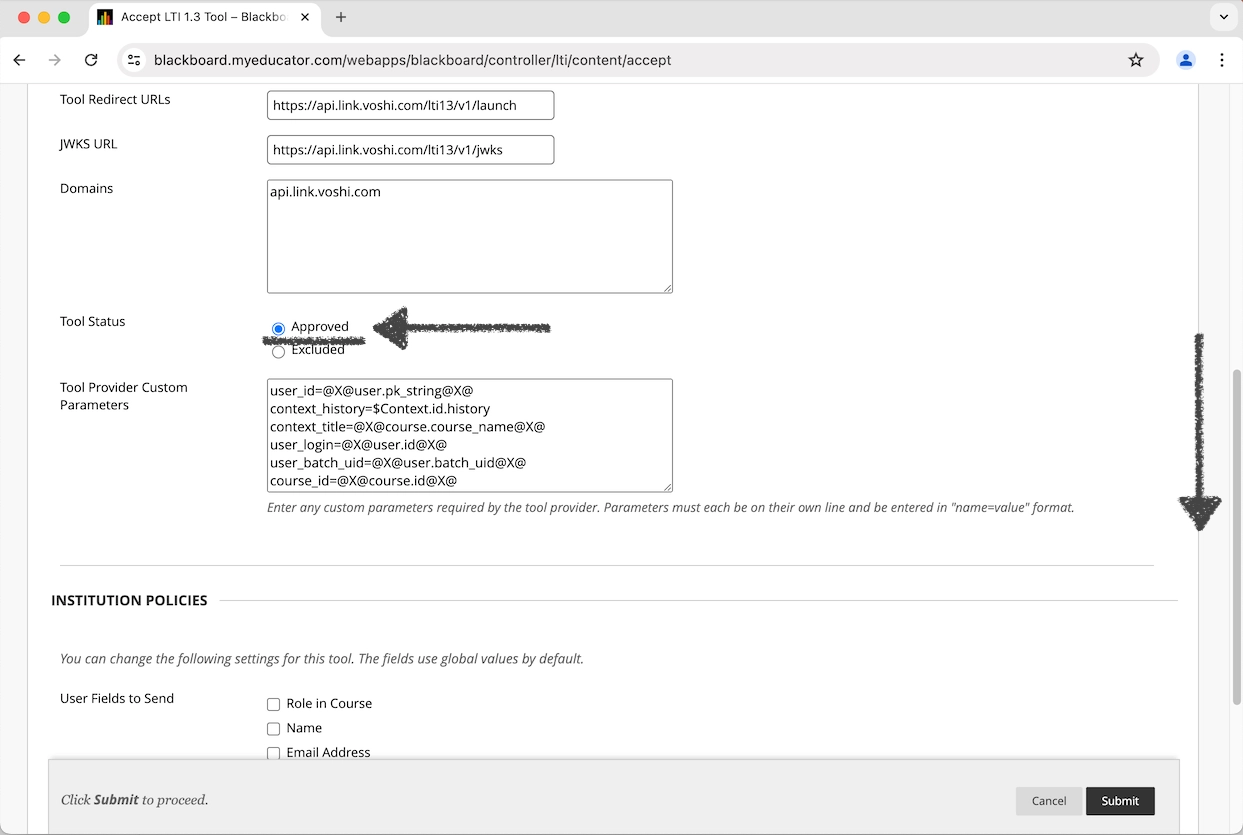
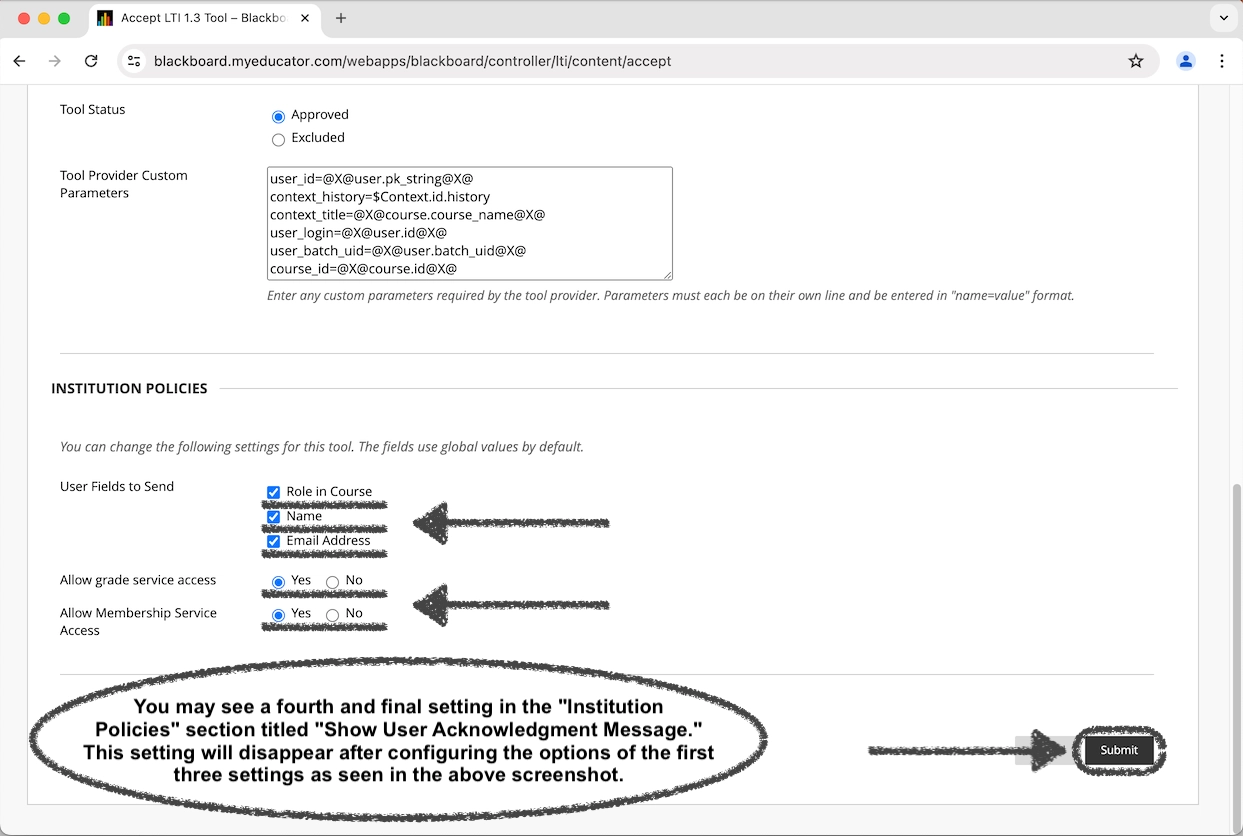
7) In the “Institution Policies” section:
- Select all three options for the “User Fields to Send” setting (Role in Course, Name, Email Address).
- Select “Yes” for the “Allow grade service access” setting.
- Select “Yes” for the “Allow Membership Service Access” setting.
Click the "Submit" button.
8) Click on "Manage Global Properties."
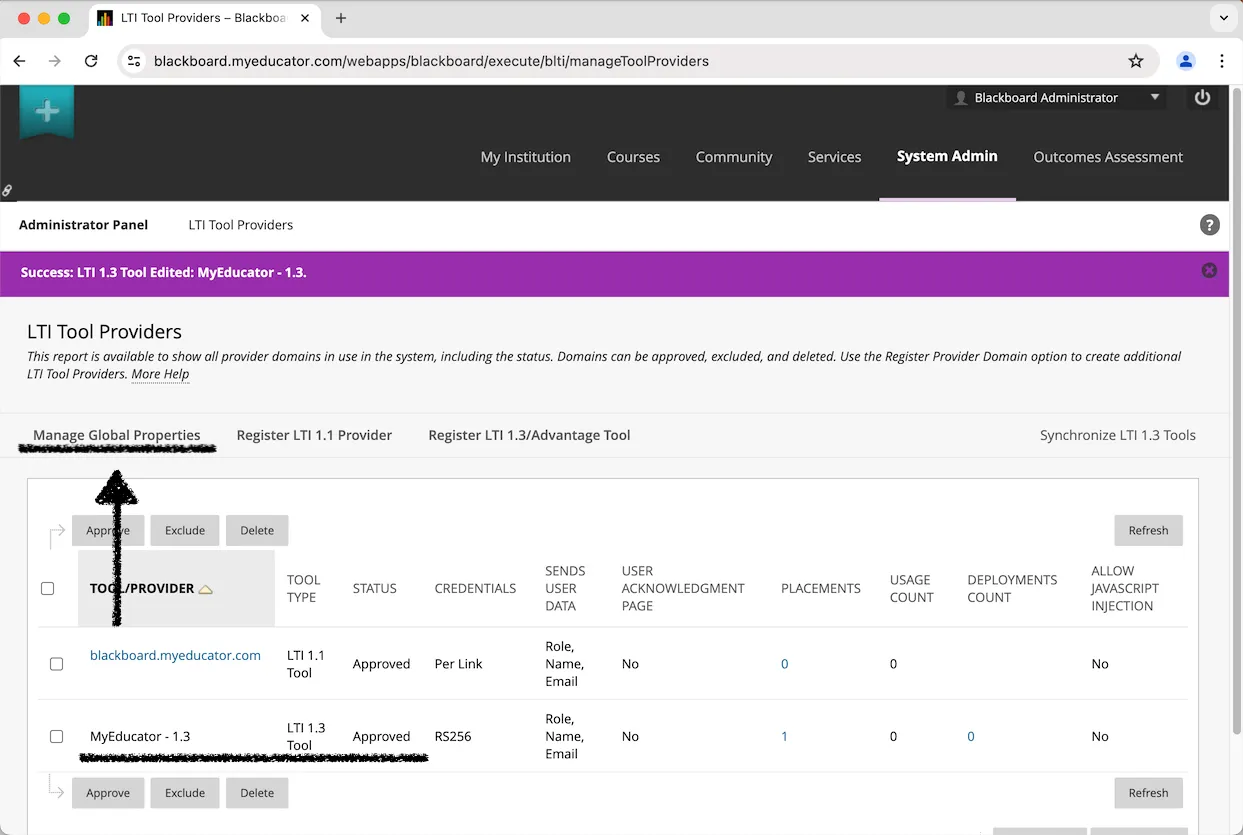
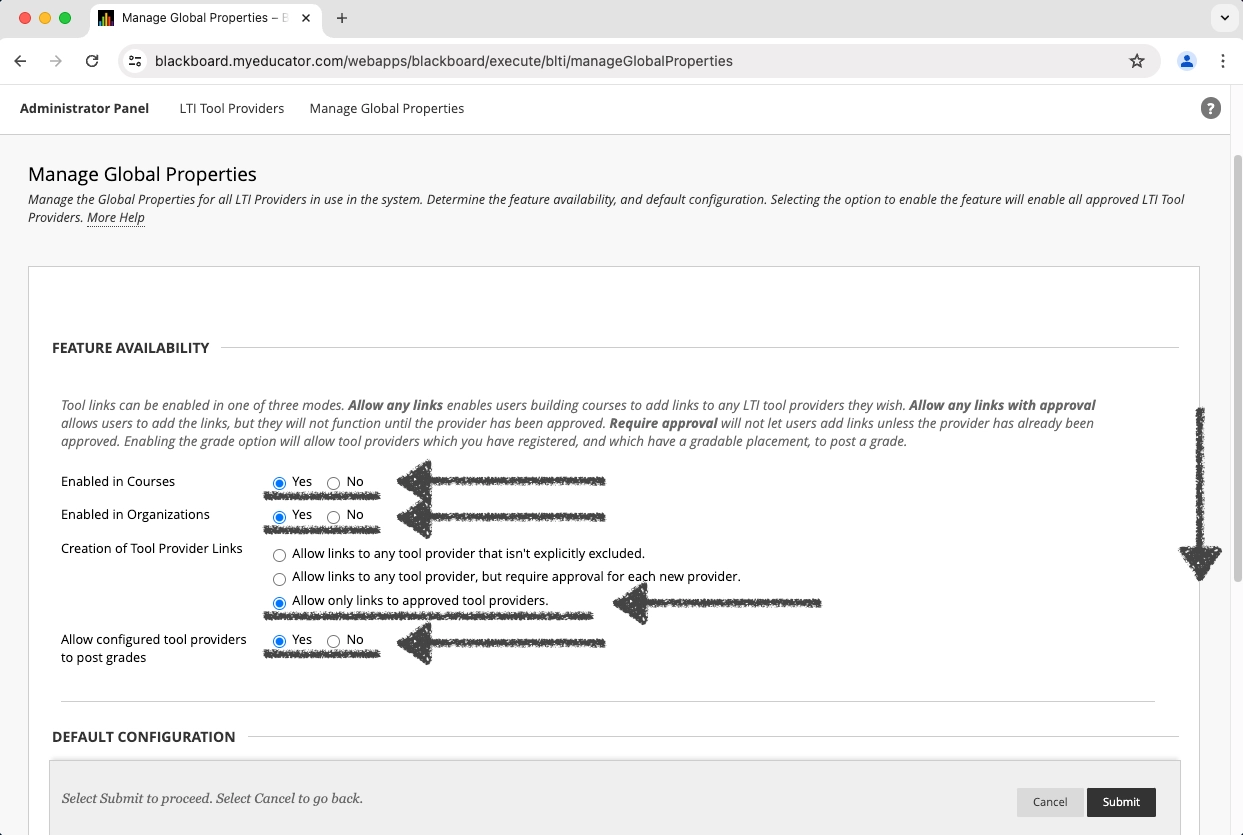
9) In the “Feature Availability” section:
- Select “Yes” for the “Enabled in Courses” setting.
- Select “Yes” for the “Enabled in Organizations” setting.
- Select “Allow only links to approved tool providers” for the “Creation of Tool Providers Links” setting.
- Select “Yes” for the “Allow configured tool providers to post grades” setting.
Locate the “Default Configuration” section.
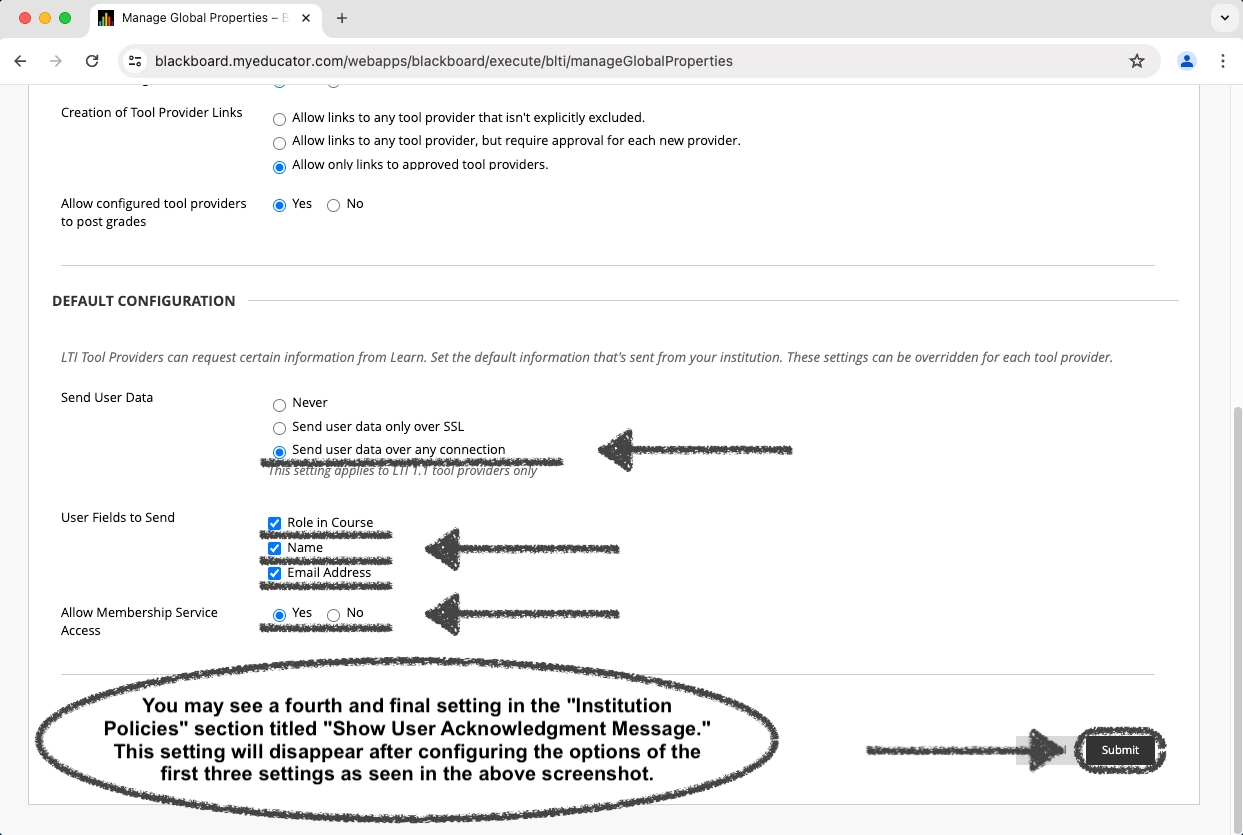
10) In the “Default Configuration” section:
- Select “Send user data over any connection” for the “Send User Data” setting.
- Select all three options for the “User Fields to Send” setting (Role in Course, Name, Email Address).
- Select “Yes” for the “Allow Membership Service Access” setting.
Click the "Submit" button.
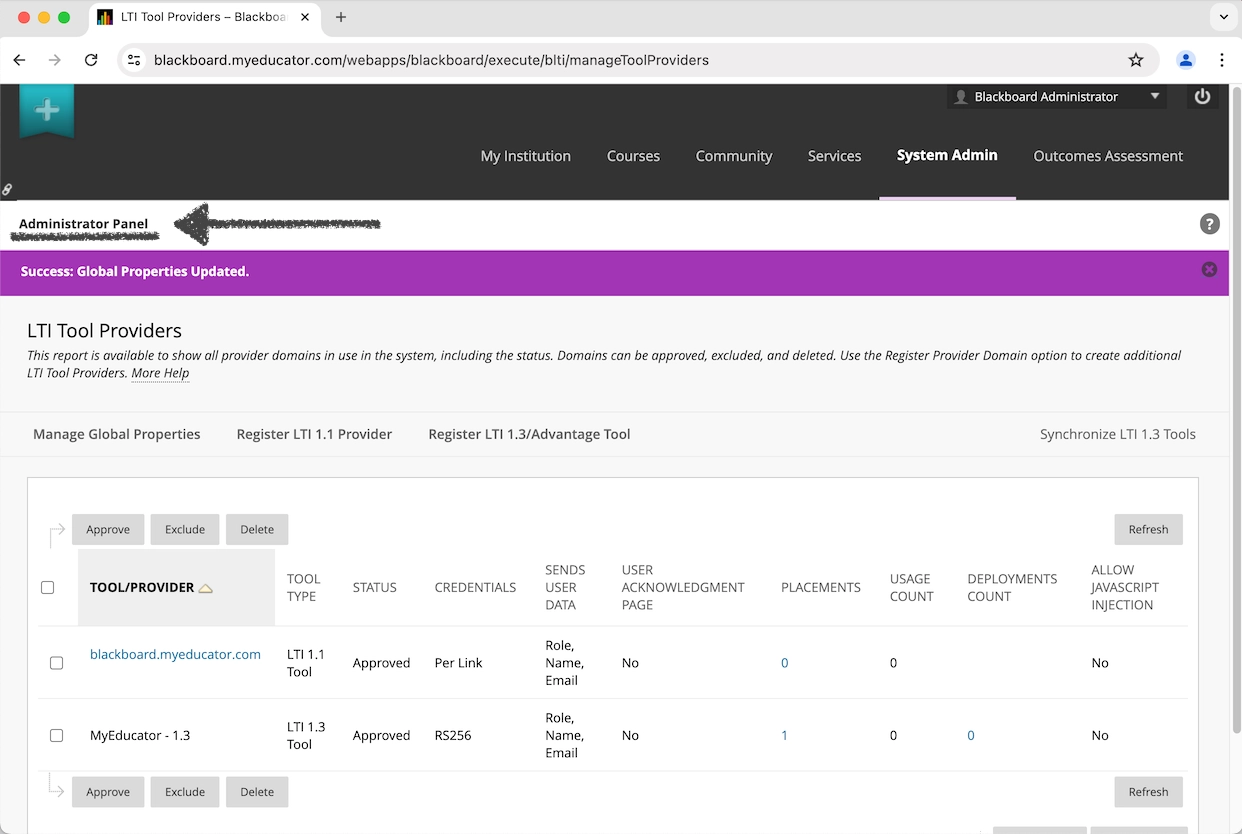
11) Click "Administrator Panel" or “System Admin.”
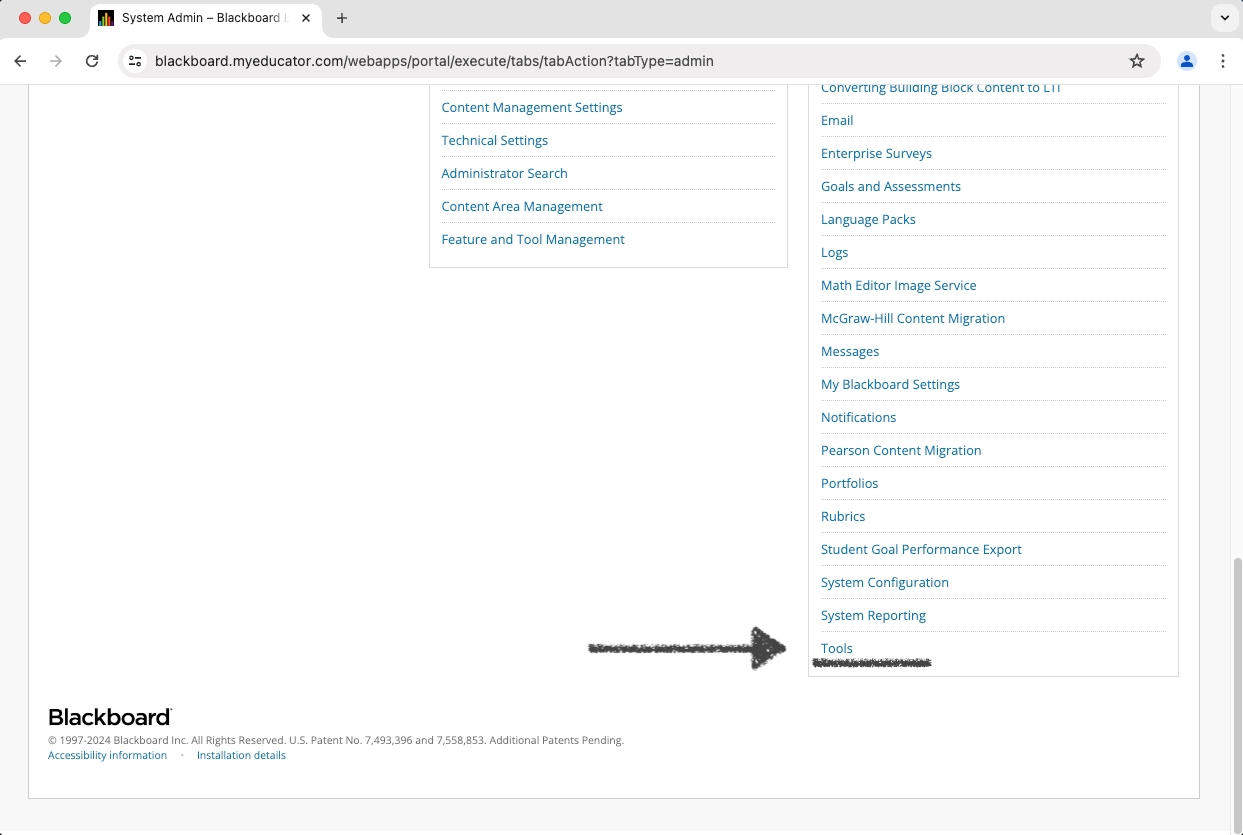
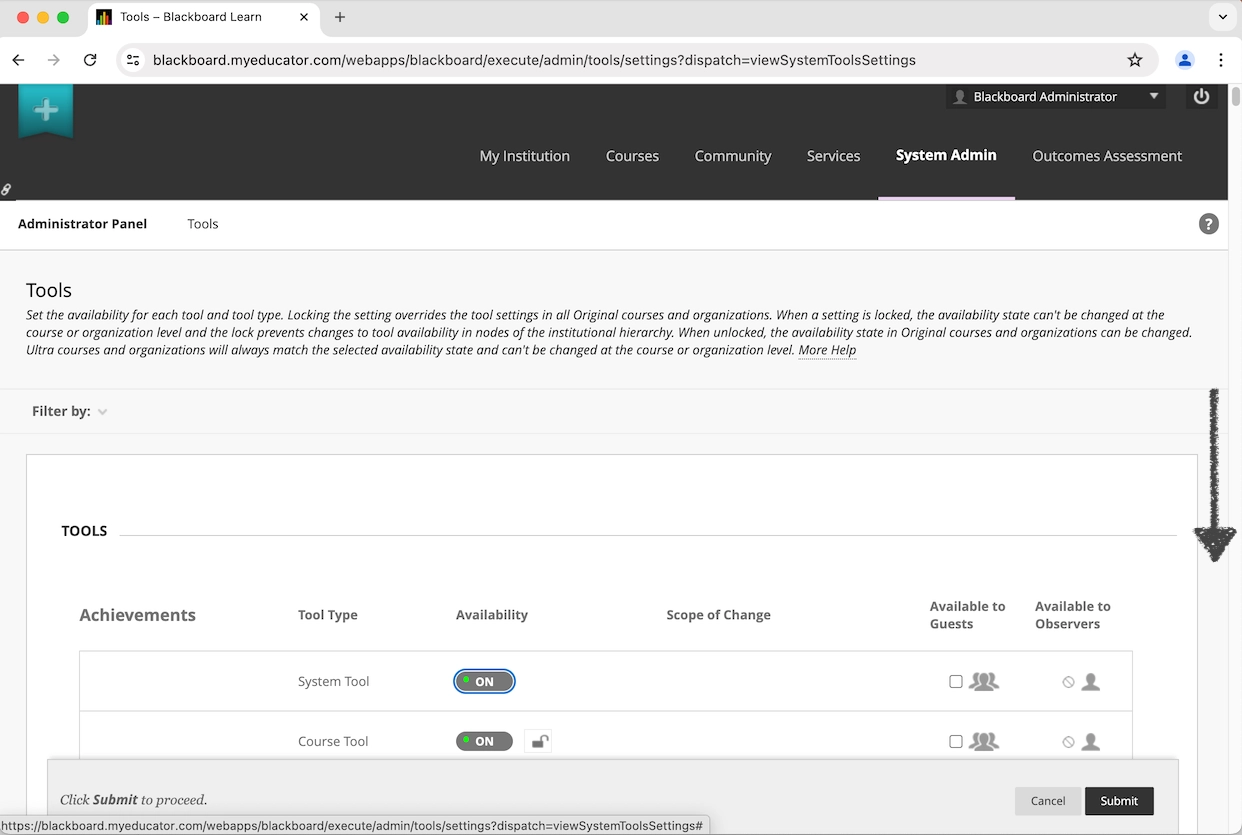
12) Locate and click on "Tools” in the "Tools and Utilities" section.
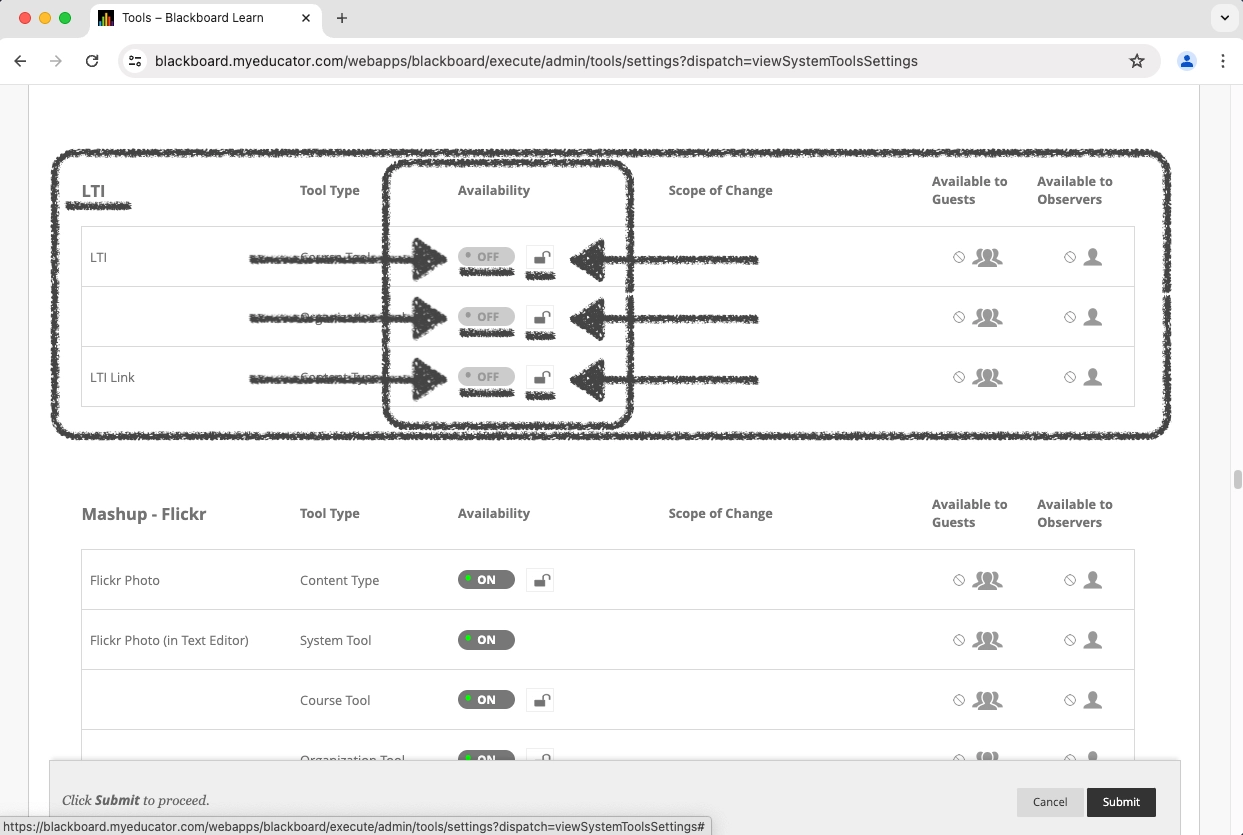
13) Scroll down to locate the "LTI" section.
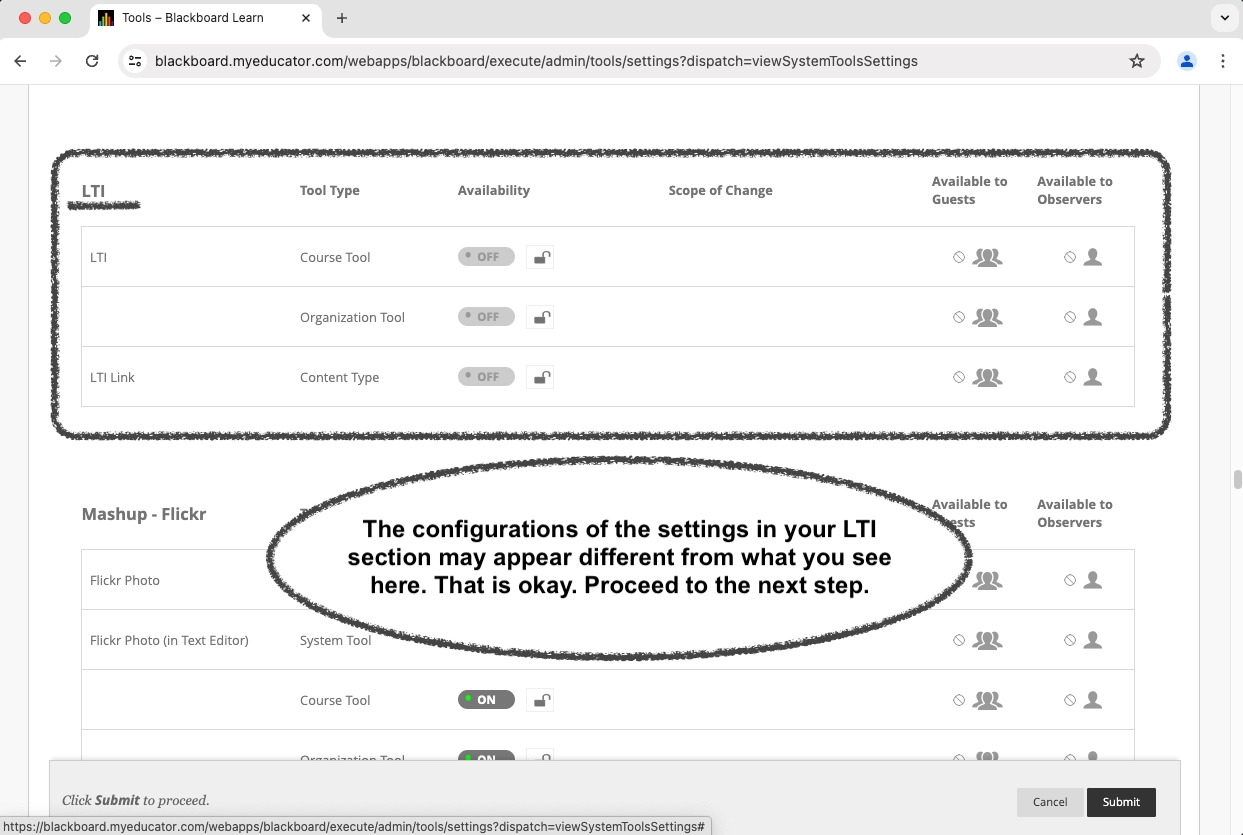
Note: The configurations of the settings in your LTI section may appear different from what you see in the above screenshot.
14A) You only need to make changes to the settings in the “Availability” column of the “LTI” section.
The three “On/Off” buttons need to be clicked to be turned “On” and the lock buttons need to be clicked to the “locked” position.
Note: The lock buttons being “open” or “closed” do not affect the ability to change the status of the “On/Off” buttons, and vice versa.
14B) The “Availability” settings need to look like they do in the screenshot below.
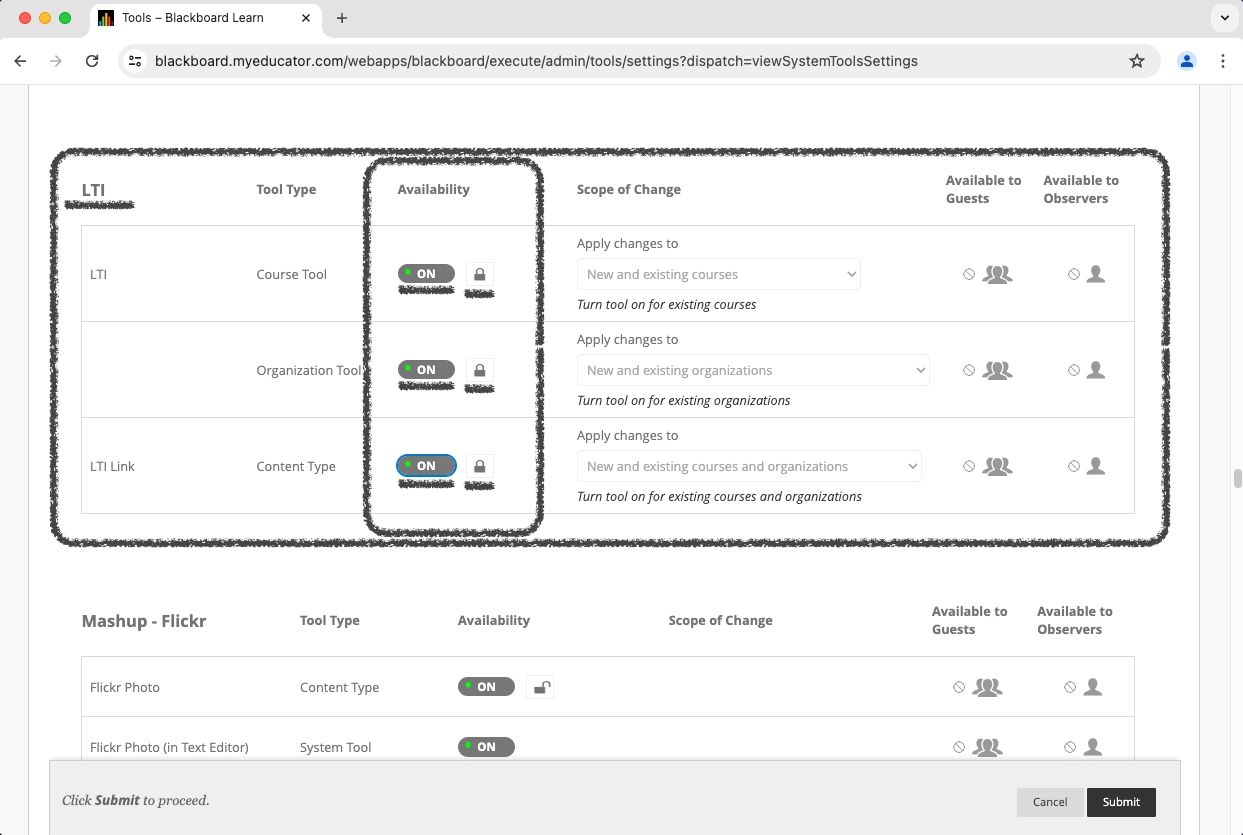
Note: The configurations of the settings in your LTI section may appear different from what you see in the screenshot above. That is okay, as long as the settings in the “Availability” section match what you see above.
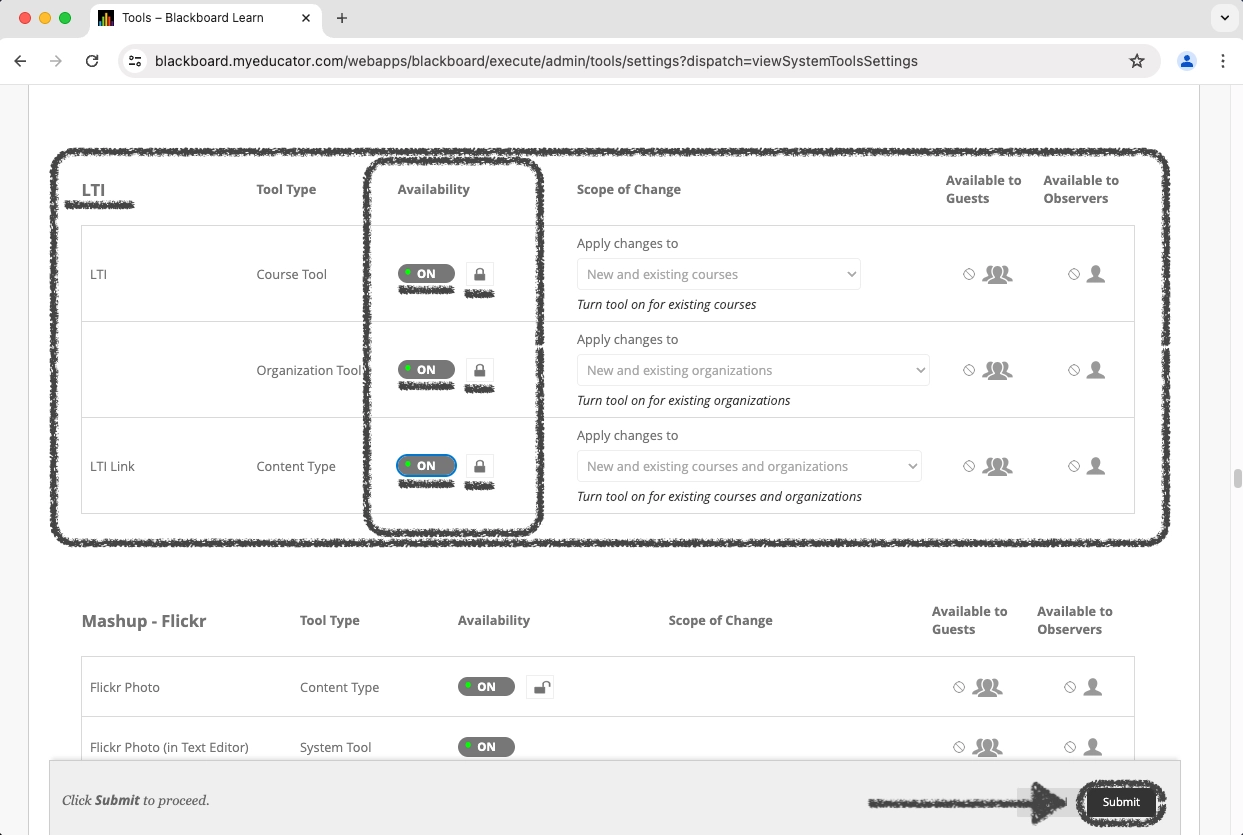
15) Click the "Submit" button.
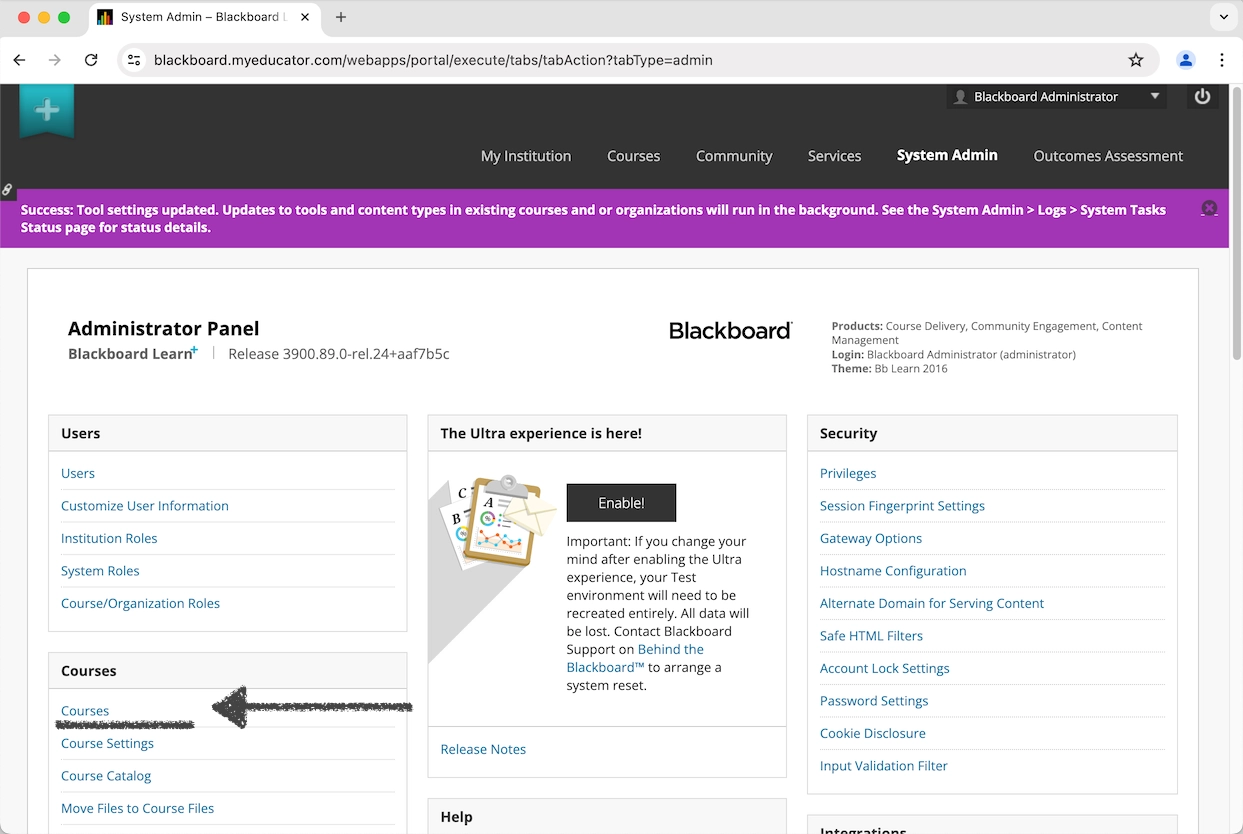
16) Click on "Courses” in the "Courses" section.
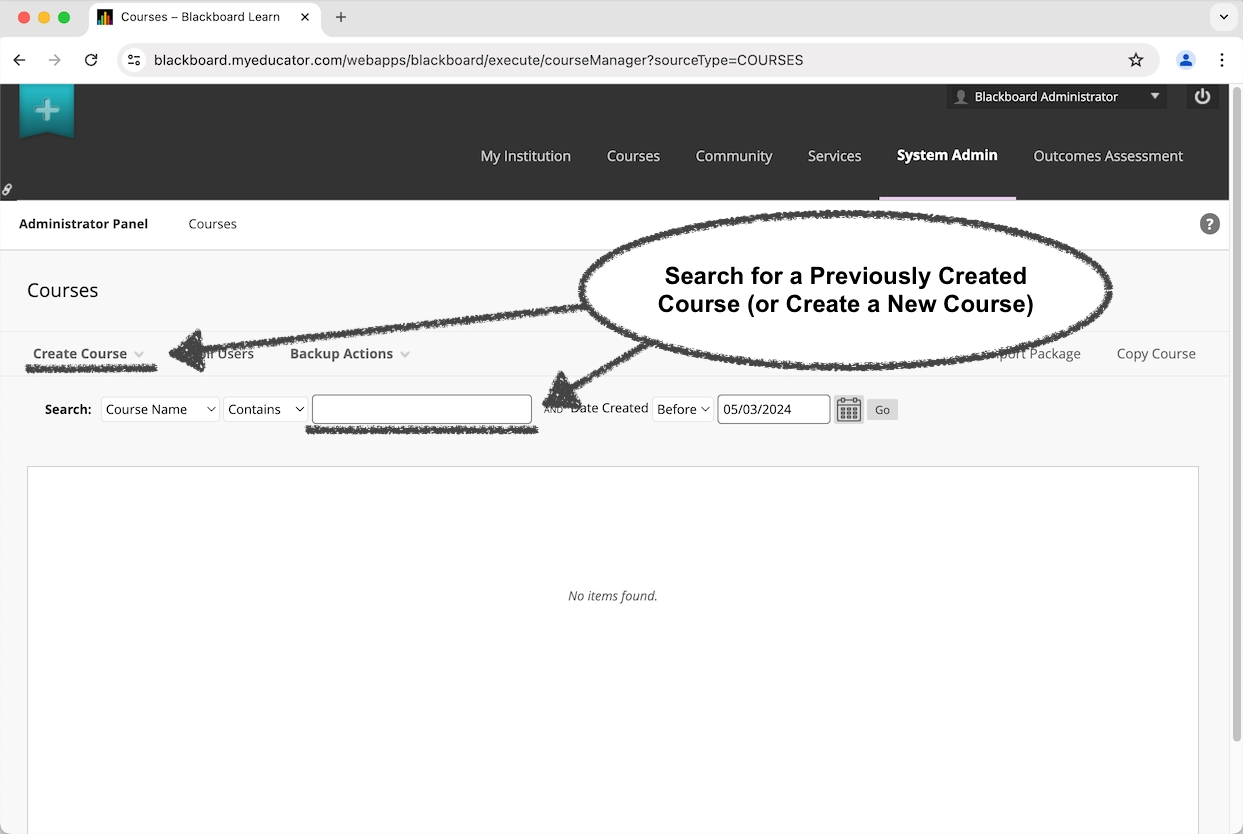
17) Search for a previously created course using the search bar (or create a new course using the "Create Course" option).
These instructions will use a previously created course.
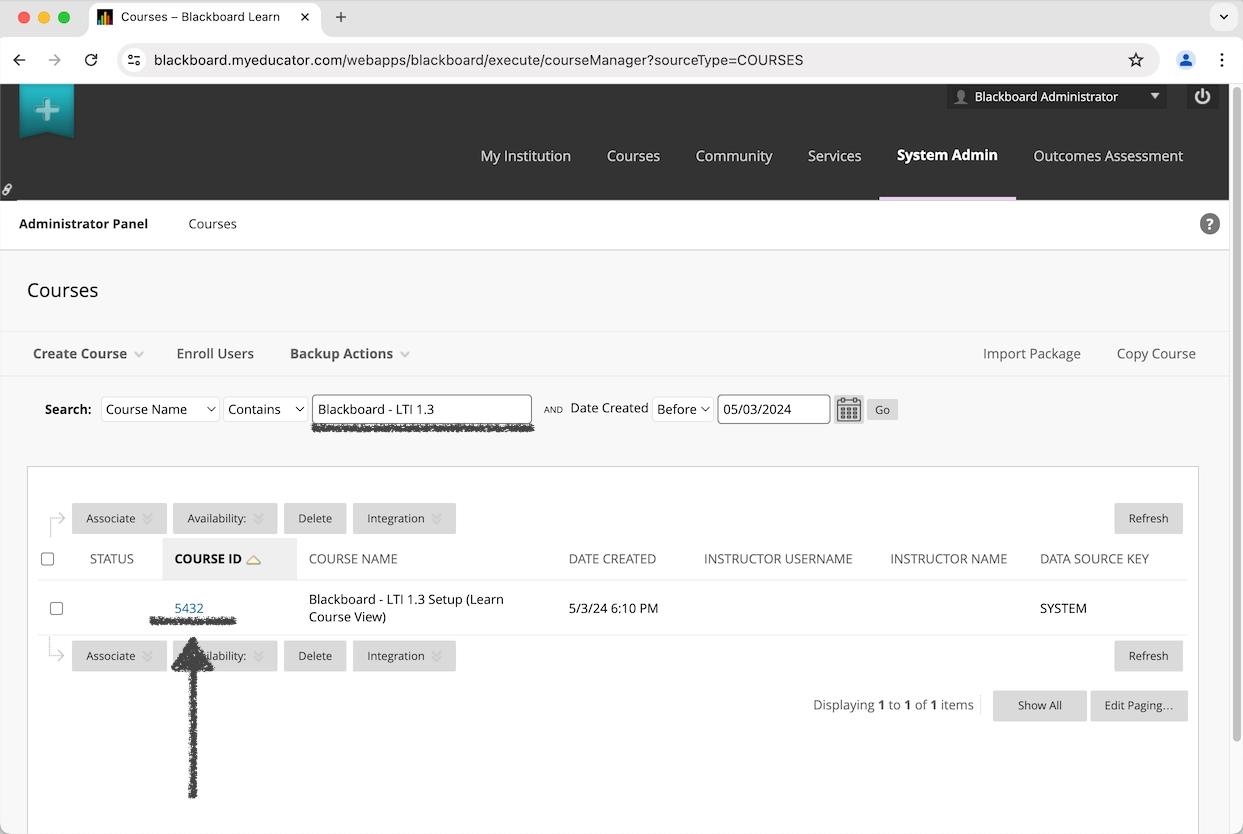
18) Click on the course ID link in the search results for the desired course.
The course ID is a link; and it can be alphabetical, numerical, or alphanumerical.
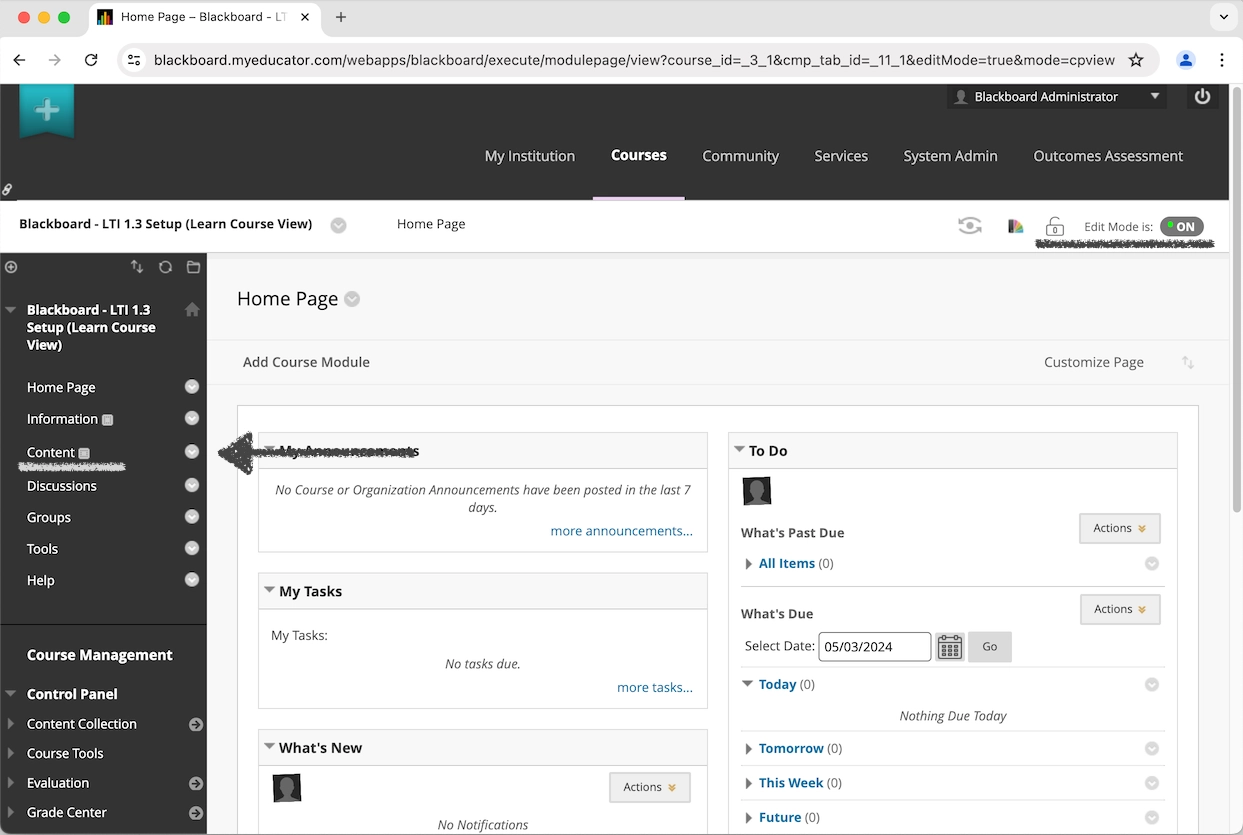
19) Ensure the lock button and the "On/Off" button in the upper-right corner of the page are set as “unlocked” and "ON" as seen below.
Click on the "Content" link on the left side of the page.
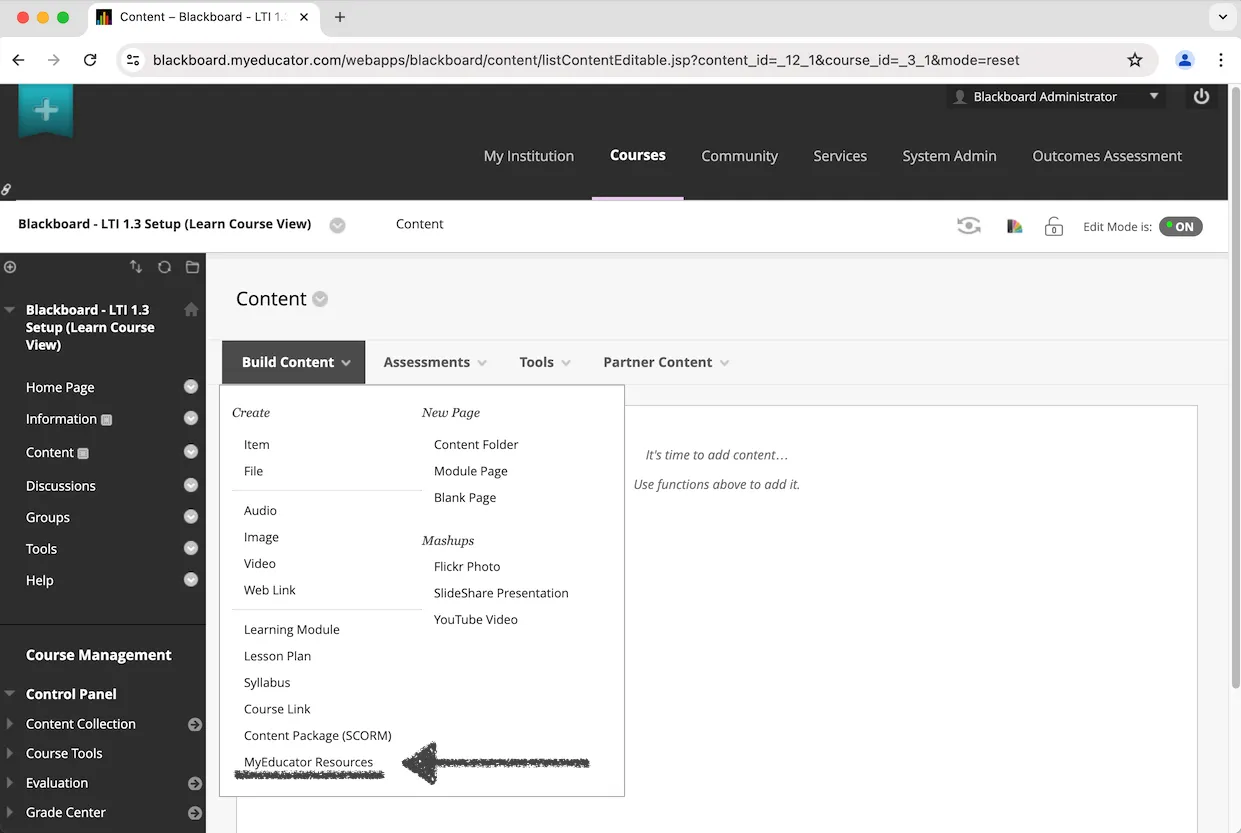
20) Hover over the "Build Content" dropdown menu.
Click "MyEducator Resources.”
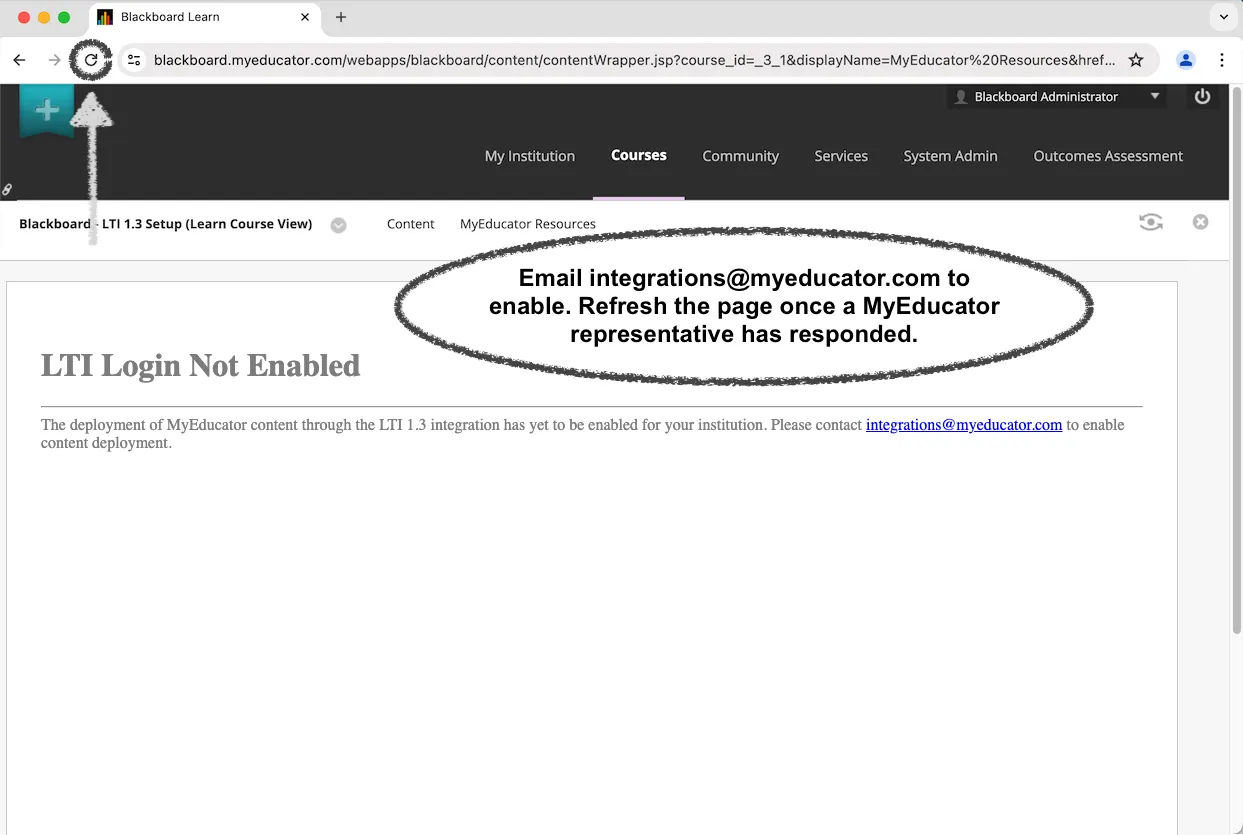
21) You should see an “LTI Login Not Enabled” alert. You will need assistance from a MyEducator representative.
Email integrations@myeducator.com or contact your MyEducator representative.
Refresh the webpage after a MyEducator representative has enabled the content.
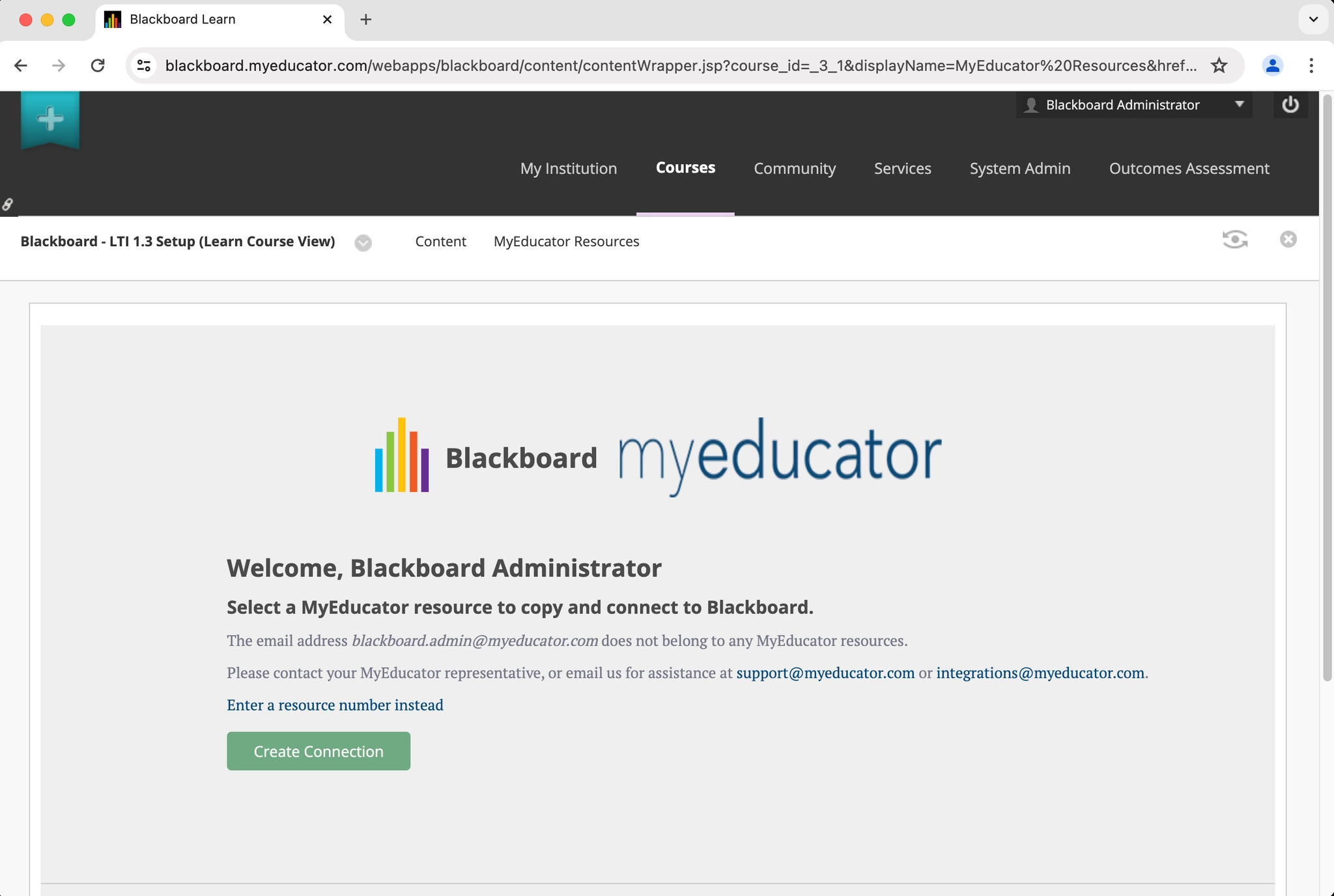
22) If you see a version of the screenshot below, you have successfully completed the setup for globally integrating Blackboard with MyEducator (LTI 1.3) for your institution.
Professors, instructors, and designers can now start the course integration setup.
For assistance, contact integrations@myeducator.com or support@myeducator.com.