This article is for LMS administrators.
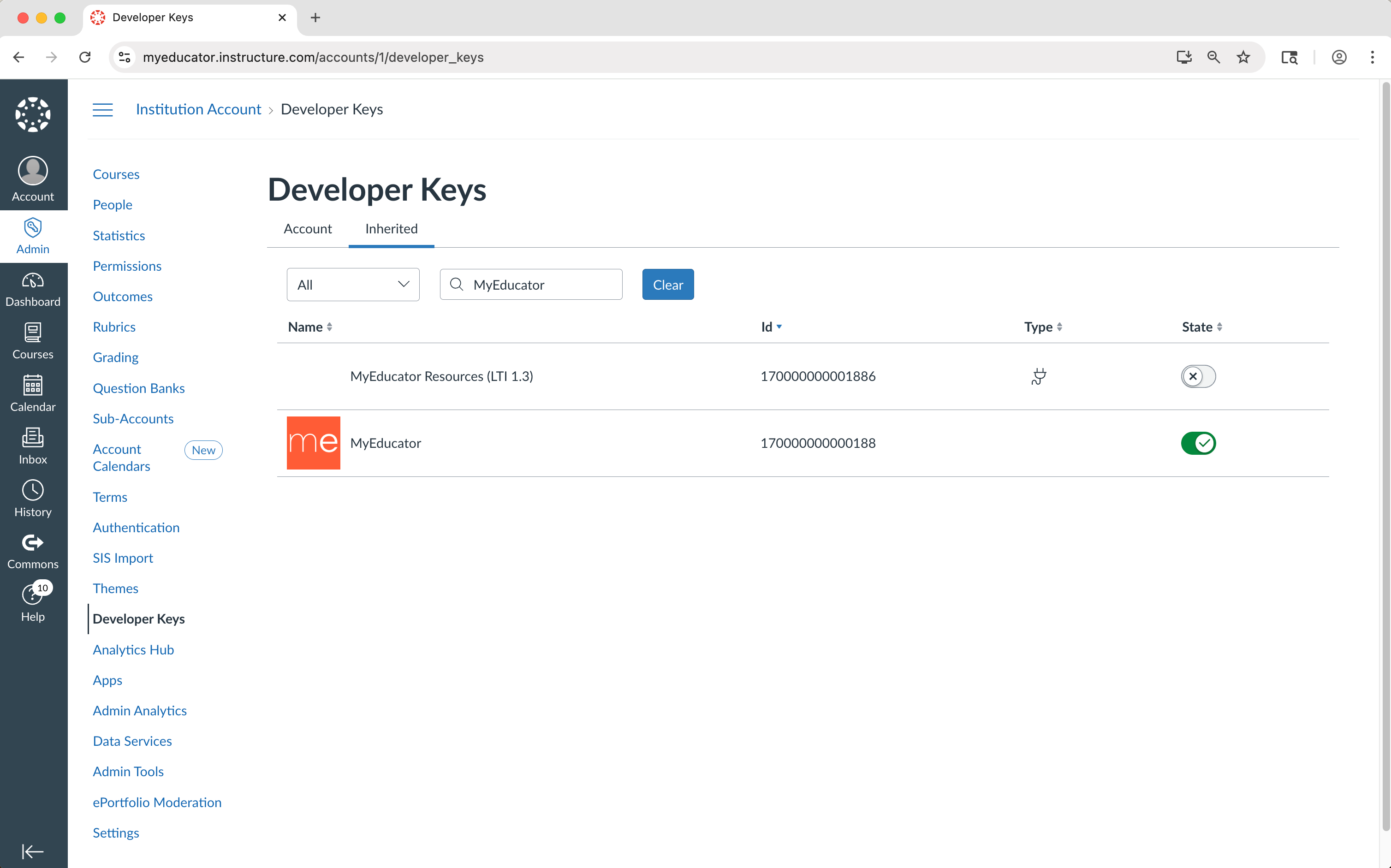
IMPORTANT: MyEducator has TWO inherited developer keys: one for the LTI 1.1 external tool and one for the LTI 1.3 external tool. Make sure you enable the correct key for the LTI external tool you are using.
Your view and/or process might differ from what you see here.
For assistance, contact integrations@myeducator.com or support@myeducator.com.
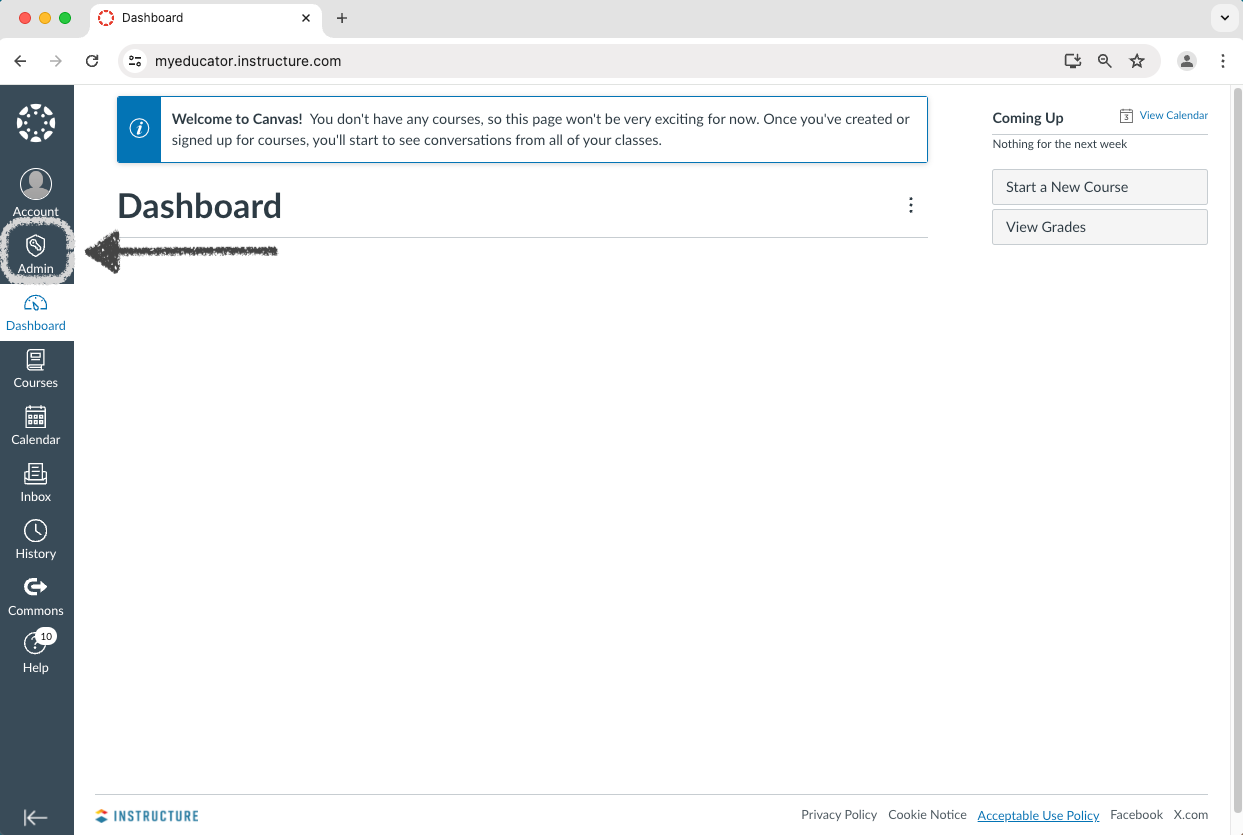
1) Log in to your Canvas administrator account. Locate and click on the “Admin” tab.
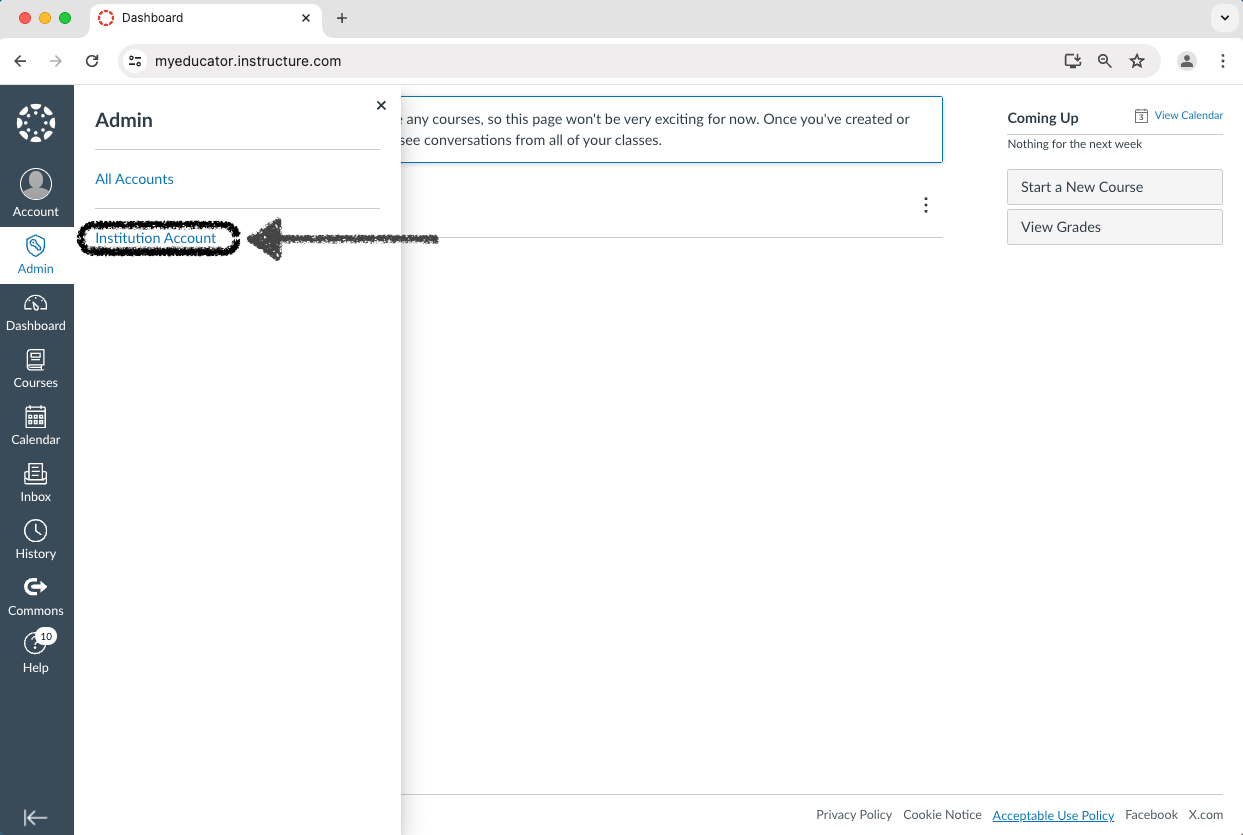
2) Select the respective sub-account.
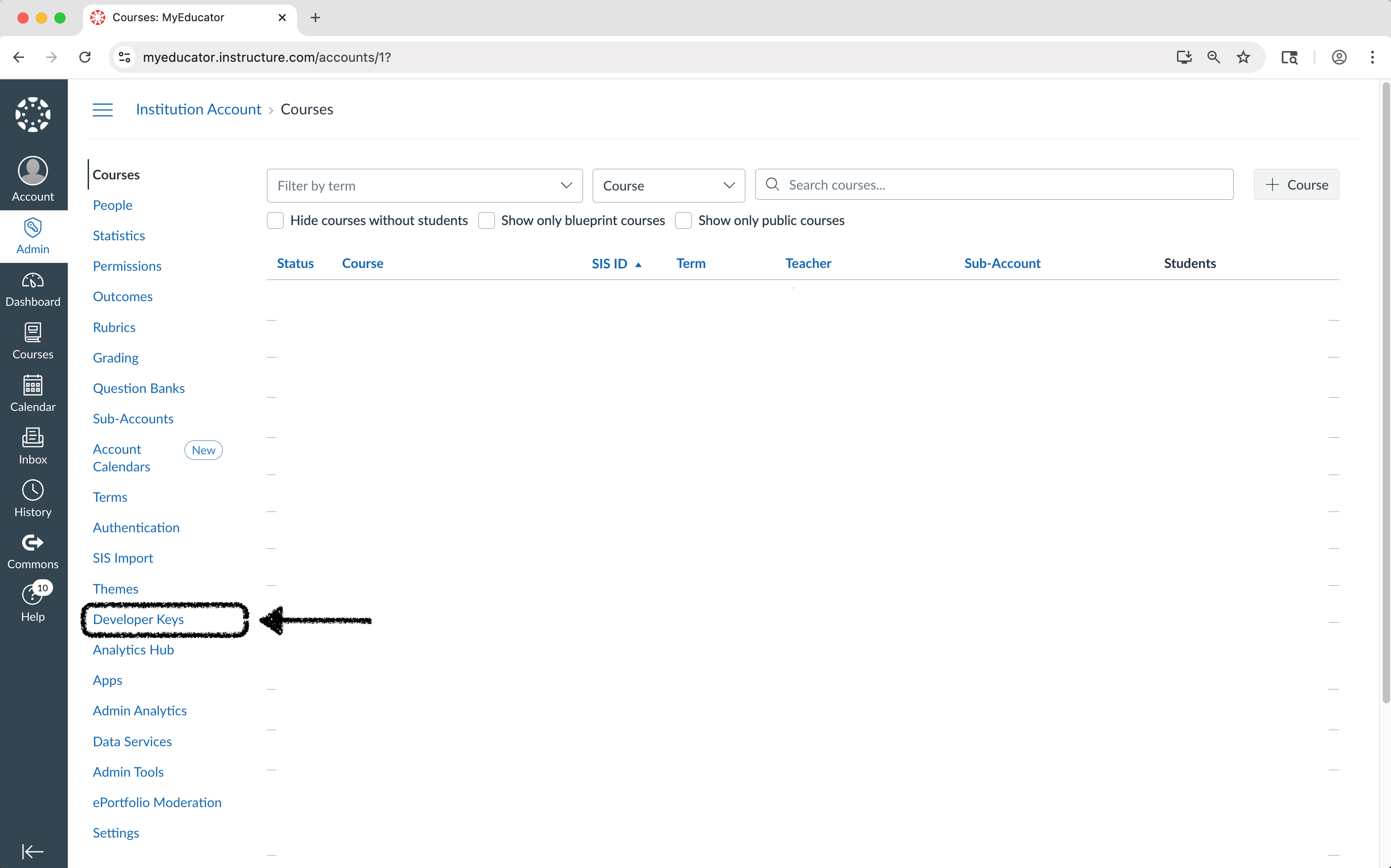
3) Click “Developer Keys.”
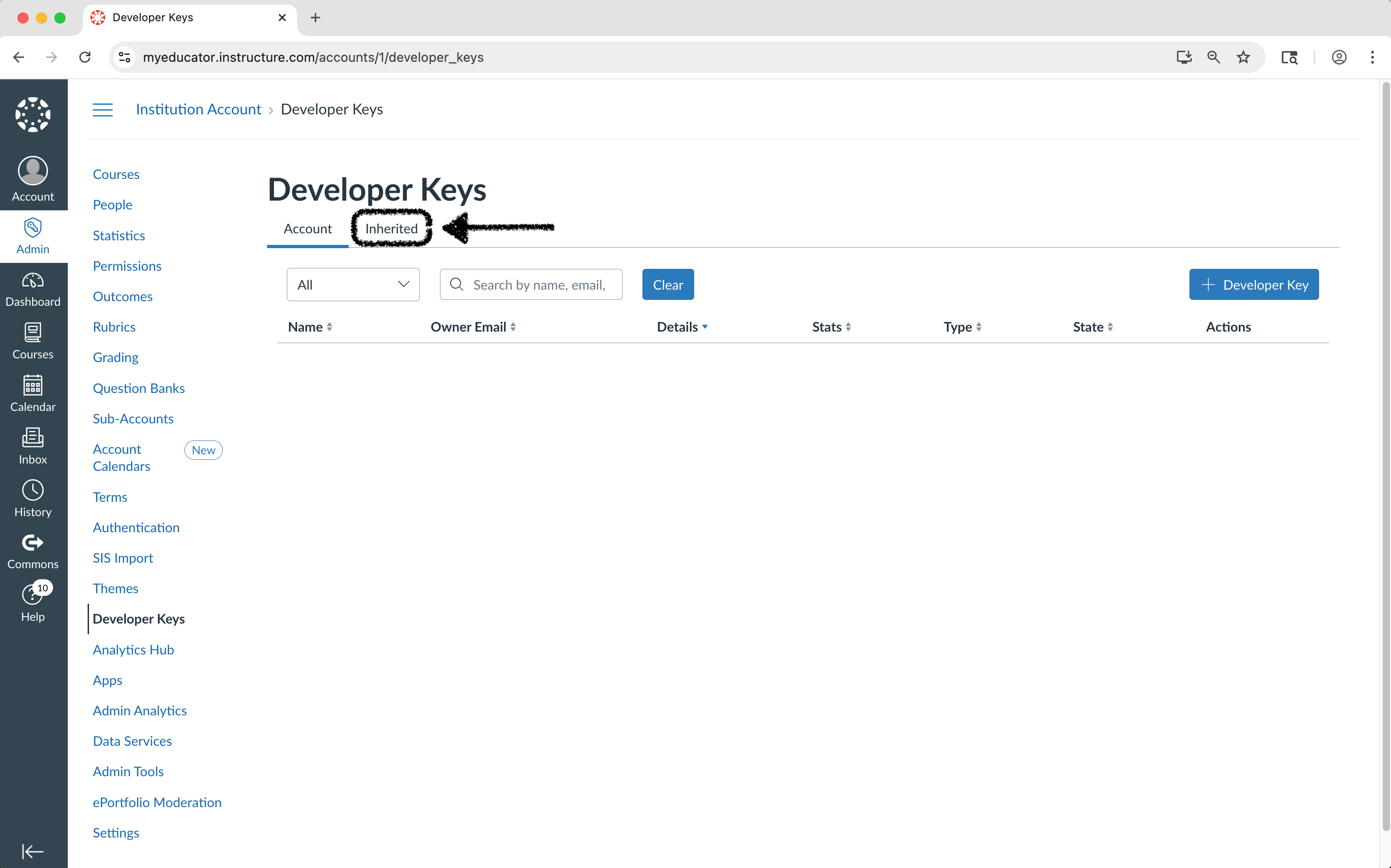
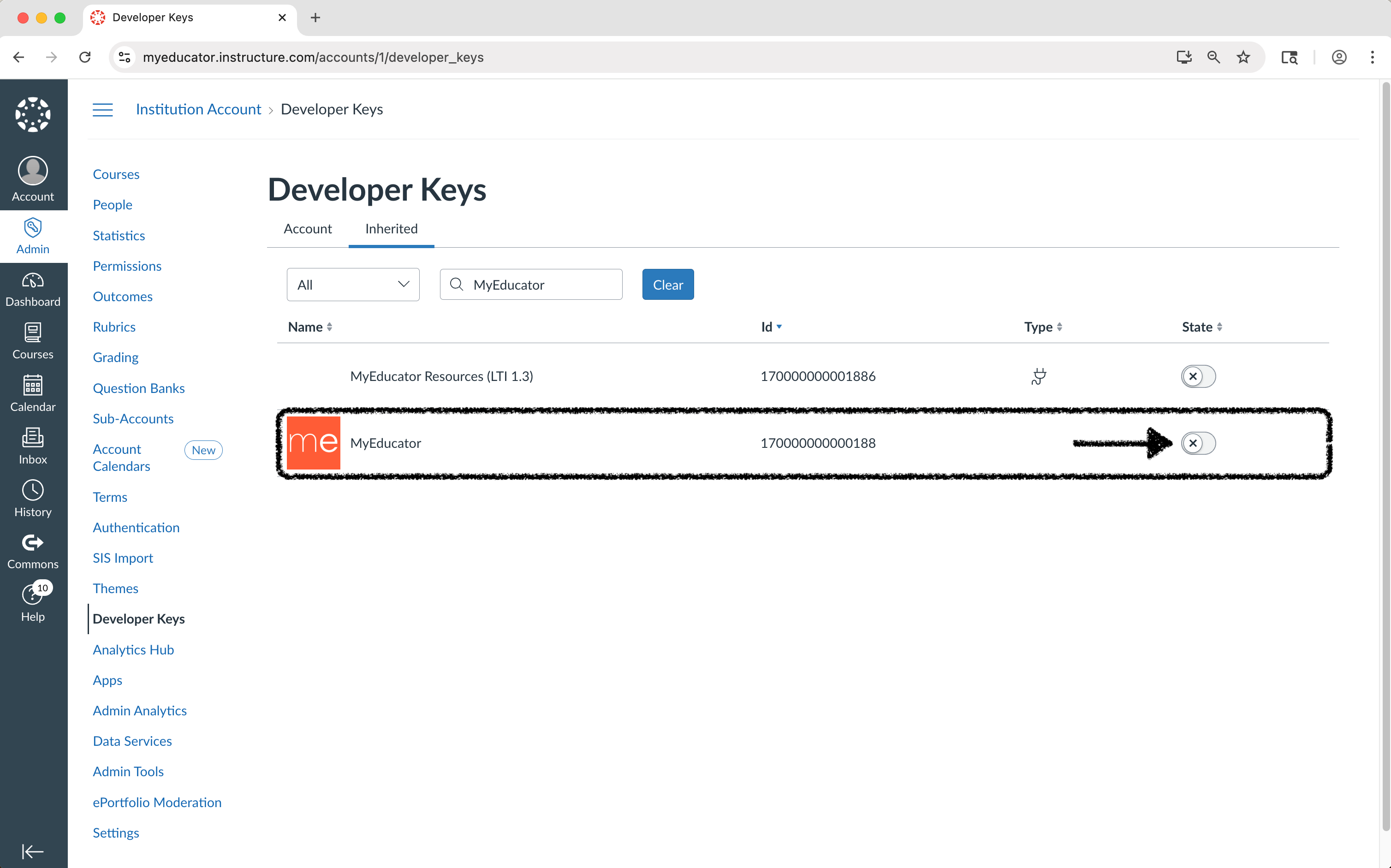
4) Switch to “Inherited.”
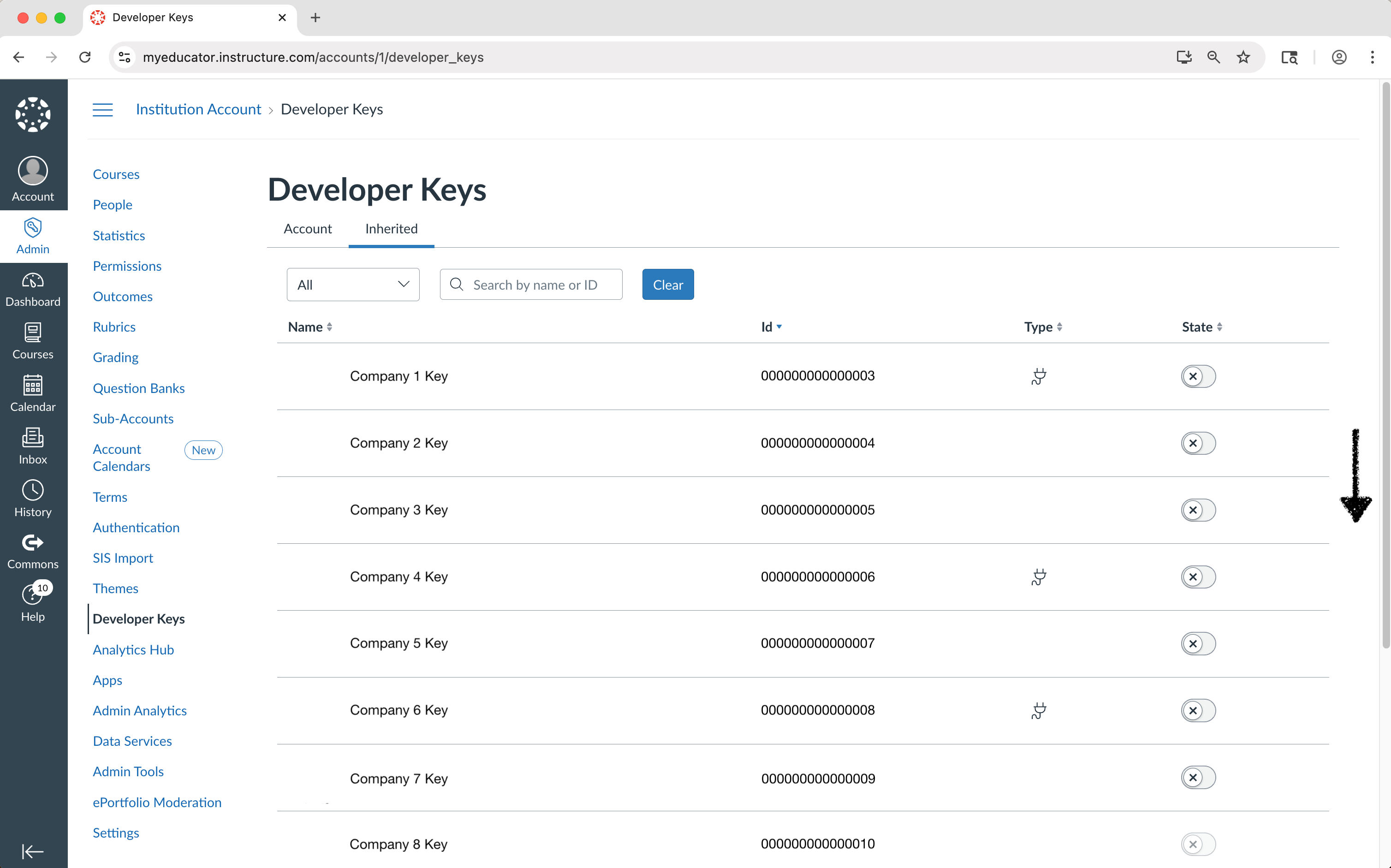
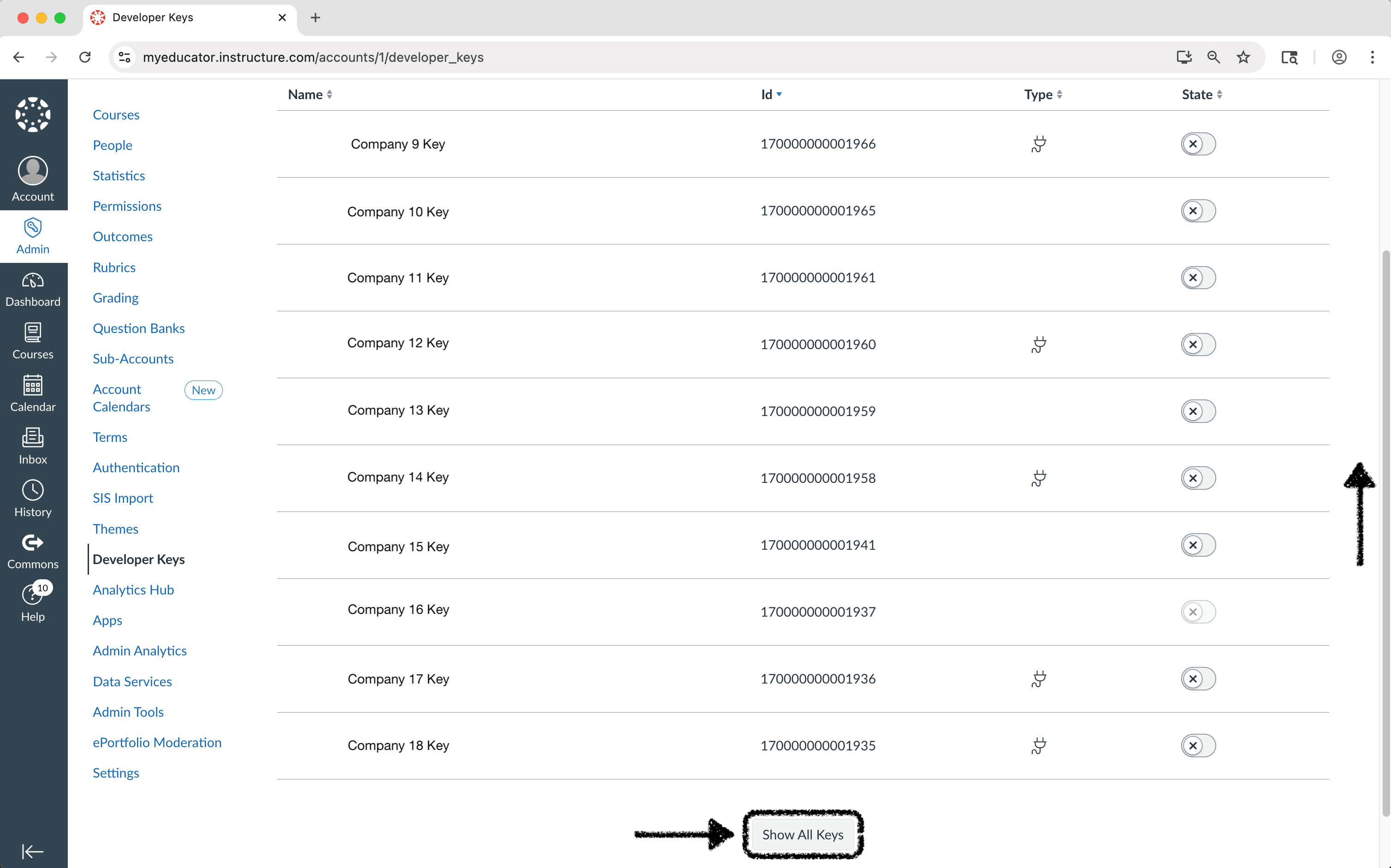
5) Scroll to the bottom of the page. Locate and click on the “Show All Keys” button.
Scroll back to the top of the page.
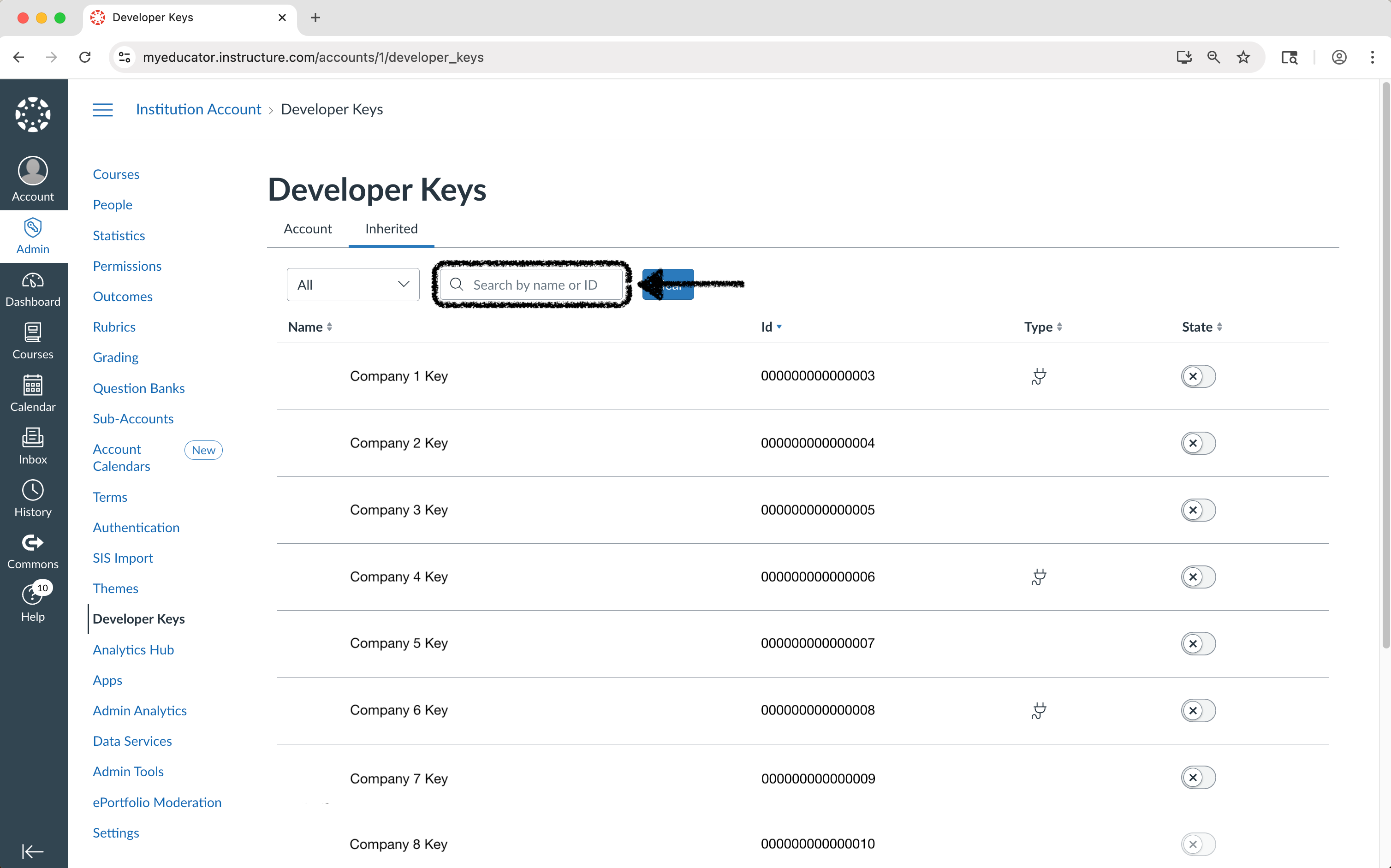
6) Type “MyEducator” in the “Search by name or ID” text bar.
7) Locate the MyEducator LTI 1.1 developer key and toggle its state to on.
The developer key should be titled “MyEducator.”
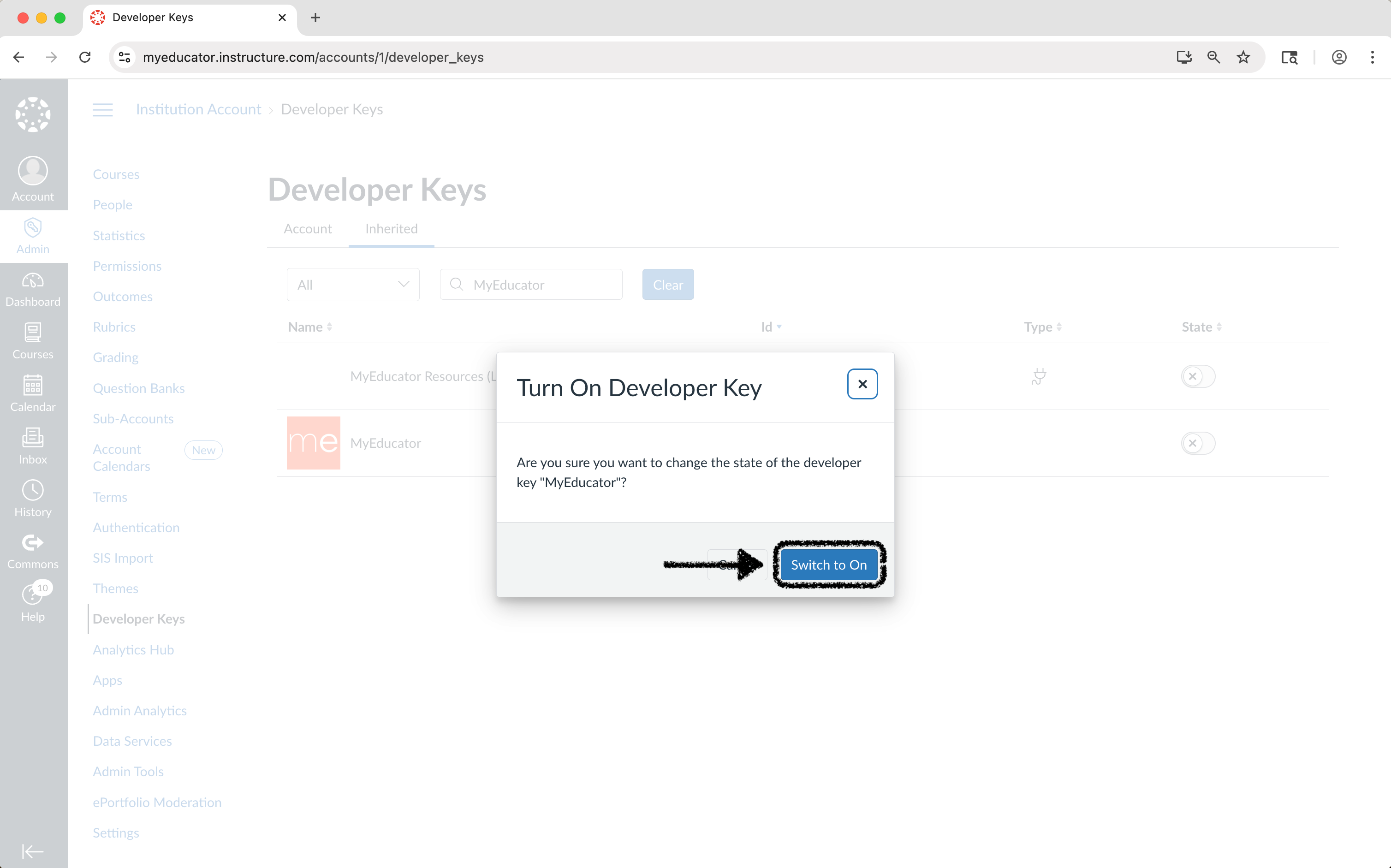
You will be asked to confirm the state change. Click the “Switch to On” button.
8) You have successfully enabled the MyEducator LTI 1.1 Inherited Developer Key.