
This article is for LMS administrators.
You will need a Consumer Key and a Shared Secret specific to your institution to complete this process. These can be obtained by contacting your MyEducator sales representative, integrations@myeducator.com, or support@myeducator.com.
Each step has associated text and screenshots. Be sure to read all text and view each screenshot for optimal results.
Your view and/or process might differ from what you see here.
For assistance, contact integrations@myeducator.com or support@myeducator.com.
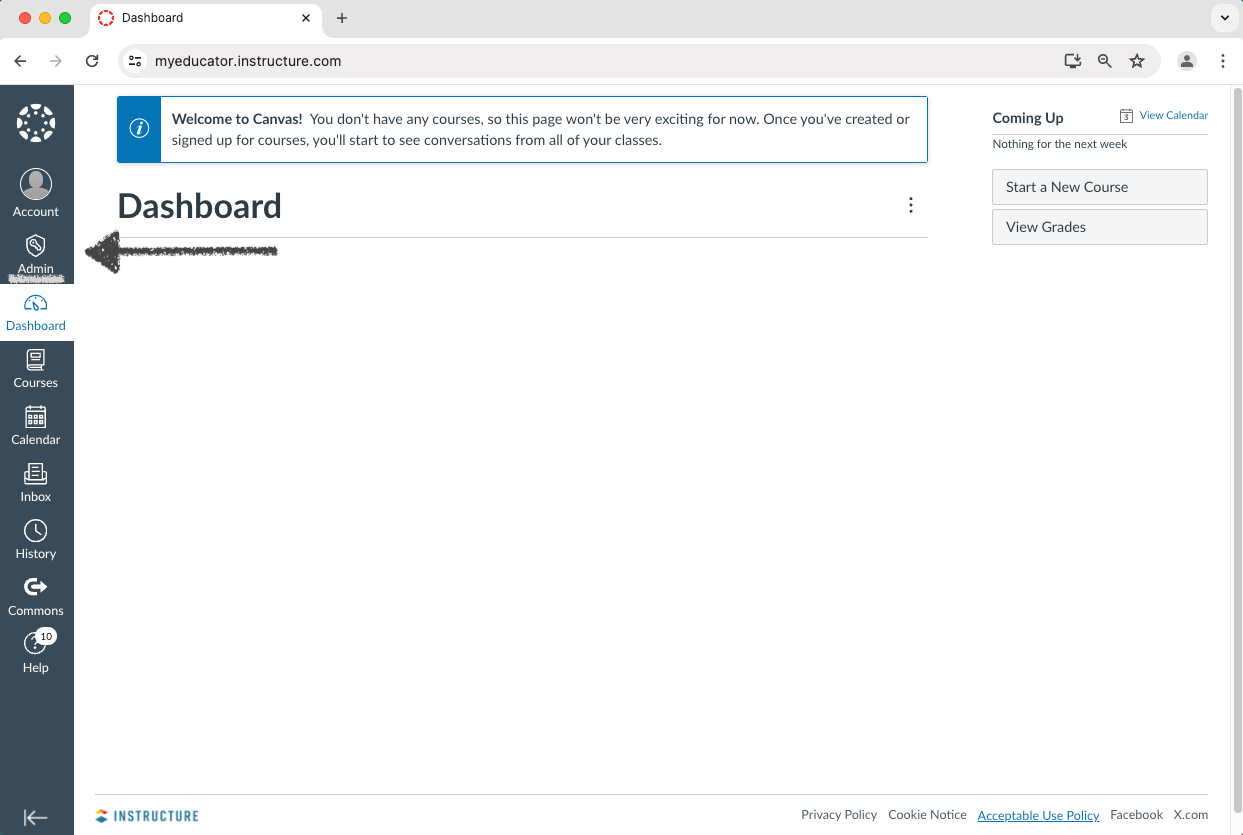
1) Log in to your Canvas administrator account. Locate and click on the “Admin” tab.
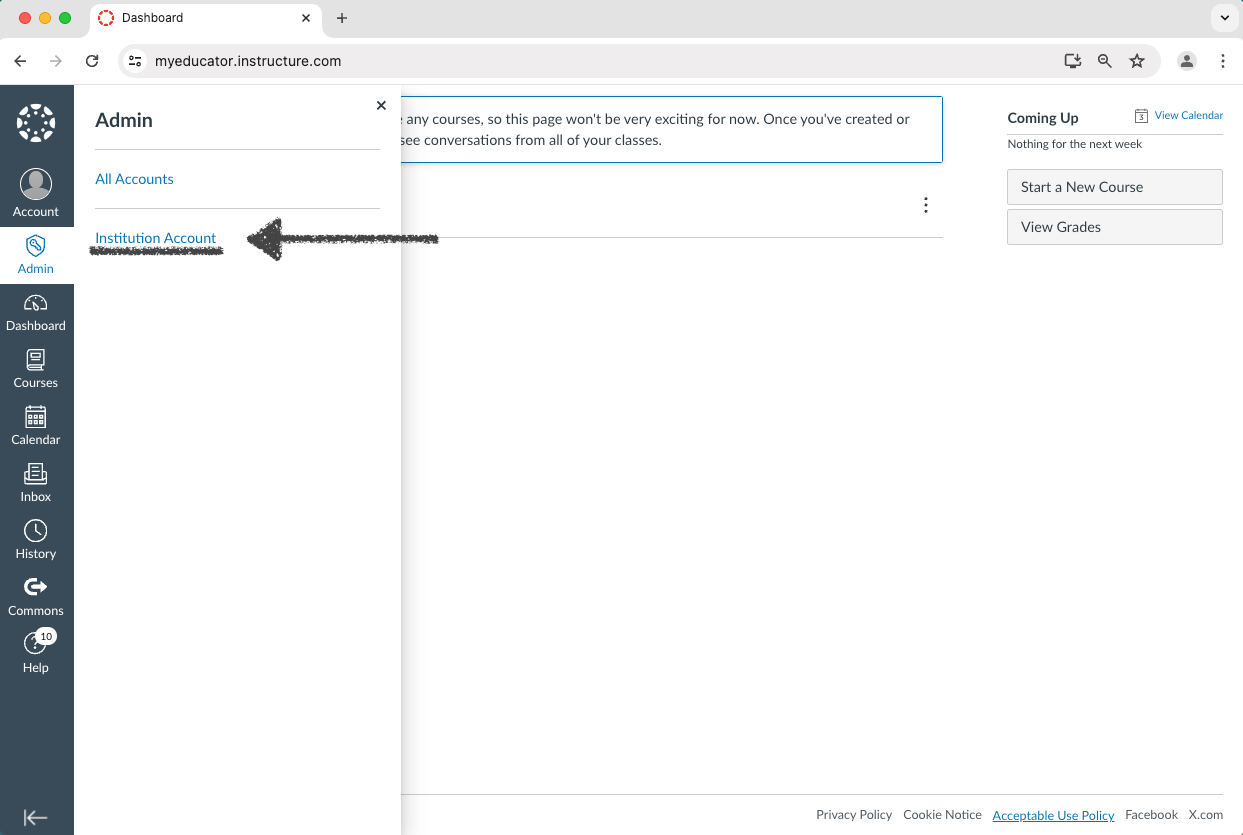
2) Select the respective sub-account.
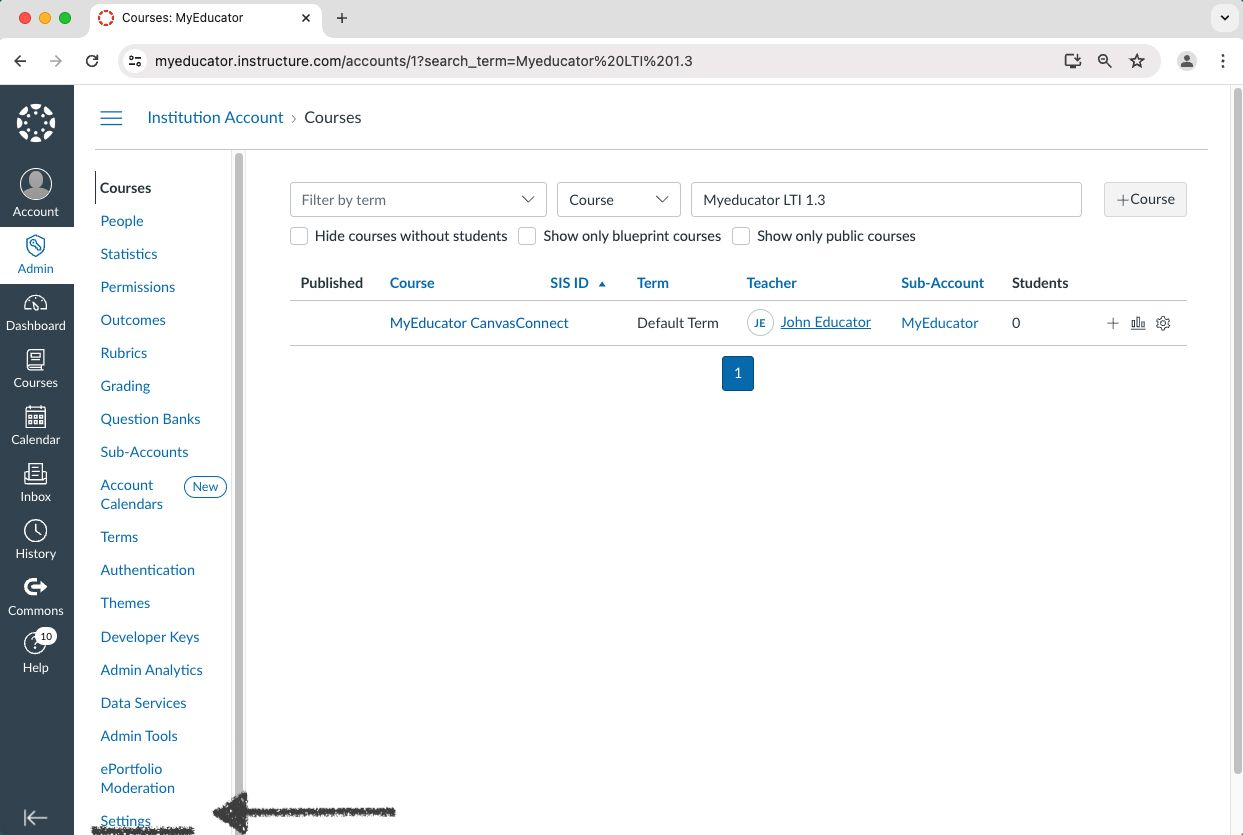
3) Locate and click on “Settings.”
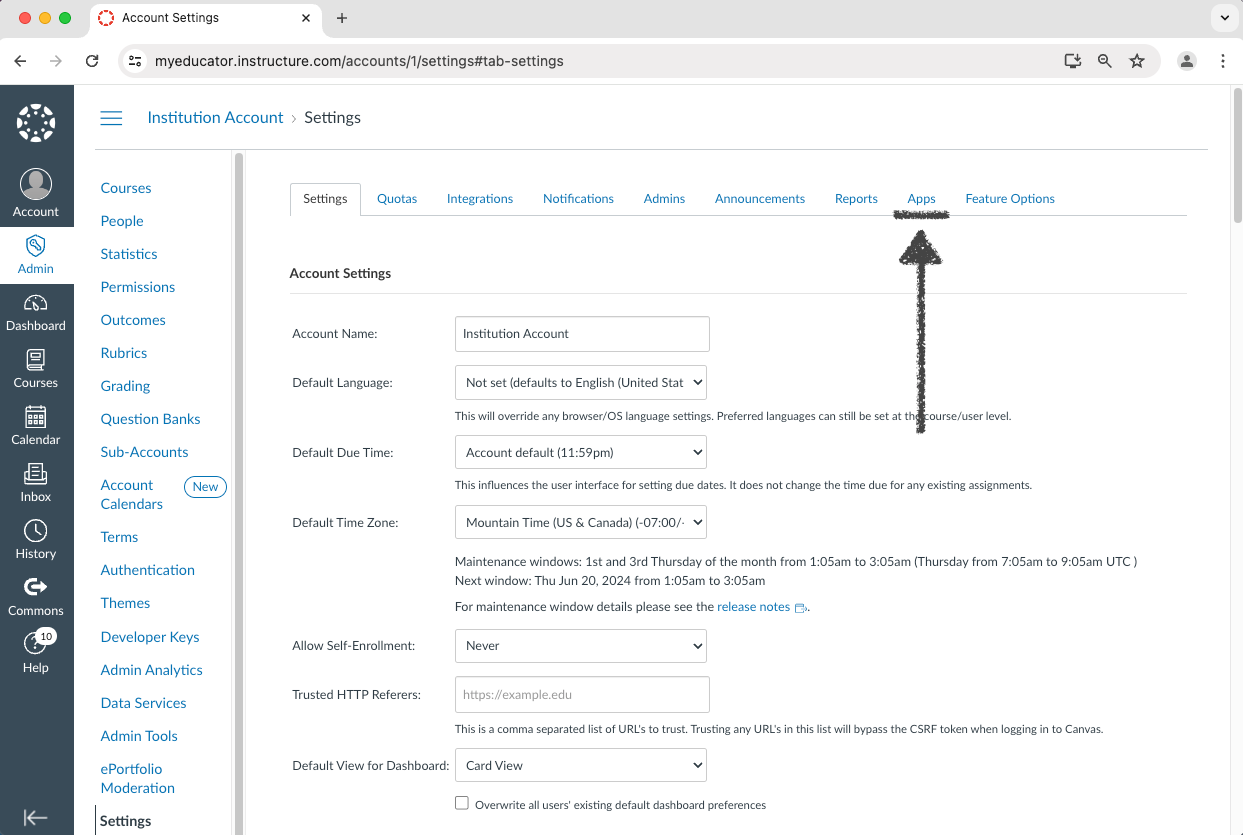
4) Click the “Apps” tab.
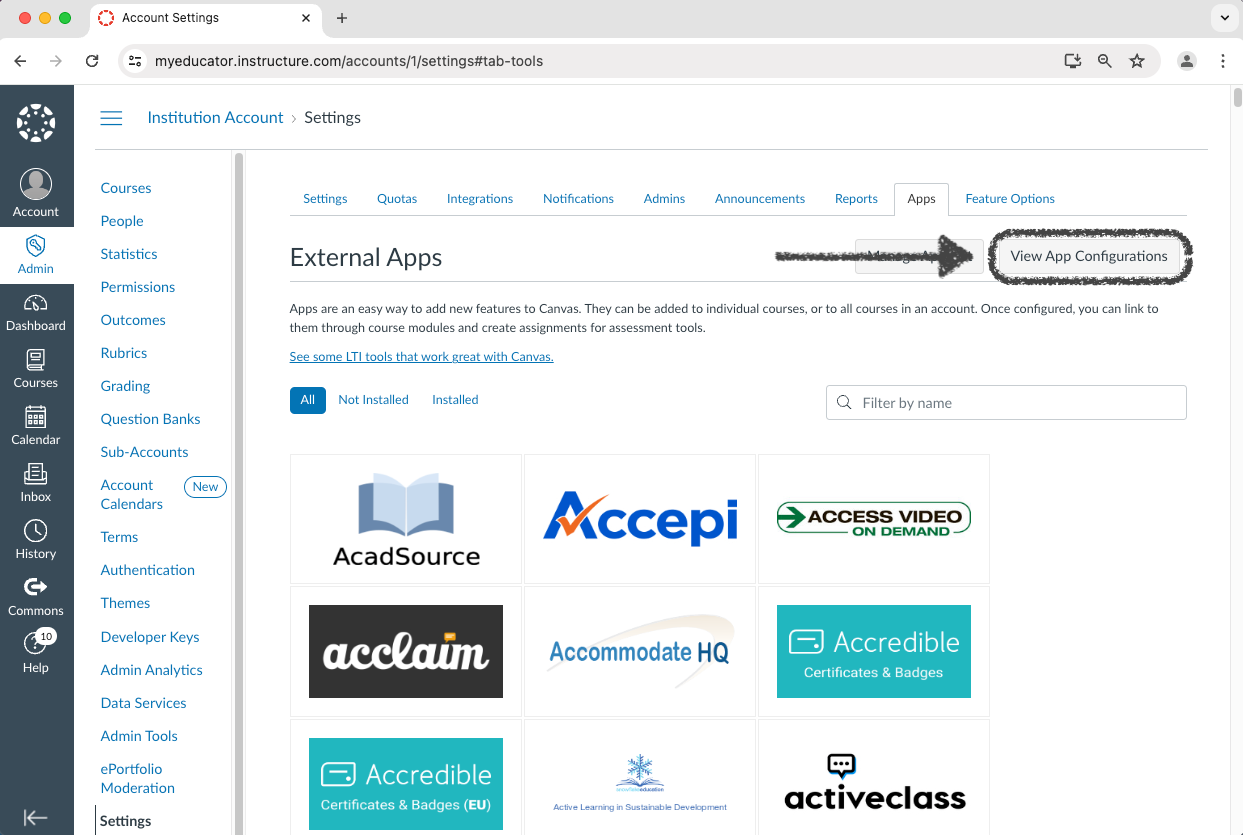
5) Click the “View App Configurations” button.
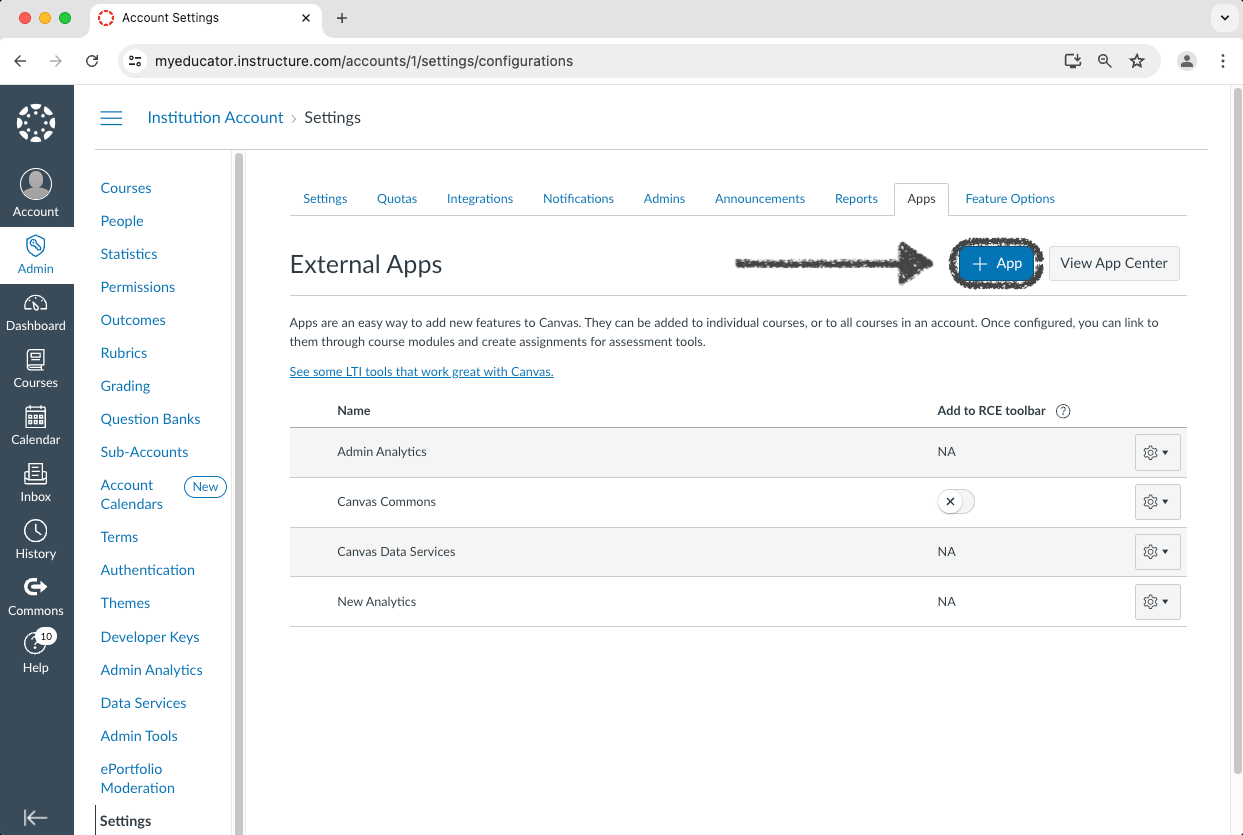
6) Click the “+ App” button.
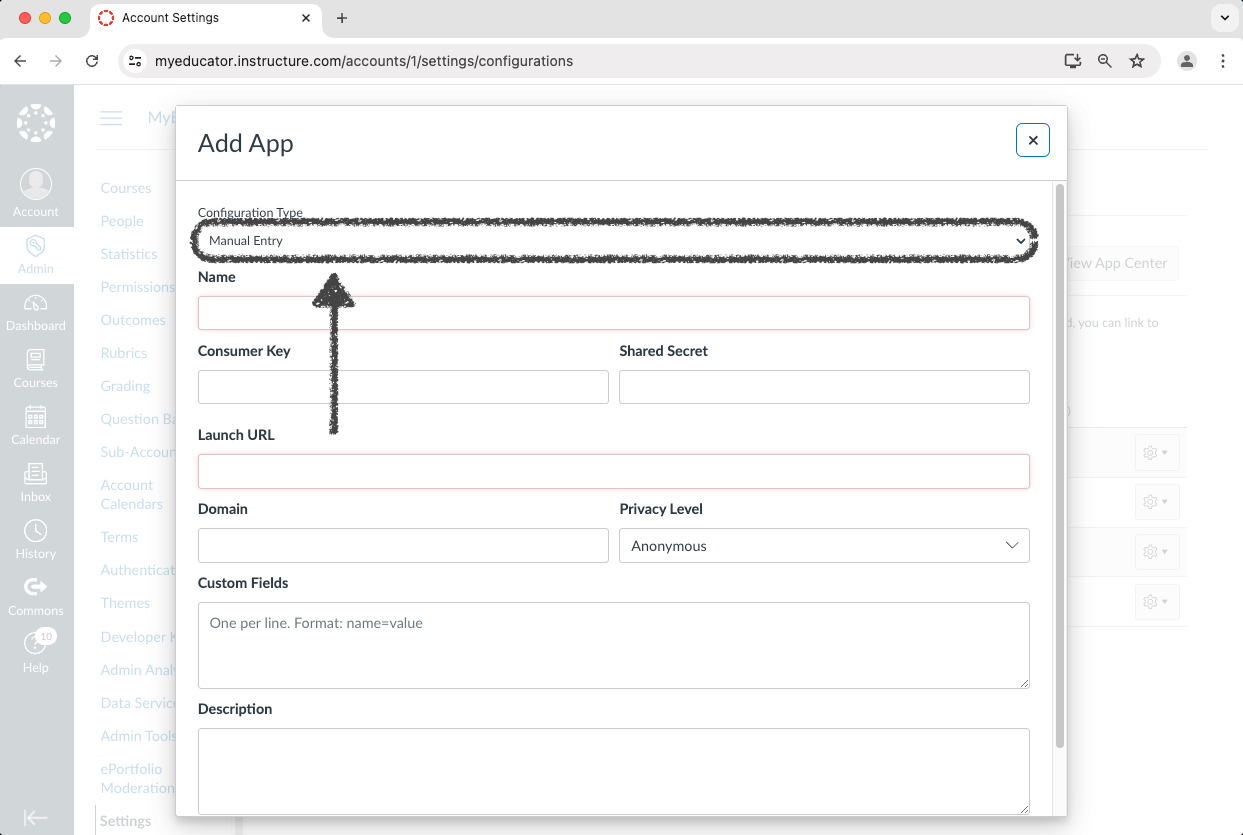
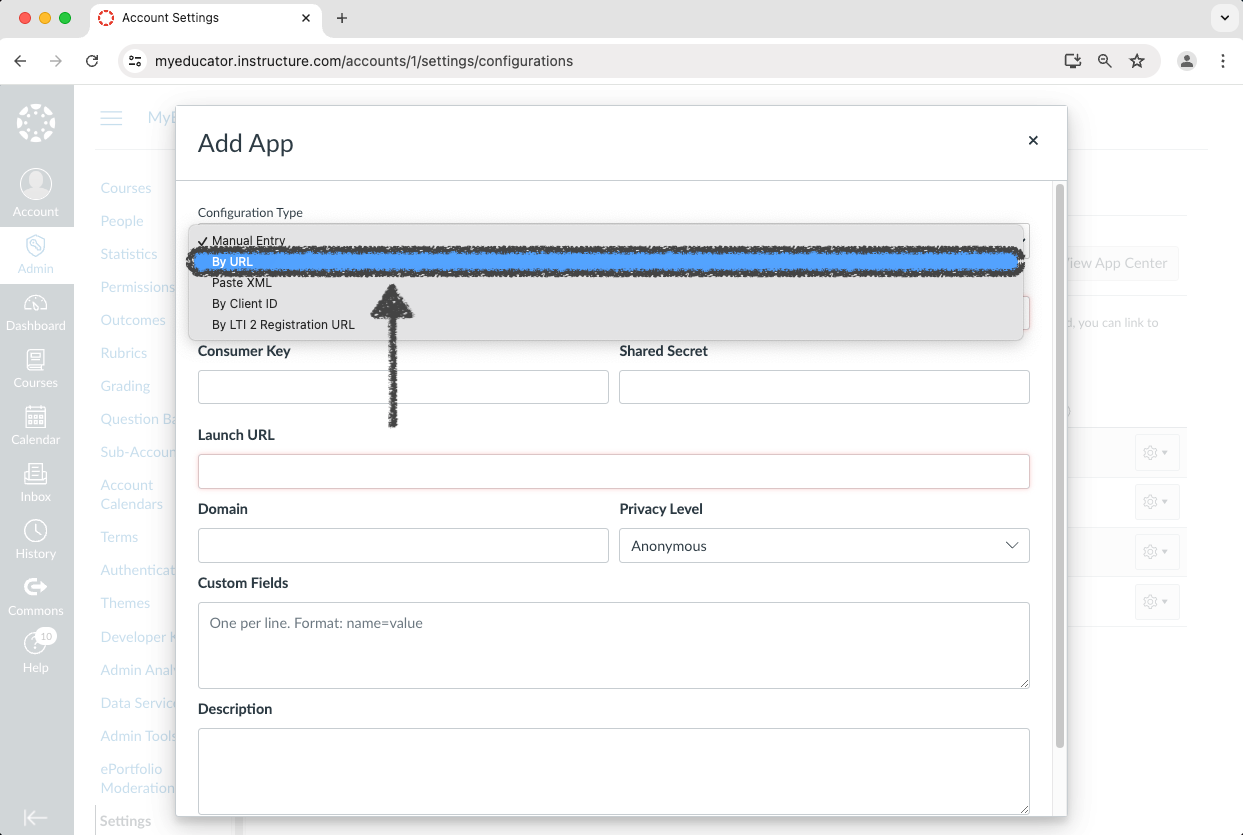
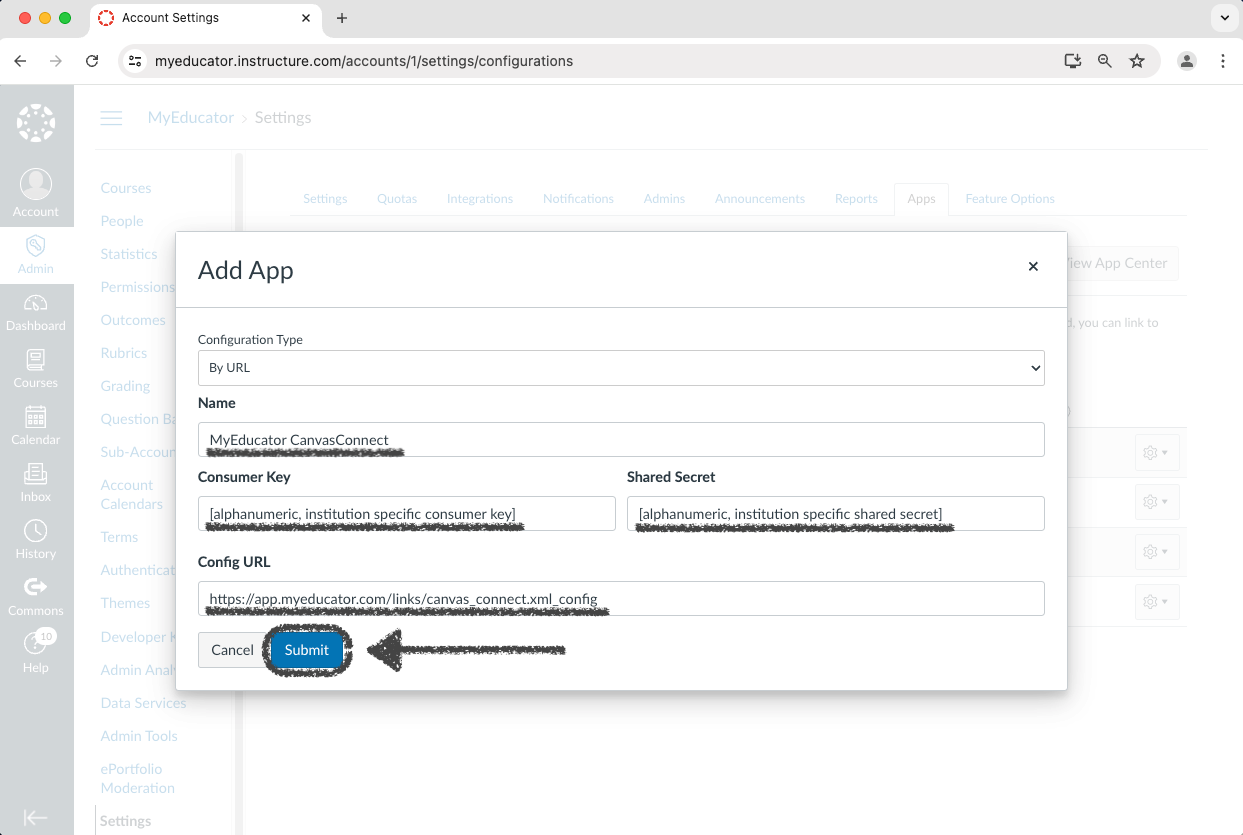
7) Change the “Configuration Type” dropdown menu from “Manual Entry” to “By URL.”
8) Copy the Name and paste it into the "Name" text box.
Name
MyEducator CanvasConnect
Paste the Consumer Key you received from MyEducator into the "Consumer Key" text box.
Paste the Shared Secret you received from MyEducator into the "Shared Secret" text box.
Copy the Config URL and paste it into the "Config URL" text box.
Config URL
https://app.myeducator.com/links/canvas_connect.xml_config
Click the "Submit" button.
9) If you see a new row with the name “MyEducator CanvasConnect” on the External Apps page, you have successfully completed the setup for globally integrating the MyEducator CanvasConnect external tool.
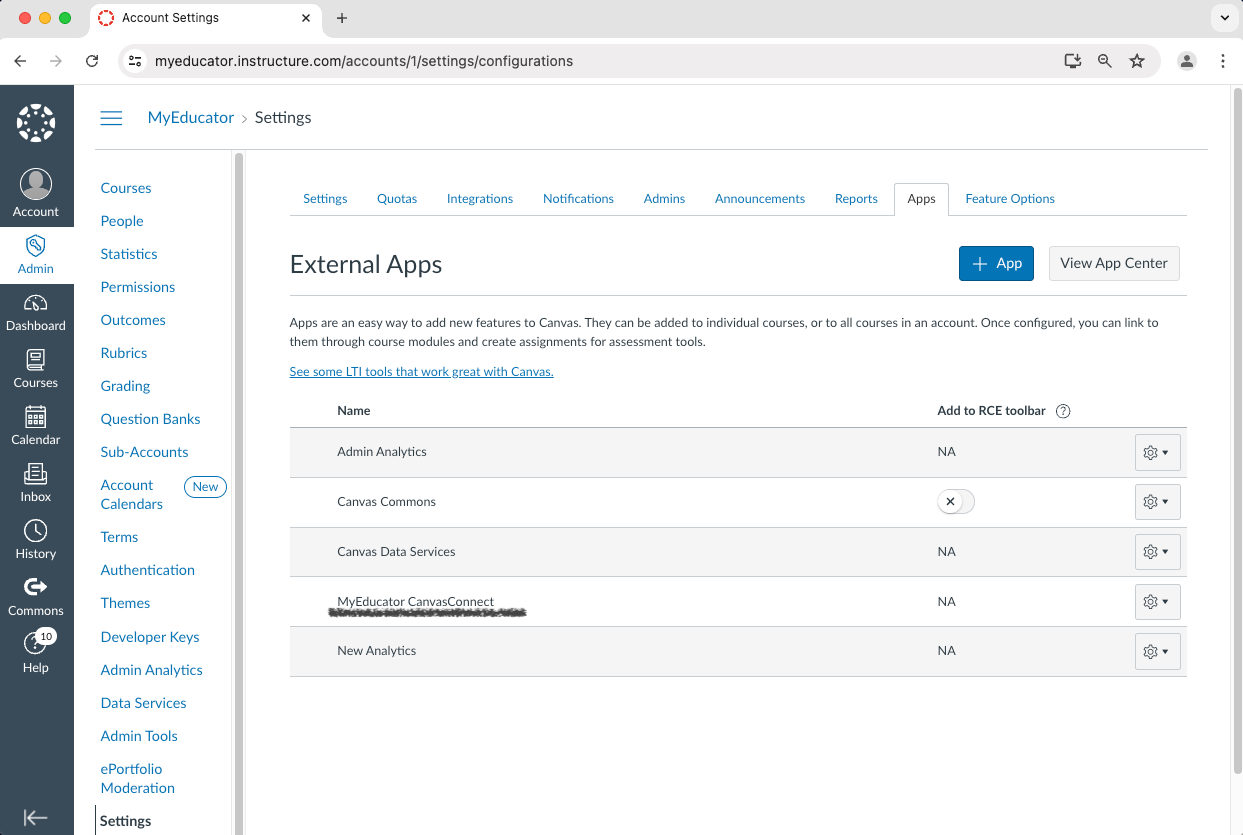
Note: Professors, instructors, and designers can now start the course integration setup.