
This article is for LMS administrators.
Each step has associated text and screenshots. Be sure to read all text and view each screenshot for optimal results.
Your view and/or process might be different from what you see here.
For assistance, contact integrations@myeducator.com or support@myeducator.com.
1) Log in to your Canvas administrator account. Locate and click on the “Admin” tab.
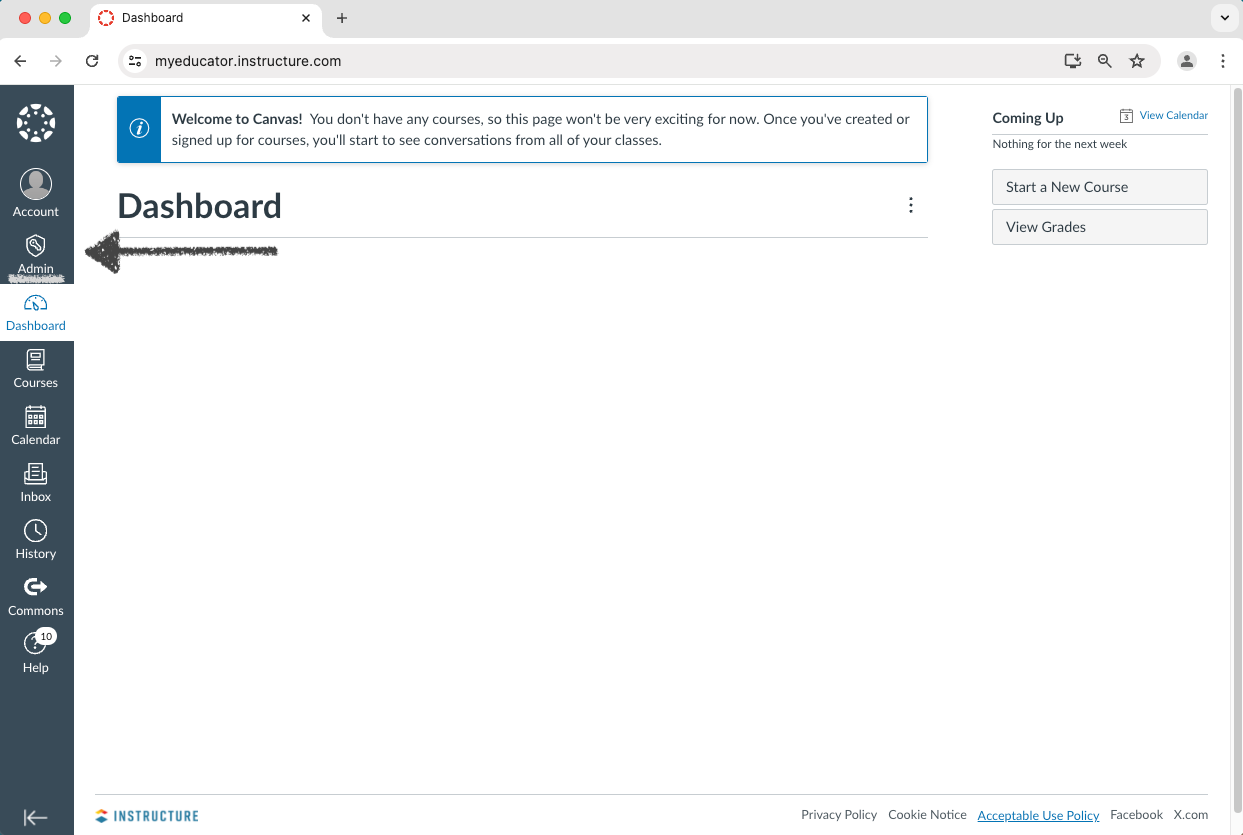
2) Select the respective sub-account.
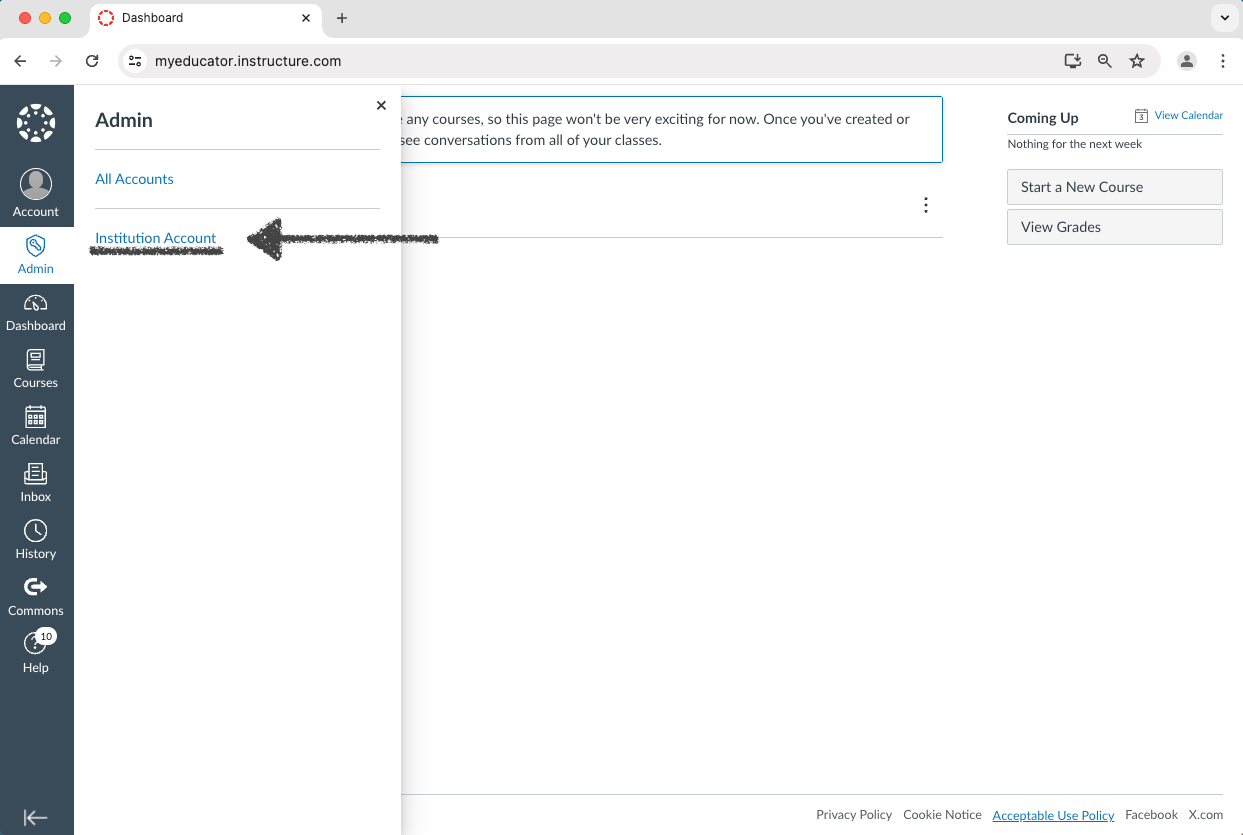
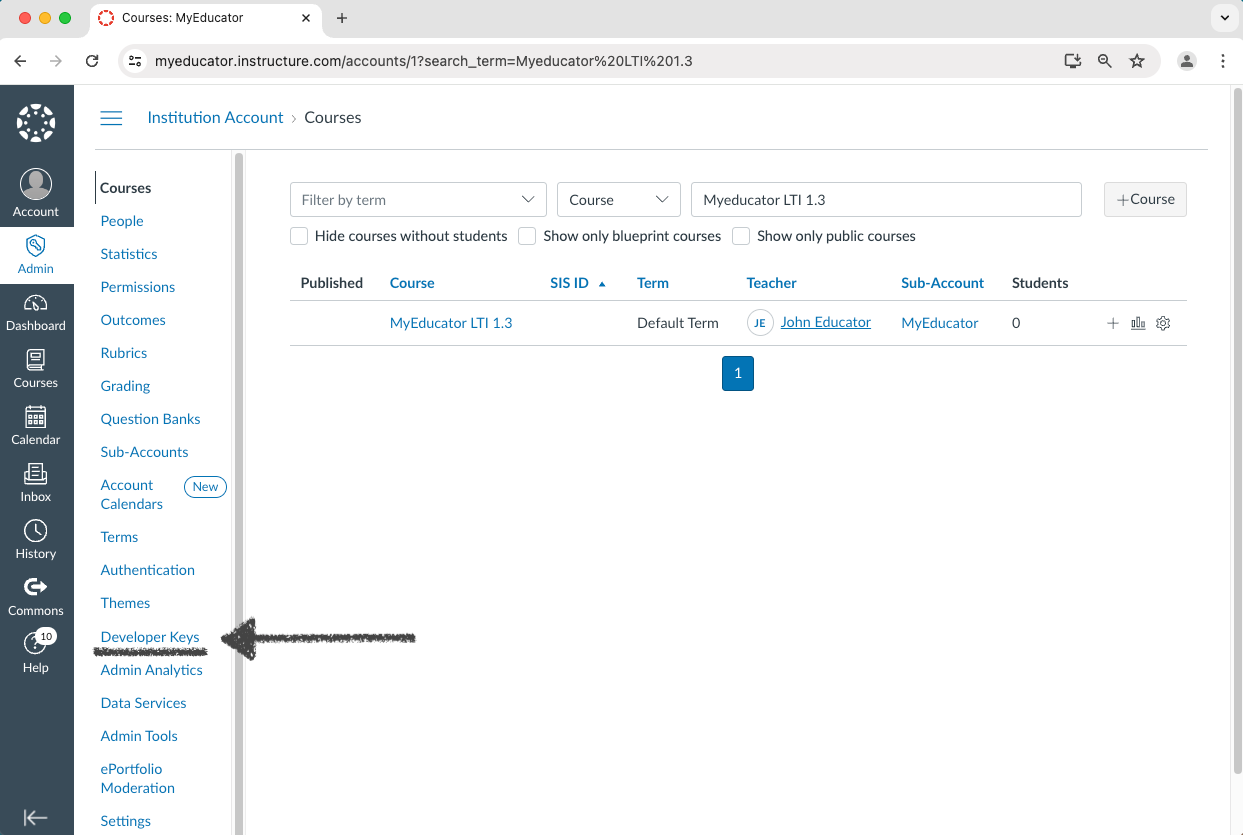
3) Locate and click on “Developer Keys.”
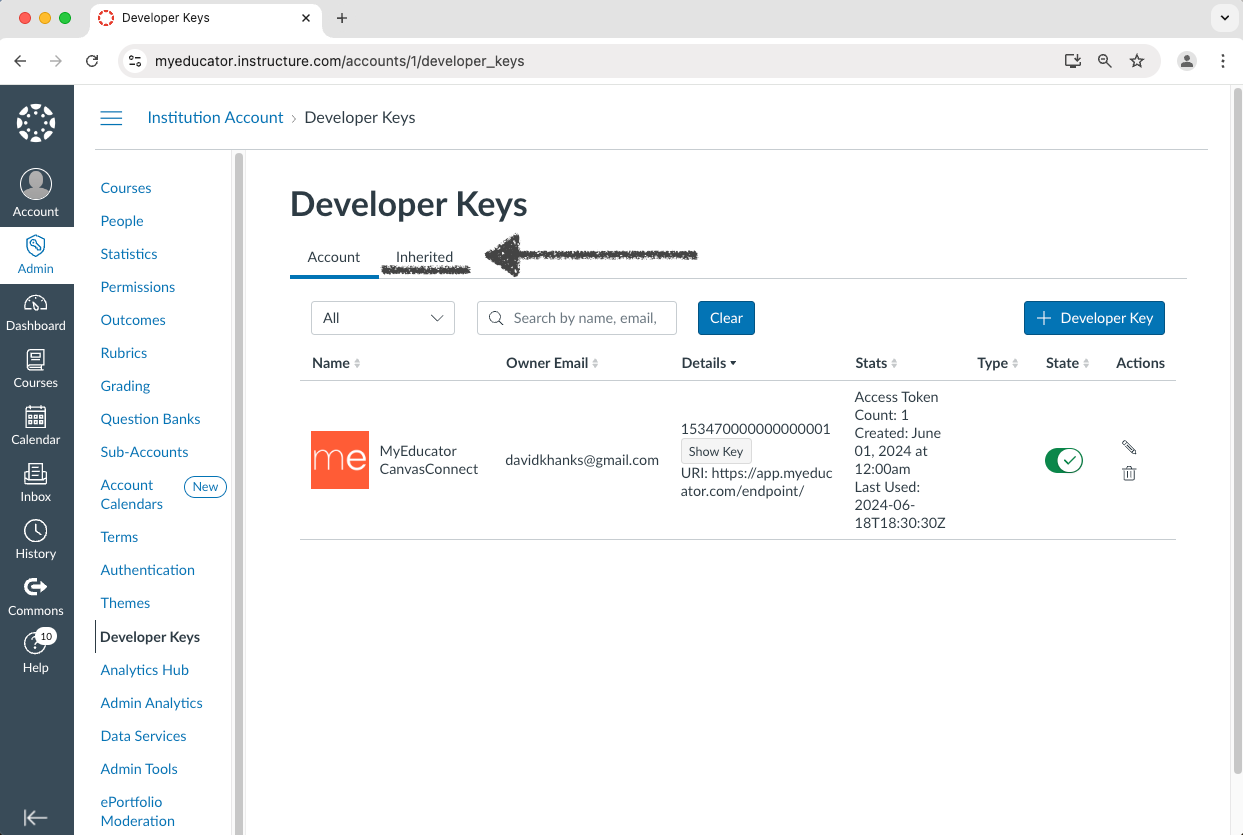
4) Click the “Inherited” tab.
5) Locate the “MyEducator Resources (LTI 1.3)” inherited key and toggle its state to the on position.
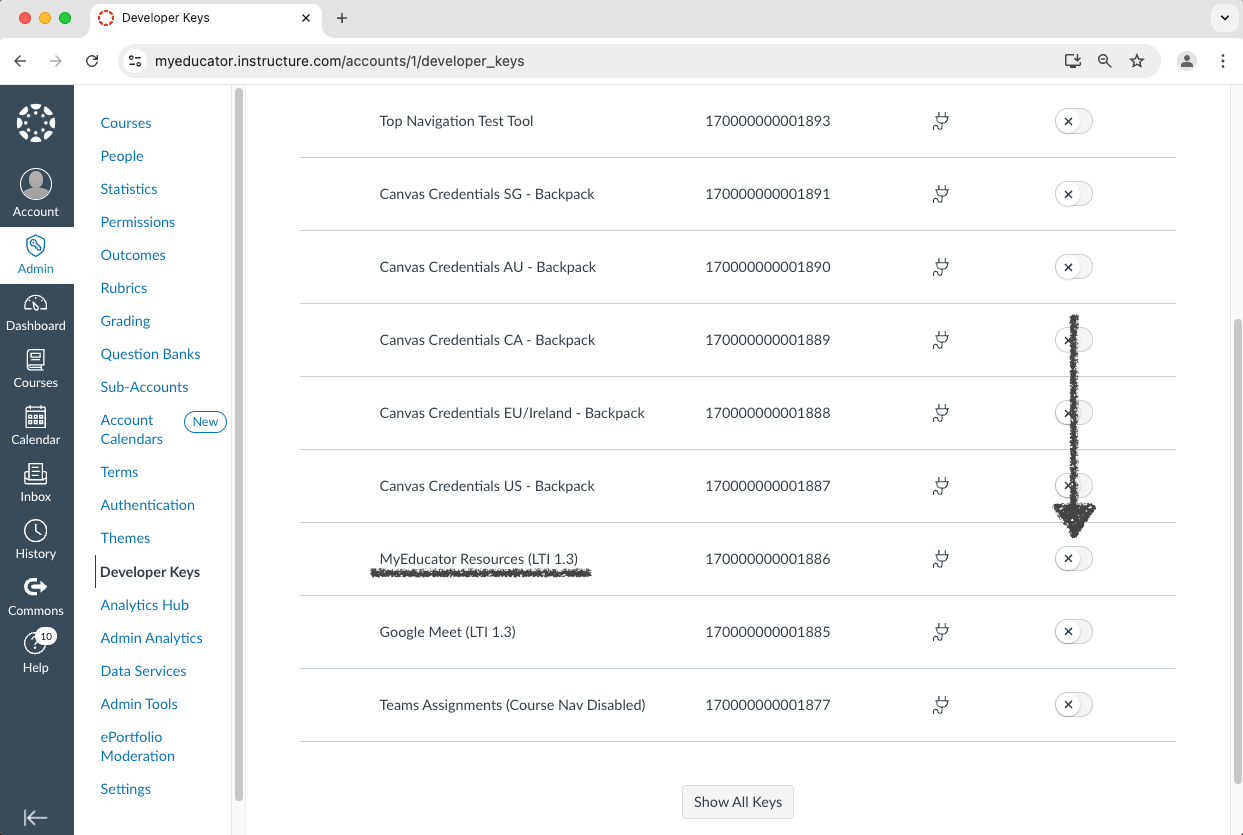
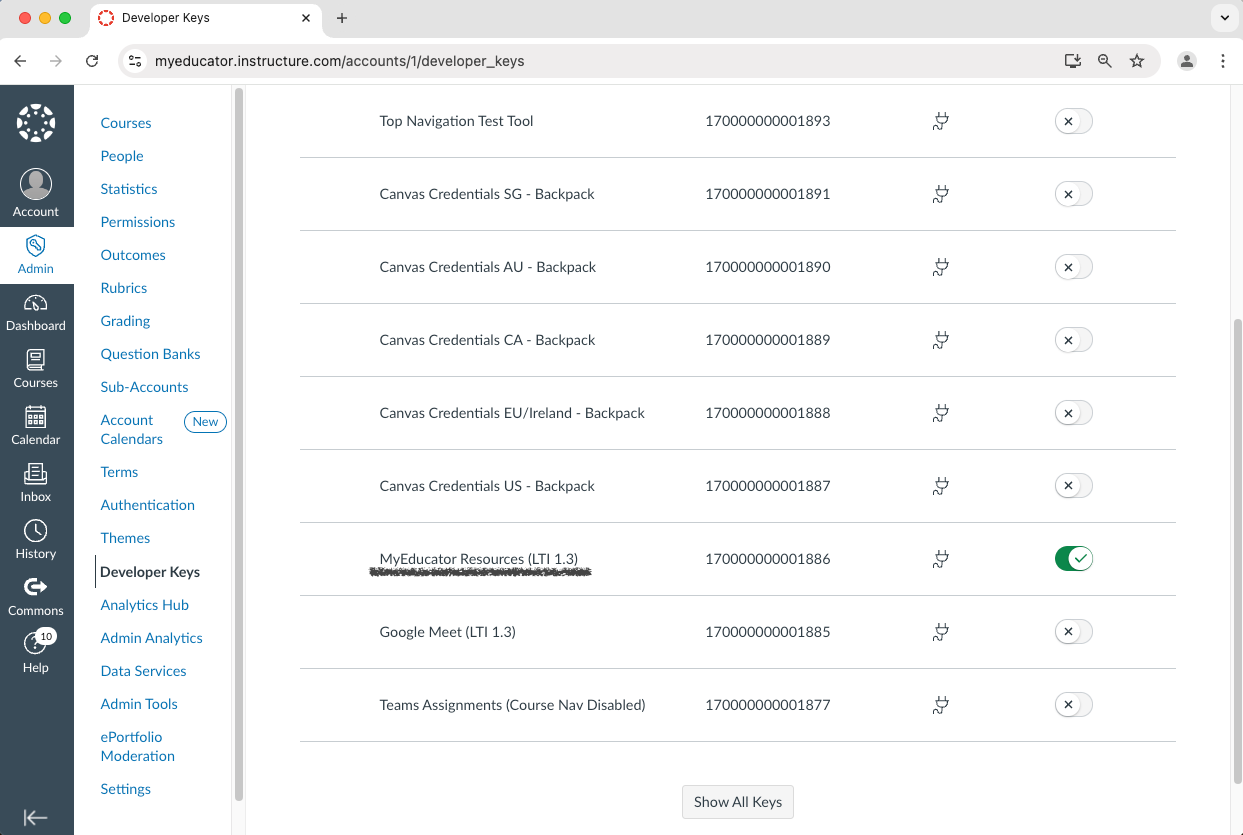
Note: There are two MyEducator inherited keys. Make sure you enable the “MyEducator Resources (LTI 1.3)” inherited key, which has a Client ID of “170000000001886.”
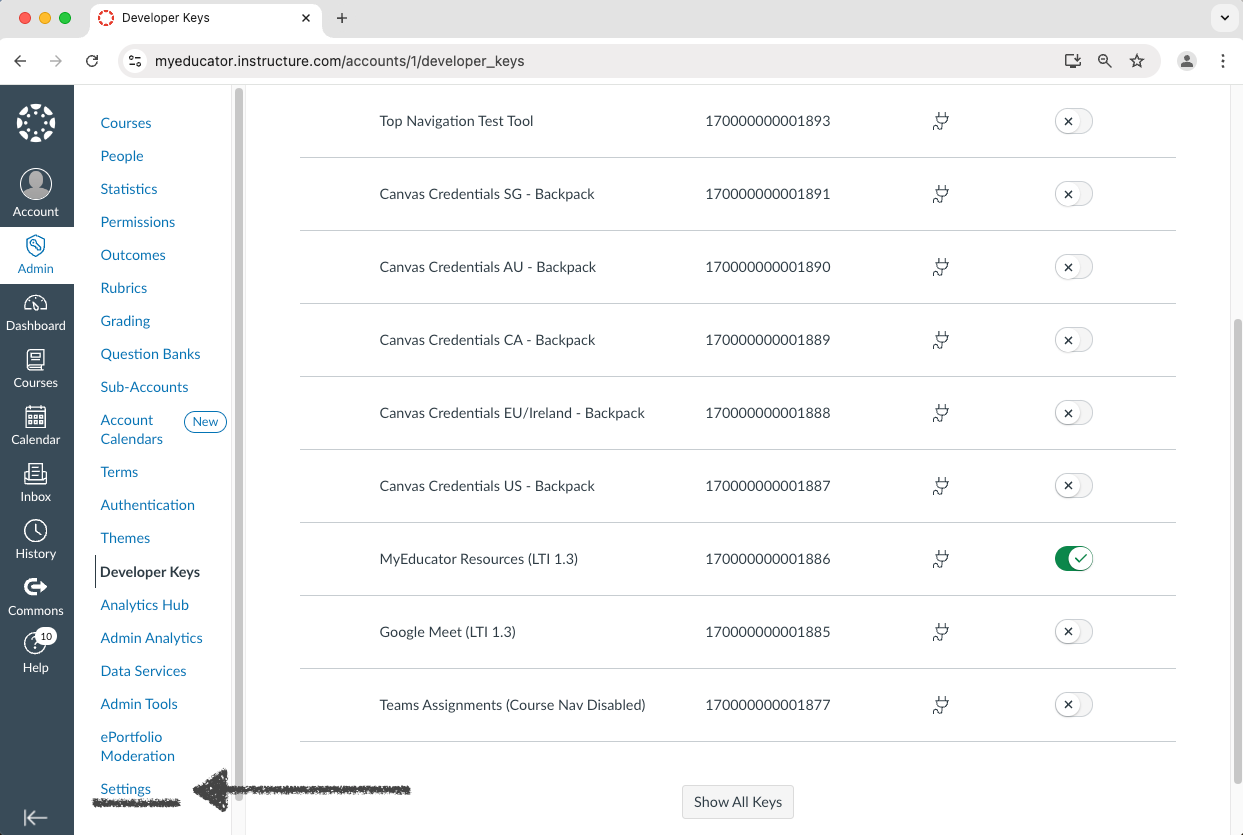
6) Click the “Settings” link.
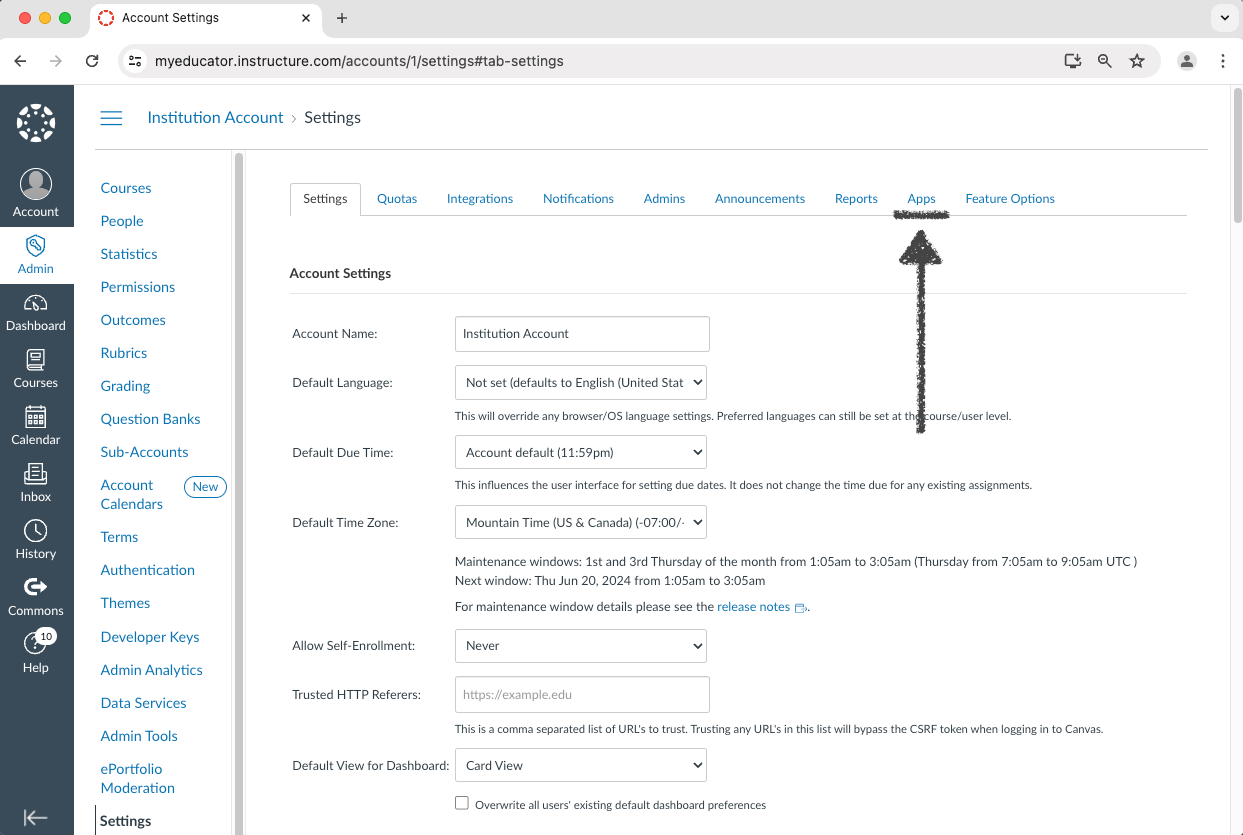
7) Click the “Apps” tab.
8) Click the “View App Configurations” button.
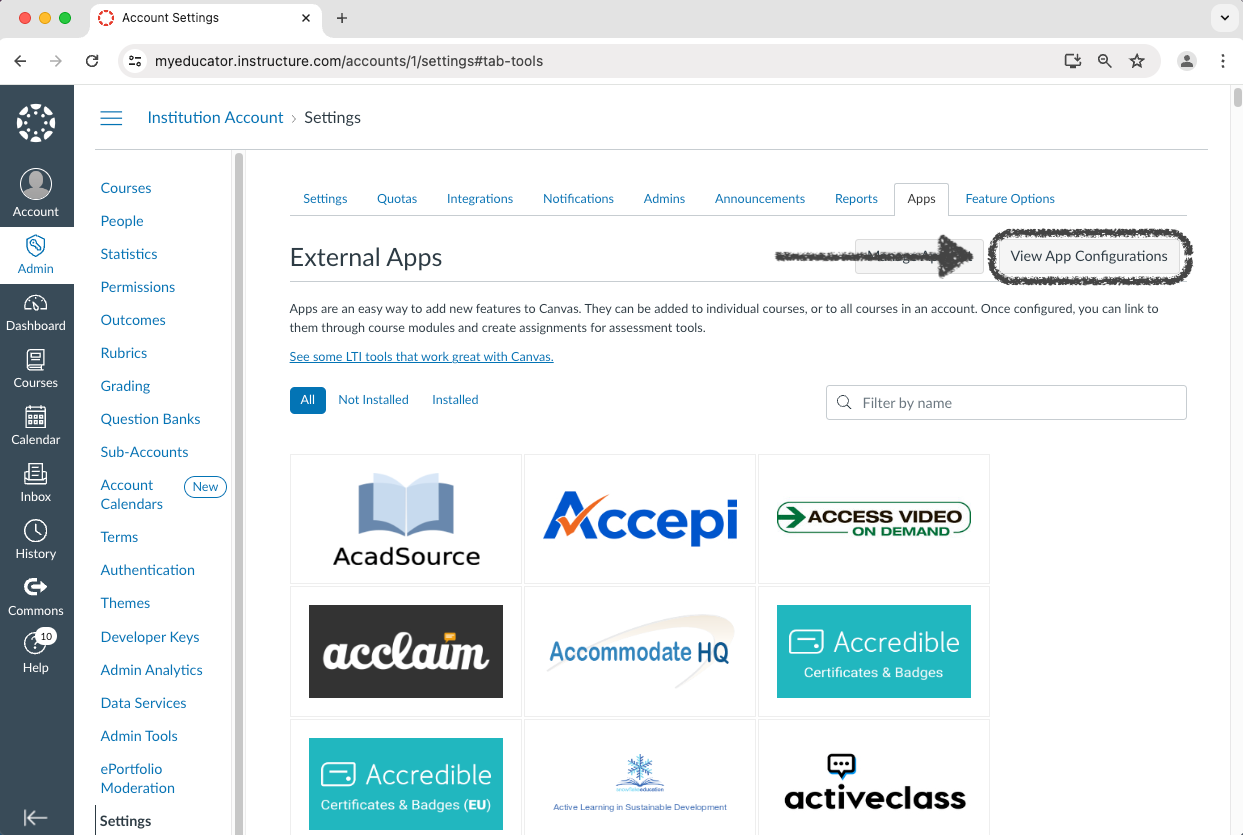
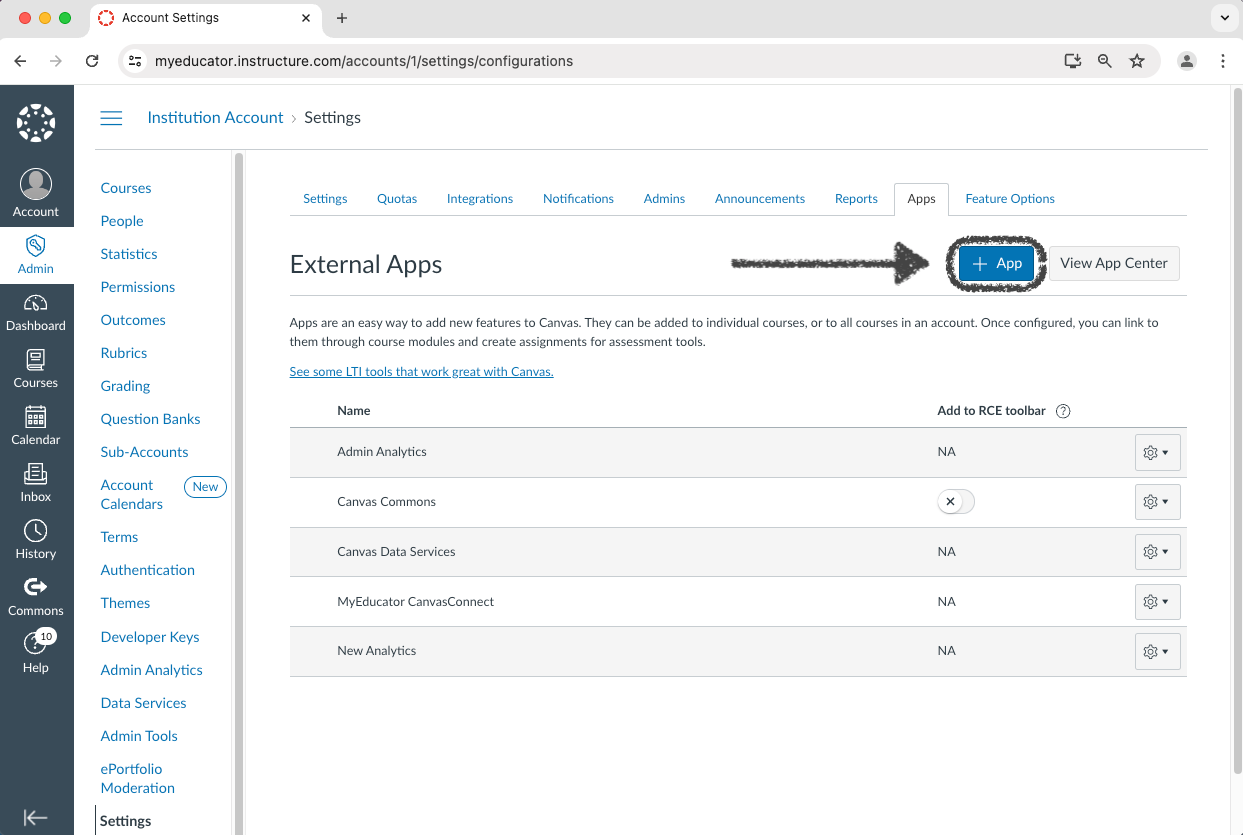
9) Click the “+ App” button.
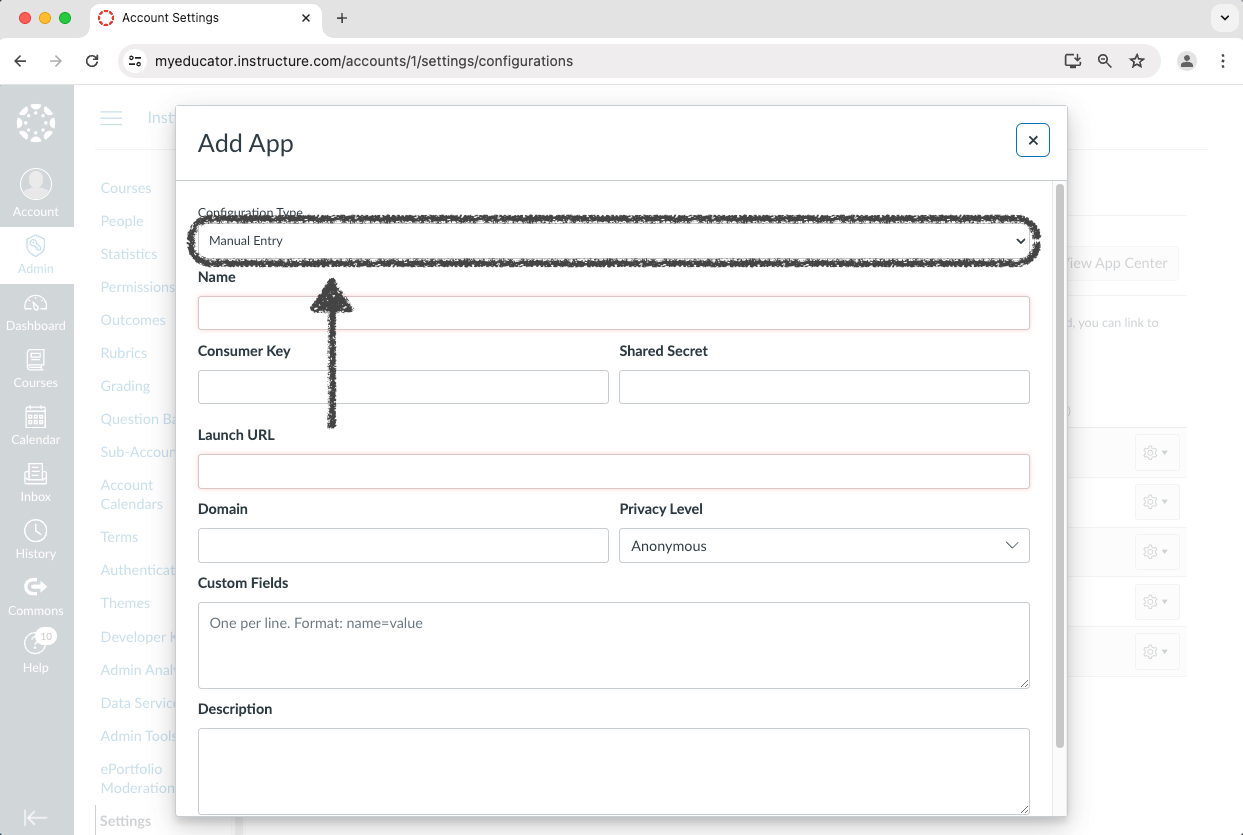
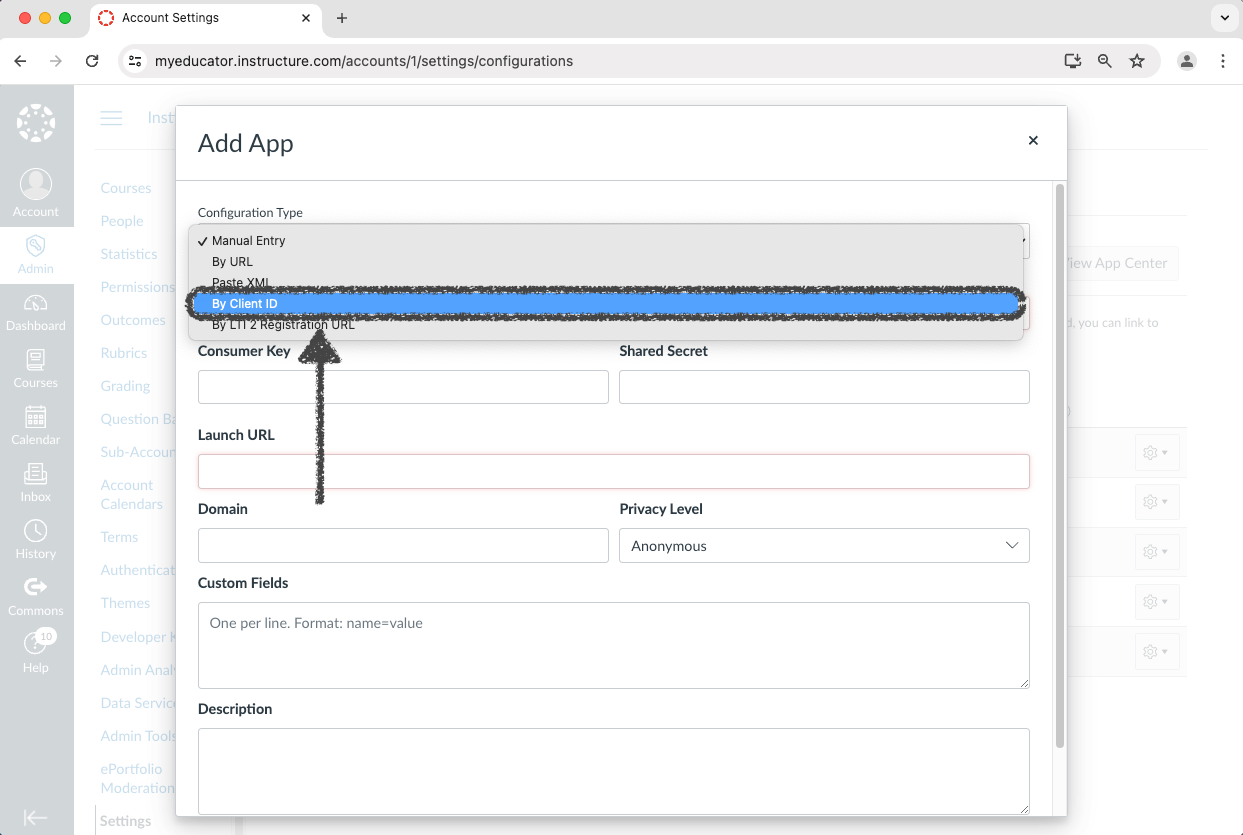
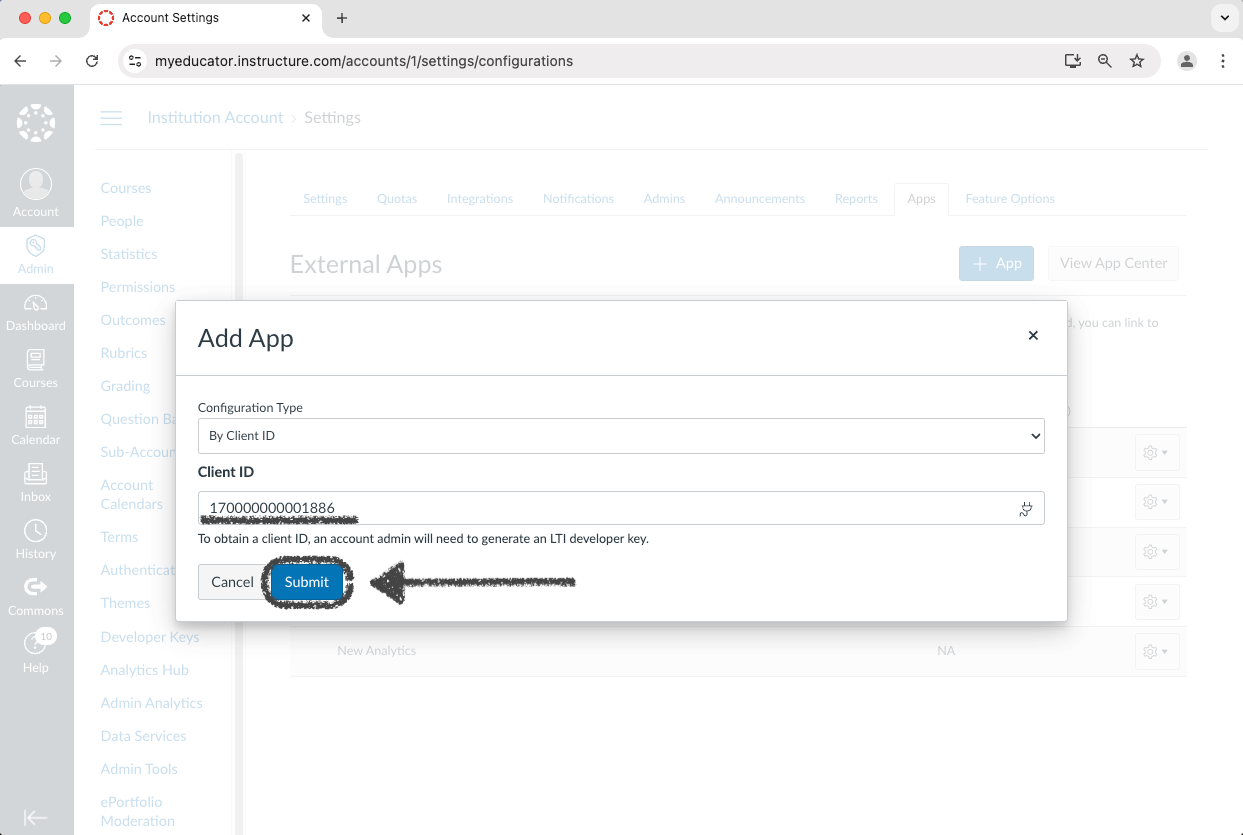
10) Change the “Configuration Type” dropdown menu from “Manual Entry” to “By Client ID.”
11) Copy the Client ID and paste it into the “Client ID” text box. Then click “Submit.”
Client ID: 170000000001886
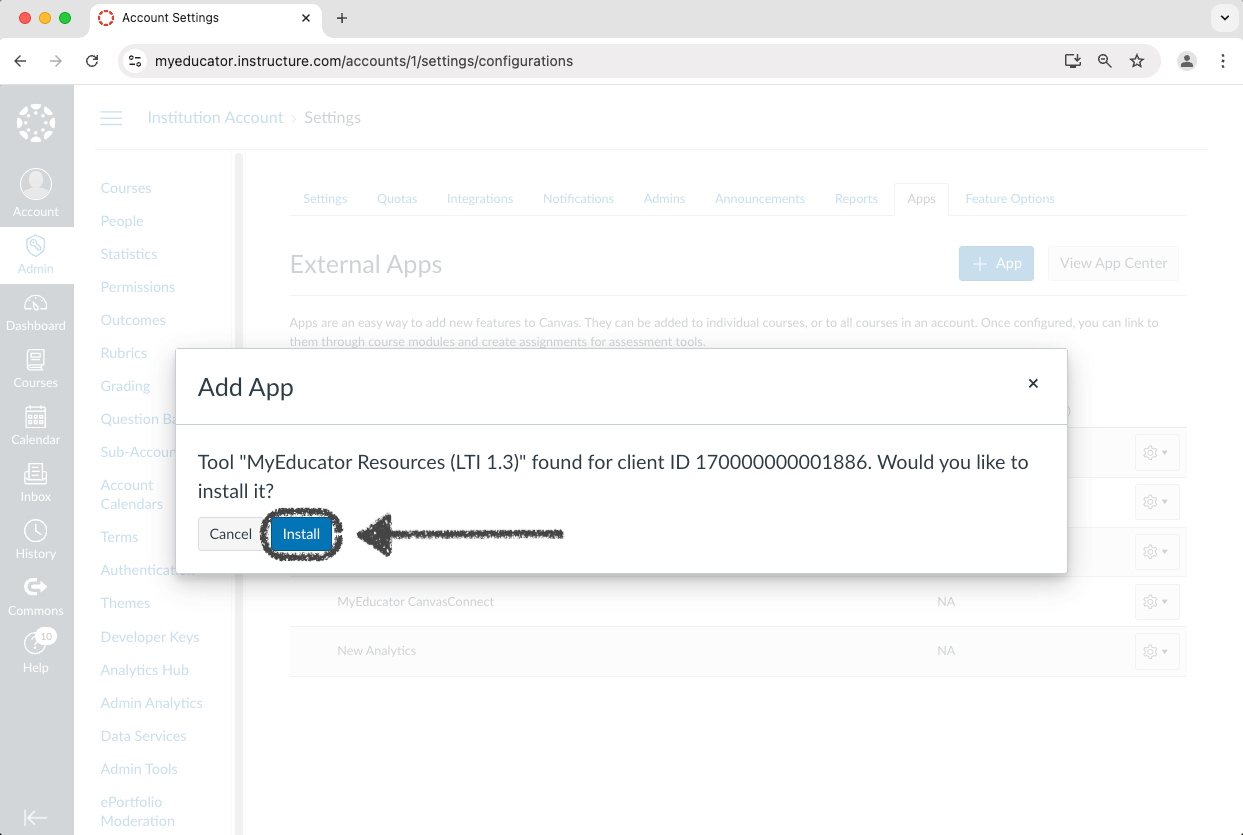
12) Click the “Install” button.
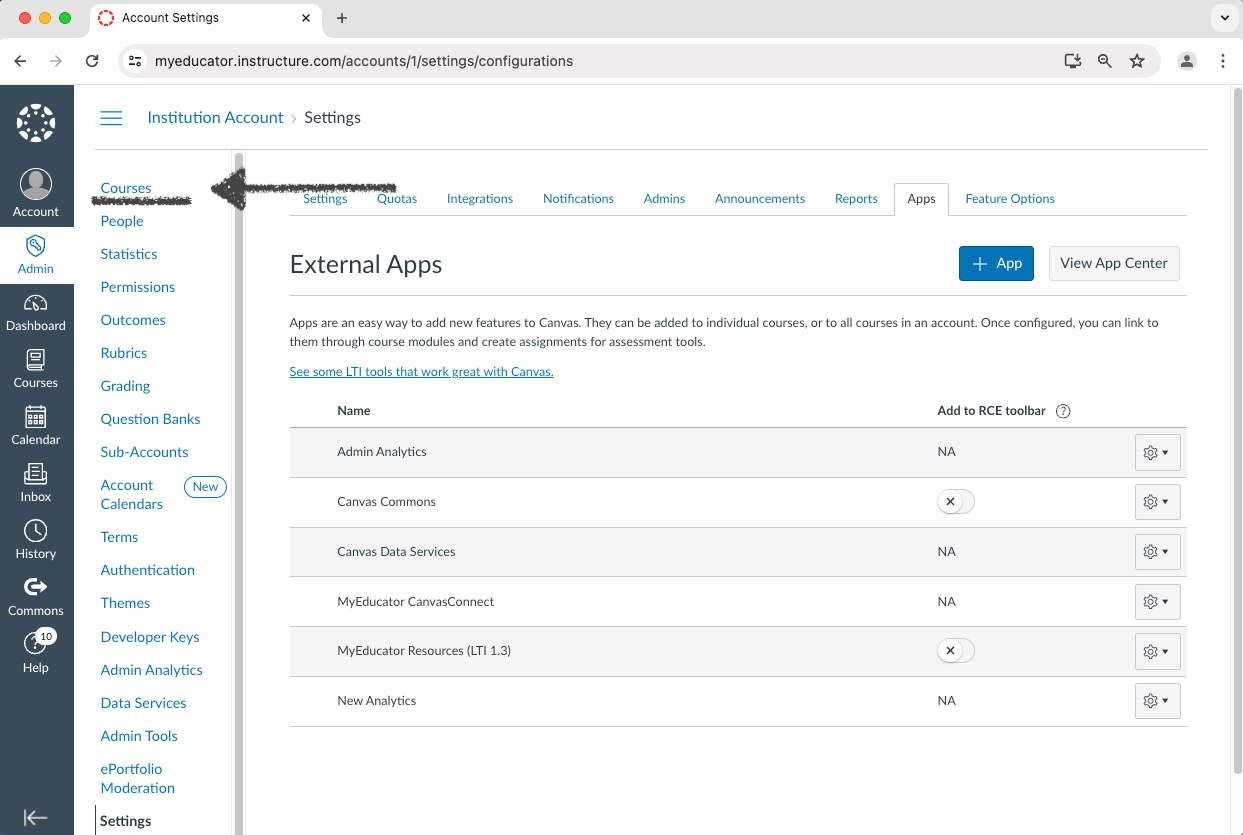
13) Click “Courses.”
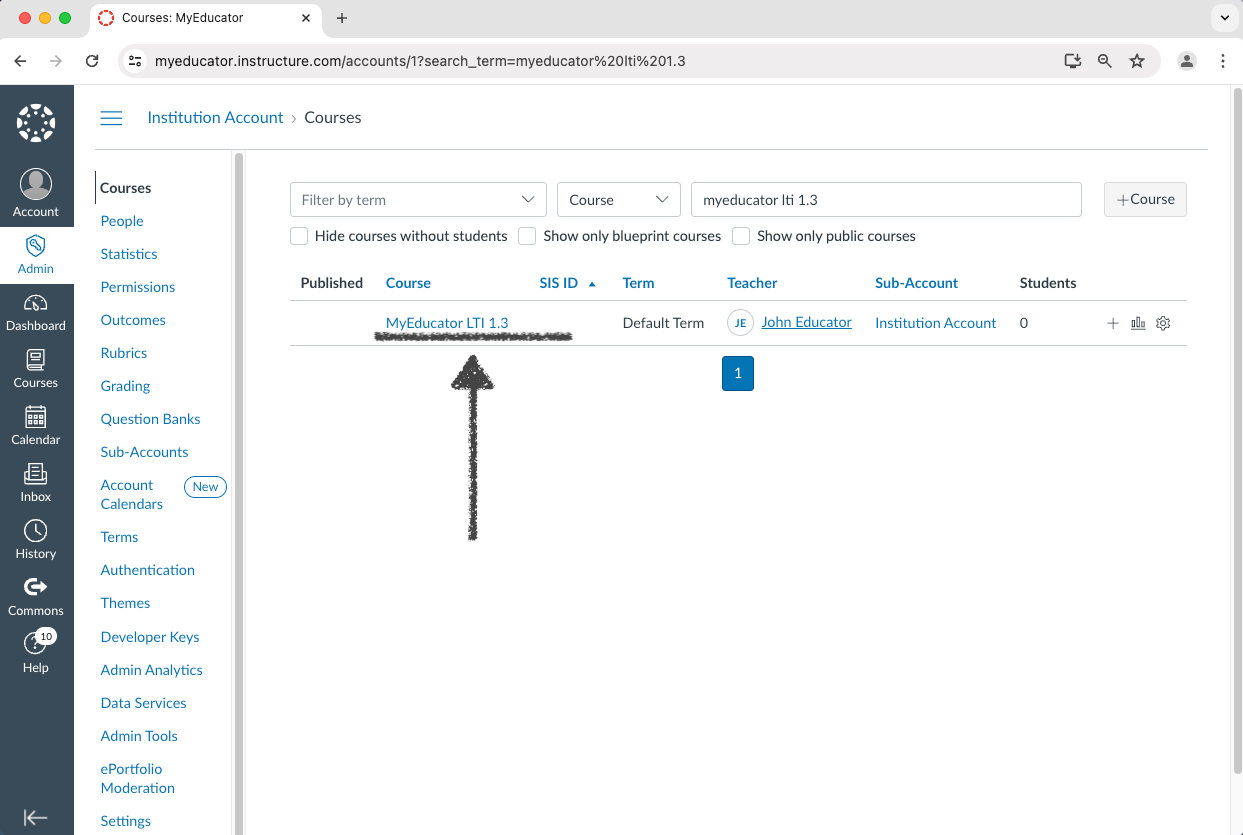
14) Select a course (or create a new one) to continue the setup of the new external tool.
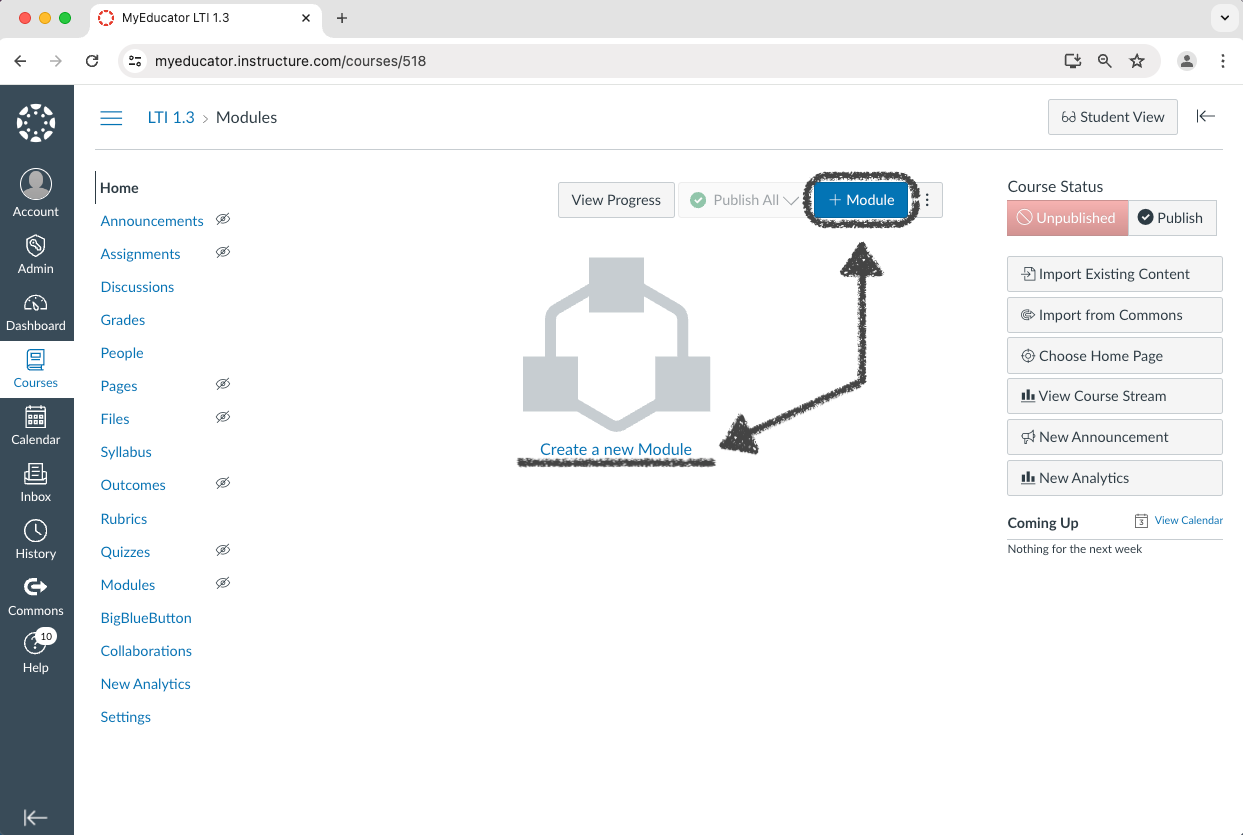
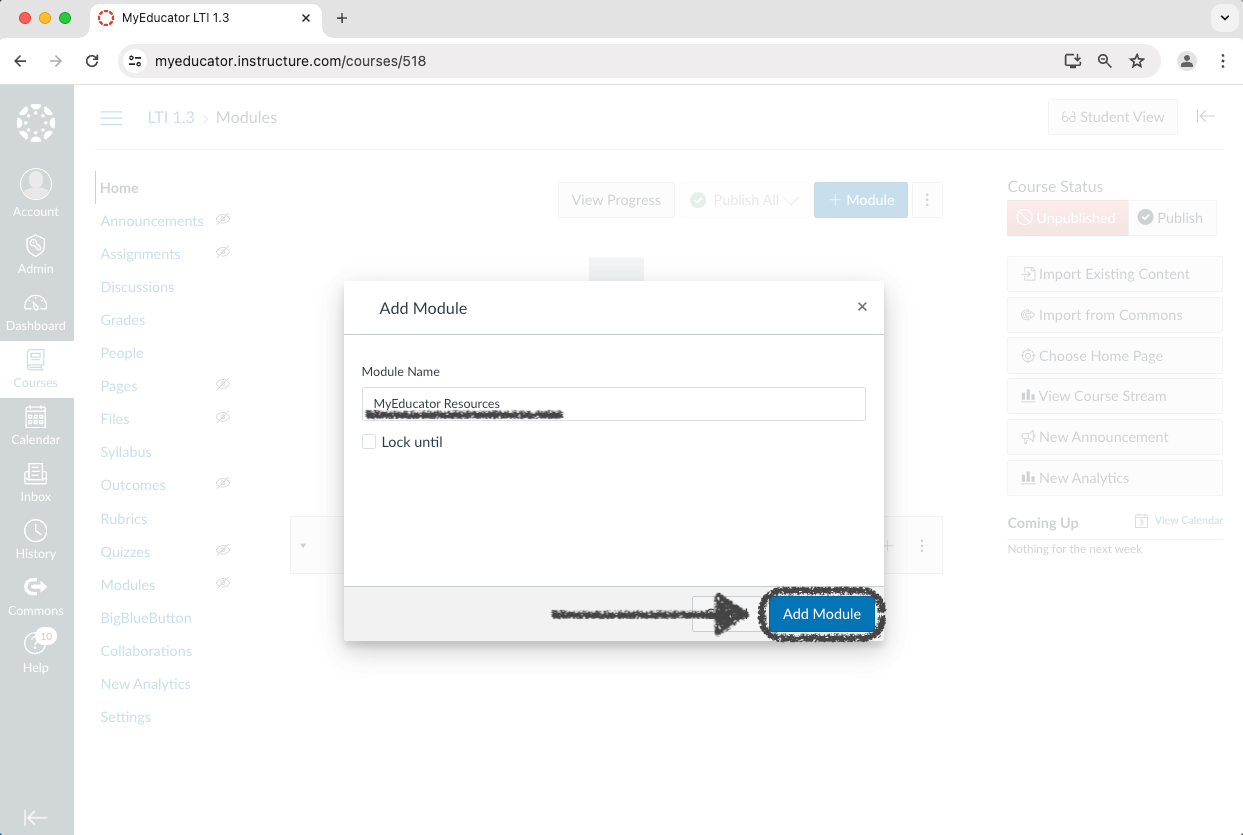
15) Create, name, and add a new module.
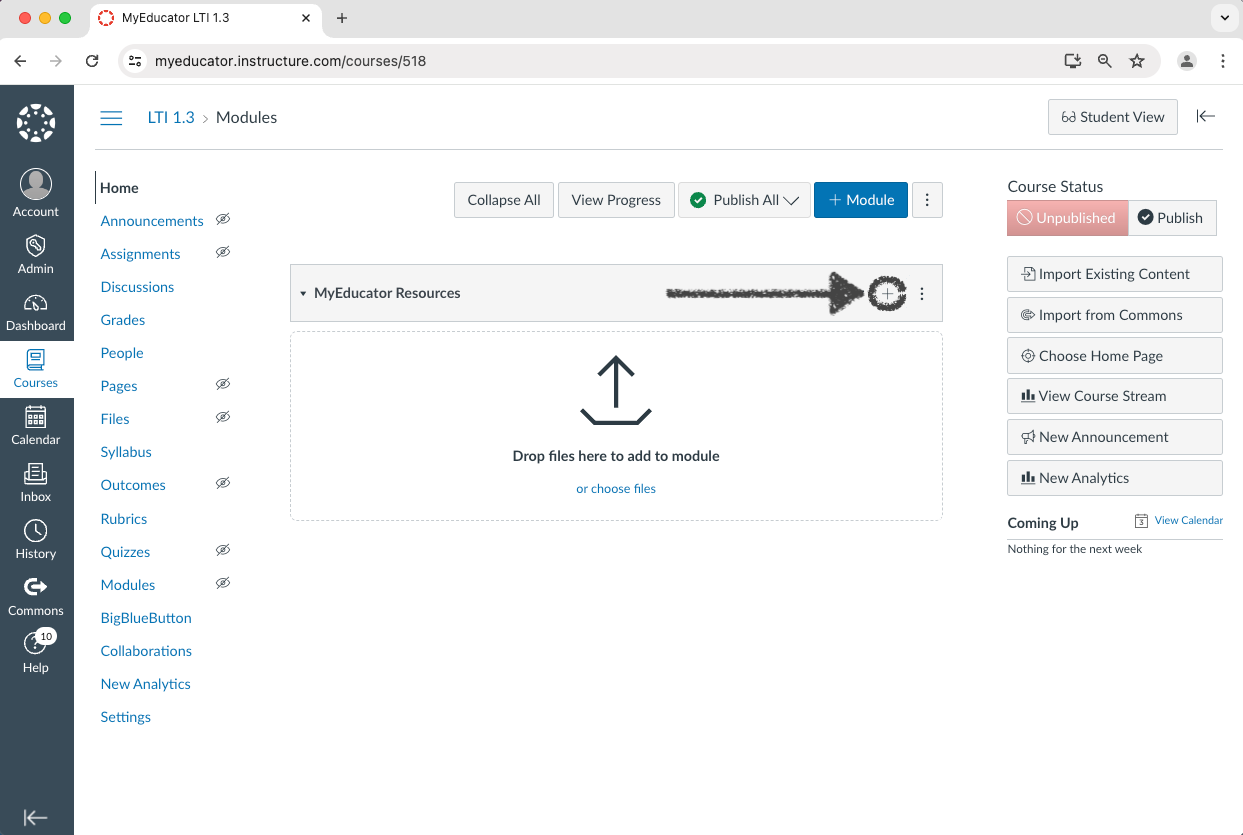
16) Click the new module’s “plus” icon.
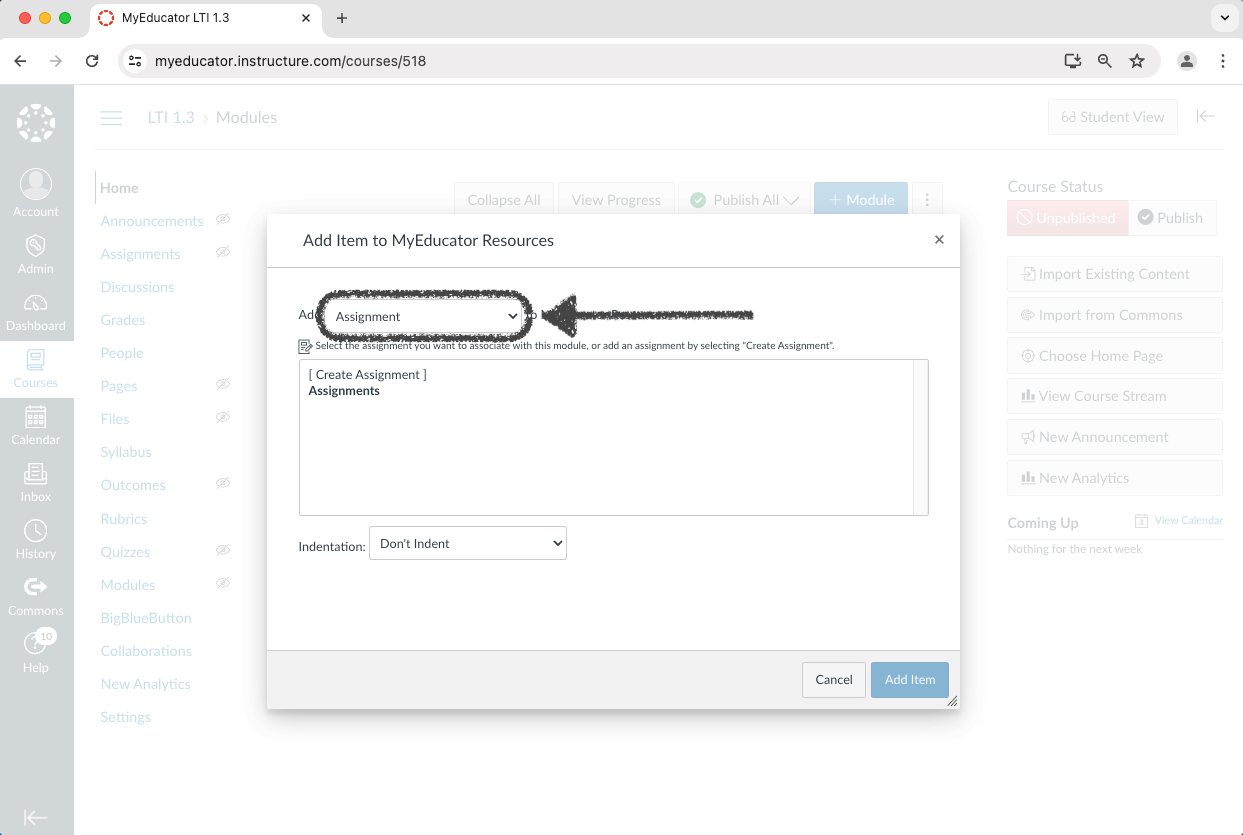
17) Change the top dropdown menu from “Assignment” to “External Tool.”
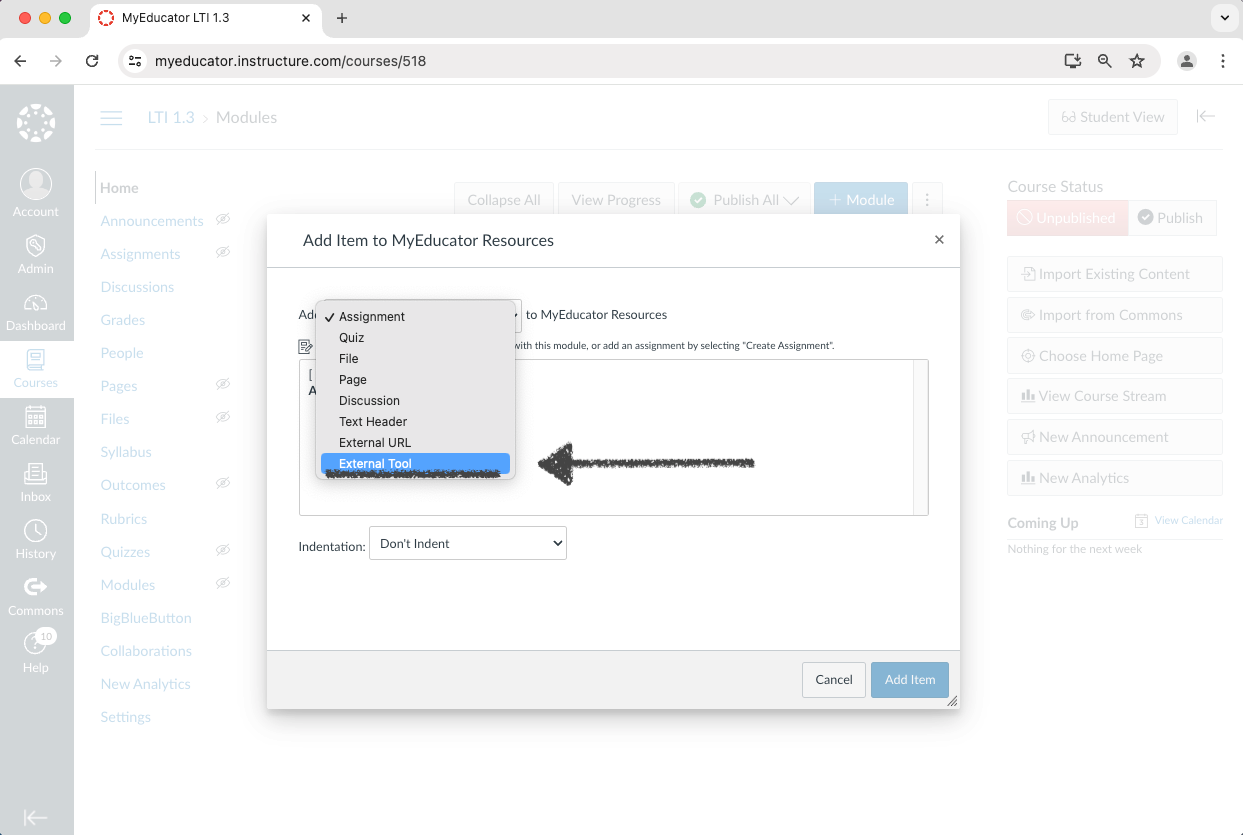
18) Search for and select “MyEducator Deep Linking” from the external tool options.
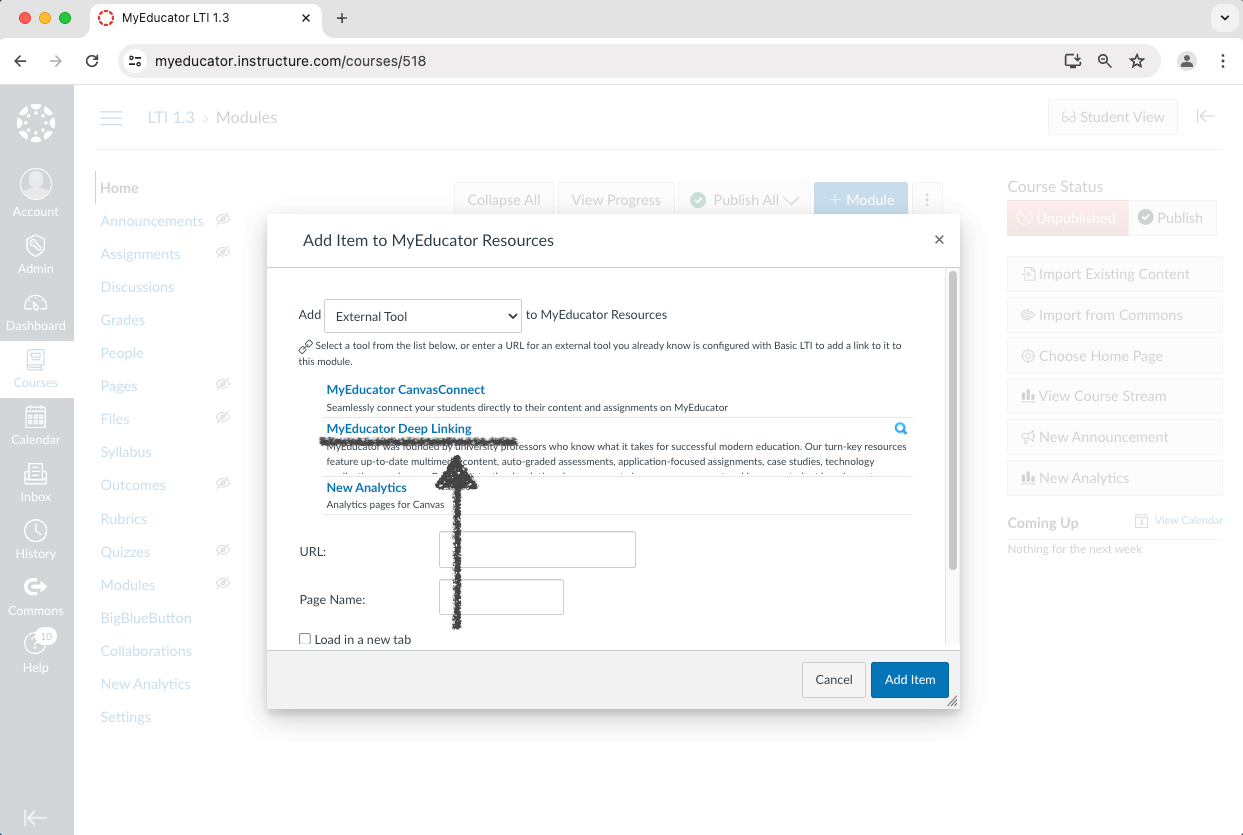
Note: This pop-up window, set to “External Tool,” typically contains two scroll bars: an inner and an outer scroll bar.
19) You should see an “LTI Login Not Enabled” alert. You will need assistance from a MyEducator representative.
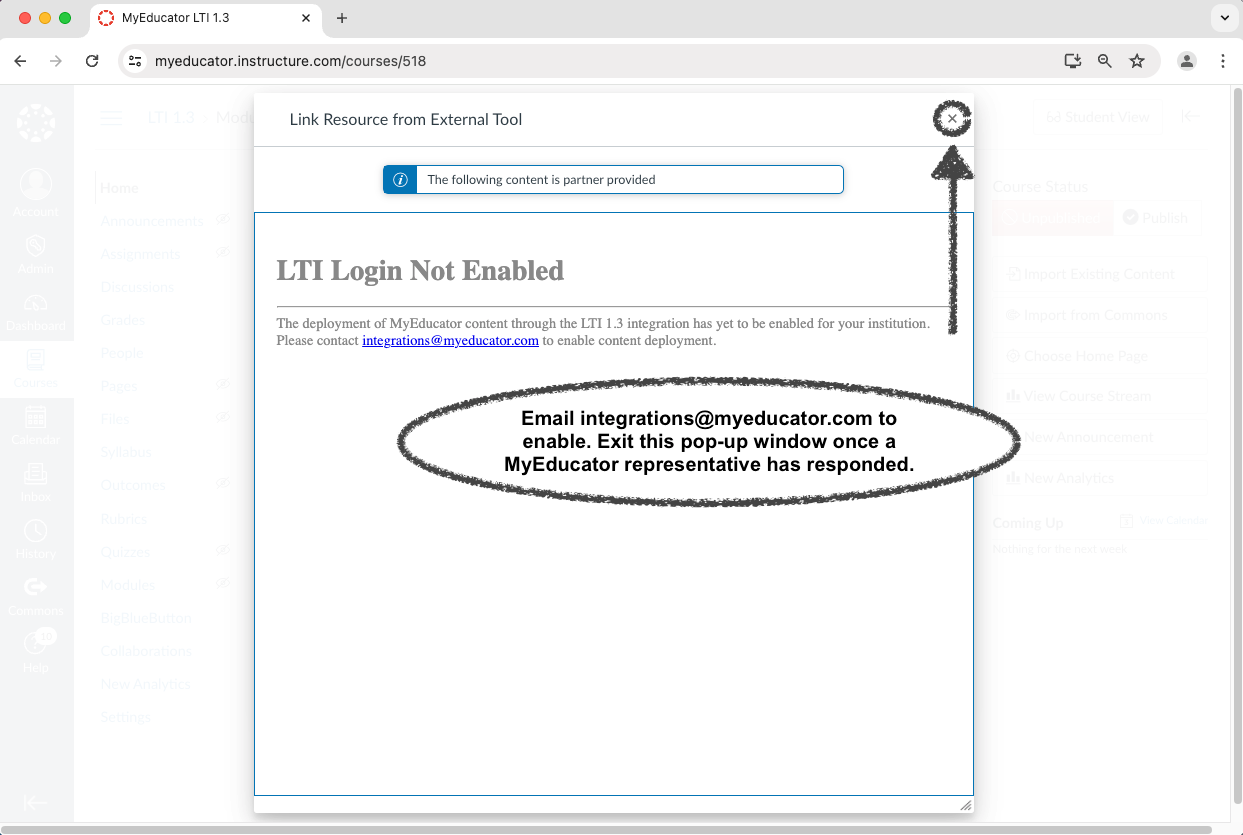
Note: Email integrations@myeducator.com or contact your MyEducator representative. Exit the pop-up window after a MyEducator representative has enabled content.
20) Once again, search for and select “MyEducator Deep Linking” from the external tool options.
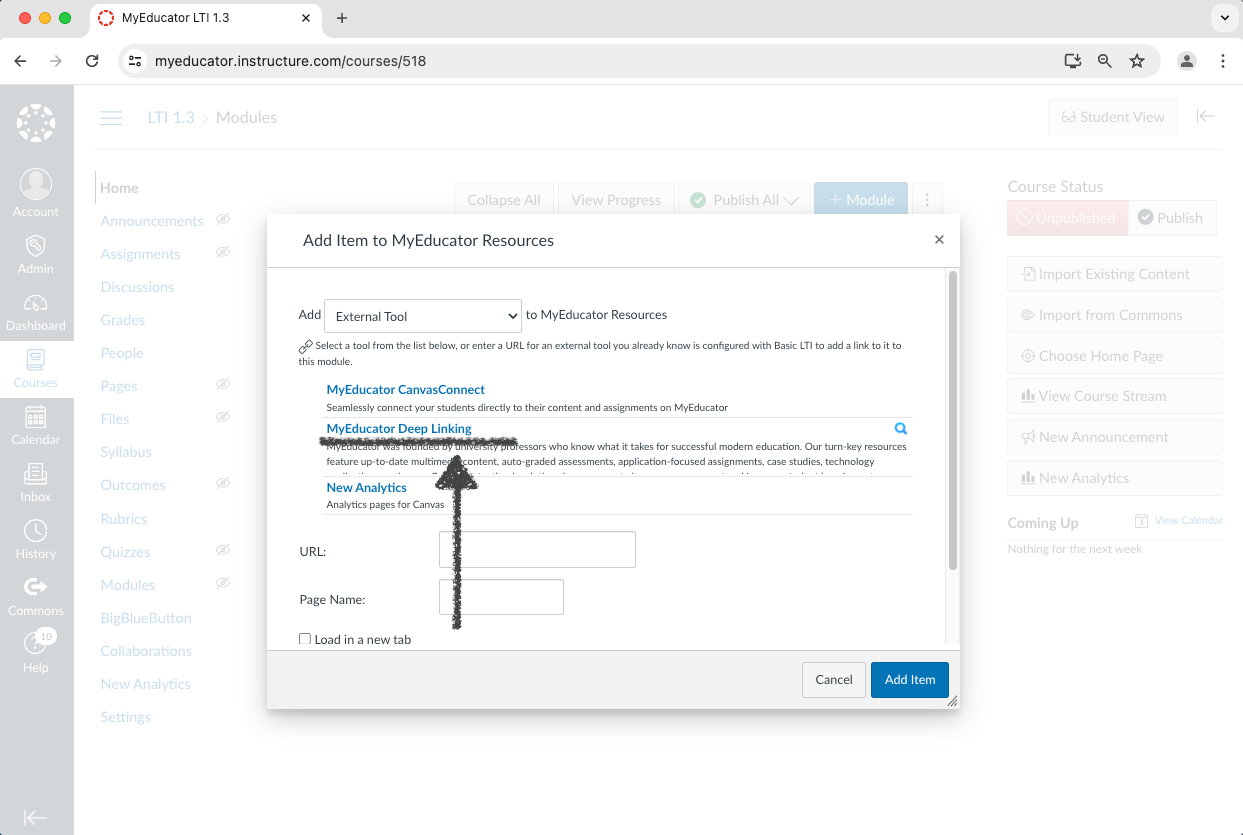
Note: This pop-up window, set to “External Tool,” typically contains two scroll bars: an inner and an outer scroll bar.
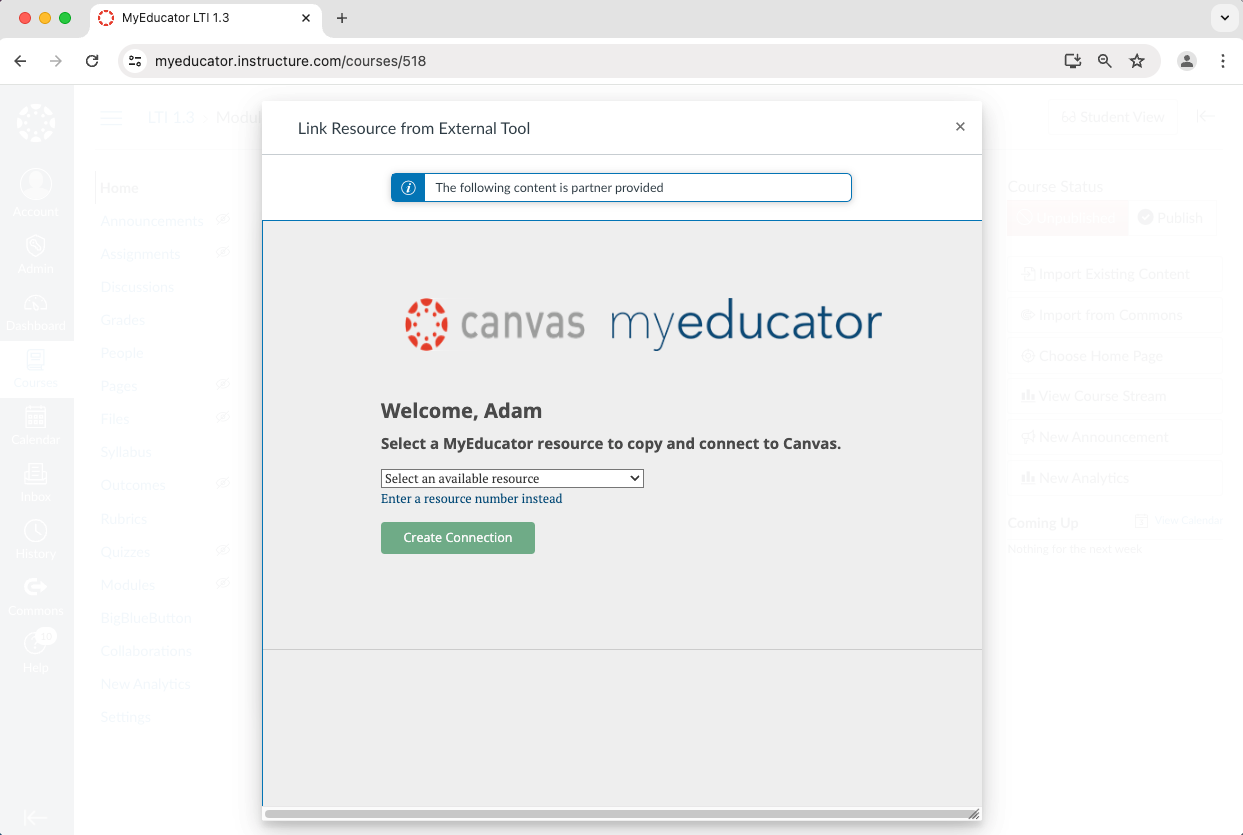
21) If you see a version of the screenshot below, you have successfully completed the setup for globally integrating Canvas with MyEducator (LTI 1.3) for your institution.
Note: Professors, instructors, and designers can now start the course integration setup.