
*Note: If you are using a Mac Computer, click here for Mac Add-In instructions
**Before installing the Add-In, please confirm that the version of Excel you are using is up-to-date. If you need help finding your version of Excel, click here: https://myeducator.freshdesk.com/a/solutions/articles/14000110267
Already Have The Add-In?
See the image below to view what the Add-In will look like in the Excel ribbon.
You may already have the Add-In installed. If you already have the Add-In, you do not need to follow these steps again. You can begin your course.

PC Instructions
The following instructions outline how to install the MyEducator Add-In.
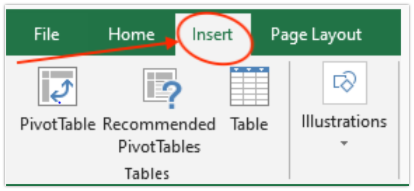
1. Open Excel and click the “Insert” tab.
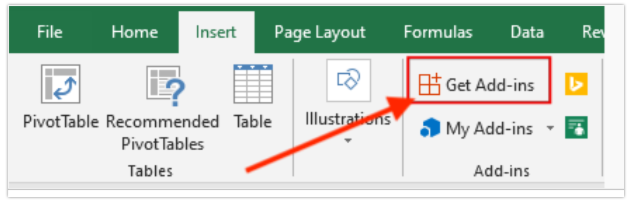
2. Click the “Get Add-ins” option.
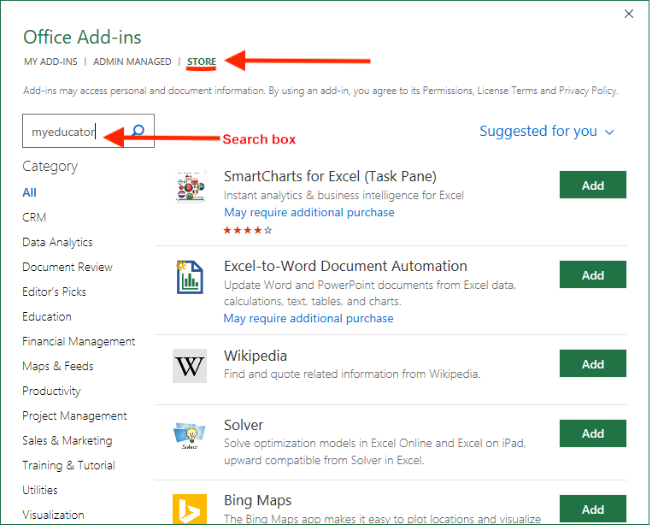
3. Click “Store” and type “MyEducator” in the search field.
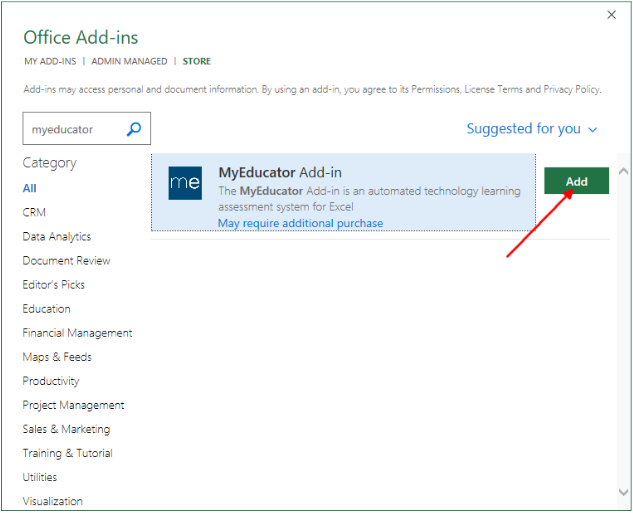
4. Select the MyEducator add-in and click “Add.”
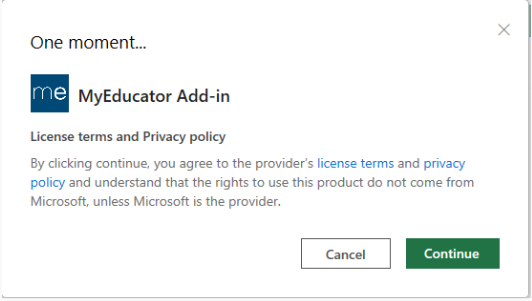
5. Click the “Continue” button to close the license message.
6. Click the “Got it” button to close the message.
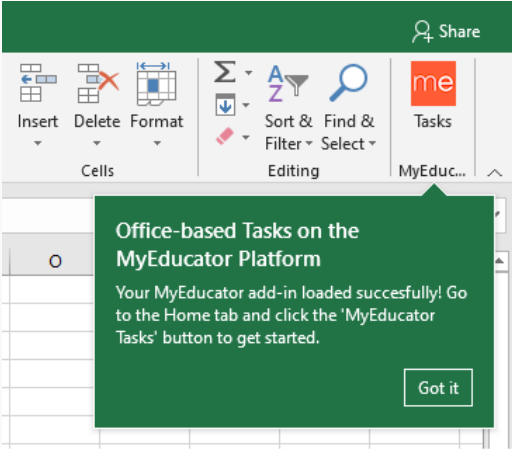
You have now successfully installed the add-in to Excel.
Access prevented to the add-in store
If you encounter the following error when trying to access the add-in store.
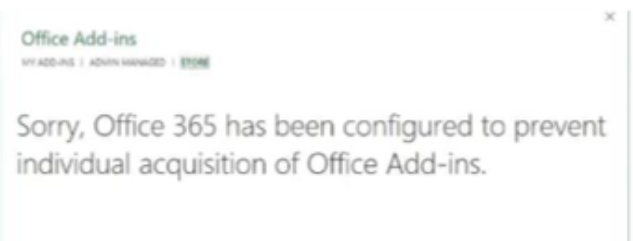
Follow this guide to get around these restrictions!